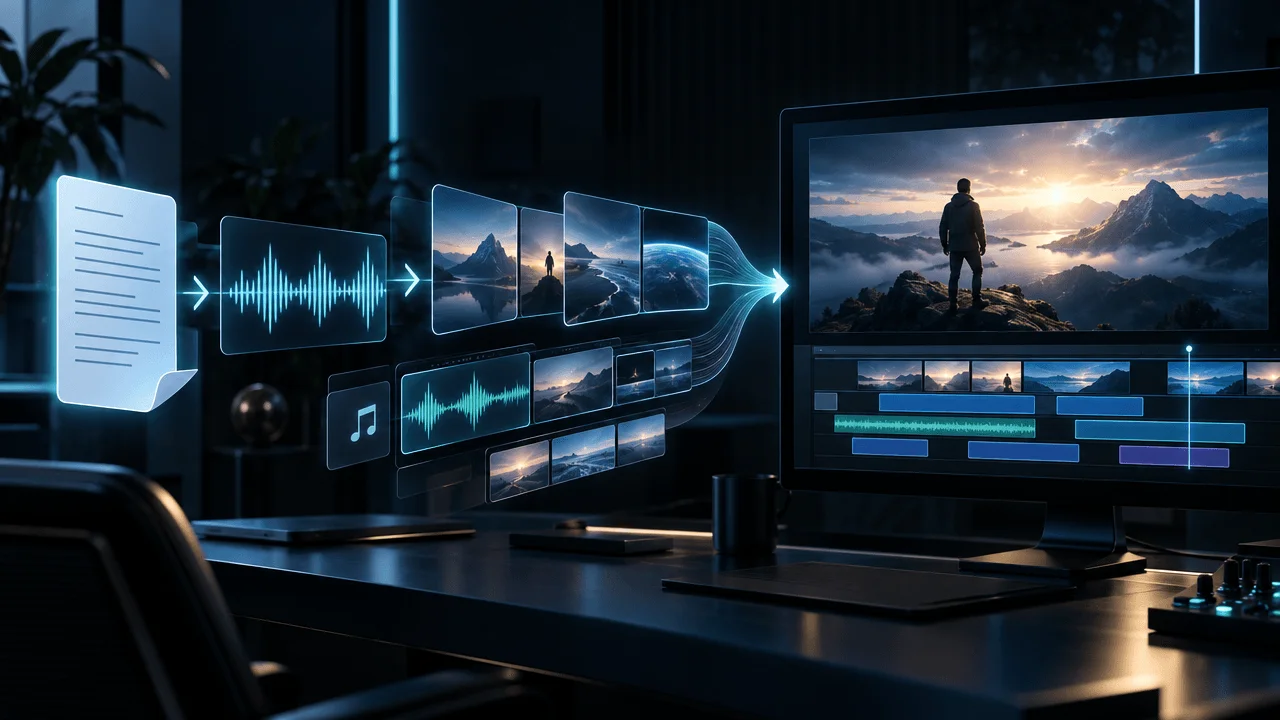
Already have a voiceover and need AI to turn it into a complete video? The best voiceover-to-video AI tools can analyze recorded narration, generate or select matching visuals, synchronize scenes, add captions, and produce an editable video without requiring you to assemble everything manually.
But not every tool advertised as an audio-to-video generator actually does that.
Some simply place your MP3 over a static image or animated waveform.
Others generate captions but leave you responsible for finding every visual.
The more advanced platforms use your narration to create an actual scene-by-scene video.
That difference matters, especially for creators producing long-form YouTube documentaries, educational videos, animated stories, and faceless channels.
We researched eight voiceover-to-video platforms using their published workflows, supported input formats, project limits, editing capabilities, and pricing.
Our recommendations for creators evaluating software ahead of 2027 are:
- OverseerOS: Best for narration-led faceless YouTube production with AI visuals and a connected content workflow.
- Animatic: Best for turning long voice recordings and podcasts into illustrated videos, including projects lasting several hours.
- Pictory: Best for automatically matching existing narration with stock footage.
- Crender: Best for straightforward, illustrated voiceover-to-video generation with predictable minute allowances.
- Jellypod: Best for podcast narration turned into illustrated videos with consistent visual styles.
- Revid AI: Best for converting voiceovers, interviews, and podcast recordings into social videos.
- HeyGen: Best for converting recorded speech into videos featuring a talking AI presenter.
- Kapwing: Best for creators who want to edit, caption, and assemble their videos manually with AI assistance.
Our overall recommendation: If you're producing faceless YouTube videos and already have a finished script and voiceover, start by comparing OverseerOS, Animatic, and Pictory. These solve the visual production problem in different ways: AI-generated scenes, AI illustrations, and stock footage.
If you need a talking avatar, HeyGen is a more appropriate purchase.
If you just need to add audio to an existing video, a general-purpose editor like Kapwing may be enough.
Research updated November 11, 2026. This 2027 buying guide uses currently published vendor information. Future pricing, features, and limits have not been assumed.
Disclosure: OverseerOS publishes this comparison and is one of the products included. We evaluated documented capabilities and use-case fit, not an identical hands-on rendering benchmark across all eight platforms.
Best Voiceover-to-Video AI Tools: Quick Comparison
| Tool | Best for | Upload your own narration? | Published pricing reference |
|---|---|---|---|
| OverseerOS | Long-form faceless YouTube videos | Yes, with script | Creator $29/month |
| Animatic | Long narrated videos and illustrated podcasts | Yes | Creator $24/month |
| Pictory | Narration with matching stock footage | Yes | Starter $25/month annually |
| Crender | Fast illustrated videos from MP3 files | Yes | Creator $12/month |
| Jellypod | Illustrated podcast and educational videos | Yes | Starter $25/month annually |
| Revid AI | Social clips from audio and podcasts | Yes | Growth $39/month |
| HeyGen | Talking AI presenters from recorded speech | Yes | Creator $29/month |
| Kapwing | Manual video editing with AI assistance | Yes | Pro $24/month |
Pricing references are in USD and reflect published information as of November 11, 2026.
These figures are not directly comparable per finished minute. Some platforms charge credits for individual AI images, others charge for rendered video time, and editors may include a long export allowance without automatically generating any visuals.
Which Voiceover-to-Video Tool Should You Choose?
Here is the quickest way to narrow your options.
| What you want to create | Recommended tools |
|---|---|
| 15–30-minute faceless YouTube documentaries | OverseerOS, Animatic |
| Educational videos using stock footage | Pictory |
| Illustrated videos from existing voiceovers | Crender, Jellypod, Animatic |
| Videos longer than one hour | Animatic |
| YouTube Shorts from recorded narration | Revid AI, Crender |
| Podcast episodes with generated illustrations | Jellypod, Animatic |
| Talking-head videos without filming yourself | HeyGen |
| Videos using footage you already have | Kapwing |
| YouTube research, scripting, narration, and video production | OverseerOS |
The most important buying question is not "Does it accept MP3?"
It's:
"After I upload my voiceover, how much of the actual video does the software create for me?"
That is where these products differ substantially.
What Is a Voiceover-to-Video AI Generator?
A voiceover-to-video AI generator turns spoken audio into a visual video.
You typically begin by uploading an existing recording in a format such as MP3, WAV, or M4A.
A true narration-first system then performs several production tasks:
- Transcribes the recording.
- Identifies the topics and ideas in the narration.
- Divides the audio into scenes.
- Creates or selects visuals for each scene.
- Synchronizes the visuals with the voiceover.
- Adds captions and optional music or motion.
- Builds an editable video.
- Exports the finished project.
The result might be an illustrated documentary, a stock-footage explainer, an animated educational video, or a presenter-led video.
But the category also includes less automated tools.
A basic editor may let you upload an MP3, place images underneath it, add captions, and export an MP4.
That is technically audio-to-video conversion.
It is not the same as AI automatically interpreting the narration and generating relevant scenes.
For faceless YouTube production, narration-to-scene generation is the feature that can remove the most repetitive visual assembly work.
1. OverseerOS: Best for Faceless YouTube Voiceover-to-Video Production
Best for: Creators producing narration-led documentaries, educational videos, psychology content, history videos, science explainers, and other faceless YouTube formats.
Website: OverseerOS Voiceover-to-Video Generator
OverseerOS is built around an important idea:
The voiceover should control the video, not the other way around.
Many general AI video generators begin with a prompt, write their own script, and generate a series of visuals.
That can work for quick experiments.
But if you've already researched and recorded a 20-minute documentary, you generally don't want the software to replace your story with a different one.
You want it to build visuals around your approved narration.
That is the purpose of OverseerOS Auto Edit.
How OverseerOS turns a voiceover into video
The workflow begins with a completed script and voiceover.
You provide both so the system has the intended wording and actual audio timing.
Then Auto Edit organizes the production into scenes.
The workflow supports generating visual prompts and AI images for each scene, choosing a consistent visual style, and assembling the result with captions, motion, music, and supported transitions.
The creator can review and adjust the generated project before exporting.
What makes OverseerOS different?
OverseerOS isn't only a video generator.
It includes a broader YouTube production workflow with channel research, content planning, Creator DNA, Script Studio, voiceover creation, thumbnail tools, and Auto Edit.
That matters for creators producing videos regularly.
Instead of managing separate tools for every stage, you can move from researching a topic to writing a script and preparing a video within the same platform.
For example, a creator producing science documentaries might:
- Research successful video topics.
- Develop an original documentary outline.
- Write and verify the script.
- Prepare narration.
- Select a cinematic or illustrated style.
- Generate scene visuals around the voiceover.
- Review the final edit.
- Export the video.
The system does not guarantee that the generated result will be correct or publication-ready without review.
But it reduces the amount of manual scene-building work.
Key features
OverseerOS Auto Edit documents support for:
- Existing script and voiceover inputs.
- Narration-based scene planning.
- AI-generated scene imagery.
- Multiple visual style presets.
- Custom and saved visual directions.
- Supported Style DNA workflows.
- Consistent-character features.
- Scene regeneration and replacement.
- Captions and section titles.
- Background music.
- Motion and transitions.
- Shorts and long-form formats.
- Full HD export on paid plans.
The public platform documentation supports projects up to 30 minutes, subject to current project and plan limits.
Pricing
OverseerOS includes Auto Edit credits with its paid subscriptions.
| Plan | Monthly price | Included Auto Edit credits | Approximate generation capacity |
|---|---|---|---|
| Creator | $29 | 70 | 5 minutes |
| Pro | $79 | 250 | 18 minutes |
| Elite | $199 | 700 | 50 minutes |
These are estimates based on the advertised credit model, not guaranteed output lengths for every visual setting.
Additional credits can be purchased when available.
Important: A 30-minute maximum project length does not mean a Creator subscription includes enough credits to produce a 30-minute video.
If you produce several long-form videos monthly, calculate your total production needs before subscribing.
Pros
- Built specifically for YouTube production.
- Starts from an approved script and recorded voiceover.
- AI-generated visuals rather than only generic stock footage.
- Scene-level review and corrections.
- Visual style controls for recurring channels.
- Supports Shorts and long-form projects.
- Connects research, scripts, narration, and production.
- Includes supported full HD exports.
Cons
- Requires both a script and voiceover for its main workflow.
- Not the simplest solution for turning an MP3 into a static waveform video.
- Long projects can consume substantial credits.
- Generated scenes require factual and visual review.
- Not a replacement for advanced manual compositing or professional film editing.
- Not designed primarily for lip-synced AI presenters.
Our verdict
OverseerOS is our recommended starting point for serious faceless YouTube creators who want a connected script-to-video production system.
It is especially useful if your videos rely on original AI illustrations or a consistent visual style.
However, Animatic may be better for extremely long illustrated recordings, Pictory may be simpler for stock-footage videos, and HeyGen is better suited to talking avatars.
Ready to create visuals for an existing narration? Explore OverseerOS Voiceover-to-Video.
2. Animatic: Best for Long Voice Recordings and Illustrated Videos
Best for: Long-form narration, educational content, audio essays, podcasts, lectures, and illustrated storytelling.
Website: Animatic
Animatic is one of the clearest examples of a true audio-first video generator.
You can upload an existing recording in MP3, WAV, or M4A format.
Animatic transcribes the audio, divides it into scenes, and creates a corresponding illustration for each section.
The scenes follow the timing of your recorded narration.
That makes it particularly relevant for creators who already have long audio recordings and don't want to rebuild the script.
What makes Animatic different?
The biggest distinction is its support for unusually long projects.
Its published project limits are:
| Plan | Maximum project duration |
|---|---|
| Free | 10 minutes |
| Creator | 1 hour |
| Pro | 2 hours |
| Ultra | 3 hours |
Those limits apply to individual projects.
The amount of generation included depends on available credits.
A three-hour project limit does not guarantee that your subscription includes enough credits to illustrate three hours of audio.
How Animatic uses credits
Uploading your own recording does not consume credits.
Generating the illustrations does.
Animatic documents standard image generation starting at three credits per scene, with higher costs for certain reference-based styles and quality settings.
Regenerating an image can consume additional credits.
This is useful because you can estimate production costs from your intended scene count.
A slow-paced documentary using fewer, longer scenes may cost differently from a fast-paced production with frequent visual changes.
Pricing
Current monthly billing:
- Creator: $24/month.
- Pro: $59/month.
- Ultra: $99/month.
Annual billing is available at lower effective monthly rates.
Paid plans include 1080p watermark-free exports and commercial-use rights under the vendor's stated terms.
Pros
- Direct voiceover upload.
- Audio transcription and scene creation.
- Supports projects up to three hours.
- Keeps the original recording as narration.
- Editable scenes and timing.
- Visual styles and brand controls.
- Transparent credit costs before generation.
- Useful for long educational videos.
Cons
- Individual images consume credits.
- Longer projects with many scenes may require top-ups.
- Illustration-led output may not suit real-footage documentaries.
- Animated shots may consume additional credits.
- Long audio still needs accurate, engaging narration.
- Very long project support does not guarantee a low production cost.
Our verdict
Animatic is a particularly strong choice when your primary requirement is converting a long existing recording into an illustrated video.
Its published three-hour maximum is unusually generous for this category.
For creators making sleep documentaries, narrated lessons, long educational essays, or illustrated podcasts, it deserves serious consideration.
If you also want a connected YouTube research, scripting, and production workflow, OverseerOS offers a different set of advantages.
3. Pictory: Best for Matching Voiceovers With Stock Footage
Best for: Educational explainers, business videos, narrated tutorials, stock-footage documentaries, and podcast repurposing.
Website: Pictory Audio-to-Video
Pictory is a good choice when you want AI to match spoken narration with existing visuals.
Its dedicated Audio to Video workflow supports uploading an audio recording and turning it into an editable visual presentation.
Pictory transcribes the recording, identifies content, and places corresponding stock visuals into a storyboard.
It also supports captions, music, and branding.
How Pictory works
You upload the audio.
The platform generates a transcript.
It then builds scenes around the narration and suggests media.
You can review the transcript, adjust the visuals, edit captions, and refine timing.
This is different from tools that generate new AI illustrations for every scene.
Pictory's stock-footage workflow is useful when relevant real-world footage already exists.
When Pictory makes sense
Imagine a video explaining five important changes in the aviation industry.
You may want footage of:
- Airports.
- Aircraft.
- Manufacturing facilities.
- Pilots.
- Passenger cabins.
- Technology demonstrations.
A large stock library can be useful for that kind of content.
But if your narration describes a very specific historical event, a generic stock clip may not accurately represent it.
You must review the selected media.
Pricing
Pictory's current Starter pricing begins at $25/month when billed annually, or approximately $29 with monthly billing.
Its pricing documentation lists a 30-minute maximum for script- or URL-based video creation.
Because workflow limits can differ, verify the audio-to-video project's specific limits before purchasing for a long recording.
Pictory also uses AI credits for supported generative capabilities.
Pros
- Dedicated Audio to Video workflow.
- Automatic transcription.
- AI-assisted visual matching.
- Stock footage library.
- Editable scene storyboard.
- Captions and music.
- Suitable for educational content.
- Useful for repurposing narration.
Cons
- Stock footage can become repetitive.
- Automatically selected visuals may be too generic.
- Real footage isn't always appropriate for abstract topics.
- Media needs to be checked for factual accuracy.
- Audio-to-video limits may differ from other Pictory workflows.
- More distinctive visual styles may require additional tools.
Our verdict
Pictory is a strong option when your voiceover needs relevant stock footage rather than hundreds of newly generated illustrations.
It is particularly suitable for straightforward explainers and business content.
For highly stylized faceless channels, OverseerOS, Animatic, or Crender may offer a more suitable visual approach.
4. Crender: Best for Fast Illustrated Videos From MP3 Files
Best for: Faceless short videos, illustrated explainers, history narration, psychology videos, and creators wanting a simple audio-upload workflow.
Website: Crender
Crender has a direct proposition:
Upload a voiceover and receive an illustrated video.
It accepts existing MP3, WAV, and M4A recordings.
The platform transcribes the narration, creates AI-generated illustrated scenes, applies motion, adds captions, and exports an MP4.
You don't need to begin by generating a new voice or writing a fresh script.
What makes Crender interesting?
Its workflow is simple compared with many large AI production platforms.
You upload audio.
Choose the available style and editing preferences.
Generate the video.
The result contains original illustrated scenes rather than conventional stock footage.
Crender advertises visual treatments for niches including history, psychology, philosophy, and stick-figure content.
Pricing and limits
| Plan | Monthly price | Monthly video minutes | Maximum audio length per file |
|---|---|---|---|
| Free | $0 | 5 | 2 minutes |
| Creator | $12 | 120 | 10 minutes |
| Pro | $29 | 350 | 30 minutes |
The free tier includes a watermark.
Paid plans remove the watermark and provide higher concurrent generation allowances.
These are vendor-advertised allowances; actual output quality and generation reliability still need testing.
Pros
- Clear voiceover-first workflow.
- Supports MP3, WAV, and M4A.
- AI-generated illustrated visuals.
- Captions and motion.
- Simple pricing structure.
- Up to 30-minute recordings on Pro.
- Suitable for faceless educational content.
- Low advertised paid entry price.
Cons
- Creator is limited to ten-minute audio files.
- Long-form generation requires Pro.
- Less comprehensive channel research and content planning.
- Visual style options are more constrained than a professional editing environment.
- Limited manual editing may not suit complex projects.
- Published performance claims are not equivalent to independently verified quality benchmarks.
Our verdict
Crender is worth considering if you want a simple, affordable process for turning recorded narration into illustrated videos.
Its $29 Pro tier and advertised 30-minute file limit make it especially interesting for smaller faceless creators.
If you need deep scene editing, reusable channel strategy, or integrated topic research, compare it carefully with OverseerOS.
5. Jellypod: Best for Turning Podcast Narration Into Illustrated Video
Best for: Podcasts, educational audio, interviews, narrated lessons, and creators wanting visually consistent illustrated videos.
Website: Jellypod Audio to Video
Jellypod combines podcast production with AI-generated video.
Its Audio to Video feature accepts existing recordings and generates visuals based on what the narration says.
The platform advertises 16 visual styles, including watercolor, sketch, claymation, retro comics, stickman, blueprint, and chalkboard.
It also supports word-synchronized captions.
How Jellypod works
You upload a recording.
Choose a visual style.
The platform transcribes the speech and builds illustrated scenes to match it.
You can then regenerate scenes individually or adjust the video in an editing timeline.
This makes it more sophisticated than a basic audiogram.
An audiogram typically displays a waveform and simple graphics.
Jellypod attempts to illustrate the content being discussed.
Pricing and video limits
Jellypod's current pricing page lists:
| Plan | Effective monthly price, billed annually | Maximum video length |
|---|---|---|
| Starter | $25 | 15 minutes |
| Creator | $50 | 20 minutes |
| Business | $125 | 25 minutes |
Plans also include monthly credits and separate podcast and voiceover allowances.
Important: A plan may permit a longer audio episode than its AI-generated video limit.
For example, support for a 60-minute podcast does not automatically mean you can turn the entire recording into a 60-minute illustrated video.
Jellypod's feature pages have shown different duration figures in some places, so use the current pricing and plan comparison at checkout as the deciding source.
Pros
- Native audio-upload workflow.
- AI-generated illustrations.
- Multiple visual styles.
- Word-synchronized captions.
- Scene regeneration.
- Podcast production features.
- Supports recurring visual direction.
- Suitable for narrated educational content.
Cons
- Video length is capped at 25 minutes on Business.
- Longer podcast recordings may exceed the video allowance.
- AI image and video generations consume credits.
- Annual billing is required for the quoted effective prices.
- Not primarily designed for authentic documentary footage.
- Visuals and captions still need review.
Our verdict
Jellypod is particularly attractive for creators who already produce podcasts or educational audio and want to add a visual version for YouTube.
Its podcast-focused capabilities are a meaningful difference from general-purpose video generators.
For videos beyond 25 minutes, Animatic or other long-form tools may be more suitable.
6. Revid AI: Best for Turning Voiceovers Into YouTube Shorts and Social Videos
Best for: Podcast clips, social video repurposing, spoken-word Shorts, interviews, and short narrated explainers.
Website: Revid Audio to Video
Revid AI provides an Audio to Video workflow built around existing recordings.
Users can upload audio, transcribe speech, select a visual treatment, and generate a captioned video.
Unlike simple waveform converters, Revid can add supporting footage, AI-generated images, animated visuals, and scene transitions.
How Revid works
The basic workflow is:
- Upload an audio recording.
- Choose a visual format.
- Select stock footage or AI-generated visual options.
- Generate the video.
- Review captions and visuals.
- Export or publish.
Revid supports horizontal and vertical output formats.
However, its Audio to Video feature is particularly oriented toward short-form content.
The vendor recommends uploaded recordings under ten minutes for optimal results.
That is not a strict technical maximum, but it is an important practical recommendation.
Why Revid is useful
Consider a creator with a 60-minute podcast.
Rather than illustrating the entire episode, the creator might select several compelling segments.
Revid can help transform those recordings into independent short videos with captions and relevant visuals.
This is a very different workflow from building a 30-minute documentary around a continuous narration track.
Pricing
Revid's current Growth plan lists $39/month with approximately 2,000 monthly AI credits.
Higher tiers increase the credit allowance.
The cost of a project depends on its length and selected media.
Generated video clips can consume substantially more credits than stock footage or animated images.
The editor displays estimated generation costs.
Pros
- Native audio-upload workflow.
- Keeps existing narration.
- Automatic transcription and captions.
- Stock footage and AI visual options.
- Short-form oriented.
- Supports multiple output ratios.
- Built-in editor.
- Social publishing features.
Cons
- Best suited to shorter videos.
- Long recordings may be less practical.
- Credit consumption depends on media type.
- Not primarily a long-form documentary production system.
- Scene selection can require manual corrections.
- More advanced visual generation can become expensive.
Our verdict
Revid is a strong option for turning existing narration, interviews, and podcast recordings into short social videos.
It is particularly relevant when you want to extract more content from audio you've already created.
For a continuous 20-minute faceless documentary, compare OverseerOS, Animatic, or Pictory first.
7. HeyGen: Best for Making an AI Avatar Speak Your Voiceover
Best for: AI presenters, business videos, online courses, tutorials, product explanations, and training content.
Website: HeyGen
HeyGen solves a different problem from illustration-based voiceover-to-video tools.
Instead of analyzing narration and producing a large sequence of thematic visuals, it can use your audio to animate an AI presenter.
The result is closer to a talking-head video.
How HeyGen uses uploaded audio
HeyGen supports recorded audio inputs in its avatar workflows.
You can select a supported avatar and upload speech.
The platform synchronizes the avatar's delivery with the audio.
Its Studio documentation supports audio upload, including MP3 and WAV files in applicable workflows.
The exact processing options depend on the avatar mode and model.
When HeyGen is the better choice
Imagine an online course where the audience expects an instructor on screen.
You may not need hundreds of illustrated scenes.
You may instead want:
- A presenter.
- Clear narration.
- A consistent identity.
- Supporting slides.
- Occasional visual demonstrations.
HeyGen is a better fit for that format than an AI documentary illustration generator.
Pricing
HeyGen's current pricing starts with a free tier.
Creator costs approximately $29/month.
Pro starts at approximately $49/month.
Business starts at approximately $149/month.
Its current plan documentation lists up to 30-minute projects on Pro and up to 60 minutes on Business.
Some avatar models have their own duration and credit rules.
Check the exact model and project type before purchasing.
Pros
- Audio-to-avatar workflows.
- Lip synchronization.
- Stock and custom avatar options.
- Multiple languages.
- Suitable for courses and training.
- Presenter-led video creation.
- High-resolution exports on paid plans.
Cons
- Not primarily a voiceover-to-B-roll generator.
- Long presenter-only videos can look repetitive.
- Advanced avatar features consume credits.
- Model-specific limits apply.
- Doesn't automatically transform an entire narration into varied documentary scenes.
- Requires careful use of consent and identity permissions for realistic avatars.
Our verdict
HeyGen is the right category of product when your voiceover should be spoken by an on-screen AI presenter.
If you want a faceless documentary where scenes constantly change to illustrate the narration, choose a different type of generator.
8. Kapwing: Best for Editing Existing Voiceovers Into Custom Videos
Best for: Creators who want timeline control, captions, imported media, and an accessible browser-based editor.
Website: Kapwing
Kapwing is primarily an online video editor with AI-assisted features.
It supports uploading audio and combining it with images, video clips, captions, and other visual elements.
However, you should not confuse it with a dedicated AI narration-to-scene production engine.
How Kapwing works
You can upload a voiceover recording into a project.
Then you arrange video, images, captions, and other elements around the audio track.
Kapwing provides editing controls and supported AI tools to simplify parts of the workflow.
But you remain more directly responsible for assembling the visual story.
Why would someone choose Kapwing?
Not every creator wants AI to make the visual decisions.
You may already have:
- Filmed footage.
- Screen recordings.
- Product demonstrations.
- Graphics.
- Interview clips.
- Existing animations.
In that case, an accessible timeline editor can be more useful than generating additional AI imagery.
Pricing
Kapwing offers a free plan with export limitations.
Its Pro plan is currently advertised at:
- $24/month with monthly billing.
- $16/month with annual billing.
Pro includes longer export support, with the vendor listing projects up to two hours, along with higher upload limits and additional features.
A two-hour export limit is not a two-hour automated AI video generation allowance.
It simply means the editor can support exporting projects of that length under the applicable plan.
Pros
- Works with existing audio.
- Browser-based editing.
- Captions and supported AI tools.
- Stock and uploaded media.
- Flexible aspect ratios.
- Manual scene control.
- Team collaboration.
- Long export allowance on Pro.
Cons
- Doesn't automatically provide the same narration-to-scene workflow as dedicated generators.
- More manual visual assembly.
- Not purpose-built for faceless YouTube documentaries.
- AI-assisted features have separate credit limits.
- Project quality depends heavily on the creator's editing decisions.
Our verdict
Kapwing is better suited to creators who want to control the edit rather than delegate the entire visual assembly to AI.
If your voiceover is ready and you also have the footage, Kapwing may be enough.
If you have only narration and want hundreds of relevant visuals created automatically, choose a dedicated voiceover-to-video generator.
Which Tool Is Best for a 20-Minute YouTube Voiceover?
This is one of the most important buying scenarios.
Suppose you've already recorded a 20-minute narration.
You want the software to build the visuals around the recording.
The question is not whether the platform can open a 20-minute file.
It's whether your subscription can actually generate and export a complete visual production of that length.
| Tool | Can the documented workflow accommodate a 20-minute project? | Key limitation |
|---|---|---|
| OverseerOS | Yes, within supported 30-minute project limits | Generation credits may require top-ups |
| Animatic | Yes, starting with Creator's one-hour project limit | Visual generation consumes credits |
| Pictory | Potentially; confirm the audio-specific workflow limit | Stock selection and credit allowances |
| Crender | Yes, on Pro | Creator is capped at 10-minute audio files |
| Jellypod | Yes, on Creator or Business | Starter's video cap is 15 minutes |
| Revid AI | Not the preferred use case | Vendor recommends shorter recordings |
| HeyGen | Yes, with an appropriate avatar plan and mode | Avatar-specific usage and credits |
| Kapwing | Yes, on Pro | Much of the visual assembly is manual |
This comparison illustrates why video length alone is not enough.
A platform supporting a two-hour edited export may require you to assemble most of the footage.
Another platform may automatically generate visuals but limit the amount of monthly generation.
Our recommendation for this scenario
If you want AI-generated documentary scenes, compare OverseerOS and Animatic.
If you want matching stock footage, compare Pictory.
If you want illustrated video generation with a straightforward monthly allowance, evaluate Crender Pro.
If you want a speaking avatar, choose an appropriate HeyGen plan.
How Much Does It Cost to Turn a Voiceover Into a Video?
The cost depends on the visual workflow.
There are four main pricing models.
1. Per-minute generation
Some tools include a particular number of generated video minutes per month.
Crender is an example of a platform advertising clear monthly video-minute allowances.
You must still check the maximum duration of a single uploaded file.
2. Per-scene credits
Other platforms charge for each generated image or clip.
Animatic documents this model clearly.
This means a 20-minute video with many scene changes may cost more than a 20-minute video with longer visual holds.
3. Mixed credit allowances
OverseerOS, Pictory, Revid, and Jellypod use different credit structures or usage allowances.
The total cost depends on which generation features you use.
A voiceover assembled from stock media may have different economics from a video requiring original AI motion in every scene.
4. Editing subscriptions
Kapwing primarily provides editing capacity and tools.
The subscription may support long exports, but the creator still contributes labor.
The software bill can be relatively low while the total editing time remains significant.
The most important cost question
Before subscribing, determine:
How much does one acceptable finished video cost, including corrections?
Consider an illustrative 20-minute video containing 120 scenes.
The initial generation is only part of production.
What if 15 scenes need replacing?
Can you regenerate them individually?
Does the tool charge again?
Can you reuse the original narration without paying for voice generation?
Will editing captions or replacing music affect credit usage?
These details can change the economics of weekly production.
For a deeper breakdown, see How Much Does It Cost to Edit a YouTube Video?.
The Five Biggest Mistakes When Choosing a Voiceover-to-Video Generator
Mistake 1: Confusing audio wrapping with scene generation
Placing a voiceover over an animated waveform is easy.
Generating relevant visual scenes for every section of a documentary is a different production task.
Make sure you're buying the correct workflow.
Mistake 2: Comparing maximum project duration with monthly generation capacity
A platform may allow a three-hour project but include only enough credits for a small portion of it.
Always check both limits.
Mistake 3: Ignoring visual consistency
A long-form channel needs a recognizable visual identity.
If every scene looks unrelated, the video can feel inconsistent.
Look for saved styles, scene controls, and reference-based direction where appropriate.
Mistake 4: Assuming the AI understands factual context
A generated visual may look convincing while depicting the wrong subject.
For documentaries and educational content, verify names, dates, locations, scientific details, and visual claims.
Mistake 5: Buying before testing a real narration sample
Marketing demonstrations are not a substitute for evaluating your own workflow.
Test a representative sample before paying for a large subscription.
A three-minute section of a real video can reveal whether the platform matches visuals accurately, maintains style, and gives you enough editing control.
How to Turn a Voiceover Into a Faceless YouTube Video
A reliable workflow begins before uploading the audio.
Step 1: Finalize the script
Ensure that the narration has a clear structure.
The title promise, opening, major sections, and conclusion should be settled.
If the script is fact-based, verify the claims.
Step 2: Record or generate the voiceover
Use a clean recording with clear pronunciation and consistent levels.
A well-prepared recording improves transcription and caption accuracy.
Step 3: Choose the visual approach
Decide whether your video should use:
- AI-generated illustrations.
- Stock footage.
- Animated graphics.
- Historical photographs.
- A speaking avatar.
- Existing recorded material.
This decision determines which software category best fits your project.
Step 4: Upload the audio
Use a supported format such as MP3, WAV, or M4A.
For platforms requiring the written script too, provide the approved text.
Step 5: Generate the scene plan
Review where the software divides the narration.
A good scene transition should support a meaningful change in the story.
Not every sentence requires a new visual.
Step 6: Generate or select visuals
Choose the intended style and create the visual material.
For educational and documentary videos, verify that each visual matches what the narration actually describes.
Step 7: Add captions and music
Check caption timing and spelling.
Keep background music at an appropriate level so it doesn't obscure the narration.
Step 8: Review the video
Watch the assembled project.
Identify repetitive visuals, incorrect scenes, unnecessary transitions, and pacing problems.
Step 9: Regenerate only what needs correction
Use scene-level editing where available.
Avoid recreating the whole project for a small problem.
Step 10: Export and inspect the finished file
Confirm the final resolution and aspect ratio.
Watch the exported video to check for missing visuals, audio-sync problems, and caption errors.
For more practical guidance, see How to Sync Visuals to Voiceovers in YouTube Videos.
Which Voiceover-to-Video Workflow Is Best for Different YouTube Niches?
| YouTube niche | Recommended visual approach | Tools to consider |
|---|---|---|
| Psychology and self-improvement | Stylized AI illustrations | OverseerOS, Crender, Jellypod |
| Space and science | AI visuals and explanatory graphics | OverseerOS, Animatic |
| History documentaries | Illustrations plus verified archival material | OverseerOS, Pictory, Animatic |
| Business explainers | Stock footage, charts, and branded visuals | Pictory, Kapwing |
| Educational podcasts | Illustrated audio and captions | Jellypod, Animatic |
| YouTube Shorts | Rapid visual changes and captions | Revid, Crender |
| Online courses | AI presenter and supporting visuals | HeyGen |
| Storytelling channels | Consistent illustrated scenes | Animatic, OverseerOS |
| Interview videos | Recorded clips and transcript editing | Kapwing |
| Long narrated sleep content | Fewer scenes, consistent imagery, long audio | Animatic |
These recommendations reflect intended workflows rather than a claim that the software automatically understands every niche.
For example, historical documentaries require careful visual verification regardless of the tool.
Why OverseerOS Is Different From a Standalone Audio-to-Video Converter
The challenge for a serious YouTube creator rarely begins when the voiceover is finished.
Before that, the creator must decide:
What topic is worth making?
What should the video promise?
What evidence supports the script?
How should the story develop?
What visual style fits the channel?
A standalone audio-to-video converter may solve the final production stage.
OverseerOS connects that stage to a wider YouTube content workflow.
Its research and channel analysis tools help creators investigate public performance patterns.
Its writing tools support script development.
Auto Edit then turns the prepared script and narration into a scene-based video project.
This is particularly useful for creators running recurring faceless channels rather than producing occasional one-off social clips.
It does not make OverseerOS the best tool for every situation.
If your only goal is generating a 90-second podcast clip, Revid may be simpler.
If you're illustrating a three-hour recording, Animatic provides a longer published project limit.
If you want to animate a talking avatar, HeyGen is the more specialized choice.
But for the creator who wants to connect research, scripting, narration, and faceless production, OverseerOS offers a broader workflow.
See how OverseerOS turns voiceovers into faceless videos.
Can You Monetize AI Voiceover-to-Video Content on YouTube in 2027?
Yes, AI-assisted videos can be eligible for YouTube monetization. But using an AI video generator does not guarantee approval.
YouTube's monetization policies require original, authentic content and restrict mass-produced, repetitive material.
The platform clarified its inauthentic-content policy in July 2025.
Using AI to create visuals is not automatically prohibited.
The key concern is whether the finished channel provides meaningful original value.
How to create more defensible content
Focus on:
- Original scripts and viewpoints.
- Accurate research.
- Distinct topics.
- Meaningful explanations or storytelling.
- Appropriate visual sourcing.
- Human editorial review.
- Correct use of synthetic media disclosures.
Avoid producing interchangeable videos with only superficial changes.
Do AI-generated visuals need disclosure?
YouTube requires disclosure of certain realistic synthetic or meaningfully altered content.
For example, realistic AI-generated footage depicting an event that never occurred may require disclosure.
Ordinary script assistance, captions, audio repair, and clearly non-realistic illustrations do not always require the same disclosure.
See YouTube's official AI disclosure guidance.
Also review the YouTube Channel Monetization Policies.
No voiceover-to-video tool can guarantee YouTube views, monetization approval, or revenue.
Final Verdict: What Is the Best Voiceover-to-Video AI Tool in 2027?
If you already have recorded narration, the best AI tool depends on what visual output you want.
Choose OverseerOS if you're building faceless YouTube videos from researched scripts and want AI-generated visuals, scene controls, and a connected content workflow.
Choose Animatic if you're converting long recordings into illustrated videos and need support for projects lasting one, two, or three hours.
Choose Pictory if you prefer stock-footage videos that follow your narration.
Choose Crender if you want a straightforward illustrated video generator with simple published minute allowances.
Choose Jellypod if you're turning podcast narration into illustrated YouTube content.
Choose Revid if you primarily produce Shorts, social clips, and podcast excerpts.
Choose HeyGen if you want an AI presenter to deliver your recorded speech.
Choose Kapwing if you have existing footage and prefer manually controlling the edit.
Don't choose software simply because it says "AI video generator."
Choose the tool that solves the specific work you currently do by hand.
And before paying, test a sample from your real production workflow.
For faceless YouTube creators who want to move from a finished voiceover to scenes, AI visuals, captions, motion, music, and a reviewable video, start with OverseerOS Voiceover-to-Video.
Frequently Asked Questions
What is the best AI tool to turn a voiceover into a video?
OverseerOS is a strong choice for faceless YouTube production from a prepared script and voiceover. Animatic is particularly useful for long illustrated videos. Pictory is better suited to stock footage, while HeyGen specializes in AI presenters.
Can AI automatically generate video from an MP3 file?
Yes. Tools such as Animatic, Crender, Jellypod, Revid, and Pictory accept recorded audio and generate or arrange visuals around the speech. The amount of automation differs by platform.
What is the best voiceover-to-video AI generator for YouTube in 2027?
For long-form faceless YouTube, compare OverseerOS, Animatic, and Pictory. For Shorts, consider Revid or Crender. For avatar-led videos, consider HeyGen.
Can AI generate visuals that match my narration?
Yes. Several narration-first tools transcribe audio and create or select corresponding scenes. However, visual relevance isn't guaranteed. Review every important scene before publishing.
Can I turn a 20-minute voiceover into a video with AI?
Yes. OverseerOS supports long-form projects within its documented limits. Animatic Creator supports projects up to an hour, Crender Pro supports 30-minute recordings, and Jellypod Creator lists a 20-minute video limit. Credit allowances may impose additional constraints.
Can I turn a one-hour podcast into a video automatically?
Animatic supports one-hour projects on Creator and longer projects on Pro and Ultra. Other platforms may support long podcast audio without allowing the same duration of automatically illustrated video.
What is the cheapest voiceover-to-video AI tool?
Crender advertises Creator at $12/month, with a ten-minute maximum per audio file. Pictory and Jellypod have annual-billing plans from $25/month. Compare included generation capacity and output quality before treating the lowest price as the best value.
Does Pictory automatically match stock footage to voiceover?
Yes. Pictory's Audio to Video workflow transcribes recordings and uses the transcript to create a storyboard with matching visuals and captions. Creators can replace unsuitable footage.
Can I use my ElevenLabs voiceover to make a video?
Yes. You can export a recording from ElevenLabs and use it as an existing audio input in compatible voiceover-to-video workflows, subject to the vendor's supported formats and limits.
Is OverseerOS better than Pictory?
OverseerOS is better aligned with connected YouTube research, scripting, and AI-generated faceless scenes. Pictory is a strong choice for narration matched with stock footage and an editable storyboard. The better product depends on your visual format.
Is Animatic better than OverseerOS?
Animatic offers substantially longer documented project limits, including up to three hours on Ultra. OverseerOS offers a broader YouTube research-to-production workflow and scene-based AI visual generation within shorter supported project limits.
Which AI tool generates illustrations from existing voiceovers?
OverseerOS, Animatic, Crender, and Jellypod provide different illustration-focused workflows. Compare style controls, scene editing, duration, and credits before subscribing.
Can I turn a voiceover into an AI avatar video?
Yes. HeyGen supports uploading recorded audio to applicable avatar workflows and synchronizing the avatar to speech. That differs from automatically generating a documentary's visual scenes.
Do I need to upload a script as well as a voiceover?
It depends on the platform. OverseerOS's main Auto Edit workflow uses a finished script and voiceover. Other tools, including Animatic and Crender, can begin directly from recorded audio and transcribe it.
Can voiceover-to-video AI create YouTube Shorts?
Yes. Revid and Crender are particularly relevant to short narrated videos. OverseerOS also supports a Shorts-oriented production workflow.
Are AI-generated voiceover videos eligible for YouTube monetization?
They can be eligible when they comply with YouTube's originality, authenticity, and other monetization policies. Using AI does not automatically qualify or disqualify a channel.
Does turning audio into video require editing skills?
Some tools automate scene creation and require relatively little manual editing. Others, including Kapwing, offer an editing workspace where the creator assembles more of the visual sequence.
Can I keep my original voice in an AI-generated video?
Yes. Several tools specifically support using uploaded narration as the video's audio track. Check the workflow to ensure it doesn't replace your recording with a generated voice.
How much does a 30-minute AI voiceover video cost?
The price depends on the tool, visual generation method, included credits, and number of revisions. A maximum project length does not indicate the total cost of generating that length. Calculate a realistic project budget before purchasing.
Which voiceover-to-video AI is best for documentary channels?
OverseerOS and Animatic are suitable for illustrated documentaries. Pictory suits documentaries using stock footage. For evidence-heavy historical documentaries, ensure visuals are accurate and properly licensed.
Research Methodology and Sources
Research date: November 11, 2026.
This comparison focused on tools that support an existing spoken-audio workflow, whether through automatic scene generation, footage matching, avatar animation, or assisted editing.
The evaluation considered:
- Existing voiceover input support.
- Transcription and scene segmentation.
- Automatic visual creation or matching.
- Synchronization with the original narration.
- Editing controls.
- Maximum project duration.
- Monthly credits and billing.
- Export options.
- Suitability for YouTube formats.
- Transparency about limitations.
These rankings are editorial assessments based on vendor documentation and specific buyer use cases. We did not conduct identical hands-on tests across the eight platforms.
Official product sources
- OverseerOS Voiceover-to-Video Generator
- OverseerOS Auto Edit Studio
- Animatic Voiceover-to-Video
- Animatic Pricing
- Pictory Audio-to-Video Tutorial
- Pictory Pricing
- Crender
- Jellypod Audio-to-Video
- Jellypod Pricing
- Revid Audio-to-Video
- Revid Pricing
- HeyGen Pricing
- HeyGen Audio Upload Documentation
- Kapwing Audio Upload Guide
- Kapwing Pricing
YouTube policy sources
Related reading from OverseerOS
- Best AI Long-Form Video Generators for YouTube in 2027
- How to Sync Visuals to Voiceover in YouTube Videos
- How Much Does It Cost to Edit a YouTube Video?
- Turn a Script and Voiceover Into a Faceless YouTube Video
Editorial disclosure: OverseerOS is the publisher of this guide and a commercial participant in the comparison. Competitors may be better choices for longer recordings, stock footage, short-form repurposing, avatars, or manual editing. Pricing and product capabilities should be reverified before purchasing.
2027 update policy: Refresh this guide as plan limits, generation models, pricing, and supported workflows change. The year refers to the buying-guide edition, not to unannounced future product capabilities.