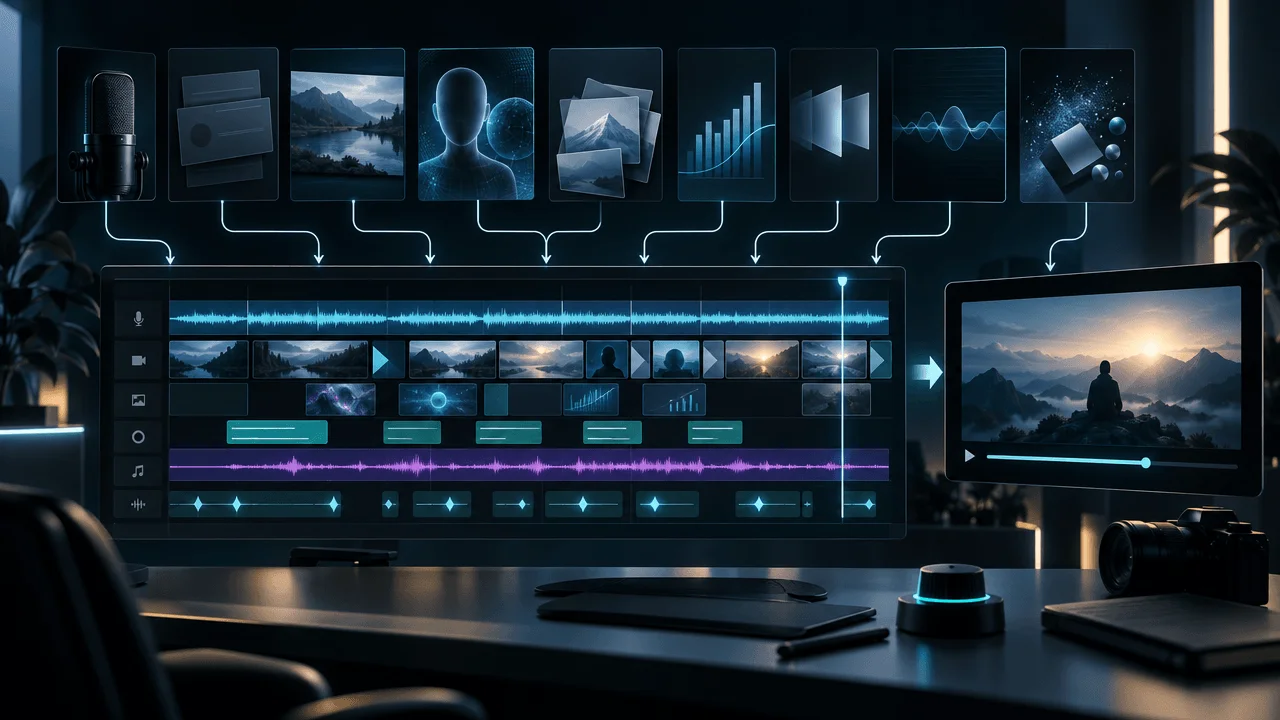
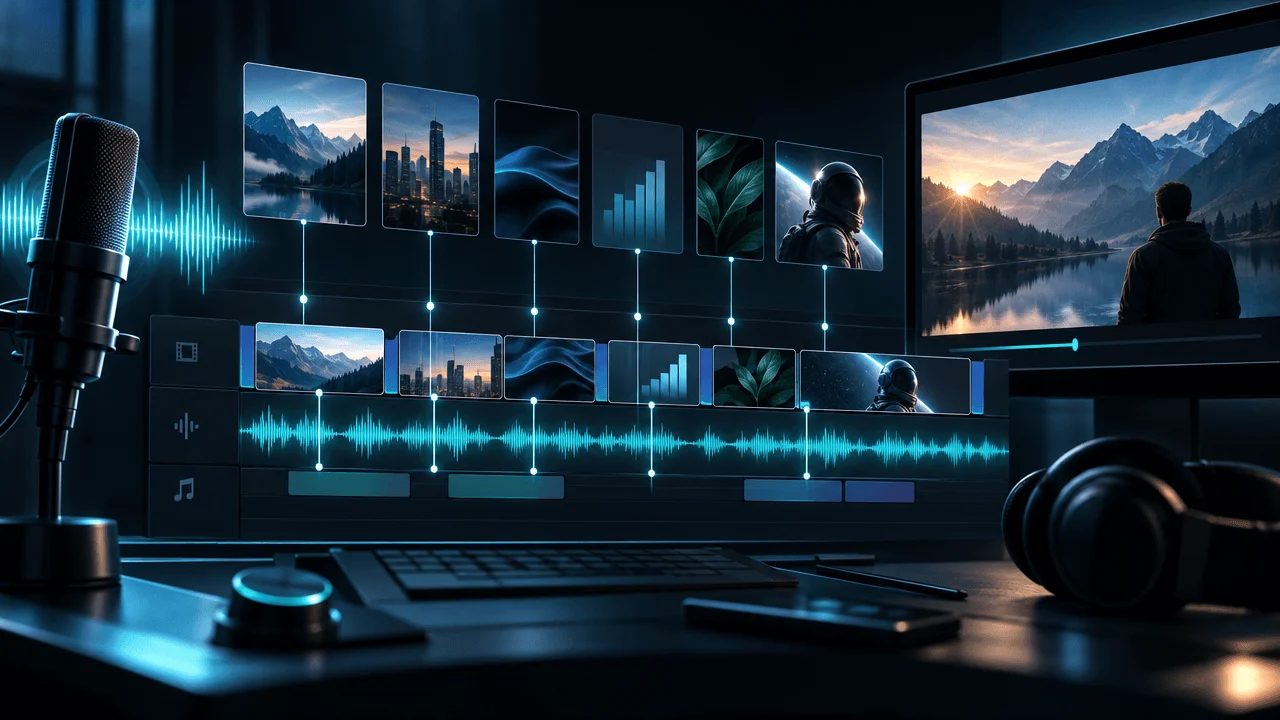
A video can have:
- a great script
- a professional voiceover
- beautiful B-roll
- strong AI visuals
- clean graphics
and still feel:
off.
The narrator says:
Revenue collapsed.
The chart appears two seconds later.
The voice says:
He opened the letter.
But the character is already reading it.
A statistic flashes on screen before the viewer hears what it means.
The narration moves to the next idea while the previous visual is still playing.
Nothing is technically broken.
But the viewer's:
eyes and ears are telling two different stories.
That is a synchronization problem.
Good voiceover-to-visual sync means the picture changes at the moment it becomes useful to the spoken idea.
Not necessarily:
exactly when a word begins.
Sometimes the visual should appear:
slightly before the narration.
Sometimes:
on the key phrase.
Sometimes:
after the narrator has created anticipation.
The correct timing depends on what the visual is doing.
The most useful rule is:
The visual should arrive when it helps the viewer understand, anticipate, verify, or feel the narration.
This guide shows how to sync:
- B-roll
- stock footage
- AI visuals
- charts
- statistics
- screenshots
- screen recordings
- maps
- documents
- text
- motion graphics
to a voiceover without making the edit feel robotic or one-beat-late.
Quick Answer: How Do You Sync Voiceover With Visuals?
For narration-first YouTube videos, use this workflow:
- Finalize the voiceover before detailed visual editing.
- Put the complete narration on the timeline.
- Break the narration into meaningful beats instead of individual sentences.
- Mark the exact words or phrases that create visual opportunities.
- Assign one visual purpose to each beat.
- Decide whether each visual should lead, land with, or follow the spoken phrase.
- Cut visuals on changes in meaning, not arbitrary time intervals.
- Keep each visual visible long enough for the viewer to understand it.
- Sync text and statistics closely to the words they represent.
- Let charts and complex evidence stay longer than ordinary B-roll.
- Show actions in the order the narration describes them.
- Use the finished voiceover as the master clock unless the existing picture must remain fixed.
- Review the entire sequence at normal speed instead of judging individual cuts in isolation.
A simple workflow looks like:
Voiceover → Meaning beats → Visual anchors → Timing → Rough cut → Fine sync → QA
The core principle is:
Sync meaning, not punctuation.
What Voiceover-to-Visual Sync Actually Means
Synchronization is not simply:
Put a new clip under every sentence.
That often creates a mechanical edit.
True synchronization asks:
What should the viewer see at this exact point in the thought?
Consider:
The company looked unstoppable. But behind the growth, its losses had quietly tripled.
That is one sentence structure.
Visually, it contains at least three beats:
- company appears successful
- contrast begins
- losses are revealed
A strong edit might show:
successful company imagery
then, on:
But behind the growth...
begin transitioning toward:
financial evidence
and on:
losses had quietly tripled
reveal:
the actual number or chart.
The visual edit follows:
the argument.
Not the grammar.
Why Bad Sync Feels Wrong Even When the Viewer Cannot Explain It
Video is processed simultaneously through:
- hearing
- vision
- language
- expectation
When those channels reinforce each other:
the video feels:
easy.
When they conflict:
the viewer has to mentally reconcile them.
Narration:
The second company was much smaller.
Visual:
still showing company one.
The viewer must:
hear one thing
while remembering that:
the screen is outdated.
That creates friction.
A well-synchronized edit constantly answers:
What does the viewer need to see now?
The Three Types of Visual Timing
Most voiceover synchronization falls into three useful patterns.
1. Visual Leads the Voice
The image appears:
before the narrator names it.
Example:
A photograph of a destroyed building appears.
A moment later:
By the next morning, the headquarters was gone.
This can create:
- anticipation
- curiosity
- emotional setup
The viewer sees something first.
The narration explains:
what it means.
2. Visual Lands With the Voice
The image appears at roughly the same moment as:
the important phrase.
Narration:
Revenue fell 42 percent.
Visual:
-42%
appears on:
42 percent.
This is especially useful for:
- numbers
- names
- dates
- locations
- key terms
- actions
- reveals
3. Visual Follows the Voice
The narration creates the idea first.
Then the visual confirms it.
Narration:
What happened next changed the entire company.
Brief pause.
Then:
bankruptcy filing appears.
This works when:
the story benefits from:
reveal.
None is universally best.
The decision depends on:
story function.
The Lead → Land → Hold Framework
A useful way to design synchronization is:
Lead
When does the viewer first need visual orientation?
Land
Which word or phrase should the important visual event align with?
Hold
How long does the viewer need to understand the result?
Example:
Narration:
By 2025, the company's debt had reached $4.7 billion.
Lead
Chart appears as:
By 2025...
Land
$4.7B highlights on:
$4.7 billion.
Hold
The completed chart remains visible while the narrator explains:
why the debt mattered.
That is stronger than:
show chart → immediately cut.
Decide Which Track Is the Master Clock
Before synchronizing anything, answer:
What is allowed to move?
There are two fundamentally different workflows.
Narration-First Editing
The voiceover is final.
You adjust:
- visuals
- scene length
- animations
- text
- screenshots
- graphics
around the audio.
This is usually the cleaner workflow for:
- faceless YouTube
- documentaries
- explainers
- essays
- business videos
- history videos
- psychology videos
Picture-First Editing
The video timing already exists.
You adjust:
- wording
- delivery speed
- pauses
- voiceover length
to fit the footage.
This is common for:
- product demos
- commercials
- existing animations
- fixed screen recordings
- footage-led documentaries
Do not mix these models accidentally.
If the narration is supposed to be the master:
stop stretching the voice to rescue arbitrary footage.
If the footage is fixed:
stop pretending the narration can run indefinitely.
Why Narration-First Editing Works So Well for Faceless YouTube
A written paragraph does not tell you exactly:
how long it will take to speak.
The final recording does.
Once the voiceover is locked, you know the exact duration of:
- each sentence
- each pause
- each number
- each reveal
- each section
OverseerOS's published long-form production data illustrates how many visual decisions this creates. In one sample of 33 completed narration-led projects, 4,412 timed scenes had a pooled median duration of about 3.62 seconds, with roughly 81% shorter than six seconds. That is production telemetry, not an ideal retention target, but it shows how densely visual decisions can accumulate in a long-form edit.
The voiceover gives those decisions:
a real timeline.
Build a Voiceover Sync Map Before Editing
Do not immediately drag random footage under:
the waveform.
First create:
a map.
For each narration beat, identify:
| Field | Example |
|---|---|
| Narration | Revenue fell 42% in six months |
| Start | 03:14.2 |
| End | 03:18.7 |
| Visual job | Prove |
| Visual | Revenue line chart |
| Visual lead | Chart appears at "Revenue" |
| Sync anchor | -42% on "42 percent" |
| Hold | Through explanation |
| Exit | Cut when narration moves to layoffs |
You do not need this level of documentation for:
every simple scene.
But for:
- charts
- text
- animation
- complex sequences
- screen recordings
a sync map saves enormous trial and error.
What Is a Sync Anchor?
A sync anchor is the moment in the narration that a visual event should align with.
Common sync anchors include:
Person
Steve Jobs returned to Apple.
Show the person.
Date
In 2007...
Reveal:
Location
In Tokyo...
Map or city appears.
Number
Revenue rose 63 percent.
Highlight:
63%.
Action
The bridge collapsed.
Motion occurs.
Contrast
But the second company was different.
Visual switches.
Reveal
The real problem was debt.
Debt chart appears.
Anchors turn vague:
Make this scene match the voiceover
into:
specific timing decisions.
Use the Transcript as a Visual Timeline
A transcript is more than:
caption text.
It is a map of:
meaning over time.
Modern editing workflows increasingly expose timestamped transcripts directly. Adobe Premiere's current Text-Based Editing ties transcript text to timeline timecode, so edits in the transcript stay synchronized with the corresponding timeline material.
Some speech tools can go even more granular. ElevenLabs currently provides forced-alignment tools that map an audio recording plus transcript to timed words and characters, and its TTS API can return timing data with generated speech.
You do not need those tools to edit well.
But the principle is powerful:
Words can become timeline coordinates.
Do Not Cut on Every Sentence
This is one of the most common narration-editing mistakes.
Sentence:
The factory opened in 1978 and quickly became the largest employer in the region.
One sentence.
Possible visual sequence:
- factory exterior
- workers
- map showing regional scale
Three visual beats.
Now consider:
The building remained abandoned for decades. Nobody returned.
Two sentences.
Maybe:
one strong shot
is enough.
Visual boundaries follow:
meaning.
Not:
periods.
Mark Meaning Changes
Useful reasons to change the visual include:
- new subject
- new person
- new location
- new time period
- new claim
- new piece of evidence
- action begins
- comparison begins
- emotional shift
- abstract concept changes
- narrator asks a new question
These are:
semantic cuts.
The Semantic Cut Test
Before changing scenes, ask:
Has the viewer's mental picture changed?
If no:
you may not need a new asset.
If yes:
a new visual may help.
Sync Visual Changes to the Beginning of the New Idea
Suppose:
The company had grown for years. Then the government changed the law.
Weak:
new visual starts halfway through:
changed the law.
Better:
start the new visual around:
Then...
because that word signals:
the story has changed.
The exact frame can be refined afterward.
Do Not Wait Until the Narrator Finishes Naming the Thing
Narration:
The first Apple Macintosh...
Visual appears only after:
Macintosh
is completely spoken.
That often feels:
late.
When the subject is obvious:
bring the relevant visual in as the thought begins.
The image and narration then feel like:
one communication event.
But Do Not Spoil Every Reveal
Narration:
Investigators eventually discovered where the missing money had gone.
If the next visual is:
an offshore bank document,
showing it five seconds early can ruin:
the reveal.
This is why synchronization cannot be reduced to:
Always show the image first.
Story controls timing.
Sync B-Roll to Meaning, Not Nouns
Weak workflow:
Narrator says:
city
show city.
Says:
money
show cash.
Says:
phone
show phone.
This is keyword editing.
It produces:
literal but shallow videos.
Better B-Roll Sync
Narration:
The startup was burning through cash faster than investors realized.
Possible visual sequence:
- spending chart
- office expansion
- hiring announcement
- funding round headline
These visuals explain:
the idea.
They do not simply illustrate:
the nouns.
For deeper visual selection, see our guide:
How to Use B-Roll in YouTube Videos.
Match B-Roll Duration to the Spoken Thought
Suppose one idea lasts:
7 seconds.
You do not automatically need:
two four-second clips.
One strong seven-second visual may be better.
Or:
three visual changes may be useful if:
the idea develops.
Duration should follow:
information progression.
The Visual Extraction Rule
Hold a visual until the viewer has extracted:
what you need from it.
A familiar object may take:
one second.
A chart:
eight.
A historical photograph:
four.
A detailed document:
ten.
Do not force them all into:
the same clip length.
Sync Statistics Closely to the Spoken Number
Numbers are high-value synchronization points.
Narration:
Revenue fell from $84 million to $31 million.
A strong sequence might be:
"$84 million"
Show:
$84M.
"to"
Begin transition.
"$31 million"
Land:
$31M.
Now:
the viewer hears
and sees:
the comparison simultaneously.
Avoid Showing the Wrong Number While Another Is Spoken
Narration:
Costs rose 28%.
Screen:
still showing:
Revenue +63%.
That creates:
avoidable cognitive conflict.
Remove, dim, or replace the old statistic when:
the spoken subject changes.
Use Progressive Data Reveals
Do not necessarily show:
the final chart
before the narrator explains it.
Narration:
Revenue climbed steadily for three years.
Draw:
the rise.
Then:
But in 2024...
Pause or highlight.
growth stopped.
Flatten:
the line.
The visual progresses:
with the argument.
Charts Often Need to Outlive the Sentence That Introduced Them
Narration:
Revenue doubled.
Chart appears.
Next sentence:
But almost all of that growth came from one product.
The same chart may still be:
useful.
Highlight:
the product.
Do not cut simply because:
the sentence ended.
The chart's job is not finished.
For a complete framework, see:
How to Show Data in YouTube Videos: Charts, Statistics & Visual Storytelling.
Sync On-Screen Text to the Key Phrase
On-screen text is particularly sensitive to:
late timing.
Narration:
The project cost $117 million.
Text:
$117M
should generally arrive around:
the number.
Not:
two seconds later.
Do Not Show Important Text Before the Narration Creates Context
If the viewer sees:
BANKRUPTCY
while the narrator is still saying:
At first, everything appeared normal...
you have potentially spoiled:
the next beat.
Text is powerful because:
the eye reads quickly.
Time it carefully.
Captions Are Different
Captions generally follow:
the spoken words.
Key text follows:
the important idea.
Do not confuse:
caption synchronization
with:
editorial synchronization.
Caption:
The company eventually lost $117 million.
Key text:
-$117M
Different job.
Different timing.
Sync Names and Lower Thirds to Introduction
Narration:
Former CEO Sarah Chen said...
Show the lower third when:
Sarah Chen is introduced.
Do not wait until:
the quote is almost over.
And do not display:
the person's name
30 seconds before:
the narration introduces them.
Sync Dates to Temporal Changes
Narration:
Three years later, in 2018...
The date may appear as:
the transition into:
the new period.
A clean sequence:
2015 scene
→
"Three years later..."
→
2018
→
new visual world.
The date becomes:
a structural signal.
Sync Maps to Geographic Language
Narration:
The company expanded from California into Nevada and Arizona.
Map:
California begins highlighted.
On:
Nevada
Nevada highlights.
On:
Arizona
Arizona highlights.
This is far clearer than:
showing the completed map immediately.
Sync Screen Recordings to Actions
Screen recordings require:
especially precise synchronization.
Narration:
Open Settings, then choose Audio.
Viewer should see:
- Settings
- click Settings
- Audio appears
- cursor moves to Audio
- click Audio
- result appears
The voice and screen should reinforce:
cause and effect.
For the complete workflow, see:
How to Edit Screen Recordings for YouTube.
Do Not Narrate an Action Long After It Happens
Weak:
screen clicks Export.
Two seconds later:
Now click Export.
The viewer is constantly:
behind or ahead.
Better:
the instruction arrives:
just before or during:
the action.
Do Not Speak Far Ahead of the Screen Either
Narration:
Choose H.264 and set the bitrate to 12 Mbps.
Screen:
still navigating toward:
the export panel.
The viewer is hearing steps they:
cannot yet locate.
Break the narration or retime:
the visual.
Use Context → Action → Result
For tutorials and demos:
Context
Show where the control lives.
Action
Synchronize the instruction with:
the click.
Result
Hold the changed state while:
the narration confirms it.
This makes the interaction:
easy to follow.
Sync AI Visuals Differently From Real Footage
AI-generated imagery creates another timing question:
Does this scene actually need motion?
If the narration only needs viewers to inspect:
a character
or:
a place,
a still image may be enough.
If the narration describes:
an action,
motion may add meaning.
Match Generated Motion to the Verb
Narration:
She slowly opened the envelope.
The important event is:
opened.
The motion should reach that action around:
the phrase.
If the envelope is already open before:
the narrator says it,
the visual feels:
ahead.
If nothing happens until the sentence is over:
it feels:
late.
Avoid Generating Motion That Competes With Narration
Narration discusses:
a financial collapse.
AI visual:
- camera orbits
- person walks
- papers fly
- lights flash
- rain moves
- door opens
The viewer has no idea:
which movement matters.
Synchronization becomes easier when:
the shot has one dominant action.
Use Motion as a Timeline Event
Instead of treating an AI clip as:
a four-second rectangle,
identify:
the meaningful moment inside it.
Example:
- 0:00 character stands
- 0:01.5 looks toward door
- 0:03 door opens
If narration says:
Then the door opened...
align:
the useful moment.
Do not assume the beginning of the clip must equal:
the beginning of the sentence.
Trim Generated Clips Around the Useful Action
You generated:
eight seconds.
The useful motion happens:
between seconds two and five.
Use:
those three seconds.
The model's output duration is not:
your required edit duration.
Sync Documents to Claims
Narration:
The filing revealed the company had only $12 million left.
Sequence:
Establish
Show enough document to prove:
it is the real source.
Focus
Zoom to:
the relevant line.
Land
Highlight:
$12 million
as the narrator says it.
Hold
Keep the evidence visible while:
the implication is explained.
This is:
voiceover synchronization
plus:
evidence design.
Do Not Highlight the Document Too Early
If the highlight already sits on:
$12M
before the narrator introduces:
the filing,
the viewer may read the answer before:
the story gets there.
Use progressive focus.
Sync Photographs Differently From Action Footage
A photograph has no internal:
motion event.
So synchronization depends on:
- entry
- crop
- pan
- zoom
- text
- exit
Narration:
This was the last known photograph of the expedition.
Bring in:
the photograph.
Then:
hold.
Do not immediately animate:
six different effects.
The meaning is:
the photograph itself.
Sync Camera Motion to Narrative Emphasis
A push-in can reinforce:
increasing attention.
Narration:
But one detail changed everything.
Slow push toward:
that detail.
A pull-out can reveal:
scale.
Narration:
And this was happening across the entire country.
Pull out:
to broader view.
Camera movement should:
support the spoken structure.
Motion Should Not Always Start on the Cut
Sometimes:
a scene enters already moving.
Sometimes:
motion begins after the viewer understands the frame.
Example:
- establish building
- narrator introduces building
- slow push begins as significance is explained
This can feel more intentional than:
every shot instantly moving.
Sync Transitions to Structural Changes
Visible transitions are most useful when narration communicates:
- time jump
- location change
- chapter change
- perspective change
- memory
- contrast
Narration:
Ten years earlier...
A fade or deliberate transition may support:
the temporal shift.
Normal sentence continuation?
Hard cut may be enough.
Do Not Synchronize Every Edit to Music Instead of Meaning
Music can provide:
rhythm.
But narration-led videos should not sacrifice:
semantic clarity
just to cut:
on every beat.
The hierarchy is usually:
Meaning first → Narration timing → Visual rhythm → Music accent
not:
Beat first → force everything else to fit.
Music Can Still Reinforce Visual Sync
Use music changes around:
- reveal
- section shift
- escalation
- emotional turn
Example:
narration reaches:
But that was only the beginning.
Music changes.
Visual changes.
New chapter begins.
Now:
audio
and:
picture
reinforce the same structural event.
Use Sound Effects on Visual Events, Not Spoken Words
If a graphic:
lands,
the sound should synchronize to:
the graphic landing.
If a door:
closes,
the sound belongs on:
the physical contact.
Do not add an impact simply because:
the narrator said an important word
unless the visual moment supports it.
The Five Main Sync Errors
Most voiceover-visual mismatch can be reduced to five problems.
1. Visual Is Late
Narrator has already moved on before:
the relevant visual appears.
2. Visual Is Early
The screen reveals information before:
the story is ready.
3. Visual Is Too Short
Viewer cannot extract:
the information.
4. Visual Is Too Long
Narration changes but:
the image does not.
5. Wrong Event Is Synchronized
The visual changes on:
a convenient edit point
instead of:
the meaningful phrase.
Diagnose which problem you have.
Then fix:
that.
How to Fix a Visual That Arrives Too Late
Possible fixes:
- move the clip earlier
- shorten the previous visual
- start the transition sooner
- simplify the incoming animation
- remove unnecessary visual lead-in
Ask:
When did this image become relevant?
That is usually close to:
where it belongs.
How to Fix a Visual That Arrives Too Early
Possible fixes:
- delay the clip
- use a neutral setup shot first
- hold the previous visual longer
- hide the final information until narration reaches it
- animate progressively
This matters especially for:
- charts
- statistics
- spoilers
- reveals
- documents
How to Fix a Visual That Is Too Short
Possible fixes:
Extend It
If the source supports it.
Freeze the Useful Frame
For screenshots or evidence.
Add Controlled Motion
Push, pan, crop.
Split the Narration Across Multiple Related Visuals
If the scene is overloaded.
Simplify the Information
If the viewer cannot process it fast enough.
Never solve readability by:
telling the viewer to read faster.
How to Fix a Visual That Is Too Long
Possible fixes:
- add a second angle
- move to a detail crop
- reveal text
- highlight part of the image
- switch to evidence
- transition to another relevant visual
But ask first:
Is the visual actually too long, or am I simply afraid of stillness?
A powerful image can:
hold.
What If the Voiceover Is Longer Than the Footage?
Suppose narration needs:
10 seconds.
Clip lasts:
four.
Do not automatically slow the footage to:
40%.
Possible options:
- use another relevant shot
- freeze the end
- switch to a detail
- insert evidence
- use a related still
- restructure the scene
- shorten the narration
Choose the method that preserves:
natural movement.
What If the Footage Is Longer Than the Voiceover?
Do not stretch narration unnaturally just because:
the footage is beautiful.
Trim:
the clip.
Or use the extra footage elsewhere.
The edit serves:
the story.
Not:
the asset.
When to Change the Voiceover Instead
Sometimes the visuals cannot move.
Example:
- fixed product animation
- timed screen recording
- existing footage sequence
- event recording
Now:
voiceover must fit.
Possible fixes:
- shorten wording
- remove redundancy
- split sentence
- change pause length
- re-record
- regenerate TTS
Do not simply:
speed the voice up
until:
it fits.
Use a Duration Budget
Suppose visual sequence lasts:
8 seconds.
Your narration takes:
11.4.
You have a:
3.4-second mismatch.
Now solve it deliberately.
Option A
Shorten script.
Option B
Extend visuals meaningfully.
Option C
Combine both.
This is better than:
random timeline stretching.
Sync Around Spoken Meaning, Not Waveform Peaks
A waveform shows:
volume.
It does not show:
meaning.
A large waveform peak may be:
the word:
the.
Do not synchronize animation to:
waveform size
unless the sound itself is:
the event.
Use:
transcript
and:
listening.
Marker-Based Synchronization
A simple manual workflow:
- play narration
- press a marker key on important words
- label markers
- place visual events against them
Marker labels might be:
- JOHN
- 2008
- -42%
- TOKYO
- REVEAL
- CHAPTER 3
Now your timeline becomes:
a visual map.
Use Different Marker Types
You can organize markers by function.
Yellow
People / places.
Blue
Data.
Red
Major reveals.
Green
Screen actions.
Purple
Text / graphics.
The colors themselves do not matter.
The system does.
Word-Level Sync Is Not Necessary for Everything
You do not need:
precise timestamps
for ordinary atmospheric B-roll.
You may need them for:
- captions
- statistics
- motion graphics
- karaoke text
- screen actions
- subtitles
- tightly animated explainers
Use precision where:
precision creates value.
Do Not Turn Every Narrated Word Into an Animation Cue
Narration:
The company expanded quickly into Europe.
You do not need:
- company logo appears on "company"
- arrow appears on "expanded"
- speed lines on "quickly"
- Europe highlights on "Europe"
That becomes:
exhausting.
Choose the strongest:
visual event.
The One-Primary-Event Rule
For each short narration beat, identify:
one main visual event.
Supporting motion can exist.
But the viewer should understand:
where attention belongs.
Example: Business Documentary
Narration:
Revenue climbed from $18 million to $74 million in just three years, but profit barely moved.
Beat 1
"Revenue climbed..."
Line chart appears.
Beat 2
"$18 million to $74 million..."
line rises.
Beat 3
"but..."
visual pause or contrast.
Beat 4
"profit barely moved."
profit line appears flat.
The chart tells:
the same story
as:
the sentence.
Example: History Video
Narration:
In 1453, Ottoman forces finally entered Constantinople.
"In 1453"
Date appears.
"Ottoman forces"
map highlights force position.
"entered Constantinople"
movement reaches city.
Three pieces of information.
One synchronized visual sequence.
Example: Psychology Video
Narration:
He does not become more interested because you chase him. He becomes more comfortable.
Do not literally show:
chasing.
Possible sync:
First sentence
person sending repeated messages.
"He becomes more comfortable"
switch to:
the other person casually ignoring phone.
The visual demonstrates:
the behavioral contrast.
Example: Science Video
Narration:
As temperature rises, pressure inside the chamber increases.
Show:
temperature indicator rising.
Then:
pressure indicator follows.
The visual relationship itself teaches:
causality.
Example: Software Tutorial
Narration:
Open Settings, choose Audio, then select your microphone.
Synchronize:
- Settings click
- Audio click
- microphone dropdown
- final selection
Do not display:
all three steps in advance.
Example: Documentary Reveal
Narration:
But investigators had missed one detail.
Hold:
current visual.
Pause.
The signature was fake.
Reveal:
document signature.
The delay creates:
impact.
Sync the First 30 Seconds More Carefully Than Anything Else
The opening establishes:
the viewer's trust in the edit.
Common opening problem:
voiceover says one thing
while:
generic montage shows another.
Narration:
In 2024, one tiny AI company suddenly became the fastest-growing tool in its category.
Visual:
- city aerial
- typing
- server room
Weak.
Better:
show:
- actual company
- product
- growth chart
- headline
- relevant founder
- interface
The viewer immediately sees:
the story they clicked for.
Your Opening Visual Should Confirm the Click
Title:
How One Startup Lost $2 Billion
Opening narration:
It looked like one of the fastest-growing companies in America.
Visual should establish:
the company.
Not:
generic money.
The visual and narration together should tell the viewer:
Yes. This is the video you clicked.
Do Not Over-Sync the Hook
Another failure:
every spoken word triggers:
- zoom
- impact
- text
- SFX
- visual change
The edit becomes:
desperate.
Use strong alignment.
Not:
constant stimulation.
Syncing Shorts Requires More Compression
Short-form has:
less time.
But the principle remains:
meaning first.
You may use:
- faster scene changes
- larger text
- earlier visual reveals
- tighter transitions
But do not create:
visual contradiction.
Fast does not excuse:
late or irrelevant imagery.
Build Shorts Around Visual Anchors
Example:
This company grew 700% in one year.
Possible sequence:
"This company"
Logo / product.
"grew"
chart begins moving.
"700%"
large 700%.
"in one year"
date range appears.
The viewer receives the information:
in layers.
Syncing Long-Form Requires Sustainable Rhythm
A 20-minute video cannot operate like:
a 30-second Short.
If every noun triggers:
a visual event,
the viewer gets:
fatigued.
Long-form needs:
- holds
- progression
- quiet scenes
- stronger contrast between busy and calm moments
Synchronization still matters.
But intensity can vary.
Visual Density Should Follow Information Density
Dense explanation?
More visual guidance may help.
Simple emotional sentence?
One visual may be stronger.
The timeline should breathe with:
the script.
Use a Visual Density Ladder
Low Density
- emotional moment
- atmosphere
- simple story beat
Use:
fewer changes.
Medium Density
- ordinary explanation
- narrative progression
Use:
regular visual changes.
High Density
- data
- technical process
- comparison
- list
Use:
more structured visual progression.
Do not confuse:
density
with:
random speed.
The 5-Pass Voiceover Sync Review
Do not try to evaluate everything simultaneously.
Pass 1: Relevance
Ask:
Is this the correct visual for what is being said?
Ignore timing.
Pass 2: Entry Timing
Ask:
Does the visual appear at the right moment?
Pass 3: Internal Events
Ask:
Do animations, highlights, clicks, or actions land on the right phrases?
Pass 4: Hold Time
Ask:
Does the visual stay long enough to understand?
Pass 5: Exit Timing
Ask:
Does the scene leave when the idea changes?
This isolates:
the actual problem.
The Mute Test
Mute the video.
Can you roughly follow:
the visual progression?
You should see:
- topic changes
- comparisons
- actions
- evidence
- reveals
This tests:
visual logic.
The Audio-Only Test
Close your eyes.
Does the narration:
stand on its own?
If the voice is incomprehensible without:
the visuals,
you may be using pictures to repair:
weak scripting.
The two tracks should:
reinforce.
Not:
rescue each other constantly.
The "What Am I Hearing?" Test
Pause randomly.
Listen to the sentence.
Ask:
Is the screen still about this?
If no:
you found a sync problem.
The "What Am I Seeing?" Test
Pause randomly.
Look only at:
the image.
Ask:
Why is this here right now?
If you cannot answer:
the visual may be filler.
The One-Second-Late Test
Temporarily move a questionable visual:
slightly earlier.
Play it.
Then slightly later.
Play again.
Which feels:
more natural?
Small timing changes can produce:
large perceptual improvements.
Do not be afraid to:
nudge.
Review Cuts at Normal Speed
Frame-by-frame editing is useful.
But viewers do not watch:
frame by frame.
A transition that looks imperfect while scrubbing may feel:
completely natural
at:
1× playback.
Always finish by:
watching.
Stop Looking at the Timeline
Editors can become obsessed with:
clips lining up neatly.
A good timeline can look:
messy.
A bad video can have:
beautifully aligned rectangles.
Watch:
the program monitor.
The viewer never sees:
your timeline.
Use Synchronization to Hide Edits
Voiceover creates continuous:
audio.
This allows visuals to change underneath without:
breaking the narrative.
That is one of the great advantages of:
narration-led editing.
The narration becomes:
the bridge.
You can move between:
- archive
- chart
- AI visual
- map
- screenshot
while the spoken thought remains:
continuous.
Keep Audio Continuous Across Visual Cuts
Do not split narration simply because:
the image changes.
A single sentence can span:
several shots.
This creates:
fluid visual storytelling.
Let Visuals Change Inside Sentences
Example:
The company began in a garage, grew into a global giant, and eventually collapsed under $8 billion of debt.
Possible sequence:
"began in a garage"
garage photograph.
"grew into a global giant"
headquarters / growth chart.
"collapsed under $8 billion of debt"
debt visualization.
One sentence.
Three visuals.
Completely natural.
Let One Visual Span Several Sentences
Example:
The map looked simple. But crossing it would take six months. And winter had already begun.
One:
strong map animation
may support all three.
Do not change merely because:
a new sentence begins.
Make the Visual Do Work
The best synchronized visual often reduces:
how much narration needs to explain.
Narration:
The company had grown quickly.
Chart:
shows growth.
Now you do not need:
three more sentences
describing:
every annual value.
Audio and visual can:
divide the workload.
Do Not Duplicate Everything
Narration:
Revenue rose from $20 million to $80 million.
Text:
Revenue rose from $20 million to $80 million.
Chart:
same thing.
Captions:
same thing.
That is:
four versions of one idea.
Better:
Narration explains.
Chart shows.
Key text emphasizes:
4×
Each layer has:
a job.
Use Audio-Visual Complementarity
A strong video often works like:
Voiceover
Explains:
why.
Visual
Shows:
what.
Text
Emphasizes:
what matters.
Sound
Makes the event:
feel physical.
When all four duplicate the exact same thing:
the edit becomes cluttered.
How Automation Can Help With Voiceover Sync
The most repetitive part of synchronization is:
finding:
- word timing
- sentence timing
- pauses
- scene boundaries
Automation can assist here.
Current tools can already expose timestamped transcripts, word-level alignment, or transcript-linked timelines.
That makes it easier to automate:
- caption timing
- scene segmentation
- key-word markers
- rough visual placement
But automation still has a harder problem:
What should appear?
and:
Should it appear before, during, or after this phrase?
That requires:
editorial judgment.
Automate Timing Data, Not Story Judgment
Good automation:
- find timestamps
- create captions
- identify pauses
- generate a scene draft
- align visual blocks to narration
Human/editorial layer:
- choose evidence
- decide reveal timing
- decide emotional holds
- reject generic visuals
- determine what matters
The best workflow combines:
both.
How OverseerOS Handles Narration-First Production
OverseerOS Auto Edit currently builds its first cut around the finished script and voiceover, connecting narration to scene planning, visuals, scene matching, motion, transitions, captions, and music rather than treating the visuals as an unrelated layer.
That matters because the key production unit is not:
random four-second clip.
It is:
this part of the narration needs this visual job for this amount of time.
That is the foundation of:
voiceover-first editing.
The Complete Voiceover-to-Visual Workflow
Use this system for narration-led videos.
Step 1: Finalize the Script
Do not deeply synchronize visuals to:
unfinished narration.
Step 2: Generate or Record the Voiceover
Use the real spoken timing.
Step 3: Edit the Voiceover
Fix:
- mistakes
- pacing
- pauses
- pronunciation
before scene timing.
Step 4: Lock the Voiceover
Treat it as:
the master clock.
Step 5: Generate a Transcript
Preferably with:
timestamps.
Step 6: Mark Meaning Beats
Not:
sentence boundaries.
Step 7: Mark Sync Anchors
Names.
Numbers.
Actions.
Locations.
Reveals.
Step 8: Assign Visual Jobs
Show.
Prove.
Explain.
Contextualize.
Reconstruct.
Create emotion.
Step 9: Create Rough Visual Coverage
Do not polish yet.
Step 10: Fix Entry Timing
Visual appears:
when relevant.
Step 11: Fix Internal Timing
Actions and highlights align:
with key phrases.
Step 12: Fix Hold Duration
Viewer gets enough time:
to understand.
Step 13: Fix Exit Timing
Visual leaves:
when the thought changes.
Step 14: Add Text and Graphics
Sync them more precisely to:
their spoken anchors.
Step 15: Add Music and SFX
Support:
the existing structure.
Step 16: Watch at Normal Speed
Do not touch the timeline.
Step 17: Run the Five-Pass Sync Review
Relevance.
Entry.
Internal action.
Hold.
Exit.
Step 18: Export and Watch Again
The final render can feel different from:
the editing timeline.
The Voiceover Sync Priority Ladder
If the edit feels wrong and you have limited time, fix problems in this order.
1. Wrong Visual
Timing cannot rescue:
irrelevance.
2. Wrong Scene Boundary
Make the visual follow:
meaning.
3. Late or Early Reveals
Fix:
entry.
4. Unreadable Holds
Give important visuals:
time.
5. Internal Animation Timing
Align:
events.
6. Text Timing
Make numbers, dates, and terms:
land correctly.
7. Sound Effects
Polish.
8. Transition Frames
Last.
Do not spend:
20 minutes
moving a transition by:
three frames
while:
the entire visual is wrong.
The 100-Point Voiceover Sync Scorecard
Use this before publishing.
Visual Relevance, 20 Points
- every scene supports the narration
- no generic filler
- evidence appears where useful
- visual type fits the information
Scene Boundaries, 15 Points
- cuts follow meaning
- no sentence-based robotic editing
- visual changes feel motivated
Entry Timing, 15 Points
- visuals arrive when relevant
- reveals are not spoiled
- nothing consistently feels late
Internal Synchronization, 15 Points
- actions match verbs
- statistics match spoken numbers
- map movement follows locations
- screen actions follow instructions
Hold Time, 10 Points
- visuals remain readable
- charts and documents receive enough time
- simple B-roll does not overstay
Text Timing, 10 Points
- names
- dates
- statistics
- callouts
appear at the useful moment.
Narrative Rhythm, 10 Points
- dense sections receive more visual guidance
- emotional sections can breathe
- sequence does not feel mechanically timed
Final QA, 5 Points
- normal-speed review complete
- no obvious audio-visual conflicts remain
Total: 100
90–100
Strong professional synchronization.
80–89
Good; polish the weakest area.
70–79
Understandable, but multiple moments likely feel mechanically edited.
Below 70
Return to:
visual relevance
and:
scene boundaries
before polishing animation.
Voiceover-to-Visual Sync Checklist
Before Editing
- Script is final.
- Voiceover is final.
- Voiceover pacing has been approved.
- Pronunciations are correct.
- Transcript is available.
- Major visual opportunities are identified.
Scene Mapping
- Scenes are divided by meaning.
- Every scene has a visual purpose.
- Key names are marked.
- Dates are marked.
- Statistics are marked.
- Actions are marked.
- Reveals are marked.
- Location changes are marked.
Visual Entry
- No important visual consistently arrives late.
- Reveals do not appear too early.
- New subjects appear when introduced.
- Structural changes match narration shifts.
Visual Actions
- Physical actions align with relevant verbs.
- Screen clicks align with instructions.
- Map movements align with locations.
- Charts reveal with the spoken argument.
- AI motion reaches its important event at the useful moment.
Hold Time
- Simple visuals do not overstay.
- Charts remain readable.
- Documents remain readable.
- Screenshots remain readable.
- Emotional images have enough breathing room.
Text
- Names appear with introductions.
- Dates appear with time references.
- Statistics align with spoken numbers.
- Text does not reveal future information early.
- Captions do not compete with callouts.
Audio
- Narration remains the master track where appropriate.
- Music supports section changes.
- SFX align with visible events.
- Sound does not dictate meaningless cuts.
Final QA
- Watched once without stopping.
- Mute test completed.
- Audio-only test completed.
- Random pause test completed.
- First 30 seconds reviewed separately.
- Final render reviewed.
FAQ
Should I edit visuals to the voiceover or voiceover to the visuals?
For narration-led faceless videos, documentaries, essays, and explainers, it is usually cleaner to finalize the narration first and edit visuals around it. If the picture timing is already fixed, such as an existing animation, product demo, or recorded event, the voiceover may need to fit the visual timeline instead.
Should the voiceover be finished before editing the video?
For narration-first content, yes. The finished recording gives you the actual duration of every idea, pause, statistic, and reveal.
How do I sync B-roll with voiceover?
Identify the meaning of the narration beat, choose B-roll that supports that idea, and bring it in when it becomes useful to the spoken thought. Do not simply match clips to individual nouns.
Should visuals appear before or after the narrator says something?
It depends on the purpose. Visuals can lead the narration to create anticipation, land with a key phrase for emphasis, or follow the narration to create a reveal.
How early should a visual appear before the voiceover mentions it?
There is no universal offset. The useful question is whether appearing early improves orientation or accidentally spoils the next point.
Why do my visuals feel late?
The visual may be entering after the narration has already established the new subject. Try moving it closer to the beginning of the thought rather than waiting for the narrator to finish naming the subject.
Why does my faceless video feel out of sync?
Common causes include visuals arriving late, revealing information too early, scenes being divided by sentence boundaries instead of meaning, short hold times, or visual actions that do not match the spoken moment.
Should I change visuals every sentence?
No. One sentence can require several visual beats, while several sentences can share a single strong visual.
When should I change scenes in a voiceover video?
Change scenes when the visual meaning changes: new subject, location, time, argument, action, evidence, comparison, or emotional beat.
What is a sync anchor?
A sync anchor is a specific word, phrase, action, number, date, or reveal in the narration that a visual event should align with.
How do I sync statistics with voiceover?
Reveal or highlight the relevant statistic when it is spoken, then leave the visual visible long enough for the viewer to interpret the comparison.
How do I sync charts with narration?
Build the chart progressively in the same order as the argument. Reveal trends, turning points, comparisons, and highlights when the narration discusses them instead of showing the final chart too early.
How do I sync text with voiceover?
Important callout text should usually appear around the phrase it emphasizes. Avoid showing text so early that it reveals information before the narrator has established the context.
How do I sync captions with voiceover?
Captions generally follow the spoken words closely. Editorial callouts are different and should be timed around the key idea rather than duplicating every spoken word.
How do I sync screen recordings with voiceover?
Use Context → Action → Result. Show where the control is, align the spoken instruction with the action, and hold the resulting interface state long enough to understand what changed.
How do I sync AI video with voiceover?
Identify the meaningful action inside the generated clip and align that action with the relevant verb or phrase. Trim away unnecessary lead-in or unusable portions of the generation.
What if my voiceover is longer than the video clip?
Use another relevant shot, freeze a useful frame, move to a detail crop, add evidence, or shorten the narration. Avoid unnaturally slowing footage merely to fill the gap.
What if the footage is longer than the voiceover?
Trim the footage unless the extra duration adds genuine visual value. Do not stretch narration just to preserve an attractive clip.
How long should a visual stay on screen?
Long enough for the viewer to extract the intended information. A simple object may take a second or two, while charts, screenshots, maps, and documents can need substantially longer.
Should I use word-level timestamps for editing?
They can be useful for captions, statistics, motion graphics, tightly timed animations, and screen actions. Ordinary B-roll usually does not require word-level precision.
Can AI automatically sync visuals to a voiceover?
AI can assist with transcript timing, scene segmentation, captions, rough visual placement, and identifying spoken timestamps. Editorial decisions about what the visual should be and whether it should lead, land with, or follow the narration still benefit from human judgment.
How do I make voiceover videos feel less robotic?
Avoid changing scenes on every sentence, vary visual density according to information density, allow important moments to breathe, and synchronize visuals to meaning rather than using one fixed duration for every scene.
Should cuts follow music beats or voiceover?
In narration-led videos, meaning and narration usually deserve priority. Music can reinforce important cuts and section changes without forcing every visual change onto a musical beat.
How do I sync sound effects with narration?
Sync sound effects primarily to the visible event they represent, such as a click, impact, door close, or graphic landing, rather than adding an effect to every emphasized word.
What is the best workflow for syncing voiceover and visuals?
A strong workflow is: finalize narration → generate timestamped transcript → mark meaning beats → mark sync anchors → assign visual jobs → create rough coverage → fix entry timing → align internal actions → fix hold time → fix exits → add text and sound → review at normal speed.
What is the biggest voiceover synchronization mistake?
The biggest mistake is treating synchronization as simply placing a new clip under every sentence. Strong synchronization follows the meaning of the narration and controls exactly when information appears, changes, and leaves the screen.