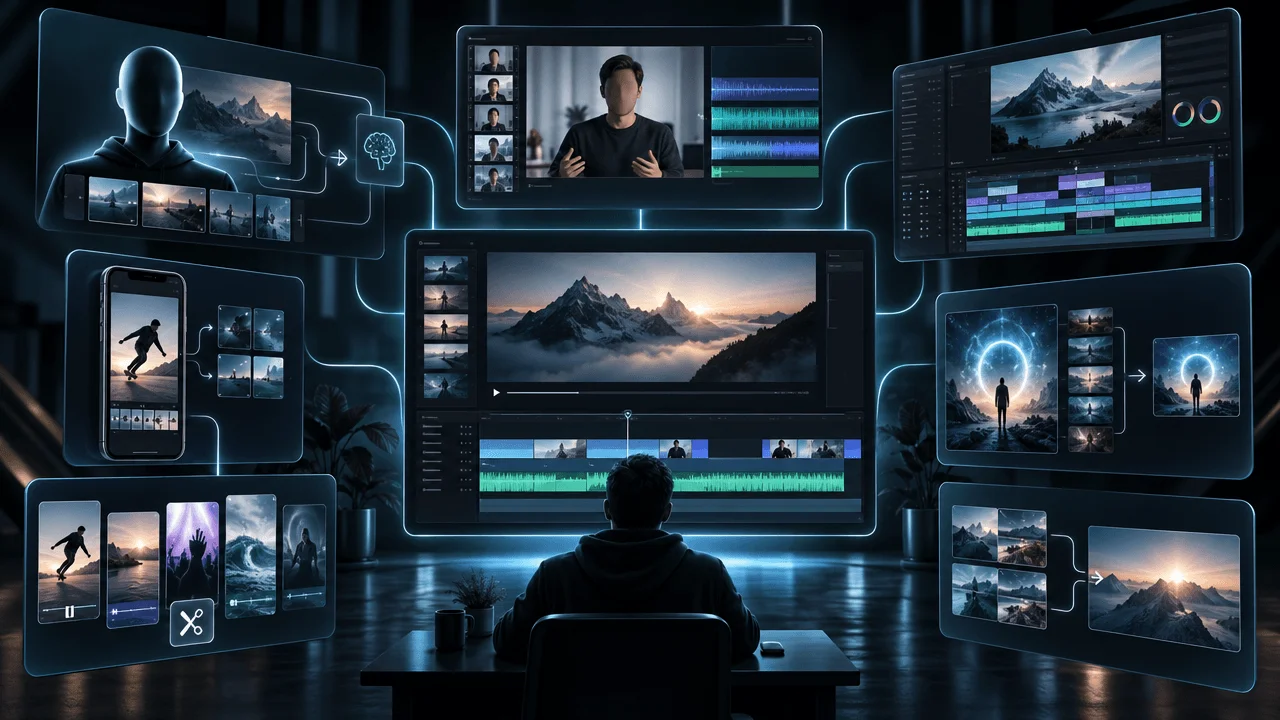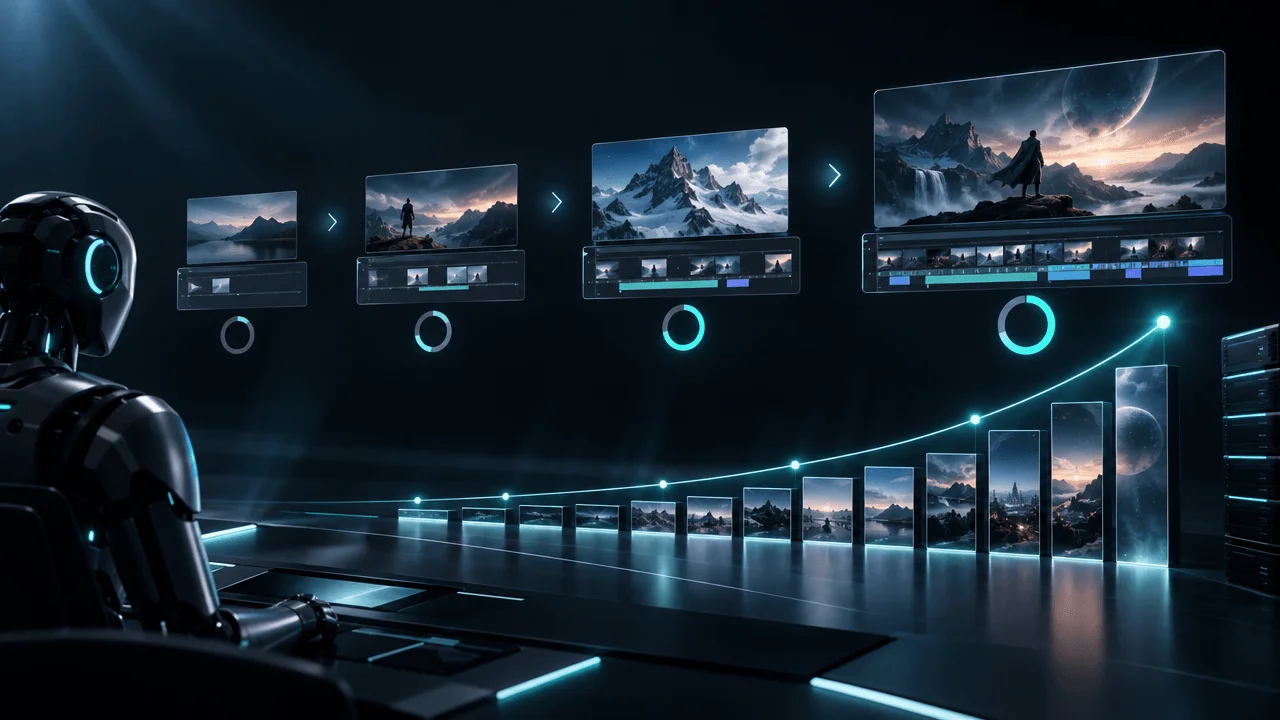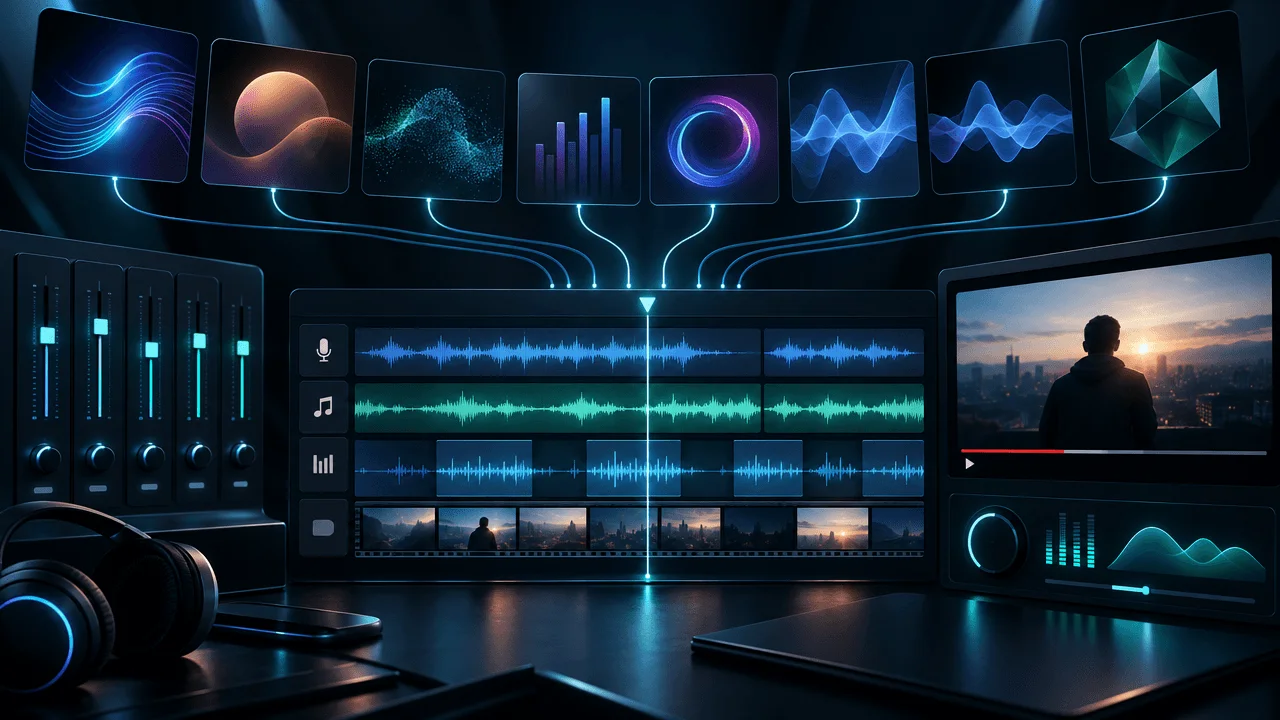
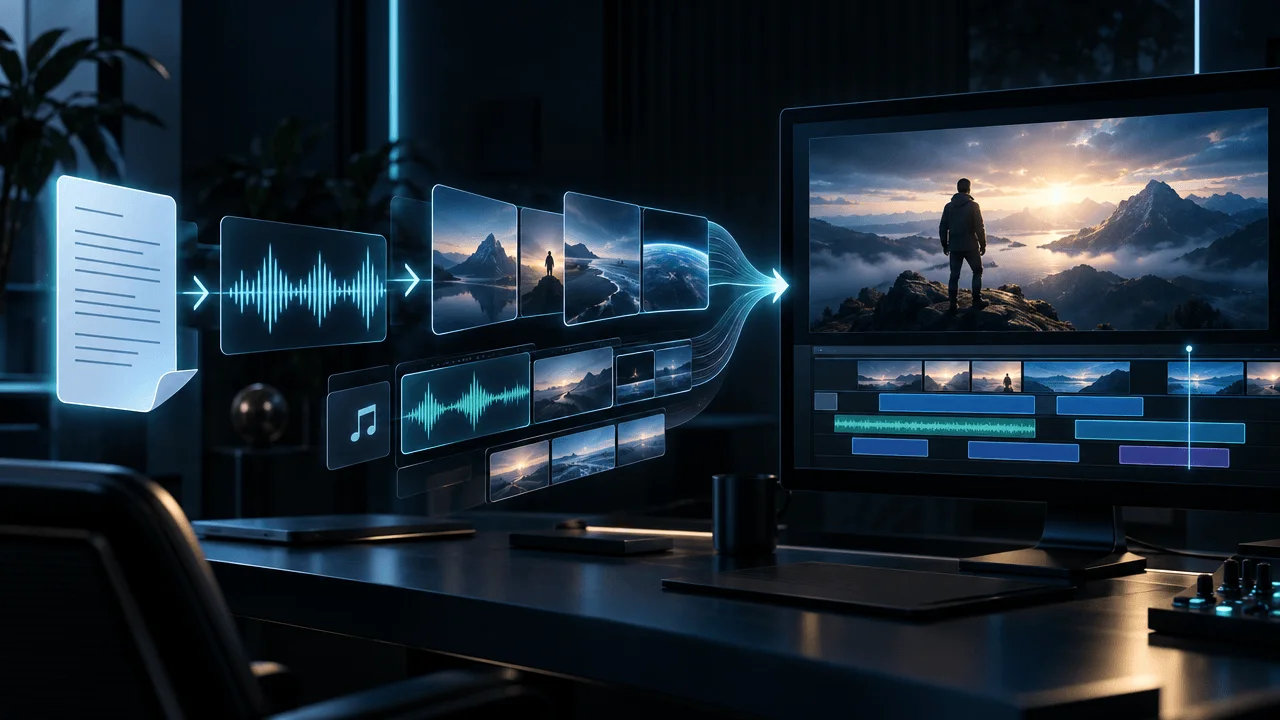
Turning a finished script into a faceless YouTube video with AI is not one generation step.
The most reliable workflow is:
script → voiceover → scene map → visual direction → visuals → captions + motion + music → review → final render
For narration-led YouTube videos, one decision matters more than almost everything else:
Lock the narration before you lock the scenes.
Why?
Because the voiceover gives you the real duration of every idea.
A paragraph that looks short on the page might take 18 seconds to narrate. A longer sentence might be delivered in six. Until the audio exists, you are estimating where visual changes should happen.
Once the narration is real, the video can be built around actual timing instead of guessed timing.
That sounds like a small production detail.
It is the difference between an AI video that feels directed and one that feels like a slideshow generated sentence by sentence.
The Fastest Script-to-Video Workflow
For a long-form faceless YouTube video, use this order:
- Finish the script
- Generate or record the voiceover
- Split the narration into visual scenes
- Choose one visual system for the video
- Create a visual brief for every scene
- Generate or source the visuals
- Assemble everything around the narration
- Add captions, motion, music, and effects
- Review the full video in passes
- Render only after the major problems are fixed
The biggest mistake is jumping directly from:
script
to:
generate video
without solving what exists between them.
That middle layer is where the actual directing happens.
Step 1: Finish the Script Before Generating Visuals
Do not start generating scenes while the script is still moving.
Every rewritten paragraph can invalidate:
- scene timing
- visual prompts
- generated images
- captions
- transitions
- voiceover timing
- music synchronization
This becomes expensive very quickly in long-form video.
A better order is:
rough script
→
edit
→
fact-check
→
final narration draft
→
production
That does not mean the script can never change again.
It means you should stop treating visual generation as part of brainstorming.
Visual generation is production.
The creative argument of the video should already work before you start producing it.
A Script That Reads Well Is Not Automatically Video-Ready
Written prose and spoken narration behave differently.
This sentence might look perfectly acceptable on a page:
The discovery changed what scientists thought they understood about the early settlement, because the remains appeared in a geological layer previously believed to predate human occupation of the region.
Read aloud, it is dense.
For video, you might rewrite it as:
The discovery should not have been there.
The remains were buried in a layer scientists believed was older than human settlement in the region.
And that created a problem.
Now the narration contains three distinct visual beats.
That gives the video somewhere to go.
A script-to-video system works better when the narration already contains:
- clear ideas
- transitions
- visual opportunities
- emotional changes
- concrete nouns
- specific moments
- contrast
- cause and effect
Do not write a screenplay full of camera directions unless your workflow specifically requires one.
But do write narration that naturally creates visual moments.
Step 2: Create the Voiceover Before Final Scene Timing
For narration-led faceless videos, the voiceover should become the timing spine of the project.
That can be:
- your own recorded voice
- a hired narrator
- an AI voice
- a cloned version of your own authorized voice
What matters is that the audio is close to final.
Once the voiceover exists, you know:
- exact video duration
- speaking speed
- pauses
- emphasis
- sentence timing
- where ideas naturally change
- where the viewer needs a new visual
This is far more useful than estimating timing from word count.
Why Word Count Is Only an Estimate
Two 1,500-word scripts can have very different runtimes.
One narrator might speak quickly.
Another might use:
- longer pauses
- dramatic emphasis
- slower storytelling
- quotations
- lists
- difficult names
- intentional silence
That can move the final duration by minutes.
If you build the entire scene structure first and discover later that the narration is substantially different, the video timeline must adapt.
Build around the real audio instead.
Step 3: Turn the Voiceover Into Visual Scenes
This is the most important transformation in the workflow.
A script is made of words.
A video is made of visual beats.
Those are not the same thing.
Do not automatically create:
one sentence = one scene
A period is a grammatical boundary.
It is not necessarily a visual boundary.
Instead, create a new scene when something meaningful changes.
That could be:
- a new idea
- a new location
- a different character
- a new piece of evidence
- a change in emotion
- a comparison
- a reveal
- a new object
- a new time period
- an important number
- a visual explanation
- a shift in the argument
Example
Narration:
In 1911, explorers reached the site expecting to find an abandoned settlement. Instead, they found evidence that people may have lived there centuries earlier than expected.
A weak automated split might create two scenes because there are two sentences.
A stronger visual structure might create three:
Scene 1
Narration:
In 1911, explorers reached the site...
Visual:
Early twentieth-century expedition approaching a remote archaeological location.
Scene 2
Narration:
...expecting to find an abandoned settlement.
Visual:
Wide view of ruins partially buried beneath the landscape.
Scene 3
Narration:
Instead, they found evidence that people may have lived there centuries earlier than expected.
Visual:
Close archaeological examination of an unexpectedly old artifact or geological layer.
The scene boundaries now follow the meaning.
Not the punctuation.
What Real Long-Form AI Video Projects Look Like
We examined anonymized completed Auto Edit projects to see what real scene structures looked like rather than inventing a universal recommendation.
For long-form projects above three minutes, the sample contained 31 successfully completed video sessions.
The median video was:
- 9.1 minutes long
- 128 scenes
- 14.2 scenes per minute
The middle 50% of those projects ranged from:
12.4 to 16.2 scenes per minute
That works out to roughly one scene every:
3.7 to 4.8 seconds
for the middle half of the observed long-form projects.
| Metric | Long-Form Production Sample |
|---|---|
| Completed sessions | 31 |
| Median runtime | 9.1 min |
| Median scene count | 128 |
| 25th percentile scene density | 12.4 scenes/min |
| Median scene density | 14.2 scenes/min |
| 75th percentile scene density | 16.2 scenes/min |
Important: these are observed production patterns, not a recommended universal target.
A documentary, story video, finance explainer, history video, and meditation channel should not all cut at the same speed.
The useful lesson is different:
Long-form AI video production is usually a scene-management problem, not simply a video-length problem.
A nine-minute narration can easily become more than 100 visual decisions.
That is why manually prompting every sentence becomes painful so quickly.
Source: anonymized OverseerOS Auto Edit production telemetry from successfully completed projects through October 18, 2026. Multiple workflow types exist in the broader dataset; the scene-density figures above use one row per completed long-form session.
Step 4: Decide What Kind of Visual System the Video Needs
Do this before generating 100 unrelated images.
A common AI-video mistake is creating each scene independently.
Scene 1 looks cinematic.
Scene 2 looks like a stock photo.
Scene 3 becomes an illustration.
Scene 4 suddenly looks like Pixar.
Scene 5 is photorealistic again.
Every individual visual might be technically good.
The video still looks bad.
You need a visual system.
Define the Style Once
Before scene generation, decide:
- realistic or illustrated
- cinematic or documentary
- clean or gritty
- modern or historical
- high contrast or muted
- static imagery or animated scenes
- character-heavy or environment-heavy
- photographic or graphic
- warm or cold
- minimal or visually dense
Then keep those decisions stable unless the story gives you a reason to break them.
Example Visual Direction
Instead of prompting every scene from nothing:
Ancient marketplace at night
define the system first:
Cinematic historical realism, natural torch lighting, textured environments, grounded human proportions, atmospheric depth, documentary framing, earthy palette, no fantasy elements, no modern objects.
Then scene prompts inherit that direction.
That creates continuity.
Step 5: Write Visual Briefs Before Image Prompts
This is one of the easiest ways to improve AI-generated videos.
Do not ask the image model to interpret your narration directly.
Separate:
what the scene means
from:
how the scene should look
Narration
The company was technically growing, but every new customer was becoming more expensive to acquire.
Weak Image Prompt
A company growing but customers becoming expensive.
That describes an abstract business concept.
The model now has to invent the visual logic.
Better Visual Brief
Show a rising revenue graph beside an even steeper customer acquisition cost line, while a founder studies the dashboard with concern.
Now the concept has been translated into something visible.
Final Visual Prompt
Cinematic modern startup office at night, founder seated in front of a large analytics display, revenue graph rising steadily while customer acquisition cost rises much faster, subtle concern in posture, realistic financial dashboard shapes without readable text, premium documentary lighting.
The workflow becomes:
narration
→
visual meaning
→
concrete visual
→
generation prompt
That extra translation layer is extremely important.
A Simple Prompt for Turning Narration Into Scenes
You can use a structure like this:
Break this narration into visual scenes.

Rules:
- Split by changes in visual meaning, not sentence boundaries.
- Keep every word of the narration in the original order.
- Do not rewrite or summarize the narration.
- Avoid unnecessary cuts when one visual can support multiple sentences.
- Create a new scene when the subject, location, evidence, emotion, time period, or visual concept meaningfully changes.
- Each scene needs one clear visual idea.
- Avoid generic visuals such as "person thinking" when a concrete object, place, event, chart, action, or environment can communicate the idea.
- Maintain the same overall visual style across the video.

For each scene return:
1. Narration
2. Visual purpose
3. Visual description
4. Important continuity requirements
The important line is:
Split by changes in visual meaning, not sentence boundaries.
That prevents scene explosion.
Step 6: Choose the Right Visual Type for Each Scene
Not every scene needs an AI-generated image.
This is another place where weak AI videos become repetitive.
A good faceless video can mix several visual types.
AI-Generated Visual
Use when you need:
- historical reconstruction
- conceptual scenes
- locations you cannot film
- fictional environments
- stylized illustrations
- unique establishing shots
Stock or Licensed B-Roll
Use when reality is more convincing than generation.
Good examples:
- city traffic
- office activity
- manufacturing
- nature
- generic technology
- travel environments
Screenshot or Interface
Use when the actual evidence matters.
Examples:
- website
- app
- chart
- public document
- article headline
- product interface
Diagram or Motion Graphic
Use when the narration explains:
- systems
- numbers
- timelines
- comparisons
- processes
- cause and effect
Map
Use for:
- geographic movement
- historical expansion
- routes
- conflicts
- migration
- business locations
Text-Led Scene
Use sparingly for:
- major numbers
- quotations
- chapter transitions
- very important statements
The visual should answer:
What does the viewer need to see right now to understand or feel this line better?
Not:
What random image vaguely matches these words?
Step 7: Build the Cheap Draft Before Chasing Perfection
Do not perfect scene 14 before you know scene 87 works.
For a large project, the first goal should be:
complete visual coverage
You want to see the entire video as a rough sequence.
Then review it.
This reveals problems that are almost impossible to spot scene by scene.
For example:
- too many close-ups
- repeated compositions
- five similar landscapes in a row
- characters changing appearance
- scenes changing too quickly
- scenes staying too long
- excessive visual intensity
- weak opening 30 seconds
- visual style drifting halfway through the video
A mediocre visual in the correct structural position is easier to fix than a perfect image inside a broken sequence.
Use a Two-Pass Approach
Pass 1: Coverage
Get every scene represented.
Pass 2: Quality
Replace the scenes that actually damage the video.
This can save a huge amount of unnecessary regeneration.
Step 8: Fix the Opening Before the Rest of the Video
Your first visual sequence deserves disproportionate attention.
The viewer is still deciding whether to stay.
Do not begin a strong script with:
- slow generic stock footage
- irrelevant beauty shots
- a logo animation
- an empty landscape
- vague AI imagery
- several scenes that communicate the same thing
The opening visuals should reinforce the promise immediately.
If the title is:
Why Ancient Humans Had Almost No Chance of Surviving This Winter
and the opening says:
The temperature fell faster than anyone expected.
the first visual should communicate danger.
Not:
generic snowy mountain wallpaper.
Show:
- exposed prehistoric shelter
- brutal wind
- weak fire
- frozen landscape
- vulnerable humans
- visible survival pressure
The visual needs to carry the same tension as the narration.
Step 9: Add Motion After the Static Sequence Works
Motion cannot rescue a bad visual idea.
A weak scene with a zoom is still a weak scene.
Get the imagery right first.
Then use motion to make the sequence feel alive.
Examples include:
- slow push
- pan
- parallax
- crop movement
- controlled zoom
- animated diagram
- video generation
- transition movement
The key word is:
controlled
If every scene:
- zooms
- shakes
- spins
- flashes
- slides
- rotates
the motion itself becomes noise.
Motion should support:
- tension
- scale
- focus
- progression
- reveal
not prove that the editing software has effects.
Step 10: Add Captions for the Viewing Experience, Not Because AI Can
Captions are useful.
They can also destroy the image.
Avoid treating subtitles like a giant social-media overlay on every long-form video.
For YouTube, captions should remain:
- readable
- synchronized
- visually consistent
- far enough from important subjects
- large enough for the target device
- restrained enough not to dominate the scene
If you use emphasized words or animated captions, test them during actual playback.
Something that looks attractive while paused can become exhausting for 12 minutes.
Step 11: Add Music After the Narration Works
The narration is the primary audio.
Music supports it.
That sounds obvious, but many automated videos get this backwards.
Choose music based on:
- emotional tone
- pace
- subject
- tension
- section changes
Then mix it low enough that the narration remains effortless to understand.
If you notice the music more than the information, it is probably too loud unless the moment intentionally calls for it.
You can also change musical intensity across the video.
A video does not need to feel emotionally identical for 15 minutes.
Step 12: Review the Video in Separate Passes
Trying to evaluate everything at once is inefficient.
Use dedicated review passes.
Pass 1: Story
Watch without obsessing over individual images.
Ask:
- Does the argument make sense?
- Does anything feel repetitive?
- Does the pace collapse anywhere?
- Does the ending actually pay off the opening?
Pass 2: Visual Accuracy
Check:
- Does every scene represent the narration correctly?
- Are any visuals factually misleading?
- Are there anachronisms?
- Are important objects wrong?
- Does an AI image imply something the script never said?
Pass 3: Continuity
Check:
- characters
- clothing
- locations
- color
- era
- architecture
- visual style
Pass 4: Timing
Watch the cuts.
Look for scenes that feel:
- too fast
- too slow
- late
- early
- out of rhythm
Pass 5: Audio
Check:
- narration
- pronunciation
- music
- silence
- transitions
- sound effects
Pass 6: Captions
Check:
- spelling
- timing
- line breaks
- names
- numbers
- visual obstruction
This is much more reliable than repeatedly watching the entire video and vaguely asking:
Does it look good?
The Three Biggest Script-to-Video Mistakes
Mistake 1: Generating One Visual Per Sentence
This can create unnecessary scene counts and robotic pacing.
Fix:
split by visual meaning.
Mistake 2: Letting Every Scene Invent Its Own Style
This creates an AI-image slideshow rather than a coherent video.
Fix:
define the visual system first.
Mistake 3: Rendering Before Reviewing the Scene Structure
This turns easy corrections into expensive rerenders.
Fix:
review the structure before the heavy final export.
How Long Does It Take to Turn a Script Into a Video With AI?
There are two different answers.
Creator Time
This is the amount of time requiring your direct attention.
Examples:
- reviewing scenes
- replacing bad visuals
- changing captions
- adjusting style
- approving the final cut
Machine Time
This is time the system spends:
- generating
- processing
- assembling
- encoding
- rendering
Those should not be confused.
In our completed long-form sample above, the first successful automated processing run for the 31 projects had:
| Metric | Processing Time |
|---|---|
| 25th percentile | 3m 53s |
| Median | 6m 46s |
| 75th percentile | 9m 34s |
The median project itself was approximately 9.1 minutes long.
That does not mean every nine-minute AI video will process in seven minutes.
Different:
- scene counts
- assets
- effects
- workflow stages
- providers
- system load
- resolutions
- software versions
can materially change the result.
It does show why "AI generated my video in X minutes" is often a misleading claim.
You need to know what was actually included.
For a deeper breakdown, see our analysis of how long AI video editing actually takes.
Should You Use One AI Tool or a Stack of Tools?
There are two valid approaches.
The Tool Stack
You might use:
research tool
→
AI writer
→
voice generator
→
image generator
→
video model
→
editor
→
caption tool
→
music tool
This gives you maximum choice.
It also creates handoffs.
You have to move:
- scripts
- timestamps
- assets
- prompts
- voices
- scene orders
- exports
between systems.
That is manageable for occasional videos.
It becomes operationally expensive at scale.
The Integrated Workflow
An integrated system tries to keep those production objects connected.
The advantage is not simply having more AI features.
It is preserving context.
For example:
this narration
belongs to:
this scene
which uses:
this visual
at:
this time
with:
this style
That relationship is what makes long-form production manageable.
If you are still deciding which editing category fits your workflow, see our comparison of the best AI video editors for YouTube.
How OverseerOS Turns Scripts and Voiceovers Into Faceless Videos
OverseerOS Auto Edit is built specifically around the narration-first workflow.
The basic production chain is:
finished script
→
voiceover
→
scene structure
→
visual prompts
→
AI visuals
→
captions + music + motion + FX
→
preview
→
export
The current Auto Edit workflow supports:
- script and voiceover input
- scene-by-scene structure
- AI visual generation
- visual style presets
- custom visual direction
- saved styles
- supported image and video style analysis
- consistent-character workflows
- captions
- background music
- motion
- transitions
- supported FX
- logo controls
- Shorts and long-form output
- final export controls
For supported customer workflows, the current production ceiling is up to 20 minutes of narration and 270 scenes.
The important part is not that Auto Edit generates images.
You can generate images almost anywhere.
The valuable part is keeping:
script + narration + timing + scenes + visuals + production
inside the same workflow.
That is what turns isolated AI generation into video production.
A Better Way to Use AI for Faceless YouTube
The weak approach is:
Give AI a topic and ask it to make everything.
The stronger approach is:
Human or Research System Decides
- what is worth talking about
- what the angle is
- what the viewer should learn or feel
- what evidence is trustworthy
- what the title promises
- what the video should ultimately say
AI Helps Execute
- first drafts
- voice generation
- scene segmentation
- visual ideation
- repetitive prompting
- visual generation
- caption timing
- assembly
- rendering
This division matters.
You do not want AI replacing the part that makes the video worth watching.
You want it compressing the production work required to deliver that idea.
The Script-to-Video Quality Test
Before exporting, answer these 15 questions.
- Does the opening visual match the title's promise?
- Is the narration final?
- Does every scene have a clear visual purpose?
- Are scenes split by meaning rather than punctuation?
- Does the visual style stay consistent?
- Are recurring characters visually coherent?
- Have generic or repetitive visuals been replaced?
- Are charts, maps, screenshots, or real evidence used when they communicate better than generated art?
- Are important facts represented accurately?
- Does the visual pace change when the story changes?
- Are captions readable without dominating the image?
- Is the music below the narration?
- Have all obvious scene replacements been batched before final rendering?
- Does the last minute feel as deliberate as the first?
- Would the video still be valuable if the viewer knew AI helped make it?
That last question matters.
Automation should make production cheaper.
It should not make the content interchangeable.
A Strong 10-Minute Faceless Video Workflow
Here is the whole process condensed.
1. Research
Know what the video is actually about.
2. Choose the Angle
Define the specific promise.
3. Write the Script
Build curiosity, information, progression, and payoff.
4. Lock the Narration
Record or generate the voiceover.
5. Build the Scene Map
Split the audio around meaningful visual changes.
6. Define the Visual Style
Create one visual language for the episode.
7. Generate Visual Briefs
Translate narration into concrete things the viewer can see.
8. Create the First Draft
Get complete coverage before perfecting individual scenes.
9. Replace Weak Scenes
Prioritize:
- the opening
- major reveals
- emotional peaks
- important evidence
- repeated visuals
10. Add Motion and Captions
Enhance the sequence without overwhelming it.
11. Mix the Music
Support the narration.
12. Review in Passes
Story, visuals, continuity, timing, audio, captions.
13. Render
Only after the expensive problems are already solved.
That is how you turn a script into a faceless video without turning AI automation into another pile of manual work.
Final Takeaway
The difficult part of script-to-video AI is no longer generating an image or exporting an MP4.
The difficult part is maintaining the relationship between:
what is being said
and:
what the viewer is seeing
for hundreds of visual decisions across an entire video.
That is why the strongest workflow is not:
script → generate
It is:
script → voiceover → scenes → visual meaning → visuals → review → render
Lock the narration.
Split by visual meaning.
Define the style once.
Generate the full sequence before obsessing over individual frames.
Fix the opening first.
Batch revisions.
Then render.
If your current bottleneck is the step between a finished script and a finished faceless video, OverseerOS Auto Edit is built specifically for that workflow.
FAQ
How do I turn a script into a video with AI?
Finish the script, create the voiceover, divide the narration into visual scenes, define a consistent visual style, generate or source visuals for each scene, assemble them around the narration, add captions and music, review the full sequence, and then render the final video.
What is the best way to convert a script into a faceless YouTube video?
For narration-led videos, create the voiceover before finalizing the scene timing. The real audio gives you exact pacing and makes it easier to determine where visual changes should happen.
Should I create one scene for every sentence?
No. A sentence boundary is not automatically a visual boundary. Change scenes when the visual meaning changes, such as a new subject, location, action, piece of evidence, emotional beat, or concept.
How many scenes should a 10-minute faceless video have?
There is no universal ideal. In an anonymized sample of 31 successfully completed long-form OverseerOS Auto Edit projects, the median scene density was 14.2 scenes per minute, with the middle half between 12.4 and 16.2 scenes per minute. That is an observed production pattern, not a recommendation for every niche.
How long should each scene be in a faceless YouTube video?
Scene length should follow the narration and visual idea. In the same long-form sample, the middle 50% of projects averaged roughly one scene every 3.7 to 4.8 seconds overall, but individual scenes can be much shorter or substantially longer.
Should I generate the voiceover before the visuals?
For narration-led faceless videos, usually yes. The finished voiceover establishes the real duration and pacing of the video, making scene timing much more reliable.
Can AI automatically turn a script into a complete video?
Yes, modern AI workflows can automate much of the process, including scene segmentation, visual generation, captions, music, assembly, and rendering. Human review is still valuable for story quality, factual accuracy, visual consistency, pacing, and originality.
What makes AI-generated faceless videos look cheap?
Common causes include inconsistent visual styles, generic images, too many unnecessary scene changes, mismatched visuals, repetitive compositions, poor character consistency, excessive motion, loud music, and weak scripts.
Is AI-generated video enough for a YouTube channel?
AI can handle a large amount of production work, but successful videos still need an original angle, useful or entertaining substance, accurate information, coherent storytelling, strong packaging, and human quality control.
How do I keep AI visuals consistent across a long video?
Define the visual direction before generation. Keep the art style, lighting, color palette, era, camera language, character references, and recurring environments stable across scenes. Generate individual prompts inside that shared system rather than inventing a new style for every scene.
How long does it take to turn a script into a video with AI?
It varies dramatically with runtime, scene count, visuals, effects, and workflow. In a sample of 31 completed long-form OverseerOS projects, the first successful automated processing run had a median of about 6 minutes 46 seconds. That measures machine processing, not the creator's full research, scripting, review, and revision time.
Can I use AI-generated visuals for long-form YouTube?
Yes, but the visuals should support the narration rather than exist as decoration. Long-form projects benefit from mixing generated imagery with diagrams, screenshots, maps, charts, stock footage, text, and other visual formats when they communicate the idea better.
What is the difference between script-to-video AI and an AI video editor?
Script-to-video systems begin with written or narrated content and build visual production around it. Traditional AI video editors usually begin with footage that already exists and help cut, transcribe, clean, reframe, caption, or enhance it.
Do I still need a traditional video editor?
Not always. Structured faceless workflows can automate much of the timeline assembly. Traditional editors such as Premiere or DaVinci Resolve remain useful when you need detailed manual control, advanced compositing, custom animation, complex audio work, or highly bespoke edits.
What is the fastest way to make faceless YouTube videos with AI?
The fastest repeatable workflow is to standardize the parts that should remain consistent: research process, script structure, voice, visual style, caption style, music approach, scene-generation rules, and export settings. Then each new video changes the content rather than rebuilding the entire production system.