Why Your AI YouTube Video Shows the Right Visuals at the Wrong Time
Your narrator says:
"In 2007, Apple introduced a device that would change the smartphone industry."
The screen shows a modern iPhone.
Three seconds later, the original iPhone appears.
By then, the narrator has moved on to the next point.
Technically, the visuals are relevant. Both images relate to Apple and smartphones.
But the editing feels wrong.
The problem isn't image quality, character consistency, or even the script.
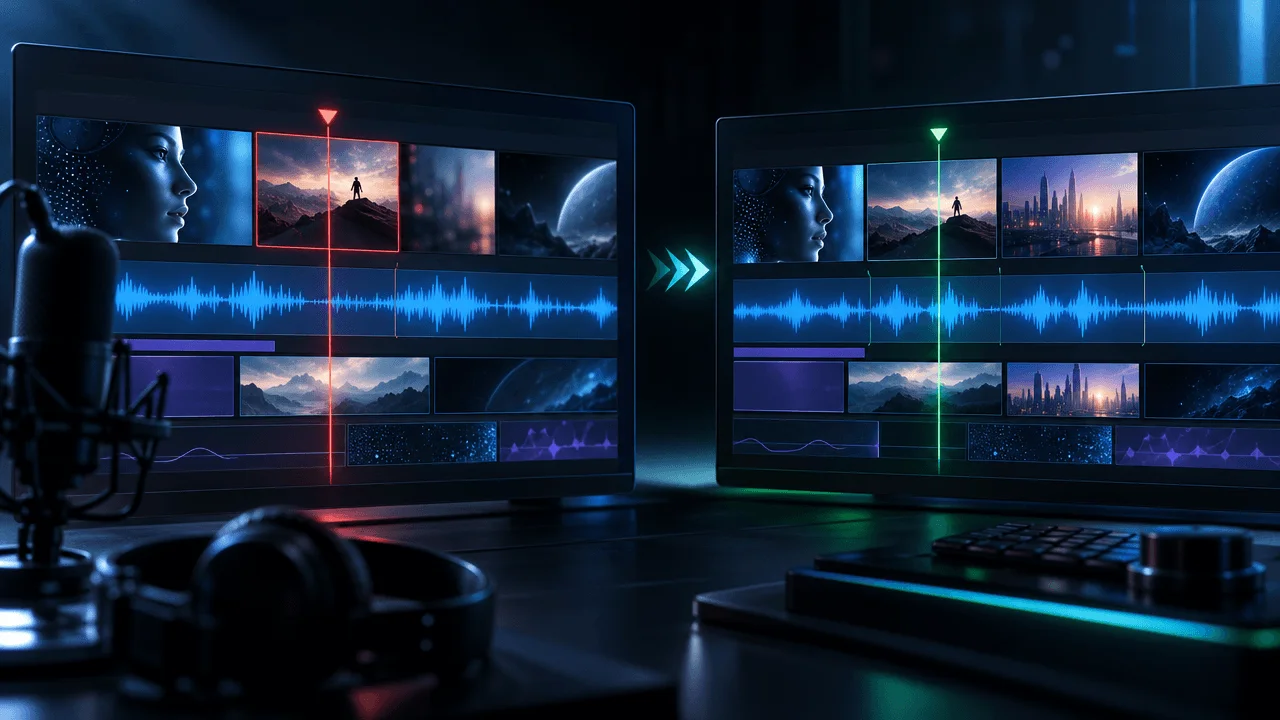
The problem is that the right visual appears at the wrong moment.
This is a common failure mode in AI-generated YouTube videos, particularly faceless documentaries, educational explainers, and narration-led content.
AI systems can generate images that match the general subject of a script. But creating the correct images is only half the job.
The editor also needs to understand when each image becomes relevant, how long it should remain visible, and when it should transition to the next visual.
A scene appearing two seconds too early can reveal information before the narration introduces it.
A graphic appearing too late can make a statistic difficult to understand.
An image remaining on screen after the story changes can make the video feel repetitive or disconnected.
These are problems of narration-to-visual synchronization.
In this guide, you'll learn why they happen, how to diagnose them, and how to build a video-production workflow where narration, scenes, captions, and visual emphasis work together.
What Is AI Video Narration Sync?
AI video narration sync is the process of aligning visual content with the corresponding spoken narration.
In a well-synchronized video:
- The relevant image appears when the narrator introduces the subject.
- A statistic becomes visible when the corresponding number is spoken.
- A new scene begins when the story changes.
- A motion graphic supports the narration rather than interrupting it.
- Captions match the spoken words.
- Visual transitions reflect the pace and meaning of the script.
This is different from synchronizing recorded audio and video using a clap, waveform, or timecode.
Traditional audio/video synchronization aligns recordings of the same event.
Narration-to-visual synchronization aligns meaning.
For example, the narrator might say:
"The company's revenue doubled from $5 million to $10 million."
The editor should know that the audience needs to understand the revenue comparison at that point.
A visual of a company headquarters might be relevant to the subject.
But a comparison graphic showing $5 million and $10 million would communicate the specific information more directly.
The challenge is choosing both the appropriate visual and the correct moment to display it.
Why AI Video Generators Sometimes Get Scene Timing Wrong
Several different problems can produce similar symptoms.
1. The System Understands the Topic but Not the Exact Moment
An AI generator may identify that a paragraph discusses smartphones.
It selects several related images.
But the paragraph could describe:
- The first iPhone.
- The introduction of the App Store.
- The growth of the smartphone market.
- Modern smartphone adoption.
All four images may relate to the general topic.
They are not interchangeable on the timeline.
A model that selects visuals based on broad paragraph relevance can miss the specific sentence each image should illustrate.
2. Scenes Are Divided by Text Length Instead of Meaning
Imagine a 120-word passage.
An automated workflow divides it into four equal sections.
Each section receives a visual.
But spoken narration does not distribute important information evenly.
The first 30 words might introduce the setting.
The next 15 words might reveal the central fact.
The remaining 75 words might explain its consequences.
Equal text divisions are unlikely to produce equally appropriate visual moments.
A better system identifies semantic boundaries: the points where the narration introduces a new subject, claim, example, or event.
3. The Voiceover Has a Different Rhythm Than the Script
Written text does not have a fixed duration.
Compare:
"Then everything changed."
With:
"On September 15, 2008, Lehman Brothers filed for bankruptcy."
The second sentence may take longer to narrate, but timing also depends on pauses, delivery style, pronunciation, and emphasis.
A script may look evenly structured while its spoken delivery is not.
This creates problems when scene durations are estimated before the narration exists.
4. Every Scene Receives a Fixed Duration
Some simple video-generation workflows produce regular scene intervals.
For example:
- Scene 1: five seconds.
- Scene 2: five seconds.
- Scene 3: five seconds.
- Scene 4: five seconds.
This is convenient for generating a basic video.
But the narration may require different durations.
One visual might need only two seconds.
Another might need eight seconds because the viewer must understand a chart or comparison.
When scene duration is disconnected from the narration, the edit can feel mechanical.
5. Motion Graphics Appear Without Semantic Timing
This problem becomes particularly noticeable with numbers, comparisons, dates, and labels.
Imagine the narrator says:
"The company lost 54% of its market value."
A circular chart appears five seconds later, after the narration has already moved to another point.
The graphic is factually relevant, but it no longer supports the information at the moment the viewer needs it.
Effective motion graphics require more than deciding what to display.
They need a deliberate entrance, readable duration, and exit.
The Five Types of AI Video Synchronization Problems
| Problem | What viewers experience | Likely editing issue |
|---|---|---|
| Early visual | Image reveals information before narration | Scene begins too soon |
| Late visual | Narrator discusses something not yet shown | Scene starts too late |
| Lingering visual | Previous subject remains after the story moves on | Scene ends too late |
| Premature cut | Important information disappears before it can be understood | Scene too short |
| Misplaced graphic | Statistic or comparison appears outside its relevant sentence | Graphic trigger incorrectly positioned |
These problems should be diagnosed separately.
A late visual does not necessarily require generating a better image.
Sometimes it only needs to move earlier.
A premature cut might require a longer scene rather than another visual.
And a misplaced graphic might require adjusting one animation rather than rebuilding the entire video.
The fastest correction is often a timing adjustment, not a new generation.
How to Sync AI-Generated Video Scenes With Voiceover
The most reliable general workflow starts with the actual narration.
Step 1: Finalize the Narration Before Locking Scene Durations
A written script is useful for planning.
But the final voiceover is the best reference for actual timing.
Generate or record the narration first, then identify the moments where specific visuals are needed.
For example:
| Narration event | Visual requirement |
|---|---|
| Introduces company | Company-related establishing image |
| Mentions 2007 | Historical setting or date |
| Introduces original iPhone | First-generation iPhone |
| Describes growth | Relevant timeline or growth visual |
| Compares two products | Side-by-side comparison |
This turns the script into a sequence of visual requirements.
Step 2: Identify Semantic Anchors
A semantic anchor is a specific narration moment that should trigger a visual.
Examples include:
- A named person.
- A location.
- A date.
- A statistic.
- A comparison.
- A new argument.
- A key reveal.
- A change in the story.
Consider this sentence:
"In 2019, the company earned $12 million, but by 2022, revenue had climbed to $48 million."
It contains several possible anchors:
- $12 million.
- $48 million.
- The increase between the two figures.
A visual might reveal those elements sequentially instead of displaying everything immediately.
That is a creative choice, but it should be deliberate.
Step 3: Use Actual Narration Timestamps
Once the audio is available, determine where each relevant phrase begins and ends.
A timestamp map might look like this:
| Time | Narration | Visual event |
|---|---|---|
| 00:12.0 | "In 2019..." | Timeline begins |
| 00:13.2 | "...earned $12 million" | First value appears |
| 00:15.4 | "...by 2022..." | Timeline advances |
| 00:16.5 | "...climbed to $48 million" | Second value appears |
| 00:18.3 | Next sentence | Graphic exits |
These timestamps are illustrative.
They are not required durations or universal editing rules.
The goal is to create an explicit relationship between the audio and visual events.
Step 4: Place Visuals Around Meaning, Not Arbitrary Intervals
A visual can begin slightly before the key phrase if it establishes context.
For example, an image of New York might appear shortly before the narrator mentions a specific event in the city.
But a numerical label should generally appear when the corresponding information is introduced.
The appropriate timing depends on the type of visual.
A useful distinction:
Context visuals: Can establish the scene before the narration reaches the key detail.
Evidence visuals: Should closely match the statement being explained.
Reveal visuals: Often work best when coordinated with the spoken reveal.
Comparison visuals: Should make the relationship clear while the comparison is being discussed.
Step 5: Allow Different Scenes to Have Different Durations
A scene should last long enough for the viewer to understand it, but not remain unnecessarily after its purpose has ended.
A simple establishing image may need less time than a complex diagram.
A single label may be understood quickly.
A detailed timeline may need longer.
Do not force every visual into the same duration.
Step 6: Review the Finished Sequence With Audio
Watching the visuals without narration will not reveal every synchronization problem.
Review the sequence with sound enabled.
Ask:
- Does the viewer see the right subject when it is mentioned?
- Are important numbers visible when spoken?
- Do transitions happen at natural narrative boundaries?
- Are images lingering after the narration has changed?
- Do graphics remain visible long enough to understand?
- Are captions obscuring critical information?
Correct the most disruptive mismatches first.
Example: Fixing a Poorly Synchronized AI Documentary
Imagine a documentary about the rise of electric vehicles.
The narration says:
"Tesla introduced the Roadster in 2008. Four years later, the Model S arrived. By the early 2020s, electric vehicles had become a much larger part of the global automotive market."
An AI generator creates three relevant images:
- Tesla Roadster.
- Tesla Model S.
- Modern electric vehicles.
The images are correct.
But the timing is wrong.
Before: Poor synchronization
| Narration moment | Visual |
|---|---|
| Roadster introduction | Modern electric car |
| Model S introduction | Roadster |
| Market expansion | Model S |
| Next topic | Modern electric car |
Every visual is delayed relative to the relevant narration.
The video feels confusing even though the generated images are appropriate.
After: Corrected synchronization
| Narration moment | Visual |
|---|---|
| Roadster introduction | Tesla Roadster |
| Model S introduction | Tesla Model S |
| Market expansion | Broader electric vehicle market |
| Next topic | Next subject |
The editing becomes easier to follow without requiring new images.
This distinction is important for production efficiency.
When the assets are correct, fix the timeline before spending time regenerating them.
How to Match Motion Graphics With Narration
Motion graphics create a second layer of synchronization.
A normal image might remain visible for an entire sentence.
A motion graphic may need to coordinate individual elements with specific spoken words.
Consider:
"Revenue increased from $8 million to $20 million in three years."
A useful visual sequence could be:
- Show an initial $8 million value.
- Introduce the three-year comparison.
- Reveal the final $20 million value.
- Hold the completed comparison.
- Exit before the next unrelated point.
The graphic should support the narration's information structure.
Three common motion-graphics timing mistakes
Everything appears immediately.
The full comparison becomes visible before the narration introduces the second value.
This is not always wrong, but it can remove the intended progression of information.
Important elements appear too late.
The graphic reveals the main number after the sentence has finished.
The viewer must mentally reconnect the image to information they heard earlier.
The animation occupies too much time.
Long entrances and exits can make the editor feel more concerned with animation than communication.
A motion graphic should have enough time to establish, communicate, and exit.
Its animation should not compete with the narration.
Captions Can Create Another Synchronization Problem
Captions introduce an additional timing layer.
They should match the spoken narration, but they must also coexist with other visual elements.
For example, imagine a vertical YouTube Short.
The video contains:
- A character.
- Captions near the bottom.
- A large numerical graphic.
- A comparison label.
If the motion graphic covers the captions, the viewer may miss important words.
If the captions cover the graphic, the visual explanation becomes harder to understand.
Both elements may have correct timing individually while producing a poor combined result.
Use caption-safe composition
Before final export:
- Check caption placement.
- Ensure important labels remain readable.
- Avoid putting critical details behind subtitles.
- Review animation entrances and exits.
- Check the final export rather than relying only on the editor preview.
This is particularly important for Shorts, where limited screen space makes competing text elements more noticeable.
Does Better Visual Timing Improve YouTube Audience Retention?
Better synchronization can make a video easier to understand.
But that does not establish a guaranteed retention improvement.
YouTube's audience retention reporting helps creators identify moments where viewers continue watching, skip, or leave.
A decline near a confusing visual transition may be worth investigating.
However, the retention graph alone cannot prove that the visual caused the decline.
Other possible explanations include:
- An uninteresting subject.
- Slow narration.
- A confusing explanation.
- A weak script.
- A mismatch between the title and the video's content.
- An expected drop as viewers finish the information they wanted.
A practical approach is to combine the retention graph with an editorial review of the corresponding timeline.
If several videos show problems around similarly confusing visual transitions, that may justify changing the editing approach.
Avoid treating one retention dip as a complete causal explanation.
Official resource: YouTube's Audience Retention Report.
How to Diagnose Whether the Problem Is Your Visuals or Their Timing
Before rebuilding an AI-generated video, ask a simple question:
If I moved this exact visual to a different moment, would the scene work?
If the answer is yes, you probably have a timing problem.
If the answer is no, you may have a visual-selection problem.
Use this diagnostic table.
| Symptom | Likely cause | First action |
|---|---|---|
| Correct image, wrong sentence | Timing mismatch | Move or retime scene |
| Correct topic, wrong specific subject | Visual-selection mismatch | Replace image |
| Visual ends during explanation | Duration mismatch | Extend scene |
| Statistic appears after narration | Graphic timing mismatch | Adjust animation trigger |
| Captions overlap important labels | Composition conflict | Reposition text or graphic |
| Every scene feels equally long | Mechanical pacing | Reassess scene boundaries |
| Images look unrelated across scenes | Visual consistency problem | Review style and character references |
This helps avoid unnecessary regeneration.
For a separate guide to character and visual continuity, see Why Your AI-Generated YouTube Videos Look Disconnected.
That article addresses how scenes look together.
This guide addresses when those scenes appear.
How OverseerOS Auto Edit Fits Into the Synchronization Workflow
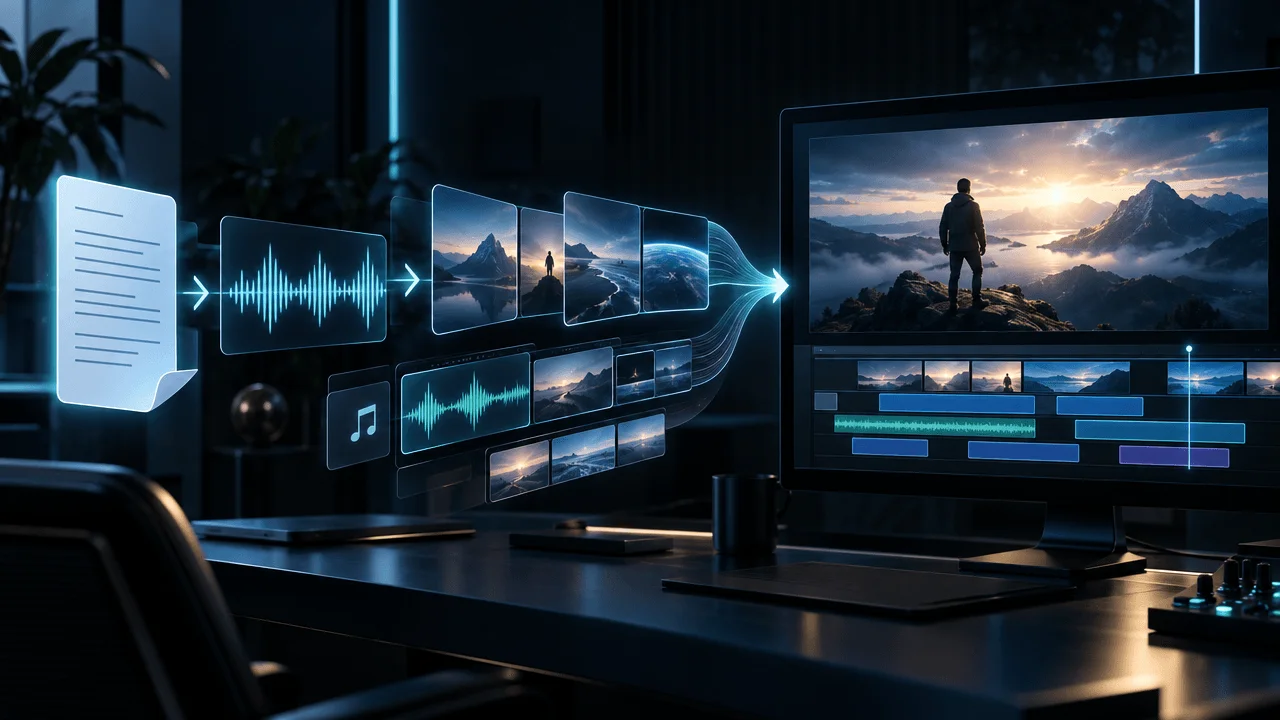
One of the biggest difficulties with AI video production is the separation between scripting, narration, visual generation, and editing.
When these happen in unrelated tools, maintaining timing requires additional handoffs.
For example:
- Write a script in one application.
- Generate voiceover in another.
- Create images elsewhere.
- Import everything into a video editor.
- Determine scene timing manually.
- Add motion graphics.
- Generate captions.
- Export.
This workflow can work well, but it requires coordination.
OverseerOS Auto Edit connects several of those steps inside a YouTube-focused production environment.
Start From an Idea or Your Own Script
Auto Edit supports an idea-first workflow as well as a route that uses an existing script.
This gives creators a way to enter the production process at different stages.
A creator can develop a new video idea or bring a prepared narrative into the workflow.
Connect Narration and Scene Production
Auto Edit is designed around narration-led video production.
The workflow combines voiceover, scene planning, visual generation, and editing.
This reduces the need to manually assemble every part of the video using disconnected applications.
However, generated scenes should still be reviewed.
An integrated workflow does not guarantee that every semantic transition is perfect.
Review and Adjust Individual Scenes
Scene-level editing is particularly important for synchronization.
When a scene is poorly timed or visually unsuitable, creators need to inspect and adjust the relevant section rather than discard the entire video.
This allows a more targeted correction process.
Control Visual Movement
Auto Edit includes camera movement speed presets.
These provide control over the visual movement applied to generated scenes.
Movement speed is not the same as narration synchronization, but it affects the overall pacing of the final video.
A slow documentary scene may benefit from restrained movement.
A fast-paced Short may require a different visual rhythm.
Work With Visual References
Visual references can help establish a more consistent appearance across scenes.
This addresses a different dimension of production quality.
The best result requires both:
- Appropriate visuals.
- Appropriate timing.
Export and Review the Actual Video
The final video should be reviewed as a complete piece.
Check narration, visuals, captions, transitions, and readability together.
This is especially important when producing multiple videos at scale, because small editing problems can become recurring workflow defects.
Who is OverseerOS best for?
Auto Edit is particularly relevant to faceless YouTube creators who want to connect ideas, scripts, narration, generated visuals, editing, and exports.
It is not a replacement for every advanced capability of a professional nonlinear editor.
For highly customized frame-by-frame animation or complex footage compositing, a dedicated editor may still be necessary.
A Practical Quality-Control Checklist Before Export
Review these seven areas.
| Check | Question | Action if it fails |
|---|---|---|
| Subject alignment | Does the visual match the current narration? | Replace or move scene |
| Timing | Does the visual appear at the relevant moment? | Adjust start position |
| Duration | Is the visual displayed for an appropriate length? | Change scene duration |
| Graphic timing | Do labels and numbers appear when needed? | Adjust animation |
| Caption placement | Can viewers read captions and graphics? | Reposition elements |
| Pacing | Do transitions follow the narrative? | Rework scene boundaries |
| Export accuracy | Does the final rendered video match the intended edit? | Correct and re-export |
Do this review with the final audio.
For particularly important sections, inspect the timeline around the exact words that introduce new information.
The Hidden Production Cost of Poor Scene Timing
Visual synchronization problems are not just aesthetic issues.
They create additional production work.
Consider a hypothetical channel producing 20 videos per month.
Suppose each video requires an extra 25 minutes of manual correction because generated visuals appear at inappropriate moments.
That represents:
20 videos × 25 minutes = 500 minutes.
Or approximately 8.3 hours of additional editing each month.
For a larger operation producing 100 videos, the same inefficiency would represent about 41.7 hours.
These are illustrative calculations, not measured industry benchmarks.
Actual correction time depends on video length, editing complexity, quality requirements, and the original workflow.
The lesson is operational.
A generator that creates scenes quickly but requires extensive timing repairs may not be as efficient as it initially appears.
When choosing a production workflow, evaluate the time required to reach an approved finished video, not simply the time required to create the first draft.
Frequently Asked Questions
How do I sync AI-generated video with a voiceover?
Start with the final narration, identify timestamps for important phrases, and align each visual with the corresponding spoken information. Adjust scene starts, durations, and transitions while reviewing the video with audio enabled.
Why do AI video generators show images at the wrong time?
Some workflows divide scripts into scenes using broad topic relevance or estimated durations. These methods can miss the precise moment when a person, statistic, event, or concept becomes relevant in the narration.
What is the difference between audio sync and narration-to-visual sync?
Traditional audio synchronization aligns recordings of the same event, such as a camera recording and an external microphone. Narration-to-visual synchronization aligns the meaning of spoken words with the images and graphics shown on screen.
Can AI automatically match images to narration?
Yes. AI systems can generate or select visuals based on scripts and narration. However, automatic matching may still require human review, especially for detailed facts, chronological explanations, numerical graphics, and complex stories.
Should I generate the voiceover before the visuals?
For narration-led videos, finalizing the voiceover before locking scene durations makes timing easier to evaluate. Visual concepts can be developed earlier, but the final spoken audio provides a more reliable timing reference than word counts alone.
How long should each scene last in a faceless YouTube video?
There is no universal duration. Scene length should reflect the narration, visual complexity, and amount of information the viewer needs to understand. Fixed durations are convenient but can produce mechanical pacing.
Why do my AI-generated videos feel like slideshows?
Possible causes include repeated static imagery, mechanical scene durations, weak visual progression, insufficient narrative variety, and transitions that do not match the narration. Not every slideshow-like video has the same underlying problem.
Can bad scene timing hurt YouTube audience retention?
Confusing visual timing can make content harder to follow, which may affect the viewing experience. However, YouTube retention data alone cannot establish that poor synchronization caused a particular decline.
How do I sync motion graphics with spoken numbers?
Identify the narration timestamps for each number or comparison. Position the graphic so the relevant information appears when it is introduced, remains readable, and exits before it interferes with unrelated information.
Why do captions overlap my motion graphics?
Captions and graphics may be positioned independently without accounting for shared screen space. Review the final composition and reserve readable areas for important text, especially in vertical videos.
What software helps synchronize AI visuals with voiceover?
Professional video editors such as Adobe Premiere provide timeline and audio-editing controls, while platforms such as Descript support text-based video workflows. OverseerOS Auto Edit connects narration, scene generation, and editing for YouTube-focused production. The best choice depends on the degree of manual control and automation required.
Can I fix scene timing without regenerating the entire video?
Often, yes. If the correct visual already exists, moving it, adjusting its duration, or changing the transition may solve the problem. Regeneration is more appropriate when the asset itself is incorrect.
Does OverseerOS Auto Edit automatically guarantee perfect scene timing?
No. Auto Edit connects narration-led scene generation and video editing, but generated content should still be reviewed. Complex semantic transitions, graphics, and unusual narration may require manual correction.
Final Verdict: The Right Visual at the Wrong Time Is Still the Wrong Edit
AI video quality is not just about generating beautiful images.
A visually impressive scene can still fail if it appears before the narrator introduces the subject, after the relevant moment has passed, or for too long.
Good editing connects what viewers hear with what they see.
That requires attention to semantic timing, not just image relevance.
The practical solution is to finalize narration, identify important visual moments, align scenes with those moments, and review the complete video before exporting.
For creators producing faceless YouTube videos at scale, the production workflow matters just as much as the generation model.
The goal is not to generate more visuals. It is to show the right visual at the exact moment it helps the viewer understand the story.
Explore OverseerOS Auto Edit to connect AI-assisted scripting, narration, visual scenes, editing, and video export in a YouTube-focused workflow.
Sources and Editorial Methodology
This article is a practical production guide, not a controlled study claiming quantified retention improvements from better visual timing.
Official references:
- YouTube: Measure Key Moments for Audience Retention, how creators can investigate viewer behavior at different moments in a video.
- YouTube: Understand Your Engagement, engagement reporting and viewer behavior.
- Adobe Premiere: Synchronize Audio and Video, traditional audio and video synchronization, distinguished here from semantic narration-to-visual alignment.
- Adobe Premiere: Text-Based Editing, using transcripts in video-editing workflows.
- Descript: AI Explainer Video Workflow, examples of combining scripts, narration, B-roll, and video editing.
Methodology: Timing tables and examples are illustrative editorial scenarios, not measurements from a controlled experiment. No fixed scene duration is presented as an official YouTube recommendation, and no guaranteed watch-time or retention improvements are claimed.