Why Your AI-Generated YouTube Videos Look Disconnected (And How to Fix Scene Consistency)
You generate a script, turn it into scenes, create the visuals, and assemble everything into a YouTube video.
The result looks impressive at first.
But then you notice something.
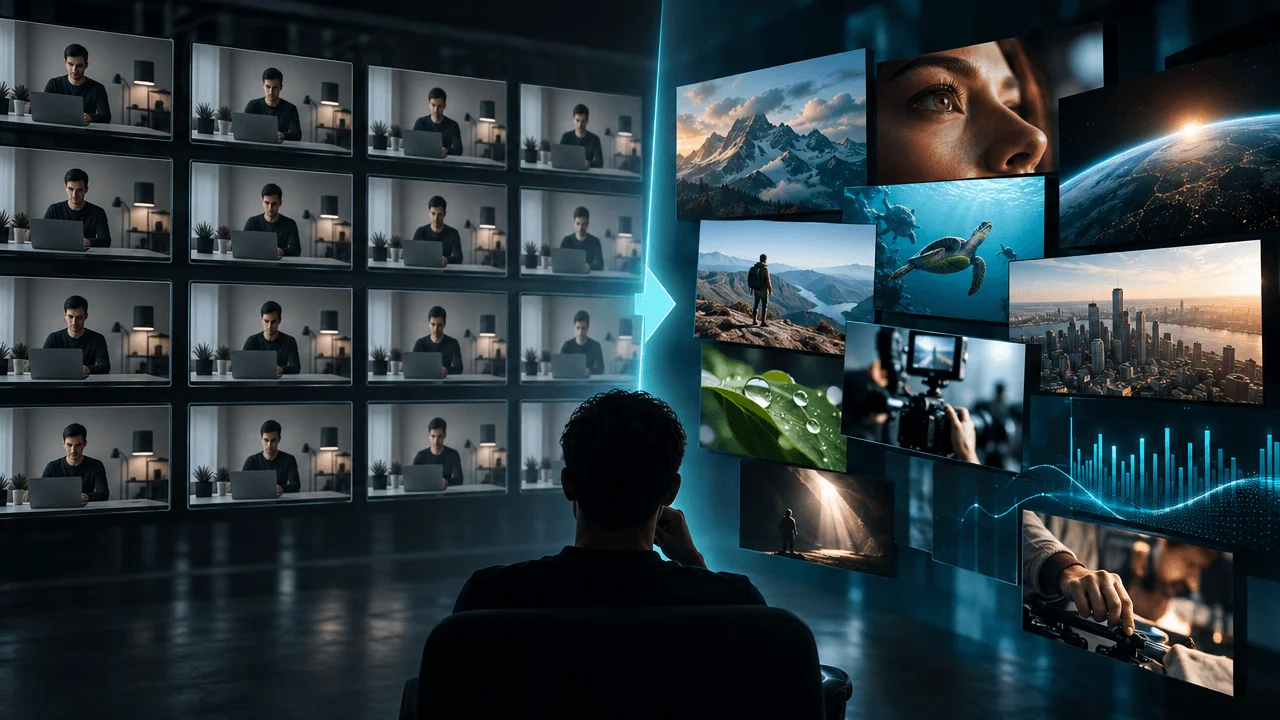
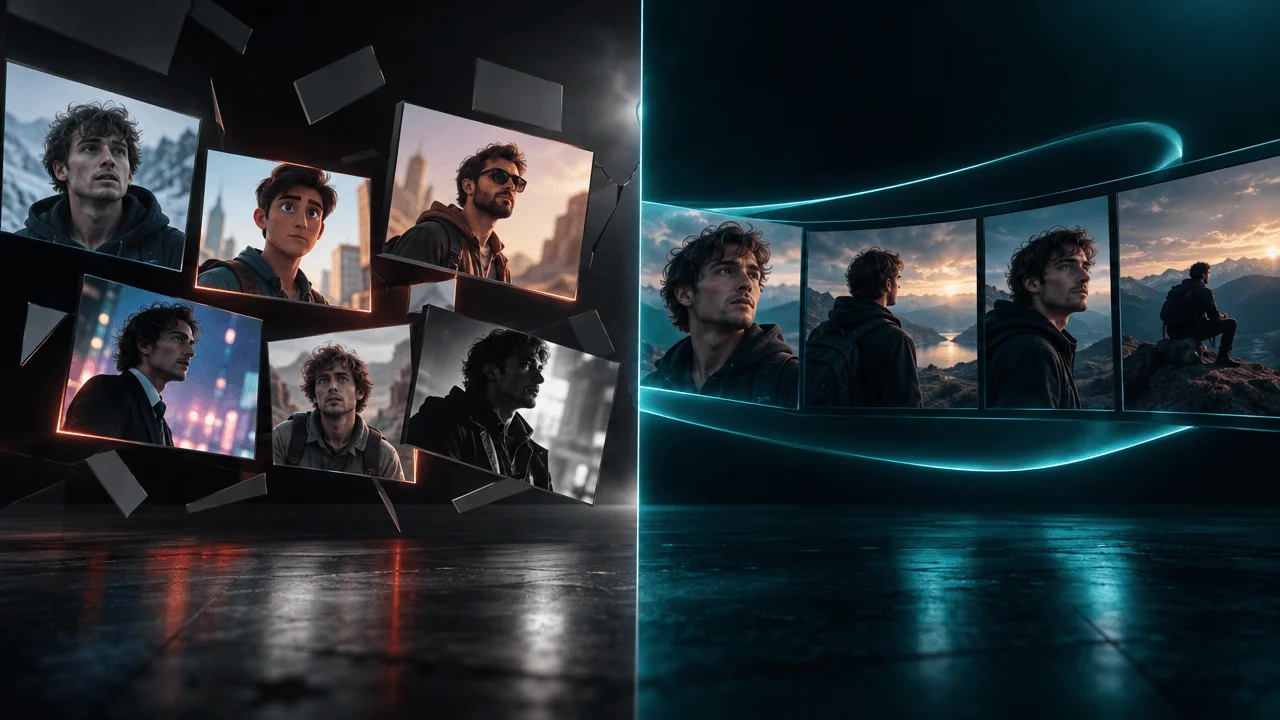
The main character looks completely different in the next scene. The lighting changes. The visual style shifts. A character who was wearing a dark jacket suddenly appears in a different outfit. The video feels like a collection of unrelated AI-generated images rather than one coherent production.
This is one of the biggest problems with AI-assisted YouTube video production.
Individual scenes can look excellent while the finished video feels inconsistent.
The problem is not necessarily the quality of the image generator. It is the lack of visual continuity across the production process.
A successful AI-generated video needs more than attractive individual images. It needs a consistent visual language, recognizable characters, appropriate scene transitions, and imagery that supports the story being narrated.
This becomes especially important for faceless YouTube channels, documentaries, storytelling videos, and channels that rely heavily on AI-generated visuals.
In this guide, you'll learn why AI-generated scenes become inconsistent, how to maintain character and visual continuity, and how to build a production workflow that creates more cohesive videos without manually rebuilding every scene.
What Is AI Video Scene Consistency?
AI video scene consistency is the ability to maintain recognizable characters, environments, visual styles, and storytelling continuity across multiple generated scenes in the same video.
A consistent video should feel like one connected production.
For example, imagine creating a documentary about a historical explorer.
The video introduces the explorer wearing a specific outfit, standing in a particular environment, during a specific historical period.
When the next scene appears, viewers should recognize the same person and understand that the story is continuing.
If the character suddenly changes appearance, the environment becomes modern, or the artistic style changes completely, the viewer experiences a visual discontinuity.
This can happen even when every individual image looks professionally generated.
Scene consistency involves several different elements:
| Element | What consistency means |
|---|---|
| Character identity | The same character remains recognizable |
| Clothing | Important clothing details remain stable |
| Environment | Locations maintain believable continuity |
| Lighting | Scenes follow a coherent visual direction |
| Art style | Images share a recognizable aesthetic |
| Color palette | Visual tones do not change randomly |
| Story continuity | Each scene supports the same narrative |
| Subject accuracy | Visuals actually represent the narration |
Not every scene needs to look identical.
A video should contain visual variation.
The goal is to make that variation intentional rather than accidental.
Why AI-Generated YouTube Videos Often Look Inconsistent
There are several reasons AI-generated scenes fail to maintain continuity.
Understanding them is the first step toward fixing the problem.
1. Every Scene Is Generated Independently
This is one of the most common causes.
A creator generates an image for the first scene, then writes a new prompt for the second scene.
The second generation may use similar wording, but it does not necessarily know what the first image looked like.
As a result, the generator can reinterpret:
- The character's facial features.
- Clothing.
- Age.
- Body proportions.
- Environment.
- Lighting.
- Camera perspective.
The same description does not guarantee the same visual result.
This becomes especially noticeable when the video contains a recurring person or character.
The solution: Establish a visual reference before generating multiple scenes. Use consistent character descriptions and reference imagery where supported.
2. Prompts Describe Scenes but Not the Overall Visual Direction
A prompt might describe what happens in an image without explaining how the image should look.
For example:
"An explorer walking through a forest."
That gives the generator a subject and an action.
But it does not establish:
- Historical period.
- Clothing.
- Camera style.
- Lighting.
- Color palette.
- Artistic treatment.
- Character identity.
The result may look completely different from the previous scene.
The solution: Separate the visual direction from the individual scene description.
Create a reusable visual specification that applies to every scene.
3. The Script and Visuals Are Not Properly Connected
Sometimes the visual inconsistency is actually a storytelling problem.
The narration describes one event while the screen shows something only loosely related.
For example, the voiceover explains how a financial market collapsed in 2008, but the generated scene shows a generic modern office.
The image may look attractive, but it does not communicate the intended information.
This creates a disconnected viewing experience.
The solution: Every scene should have a clear narrative purpose.
The visual should illustrate the actual subject, event, person, or concept being discussed.
4. The Video Uses Too Many Unrelated Visual Styles
AI tools can generate many different aesthetics:
- Cinematic photography.
- 3D animation.
- Digital illustration.
- Watercolor.
- Realistic historical imagery.
- Minimalist graphics.
- Anime-inspired visuals.
Each can look excellent independently.
But combining them randomly within one video can make the production feel unfinished.
The solution: Choose the visual language before production begins.
You can introduce different styles intentionally, but establish a reason for each transition.
5. There Is No Final Visual Quality Check
An automated production workflow may successfully generate every required scene and assemble the final video.
That does not mean the scenes work together.
Without a final review, obvious inconsistencies can survive into the export.
A production system should validate more than whether image files exist.
It should also provide a way to review the visual sequence as a complete story.
The Five Types of Visual Consistency Every AI Video Needs
You do not need to make every image identical.
Instead, focus on five types of continuity.
1. Character Consistency
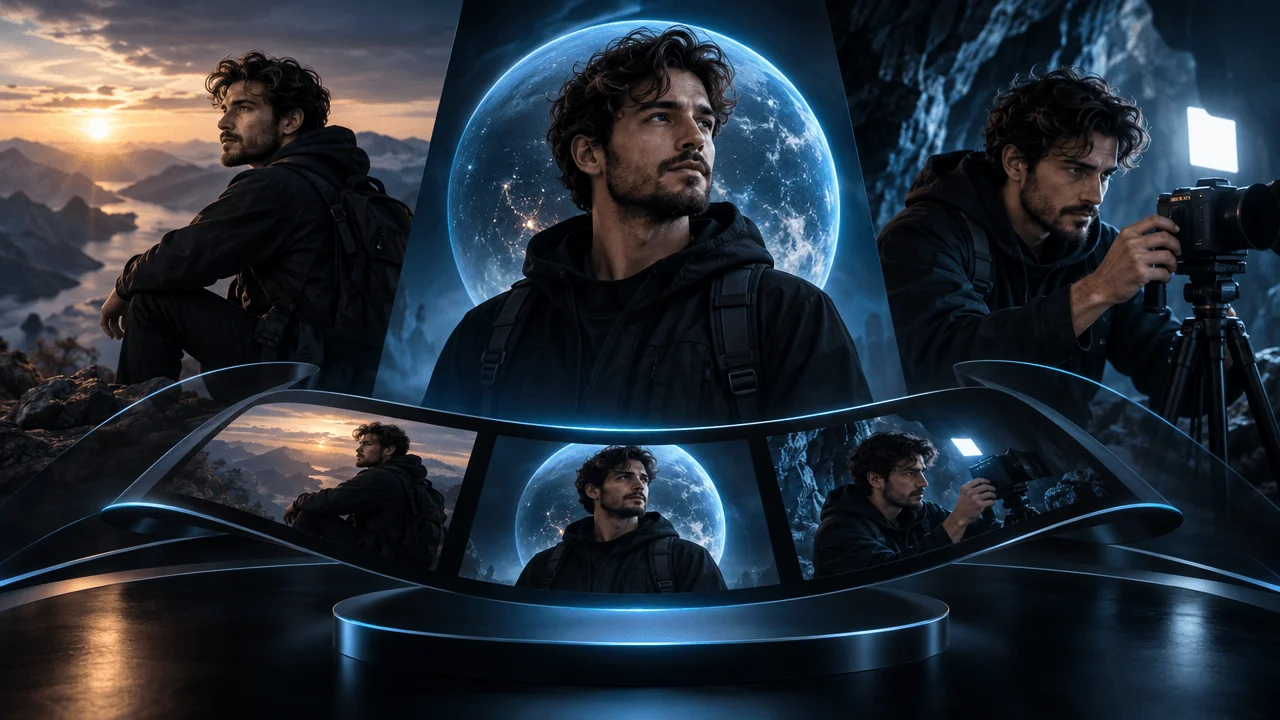
Character consistency matters whenever the same person appears across multiple scenes.
This is particularly important for:
- Historical documentaries.
- Fictional storytelling.
- Animated explainers.
- Recurring characters.
- Educational narratives.
Create a character reference that defines:
- Facial appearance.
- Hair.
- Age range.
- Clothing.
- Distinguishing features.
- Body proportions.
- Overall visual treatment.
Use the same reference throughout the scenes where that character appears.
For recurring characters, reference-based generation and character-locking functionality can reduce unwanted changes.
However, always inspect the actual output. No reference system guarantees perfect identity preservation in every image.
2. Environment Consistency
The same location should remain recognizable across related scenes.
For example, if a documentary introduces a historical laboratory, subsequent scenes should preserve the relevant architectural and environmental characteristics when the narrative returns to that location.
This does not mean the camera must remain fixed.
You can change:
- Camera distance.
- Camera angle.
- Subject position.
- Lighting intensity.
- Composition.
But the environment should remain believable.
3. Visual Style Consistency
Define the overall aesthetic before generating scenes.
For example:
Cinematic historical documentary
- Realistic imagery.
- Natural environmental lighting.
- Muted color palette.
- Atmospheric compositions.
- Film-like depth.
- Consistent historical detail.
Every scene should follow the same direction unless the story intentionally changes it.
4. Narrative Consistency
A video is a sequence of ideas, not simply a sequence of pictures.
Every scene should have a reason to exist.
Ask:
- What is the narration explaining?
- What should the viewer understand?
- Which person, object, or event should appear?
- Does the scene advance the story?
- Does it contradict something shown earlier?
This prevents visually attractive but irrelevant imagery.
5. Temporal Consistency
The sequence of events must make sense.
If a scene shows a character entering a building, the next scene should not randomly show the same character already outside without a narrative reason.
Likewise, historical documentaries should maintain reasonable chronological and contextual accuracy.
Visual continuity is not just about appearance.
It is also about what happens and when.
How to Fix AI-Generated Video Scene Inconsistency: A Practical Workflow
Here is a repeatable process for improving visual consistency.
Step 1: Establish the Visual Identity Before Generating Images
Start with a visual specification.
For a documentary, this could include:
| Attribute | Example |
|---|---|
| Style | Cinematic realism |
| Lighting | Natural, directional |
| Color palette | Muted earth tones |
| Camera | Documentary cinematography |
| Texture | Detailed and realistic |
| Atmosphere | Historically grounded |
| Composition | Clear focal subject |
Do not make these decisions independently for every scene.
They should be established once and reused throughout production.
Step 2: Create Character References
If a person appears repeatedly, generate or select a reference image.
Document the character's distinguishing features.
For example:
"Male explorer in his early forties, dark shoulder-length hair, short beard, weathered face, brown leather expedition jacket, consistent facial structure."
This description can be reused in subsequent prompts.
Where the image-generation system supports reference images or character locking, use those capabilities to reinforce identity.
Step 3: Write Scene-Specific Prompts
A good scene prompt should contain two types of information.
Global visual direction: The characteristics that remain consistent throughout the video.
Scene-specific direction: What happens in this particular moment.
For example:
Global direction:
"Cinematic historical documentary, realistic textures, natural directional lighting, muted earth-tone color palette, historically accurate clothing."
Scene-specific direction:
"The explorer stands at the entrance of a snow-covered mountain pass, examining a distant valley, medium-wide cinematic composition."
This is more reliable than writing unrelated prompts for every image.
Step 4: Use References Instead of Relying Only on Text
Text descriptions are useful, but visual references can communicate details that are difficult to describe precisely.
Use reference images for:
- Recurring characters.
- Specific environments.
- Distinctive clothing.
- Repeated objects.
- Important visual compositions.
Where supported, reference conditioning helps guide subsequent generations toward the intended appearance.
Step 5: Review the Entire Scene Sequence
Do not approve scenes only as individual images.
Review them in sequence.
Look for:
- Character changes.
- Inconsistent clothing.
- Unexplained environment changes.
- Lighting differences.
- Random changes in art style.
- Repeated imagery.
- Visuals that contradict the narration.
A simple contact sheet displaying all scenes in order can make inconsistencies much easier to identify.
Step 6: Regenerate Only the Scenes That Need Fixing
Do not automatically regenerate an entire video because two scenes look inconsistent.
Identify the exact problem.
If one scene has the wrong clothing, correct that scene.
If the character identity is wrong, use the established reference again.
If the overall visual style has drifted, revise the prompt specification and regenerate only the affected scenes.
This saves time and avoids introducing new inconsistencies into scenes that were already correct.
Step 7: Review the Final Export
The final video can reveal problems that were not obvious when reviewing individual images.
Watch the actual export.
Check whether:
- Transitions feel natural.
- Visual changes match the narration.
- Character appearances remain recognizable.
- Scene durations support the storytelling.
- Music and narration are balanced.
- The video feels like one coherent production.
The final quality check should happen after assembly, not just before it.
Example: Turning an Inconsistent AI Documentary Into a Cohesive Video
Imagine producing a 12-minute documentary about an explorer's journey across Antarctica.
The video has 30 scenes.
The initial generation produces several problems:
| Scene | Problem | Correction |
|---|---|---|
| 1 | Character looks correct | Keep |
| 2 | Different facial appearance | Reapply character reference |
| 3 | Clothing changes | Reuse clothing specification |
| 4 | Modern-looking equipment | Correct historical details |
| 5 | Visual style becomes cartoon-like | Restore global style direction |
| 6 | Wrong environment | Regenerate with location reference |
Instead of regenerating all 30 scenes, the production workflow focuses on the six defective scenes.
The final video preserves creative variation while maintaining recognizable visual continuity.
This is a more efficient approach than repeatedly generating everything until the result happens to look right.
How to Maintain Visual Consistency When Producing Videos at Scale
Fixing one video is relatively straightforward.
Maintaining consistency across 30 videos per month is a different challenge.
A scalable system needs to standardize the parts of production that should not change while preserving flexibility for creative decisions.
Create reusable visual profiles
Each channel should have its own visual profile.
Include:
- Preferred image style.
- Color palette.
- Lighting preferences.
- Character requirements.
- Reference images.
- Composition preferences.
- Visual restrictions.
This is especially important for agencies managing multiple channels.
A single visual profile should not automatically be applied to every client.
Separate channel identity from video-specific direction
A channel might use cinematic realism across all its videos.
But each individual video can still have different locations, characters, and environments.
The channel profile establishes the overall visual identity.
The video brief defines the particular creative direction.
Keeping these separate prevents every video from looking identical.
Use automated quality checks
A production system should be able to identify technical and workflow problems before export.
Examples include:
- Missing images.
- Incorrect aspect ratios.
- Unavailable assets.
- Failed generation jobs.
- Incorrect scene ordering.
- Missing narration.
- Incomplete exports.
More advanced visual checks can flag potential differences in character appearance or image style.
However, automated similarity checks should not replace creative judgment.
Two images can look different while correctly representing two different moments in the same story.
The purpose of quality control is to identify potential problems, not force every scene into visual uniformity.
What to Look for in AI Video Editing Software
If you produce AI-assisted YouTube videos regularly, the software you choose should support more than basic scene assembly.
Evaluate these capabilities:
| Capability | Why it matters |
|---|---|
| Script-based scene generation | Connects narration with visual production |
| Character references | Helps maintain recurring character identity |
| Character locking | Reduces unwanted identity changes |
| Scene-level editing | Allows individual corrections |
| Visual reference support | Helps maintain a consistent style |
| Reusable editing presets | Reduces repeated setup |
| Aspect ratio controls | Supports different video formats |
| Export validation | Prevents incomplete or defective output |
| Music and caption controls | Supports a complete production workflow |
The most important consideration is whether the software lets you correct problems without rebuilding the entire video.
That is what makes the difference between a convenient AI demo and a usable production tool.
How OverseerOS Helps Create More Consistent AI YouTube Videos
OverseerOS is designed around the YouTube production workflow rather than treating AI image generation as an isolated activity.
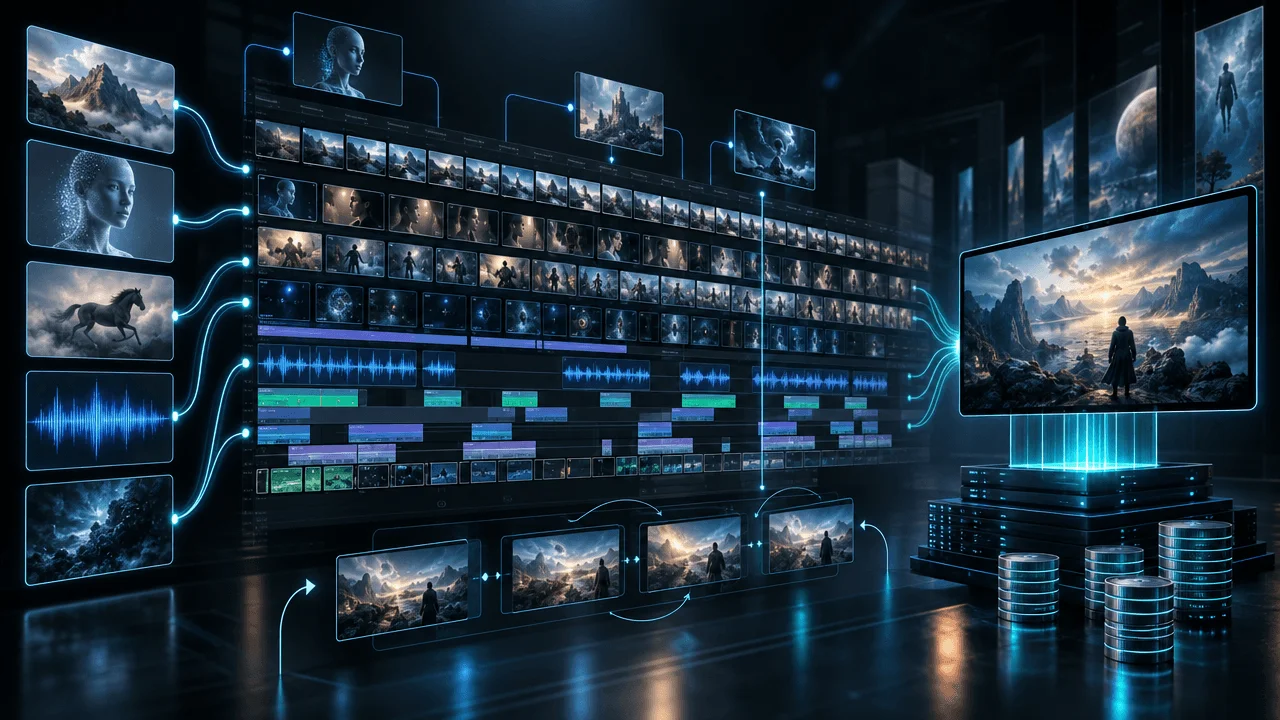
Its Auto Edit workflow connects script-driven scene production with voiceovers, visual assets, scene editing, and final video exports.
Several capabilities are particularly relevant to visual consistency.
Character Lock
Character Lock helps maintain a recurring character's visual identity across the scenes where it is applied.
This is useful for storytelling videos, recurring characters, and productions where the same person appears repeatedly.
It reduces the need to repeatedly recreate character descriptions and manually correct every appearance.
Scene-Level Editing
Auto Edit allows creators to work with individual scenes rather than treating the entire video as one unchangeable output.
This matters because a video can be mostly correct while containing a few problematic scenes.
Being able to correct individual scenes makes the workflow more practical.
Visual References
Reference-based creative direction helps establish the intended visual appearance before production.
Instead of relying exclusively on fresh text prompts, creators can use visual references to guide the result.
Camera Speed Presets
Visual movement also affects how cohesive a finished video feels.
OverseerOS includes camera movement presets such as:
- Slow Cinematic.
- Gentle.
- Standard.
- Dynamic.
- Hyper.
These provide different movement styles for the editing workflow.
The appropriate choice depends on the content. A historical documentary may benefit from restrained movement, while a fast-paced Short may require more dynamic presentation.
Complete Auto Edit Workflow
The advantage is connecting these controls with the wider production process.
Instead of separately managing every script, narration file, visual asset, and export, creators can work within a connected video-production environment.
Explore OverseerOS Auto Edit to see how AI-assisted video production can become more structured and easier to manage.
Frequently Asked Questions
Why do AI-generated video scenes look different from each other?
AI-generated scenes can look different because each generation may interpret the prompt independently. Without consistent character references, visual specifications, and scene direction, facial features, clothing, lighting, environments, and artistic styles can change between images.
How do you keep the same character in multiple AI-generated images?
Create a detailed character reference, including facial features, clothing, age, and distinguishing characteristics. Reuse the same reference image and character description across scenes. Where available, use character-reference or character-locking features to reinforce identity.
What is the best way to maintain consistency in AI-generated videos?
Establish a global visual style, create character and environment references, write scene-specific prompts, and review the generated images in sequence. Correct inconsistent scenes individually before assembling the final video.
Can AI video generators maintain character consistency?
Some AI image and video generation systems support reference images, identity conditioning, or character consistency features. Results vary depending on the model, scene complexity, and generation settings. No system guarantees perfect consistency across every output.
How do I stop AI-generated characters from changing clothes between scenes?
Include clothing details in the character specification and reuse the same reference image where supported. Avoid relying on short text descriptions alone when clothing continuity is important.
Why do my AI-generated images look good individually but bad together?
Individual image quality and sequence-level consistency are different problems. Images can each be visually attractive while using incompatible lighting, colors, environments, or character designs. Review the images as a complete sequence rather than evaluating them only in isolation.
Does character consistency matter for faceless YouTube channels?
Yes. Faceless channels often use recurring characters, historical figures, animated subjects, or recognizable visual motifs. Consistency helps viewers understand that scenes belong to the same story and channel identity.
Should every scene in an AI-generated video use the same visual style?
Generally, scenes should follow a coherent visual direction, but they do not need to look identical. Different camera angles, compositions, lighting conditions, and environments are useful when they support the story. The key is intentional variation rather than random changes.
Can I fix inconsistent AI video scenes without regenerating the entire video?
Yes. If the editing workflow supports individual scene replacement, you can correct only the affected scenes. This is generally more efficient than rebuilding an entire video when most of the existing output is already correct.
What software helps create consistent AI-generated YouTube videos?
The right software depends on the workflow. Look for script-based scene generation, character references, scene-level editing, visual controls, and reliable exports. OverseerOS Auto Edit combines several of these capabilities in a YouTube-focused production workflow.
Final Verdict: Better AI Videos Require More Than Better Image Generation
AI can generate impressive images.
But a successful YouTube video is not a collection of impressive images.
It is a connected visual story.
The characters need to remain recognizable. The environments need to make sense. The visual style should feel intentional. Most importantly, every scene needs to support what the viewer is hearing.
The biggest improvement does not necessarily come from switching to another image-generation model.
It comes from building a better production process.
Establish visual references before generation. Separate global style instructions from scene-specific prompts. Review scenes in sequence. Correct individual problems rather than regenerating everything.
And choose editing software that gives you control over the finished video.
If you want to move beyond disconnected AI-generated scenes, explore OverseerOS and its Auto Edit workflow.
Create more cohesive YouTube videos, maintain character consistency, and spend less time fixing avoidable production problems.