Yes.
For most serious YouTube channels, you should provide accurate closed captions.
But that does not mean every video should also have giant animated words permanently burned into the picture.
Those are two different decisions.
The strongest YouTube caption workflow is usually:
clean video master
reviewed closed captions
optional burned-in captions when the visual style or distribution format benefits from them
That gives you the best balance of:
- accessibility
- viewer control
- readability
- correction after publishing
- multilingual flexibility
- visual design
The biggest mistake is treating all on-screen text as the same thing.
It is not.
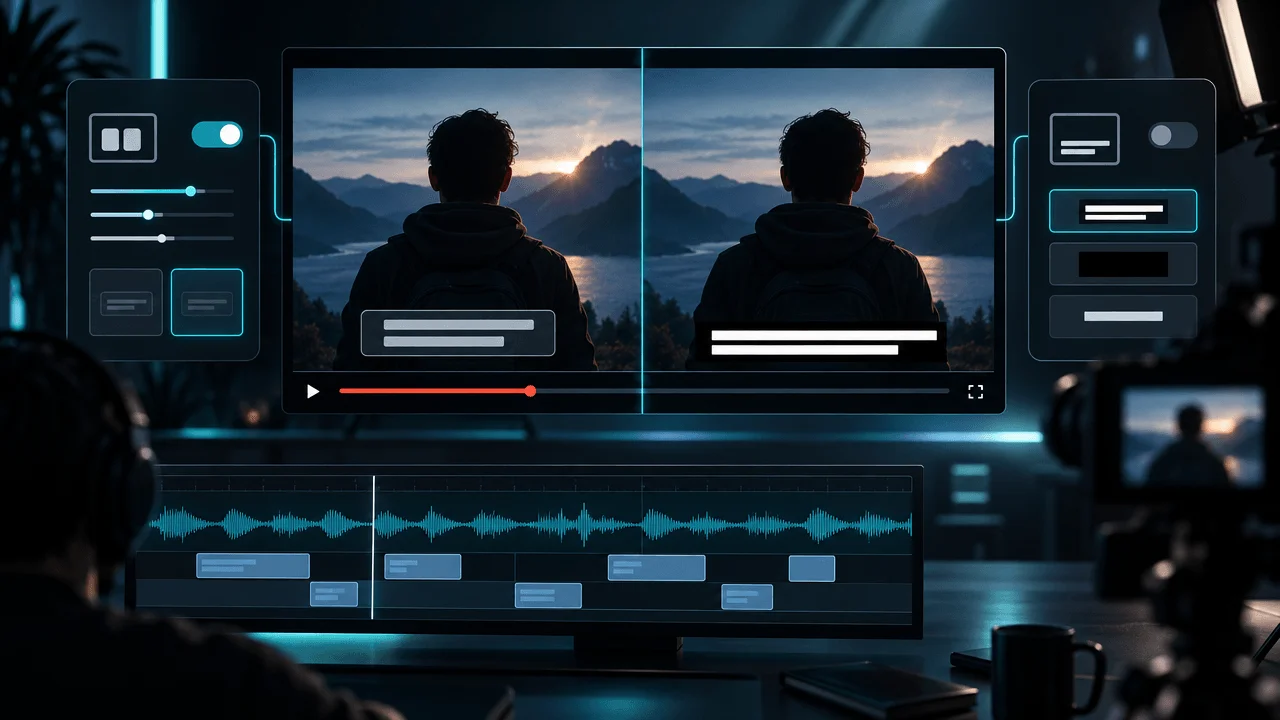
Closed captions are a separate timed text track that viewers can turn on or off.
Open captions, often called burned-in captions, are permanently rendered into the video image.
Subtitles usually translate dialogue for viewers who can hear the audio but do not understand the spoken language.
And YouTube's automatic captions are best treated as a:
draft
rather than something you should blindly trust.
If you only remember one thing from this guide, make it this:
Use closed captions for accessibility. Use burned-in captions for presentation. Do not confuse the two.
Quick Answer: Should You Put Captions on YouTube Videos?
For most YouTube videos:
Yes, provide closed captions.
Then decide separately whether you also want styled burned-in captions.
| Video Type | Closed Captions | Burned-In Captions |
|---|---|---|
| Long-form educational video | Yes | Optional |
| Documentary | Yes | Usually selective |
| Faceless explainer | Yes | Often useful |
| Talking-head video | Yes | Optional |
| YouTube Short | Yes | Often useful |
| Podcast video | Yes | Usually unnecessary |
| Screen tutorial | Yes | Use selectively |
| Cinematic story | Yes | Usually selective |
| Multilingual video | Yes | Separate subtitle tracks are preferable |
| Accessibility-first content | Essential | Not a replacement for closed captions |
The important distinction is:
Closed captions make the audio accessible. Burned-in captions change how the video looks.
You may want both.
But one does not automatically replace the other.
Captions vs Subtitles vs Burned-In Captions
Creators use these terms interchangeably.
That creates unnecessary confusion.
Here is the practical difference.
Closed Captions
Closed captions are synchronized text attached separately to the video.
The viewer can typically:
- turn them on
- turn them off
- change supported display settings
- choose available caption languages
A proper caption track can include more than spoken words.
For example:
[door slams]

MAYA: Did you hear that?

[footsteps approaching]
That matters because a deaf or hard-of-hearing viewer cannot necessarily hear:
- music changes
- laughter
- applause
- explosions
- alarms
- footsteps
- meaningful sound effects
If that audio contributes to understanding the video, the caption should communicate it.
Subtitles
Subtitles traditionally assume:
the viewer can hear
but:
does not understand the spoken language.
Example:
Audio:
English
Subtitle:
Spanish
Subtitles therefore usually focus on translating speech rather than describing every meaningful sound.
In normal creator conversation, people often use "captions" and "subtitles" loosely.
That is fine.
But when you are planning accessibility, the distinction matters.
Open Captions
Open captions are always visible.
The viewer cannot turn them off.
They can be added directly into the video during editing.
That is why people also call them:
- burned-in captions
- hardcoded subtitles
- baked captions
- hard subtitles
Once the video is exported, the words are part of the image.
Burned-In Captions
Burned-in captions are simply one way of creating open captions.
For example:
A creator adds animated text in:
- Premiere Pro
- DaVinci Resolve
- CapCut
- Auto Edit
- another editor
and exports the video.
The captions are now physically inside every frame.
There is no separate caption track required for them to appear.
The Simplest Comparison
| Feature | Closed Captions | Burned-In Captions |
|---|---|---|
| Viewer can turn off | Yes | No |
| Part of video pixels | No | Yes |
| Can be corrected without replacing video | Yes | No |
| Viewer controls appearance | To some extent | No |
| Creator controls exact visual style | Limited | Yes |
| Useful for accessibility | Yes | Not a full replacement |
| Useful for animated social-style text | No | Yes |
| Can support multiple languages separately | Yes | Requires separate video/version |
| Can cover important visuals | Usually player-controlled | Yes, if badly designed |
That table explains why the strongest workflow is often:
both
rather than choosing one forever.
Why YouTube Captions Matter
Captions are often discussed as a:
growth hack.
That is the wrong framing.
Their strongest value is much more fundamental.
They make spoken information available when the viewer:
- cannot hear it
- cannot hear it clearly
- does not want to use sound
- struggles with an accent
- is learning the language
- is in a noisy environment
- is in a quiet environment
- missed a word
- needs to check a name or technical term
That is an enormous range of viewing situations.
Captions are not only for people watching with the sound off.
They are part of the information architecture of the video.
Accessibility Is the Strongest Reason to Add Captions
The Web Content Accessibility Guidelines treat synchronized captions as an accessibility requirement for prerecorded video containing meaningful audio.
That is because the audio may contain information that the image does not provide.
Imagine a scene showing:
an empty hallway.
The viewer hears:
someone unlocking the door behind the camera.
That sound changes the meaning of the scene.
A complete caption might need:
[key turns in lock]
Now the information exists visually as well as audibly.
This is what good captions do.
They do not simply transcribe words.
They preserve meaning.
Burned-In Captions Alone Are Not the Best Accessibility Solution
This is an important distinction.
Suppose your video already contains beautifully designed animated captions.
You might think:
The video is captioned. Done.
Not necessarily.
Burned-in text cannot provide all of the flexibility of a real caption track.
The viewer cannot:
- disable it
- change its display
- switch language tracks
- interact with it as timed text
And if you discover a typo after publishing, the text is permanently inside the rendered video.
That is why a serious workflow can include:
styled burned-in captions
and:
a proper closed-caption track.
Different jobs.
YouTube Already Generates Automatic Captions. Are Those Enough?
Sometimes they are surprisingly good.
Sometimes they are wrong in exactly the places that matter most.
YouTube uses automatic speech recognition to generate captions for supported languages.
But YouTube itself warns creators that automatic caption quality can vary.
Problems can come from:
- pronunciation
- accents
- dialects
- background noise
- unclear speech
That means automatic captions should be treated as:
machine-generated transcription that needs review.
Not:
perfect published copy.
The Most Dangerous Caption Errors Are Usually Proper Nouns
Automatic captioning does not have to fail often to create a serious mistake.
Imagine a 12-minute video where:
99%
of the words are correct.
That sounds excellent.
But the wrong 1% contains:
- your sponsor's name
- a company name
- a person's surname
- a scientific term
- a medicine
- a historical location
- a technical acronym
- a price
- a number
The captions can still look unprofessional.
Examples:
ElevenLabs
becomes:
11 labs
or:
NVIDIA
becomes something phonetically similar.
The system understood the sound.
It did not understand the context.
That is why captions require:
contextual review
not only transcription accuracy.
Always Review These Words Manually
Before publishing, search the captions for:
- people's names
- company names
- product names
- acronyms
- dates
- numbers
- currencies
- locations
- foreign words
- niche terminology
- sponsor names
- URLs
- technical terms
Those words carry disproportionate risk.
Do Captions Help YouTube SEO?
This is where a lot of caption advice becomes too confident.
You will often see claims like:
Add captions and YouTube will rank your video higher.
That is not a responsible promise.
YouTube provides caption and subtitle functionality because it improves accessibility and language support.
But there is no simple public rule that says:
Add captions
↓
Receive ranking boost
↓
Get more views
So do not add captions because someone promised:
automatic SEO growth.
Add them because they improve:
- accessibility
- comprehension
- transcript accuracy
- language availability
- the quality of the published video
Those benefits can improve the viewer experience.
But that is different from claiming captions are a direct ranking switch.
Captions Should Not Become Keyword Stuffing
Do not rewrite captions to insert phrases the narrator never said.
If the narrator says:
Here's how we found the topic.
do not change the caption into:
Here's how to find viral YouTube video ideas using competitor research.
just because you want keywords.
Captions should represent the actual content.
They are not another description field.
Accuracy comes first.
Should You Burn Captions Into Long-Form YouTube Videos?
Sometimes.
But full-time burned-in captions should be a creative choice rather than a default assumption.
Long-form YouTube is different from short-form feeds.
A 12-minute video may already contain:
- narration
- B-roll
- charts
- maps
- graphics
- titles
- screenshots
- sound effects
- music
Now add giant animated words over every sentence.
The result can become visually exhausting.
For long-form video, captions should not automatically become:
the largest object on screen.
When Burned-In Captions Work Well
They are particularly useful when:
- the visual style is text-driven
- narration is fast
- important phrases deserve emphasis
- the audience often watches on mobile
- the creator intentionally uses kinetic typography
- the content resembles social-first editing
- the video is a Short
- the words themselves are part of the visual experience
Example:
Narration:
The company lost $4.2 billion in twelve months.
Instead of captioning every word with equal emphasis, the editor might display:
$4.2 BILLION
That is not only transcription.
It is visual direction.
When Burned-In Captions Can Hurt the Video
Avoid overusing them when they:
- cover faces
- cover evidence
- cover charts
- fight with screenshots
- make maps harder to read
- repeat on-screen information
- distract from emotional scenes
- create constant movement
- turn long-form video into visual noise
If the viewer needs to inspect:
a document
do not cover it with:
six words of animated subtitles.
The evidence is more important.
Long-Form Captions Should Be Different From Shorts Captions
This is one of the most important styling decisions.
A Short can survive:
- large text
- aggressive animation
- one to four words at a time
- rapid color changes
- frequent emphasis
because the experience may only last:
30 seconds.
Apply the same intensity to a:
20-minute documentary
and it can become exhausting.
Long-form generally benefits from more restraint.
That may mean:
- more words per cue
- less animation
- smaller text
- fewer highlighted words
- slower caption transitions
- selective emphasis
The format changes the correct design.
Should Every Word Be Captioned?
For an accessibility caption track:
the spoken content should be represented accurately.
For stylized burned-in text:
not necessarily every word needs to become a giant visual event.
This is an important distinction.
You can have:
complete closed captions
while using:
selective visual text
inside the edit.
Example narration:
For almost twenty years, nobody realized the company had been reporting the wrong number.
Closed captions:
For almost twenty years, nobody realized the company had been reporting the wrong number.
Burned-in visual emphasis:
THE WRONG NUMBER
Now each layer has a different job.
Captions Are Not the Same as On-Screen Titles
A title card is:
If you want to make this process less guessy, OverseerOS helps you study proven channels and turn working patterns into content plans.
editorial emphasis.
A caption is:
representation of audio.
Do not force one system to do both jobs.
You may need:
Captions
The experiment ended after only six days.
On-Screen Title
DAY 6
They can appear together.
Just ensure they do not compete.
How Many Words Should Be on Screen at Once?
There is no universal number.
The right amount depends on:
- screen size
- font size
- speaking speed
- caption position
- language
- complexity
- whether captions animate
- whether other text exists
- viewing distance
The stronger principle is:
The viewer should be able to read the caption comfortably before it disappears.
If the viewer has to:
race the text
the cue is too fast or too dense.
If the entire screen is filled with a paragraph:
the cue is too large.
Break Captions by Meaning
Weak caption break:
The scientists discovered that the

object was actually much older than
The phrase is broken in an unnatural place.
Better:
The scientists discovered

that the object was much older.
Good caption segmentation should respect:
- phrases
- clauses
- natural pauses
- complete ideas
Do not split text simply because:
the word limit was reached.
Keep Captions Synchronized With the Voice
Timing matters almost as much as wording.
If the caption appears:
before the narrator speaks
the viewer reads the answer first.
If it appears:
after the narrator speaks
the text feels broken.
A well-synchronized caption should feel connected to the actual utterance.
This becomes especially important for:
- punchlines
- reveals
- suspense
- numbers
- names
- emotional dialogue
Imagine the narrator says:
The killer was already inside.
If the caption reveals:
THE KILLER WAS ALREADY INSIDE
half a second early, you just destroyed your own timing.
Do Not Let Captions Spoil the Reveal
Captions should synchronize with the content.
They should not reveal later words prematurely.
This is one reason giant full-sentence caption blocks can be poor for suspense-driven video.
The viewer may read:
six seconds ahead of the narrator.
For storytelling, the timing of information is part of the story.
Break cues around the actual delivery.
Caption Placement Matters
The default instinct is:
bottom center.
That is often fine.
But it is not automatically correct.
Your video may already have:
- lower thirds
- charts
- source labels
- subtitles in footage
- interface controls
- YouTube player UI
- important objects near the bottom
Captions should move when necessary.
The correct location is where they remain:
- readable
- consistent
- unobtrusive
without covering the important visual information.
Avoid the Extreme Bottom Edge
Very low captions can compete with:
- playback controls
- mobile UI
- device cropping
- other overlays
Give the text breathing room.
But do not automatically move captions into the middle of the image either.
That can cover the subject.
Think in terms of:
safe visual zones.
Do Not Cover Faces Unless the Format Intentionally Demands It
Facial information matters.
Viewers read:
- eyes
- expression
- mouth
- body language
If giant captions permanently sit across a person's face, you are throwing away part of the visual.
Move the captions.
Or reduce them.
Text does not deserve priority simply because it moves.
Caption Contrast Is More Important Than Fancy Fonts
The first question is:
Can I read it?
Not:
Is this font cool?
Strong captions need enough contrast against unpredictable footage.
Common approaches include:
- outline
- shadow
- background box
- semi-transparent panel
- high-contrast color
A beautiful thin font can become unreadable the moment the background changes from:
black
to:
cloudy sky.
Design for the hardest frame.
All-Caps Captions Should Be Used Deliberately
ALL CAPS CAN FEEL LIKE CONSTANT SHOUTING.
It can work for:
- emphasis
- Shorts
- key phrases
- highly stylized brands
But using all caps for every word in a long video can reduce visual hierarchy.
If everything is emphasized:
nothing is emphasized.
Highlighting Every Word Is Not Automatically Better
Modern caption tools can highlight the word currently being spoken.
This can be effective.
It can also become visually distracting.
Use it when:
- the format benefits from kinetic text
- the video is highly social-first
- the captions are central to the visual style
Avoid treating it as mandatory for every:
- documentary
- essay
- tutorial
- educational video
Animation should serve the video.
Not prove that the caption software has animation.
Caption Style Should Match the Channel
A horror channel might use:
- restrained serif or condensed type
- muted color
- slow appearance
- occasional red emphasis
A business explainer might use:
- clean sans serif
- white text
- subtle emphasis
- minimal animation
A high-energy Short might use:
- large text
- bold colors
- rapid highlighting
- fewer words per cue
The caption system becomes part of the channel's:
visual identity.
That means consistency matters.
Save a Caption System Instead of Redesigning Every Video
Do not re-decide:
- font
- color
- position
- size
- outline
- background
- line spacing
- words per cue
for every upload.
These are excellent candidates for:
production defaults.
Create one or two tested caption presets.
Example:
Long-Form Preset
- medium size
- two lines maximum where needed
- lower-third position
- white text
- restrained outline
- sentence case
- minimal animation
Shorts Preset
- larger size
- fewer words per cue
- stronger emphasis
- center/lower-center
- kinetic highlighting
Now the creative decision is:
Which preset fits?
not:
How should subtitles look from zero?
Should You Upload Closed Captions If the Video Already Has Burned-In Captions?
Yes, in most cases.
This is one of the strongest workflows.
Burned-in captions provide:
your visual treatment.
Closed captions provide:
viewer-controlled accessibility.
That gives you:
- permanent visual emphasis where you want it
- separate accessibility text
- easier correction
- separate language tracks
- player-native caption behavior
Think of burned-in captions as part of:
video design
and closed captions as part of:
video accessibility and metadata.
What If the Closed Captions Duplicate the Burned-In Text?
A viewer who manually turns on closed captions could see both.
That can happen.
So avoid designing burned-in captions as:
full duplicate subtitles
unless that is intentional.
For long-form content, a strong approach is:
complete closed captions
selective burned-in emphasis
rather than full duplicate text everywhere.
For Shorts, full burned-in captions may still make sense because the visual language is different.
How to Add Captions in YouTube Studio
YouTube currently gives creators several caption workflows.
Inside YouTube Studio, you can:
- open the Subtitles area
- select the video
- choose the language
- add or edit captions
Depending on the workflow, YouTube supports options such as:
- uploading a caption file
- auto-syncing a transcript
- typing captions manually
- reviewing automatic captions
If you already have a correctly timed subtitle file, uploading it is often the cleanest route.
SRT vs VTT: Which Caption File Should You Use?
For ordinary YouTube workflows, both are widely used caption formats.
SRT
SRT is simple and extremely common.
It contains:
- cue number
- start time
- end time
- caption text
Example:
1
00:00:01,000 --> 00:00:03,200
This video nearly failed before it started.
WebVTT
WebVTT uses a similar timed-text structure and supports web-oriented caption features.
For creators, the important thing is not becoming obsessed with the format.
It is ensuring the file contains:
- correct text
- correct timing
- correct language
If your editor exports one of YouTube's supported formats cleanly:
use it.
Automatic Captions vs Uploaded Captions
Automatic Captions
Best when:
- you need a quick starting point
- audio is extremely clean
- terminology is simple
- you will review the result
Uploaded Caption File
Best when:
- accuracy matters
- you already have the script
- the video contains technical language
- sponsor names matter
- there are many proper nouns
- you already generated timing elsewhere
Manual Captions
Best when:
- the video is short
- you need complete control
- automated transcription performed badly
For a high-volume YouTube workflow, manually typing every caption from zero is usually unnecessary if a transcript already exists.
The real work is:
quality control.
Script-First Channels Have a Caption Advantage
A faceless YouTube workflow often already contains:
the exact script.
That changes the caption problem.
You do not have to ask:
What did the narrator say?
You already know what they were supposed to say.
The main tasks become:
- synchronize text to audio
- account for delivery changes
- verify pronunciation
- break the text naturally
- style it
- review it
That is easier than transcribing an unscripted podcast from scratch.
This is one reason narration-first video production can automate captions effectively.
But Do Not Assume the Script and Voiceover Are Identical
Even when a video begins from a written script, the final audio can differ.
A narrator may:
- skip a word
- add a pause
- rephrase
- pronounce an acronym differently
- redo a sentence
- introduce a small error
An AI voice generation workflow may also produce timing that differs from your script assumptions.
That is why captions should ultimately follow:
the final audio
not merely the original document.
Captions Should Be Generated After the Voiceover Is Final
A weak workflow is:
script
→
captions
→
voiceover changes
→
captions now wrong
A stronger workflow is:
final script
→
final voiceover
→
caption timing
→
caption styling
→
export
Once the narration is locked, the caption timing has a stable source.
This follows the same production principle we use when turning a script into a faceless YouTube video with AI:
Lock the narration before you lock the finishing layers.
How OverseerOS Handles Captions in Auto Edit
OverseerOS Auto Edit is built around a narration-first workflow.
The production chain is:
script
→
voiceover
→
scenes
→
AI visuals
→
captions
→
music + motion + FX
→
export
Captions remain connected to the actual video project rather than becoming another disconnected tool in the workflow.
Current Auto Edit caption controls include styling options around things such as:
- font
- text case
- color
- position
- background
- size
- outline
- line spacing
- words per cue
The captions can be previewed inside the Studio and included in the finished video export.
That is especially useful for faceless production because the system already knows:
- the script
- the voiceover
- the scene timing
- the final video format
The caption layer is therefore being added to an existing production timeline rather than generated in isolation.
Burned-In Captions and Closed Captions Still Solve Different Problems
Even if you export styled captions directly into the video, you should still think separately about YouTube's closed-caption track.
Auto Edit's visual captions answer:
How should the text appear inside the video?
YouTube's closed captions answer:
How can the viewer access the spoken information as a caption track?
Those are complementary.
Captions and Visual Pacing Need to Work Together
A caption is another visual element.
That means it competes for attention with:
- B-roll
- charts
- maps
- photographs
- motion
- titles
- scene changes
If you already change visuals rapidly, aggressive captions can make the frame feel overloaded.
Our broader guide on how often visuals should change in a YouTube video explains why:
more visual activity is not automatically better pacing.
Caption animation should be included in the same attention budget.
Captions and Background Music Solve Different Accessibility Problems
Captions help viewers access the spoken information.
Audio mixing helps viewers hear the spoken information.
You need both.
A perfectly captioned video should still have clear narration.
Do not use captions as an excuse for:
- loud music
- muddy voice
- weak audio
- bad recording
For narration-heavy content, also check how loud background music should be under a YouTube voiceover.
The ideal experience is:
clear voice
accurate captions
not:
unintelligible voice rescued by subtitles.
The Best Caption Workflow for Long-Form YouTube
Use this process.
Step 1: Finish the Script
Do not style captions around a script that is still being rewritten.
Step 2: Generate or Record the Final Voiceover
The real audio establishes timing.
Step 3: Finish Major Video Timing
If entire sections may still be cut:
wait.
Step 4: Generate Caption Timing
Use the final narration.
Step 5: Review the Text
Check:
- names
- numbers
- products
- brands
- technical terms
- punctuation
- missing words
Step 6: Add Meaningful Sound Cues Where Needed
For accessibility captions, include audio information that contributes to understanding.
Examples:
[alarm blares]
[crowd cheering]
[ominous music]
Step 7: Review Caption Breaks
Split by meaning.
Not arbitrary character count alone.
Step 8: Check Timing
Make sure captions do not:
- appear early
- remain too long
- lag behind
- spoil reveals
Step 9: Check Visual Placement
Make sure captions do not cover:
- faces
- charts
- evidence
- lower thirds
- important objects
Step 10: Export the Video
If using burned-in captions, review the actual final export.
Step 11: Add or Review YouTube Closed Captions
Do not assume the burned-in layer is enough.
Step 12: Check the Published Video
Turn captions on.
Turn captions off.
Watch a few sections.
The live experience matters.
The Best Caption Workflow for YouTube Shorts
Shorts require a slightly different system.
A useful workflow is:
voiceover
→
word/phrase timing
→
large burned-in captions
→
selective emphasis
→
safe placement
→
closed-caption track where available
The burned-in version matters more visually because captions can become part of the:
hook.
But avoid turning every word into an animation.
Prioritize:
- readability
- emphasis
- timing
- mobile display
Caption Every Word or Only Key Phrases?
For closed captions:
caption the spoken content accurately.
For burned-in visual text:
choose according to the format.
Full Burned-In Captions
Good for:
- Shorts
- social-first content
- fast faceless explainers
- highly stylized channels
Selective Burned-In Text
Good for:
- documentaries
- long-form education
- business explainers
- cinematic content
- visual-heavy videos
Example:
Narration:
Only three of the 47 companies were still profitable.
Closed caption:
Only three of the 47 companies were still profitable.
Burned-in emphasis:
3 OF 47
That is often more visually powerful.
The 7 Caption Mistakes That Make YouTube Videos Look Cheap
1. Captioning Too Early
The text appears before the narrator.
Result:
the viewer reads the reveal before hearing it.
2. Huge Captions Covering the Subject
The words become more important than the scene.
3. Too Many Colors
Every other word changes color.
There is no hierarchy.
4. Random Font Changes
The captions have no consistent visual identity.
5. Captions That Move Constantly
Animation becomes a distraction.
6. Never Reviewing Auto-Captions
Proper nouns and technical language remain wrong.
7. Treating Burned-In Captions as Accessibility Captions
The creator skips the actual closed-caption layer entirely.
The Caption Quality Checklist
Before publishing:
- Spoken words are accurate.
- Names are spelled correctly.
- Brand names are correct.
- Numbers and dates are correct.
- Technical terms are correct.
- Meaningful non-speech sounds are represented where necessary.
- Speaker changes are clear when needed.
- Captions do not appear significantly before speech.
- Captions do not lag behind speech.
- Reveals are not spoiled by early text.
- Caption breaks follow natural phrases.
- Text remains readable on mobile.
- Captions do not cover important visuals.
- Caption style is consistent.
- Burned-in text is not unnecessarily aggressive.
- Closed captions have been reviewed separately.
- The published video has been tested with captions on.
- The published video still works with captions off.
If you can check every box:
your caption system is probably in good shape.
Should Every YouTube Channel Use Burned-In Captions?
No.
Every channel should think seriously about accessibility captions.
Burned-in captions are optional.
A creator filming:
slow cinematic travel documentaries
may not want animated subtitles covering every frame.
A channel publishing:
60-second psychology Shorts
may consider them central to the design.
A software tutorial may only use burned-in text for:
- shortcuts
- button names
- commands
while still providing complete closed captions.
The format decides the visual treatment.
Should Podcasts Use Burned-In Captions?
Usually not for the entire long-form episode.
A 90-minute podcast with permanent giant captions may become visually unnecessary.
Closed captions are much more important.
For clips and Shorts cut from the podcast:
burned-in captions become more useful.
Same conversation.
Different distribution context.
Should Faceless YouTube Videos Have Captions?
Usually, yes.
Faceless videos already rely heavily on:
- narration
- B-roll
- AI visuals
- graphics
- scene structure
Captions add another way to preserve comprehension.
But do not assume faceless video needs:
giant TikTok-style subtitles for every sentence.
A premium documentary-style faceless channel may look stronger with:
- clean visuals
- restrained closed captions
- selective on-screen emphasis
rather than constant kinetic text.
Should Educational YouTube Videos Have Captions?
Absolutely.
Educational content often contains:
- terminology
- names
- formulas
- dates
- processes
- unfamiliar concepts
Accurate captions give viewers another way to process difficult information.
That is particularly useful for:
- non-native speakers
- students
- viewers revisiting a specific phrase
Do not hide key diagrams behind the captions.
Should Documentary Videos Have Captions?
Yes.
Documentaries frequently contain information carried only through audio:
- narration
- interviews
- archival recordings
- sound cues
Closed captions help preserve that information.
Burned-in captions should usually be more selective unless the visual style specifically calls for them.
Can Captions Improve Retention?
They can improve comprehension in situations where the viewer:
- cannot hear well
- cannot use sound
- misses words
- struggles with the speaker
But you should be skeptical of anyone promising:
Captions increase retention by X%.
That depends on:
- audience
- format
- device
- caption style
- voice clarity
- video quality
- content type
Captions are not a universal retention hack.
They are a usability layer.
Can Too Many Captions Hurt Retention?
Poor captions can hurt the experience.
For example:
- text blocks the subject
- animation becomes exhausting
- captions reveal the narration too early
- every word flashes
- text changes too fast
- captions compete with charts
That does not mean:
captions are bad.
It means:
caption design can be bad.
The same is true of:
- music
- transitions
- sound effects
- B-roll
Any useful editing tool can become distracting when overused.
Do Captions Need Punctuation?
For accessibility and readability:
usually yes.
Punctuation helps communicate:
- questions
- pauses
- sentence boundaries
- meaning
Compare:
lets eat grandma
with:
Let's eat, Grandma.
Small marks can change the meaning completely.
Stylized Shorts sometimes remove punctuation for visual simplicity.
That is a design choice for burned-in text.
Your closed-caption track should prioritize clarity.
Do You Need Sound Descriptions in Captions?
If the sound contributes meaning:
yes.
W3C accessibility guidance specifically recognizes that captions should communicate important non-speech audio.
Examples:
[glass shatters]
[phone vibrating]
[applause]
You do not need to caption every meaningless background noise.
The test is:
Would a viewer lose meaningful information if they could not hear this sound?
If yes:
represent it.
The Best Caption System Is Invisible Until Someone Needs It
This is the same principle behind strong editing.
Good captions do not force the viewer to think:
These captions are technically impressive.
They help the viewer:
understand the video.
For some channels, that means beautiful kinetic typography.
For others, that means quiet closed captions waiting behind the CC button.
The goal is not maximum captioning.
It is maximum accessibility and clarity with minimum unnecessary distraction.
Final Answer
Should you add captions to YouTube videos?
Yes.
For most serious YouTube channels, the strongest setup is:
reviewed closed captions for accessibility, plus optional burned-in captions when they genuinely improve the visual experience.
Do not rely blindly on automatic captions.
Review:
- names
- numbers
- terminology
- timing
- sound cues
Do not assume burned-in text replaces a real caption track.
Do not stuff captions with SEO keywords.
Do not cover important visuals just because captions are fashionable.
And do not turn every sentence into giant animated text unless your format actually benefits from it.
Think of the two systems separately:
Closed captions
=
accessibility + viewer control
Burned-in captions
=
visual design + emphasis
The strongest YouTube workflow can use both.
FAQ
Should I add captions to my YouTube videos?
Yes. Accurate captions improve accessibility and make spoken content available to viewers who cannot hear the audio clearly or at all. For most channels, reviewed closed captions should be the baseline.
Are YouTube automatic captions good enough?
They can be useful as a starting point, but YouTube itself recommends reviewing them because automatic captions can misrepresent speech due to pronunciation, accents, dialects, or background noise.
What is the difference between captions and subtitles?
Captions generally represent spoken dialogue plus meaningful non-speech audio for viewers who may not be able to hear the soundtrack. Subtitles traditionally translate spoken dialogue for viewers who can hear but do not understand the language.
What are closed captions on YouTube?
Closed captions are a separate timed text track that viewers can turn on or off while watching the video.
What are burned-in captions?
Burned-in captions are permanently rendered into the video image. They are always visible and cannot be turned off by the viewer.
Are burned-in captions the same as closed captions?
No. Burned-in captions are part of the video pixels. Closed captions are a separate timed text track controlled by the video player.
Should I use both burned-in and closed captions?
Often, yes. Burned-in captions can provide the visual style you want, while closed captions provide viewer-controlled accessibility.
Do captions help YouTube SEO?
YouTube does not publish a simple rule guaranteeing that captions directly increase search rankings. Add accurate captions primarily for accessibility, comprehension, and language support rather than treating them as a guaranteed SEO hack.
Can I put keywords in YouTube captions?
Captions should accurately represent what is actually spoken. Do not rewrite caption text merely to insert search keywords the narrator never said.
Should YouTube Shorts have burned-in captions?
Burned-in captions are often useful for Shorts because text can become part of the mobile visual experience. Accurate closed captions are still valuable where supported.
Should long-form YouTube videos have burned-in captions?
Not necessarily. Long-form videos may benefit from more restrained caption styling or selective on-screen emphasis. Closed captions remain valuable regardless.
Should faceless YouTube videos have captions?
Usually, yes. Narration is central to many faceless videos, so accurate captions provide an additional way for viewers to follow the content.
Should educational YouTube videos have captions?
Yes. Educational videos often contain names, terminology, numbers, and complex explanations where accurate captions can significantly improve accessibility and comprehension.
Can captions improve viewer retention?
Captions can make content easier to follow for some viewers, but there is no universal retention increase that applies to every channel. Poorly designed burned-in captions can also become distracting.
How many words should appear in a caption?
There is no universal number. The viewer should have enough time to comfortably read the cue, and line breaks should follow natural phrases rather than arbitrary word counts.
Should captions appear word by word?
Word-by-word highlighting can work well for Shorts and highly stylized videos, but it is not necessary for every long-form video. Use it only when it supports the viewing experience.
Should captions be at the bottom of the screen?
Bottom-center is common, but captions should move when that position covers important information, faces, charts, lower thirds, or other visual elements.
Should YouTube captions include sound effects?
Meaningful non-speech sounds should be represented when viewers need them to understand the video, such as [door slams], [applause], or [alarm sounds].
Should captions include punctuation?
Usually, yes. Proper punctuation improves meaning and readability, particularly for accessibility captions.
What caption file should I upload to YouTube?
YouTube accepts supported timed-caption formats such as SRT. Use a format your captioning or editing workflow can export accurately and that YouTube currently supports.
Can I edit YouTube captions after publishing?
Yes. Because closed captions exist separately from the video file, creators can edit caption text and timing without replacing the entire video.
Can I fix burned-in captions after uploading?
Not without replacing or re-editing the video itself. Burned-in text is part of the rendered image.
What is the best caption workflow for YouTube?
Finalize the script, lock the voiceover, generate caption timing from the final audio, review the text, fix names and technical terms, check timing and placement, export the video, then review or upload the closed-caption track in YouTube Studio.
Does OverseerOS Auto Edit support captions?
Yes. Auto Edit supports styled captions as part of its script-to-video production workflow, along with scenes, AI visuals, background music, motion, FX, and export controls.