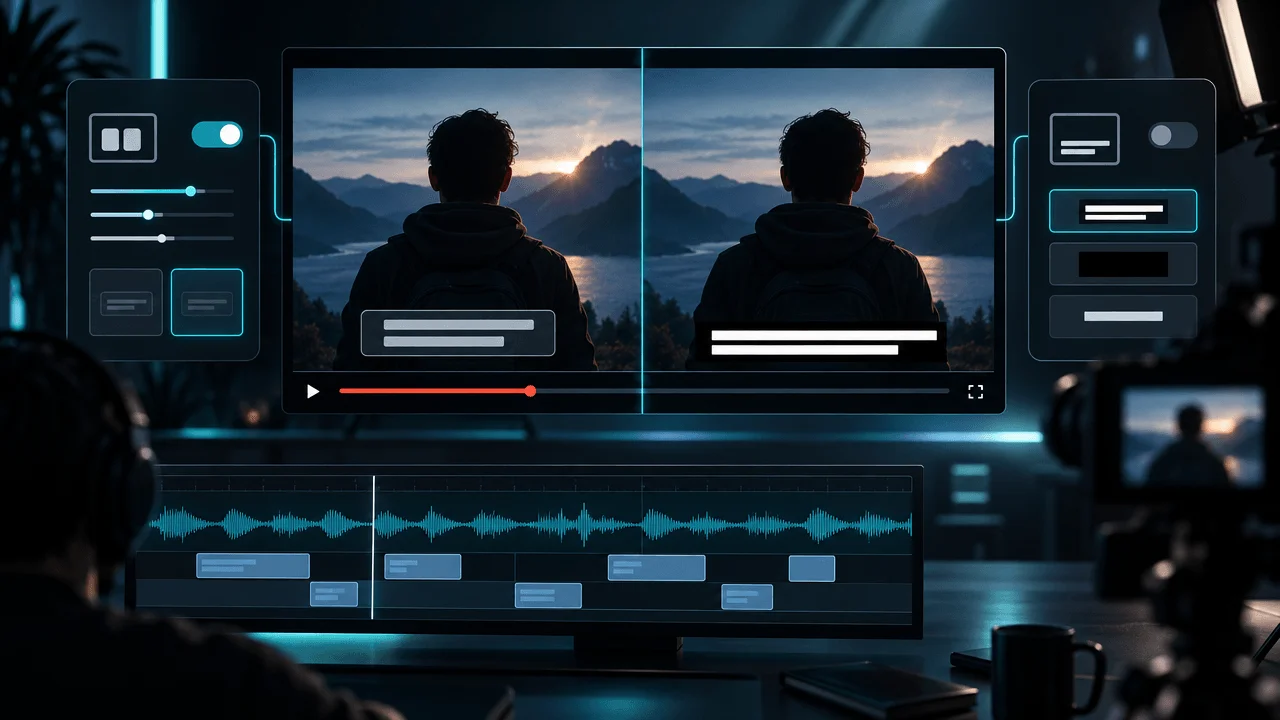
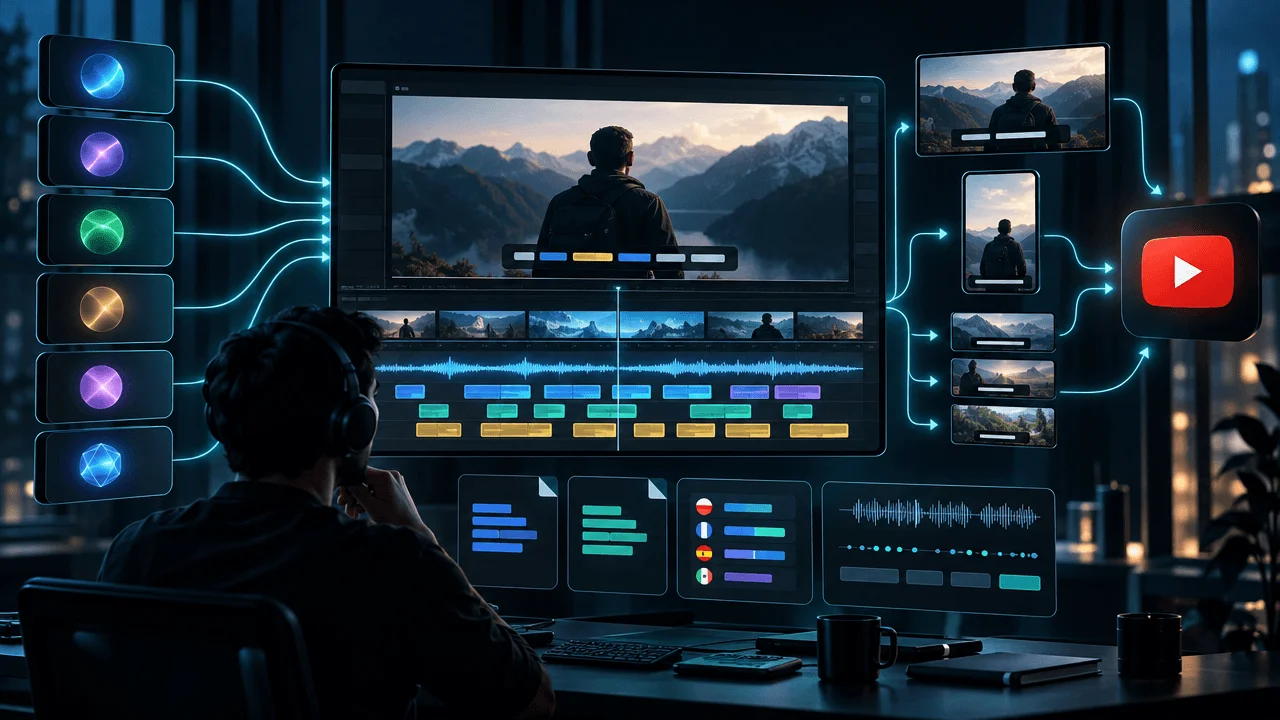
The best AI subtitle generator for YouTube depends on what you actually need at the end.
If you only want accurate closed captions attached to a YouTube video, YouTube Studio may be all you need.
If you want to edit the video and captions together, Descript is one of the strongest choices for long-form creators.
If you want both styled burned-in captions and downloadable subtitle files in a browser, Kapwing and VEED are strong all-rounders.
If you create Shorts, CapCut is better suited to fast, visually aggressive caption styling.
If you publish in many languages, Happy Scribe is more subtitle-focused than most general video editors.
If a mistake is expensive enough that you want a human fallback, Rev belongs in a different category entirely.
And if captions are only one part of a larger faceless YouTube production workflow, OverseerOS Auto Edit can keep them inside the same script-to-video project instead of making you export the video into a separate subtitle tool.
That is the first thing most AI subtitle comparisons get wrong.
They rank every tool as though the job is simply:
Upload video → generate text.
But YouTubers may need completely different outputs:
- closed captions for YouTube Studio
- SRT or VTT files
- burned-in captions
- animated word-by-word captions
- translated subtitles
- speaker labels
- human-reviewed captions
- captions synchronized to a video they are still editing
- captions built directly from a script-first production workflow
Those are not the same job.
So instead of asking:
Which AI subtitle generator is best?
ask:
What caption asset do I actually need when I am finished?
That determines the winner.
Best AI Subtitle Generators for YouTube at a Glance
| Tool | Best For | Closed-Caption Files | Burned-In Captions | Translation | Human Option |
|---|---|---|---|---|---|
| Descript | Long-form YouTube editing | Yes | Yes | Yes | No |
| YouTube Studio | Best free closed captions | Native | No custom burned-in styling | Platform language tools | No |
| Kapwing | Browser-based all-round workflow | Yes | Yes | Yes | No |
| CapCut | Shorts and animated captions | Less file-focused | Yes | Yes | No |
| Happy Scribe | Multilingual subtitle workflows | Yes | Yes | Extensive | Yes |
| Rev | Accuracy-critical captions | Yes | Available | Yes | Yes |
| OverseerOS Auto Edit | Faceless script-to-video workflow | Caption workflow inside project | Yes | Not its main advantage | No |
| VEED | Simple browser captioning | Yes | Yes | Yes | No |
There is no single universal winner.
But for most serious long-form YouTube creators who are already editing a video:
Descript is our strongest overall pick.
For creators who only need a free caption track:
Use YouTube Studio first.
For Shorts:
Use CapCut.
For localization-heavy workflows:
Look at Happy Scribe or Kapwing.
For accuracy-critical publishing:
Rev's human fallback changes the equation.
How We Ranked These Tools
We did not rank subtitle generators by whichever homepage claims the highest accuracy percentage.
That is a weak way to evaluate caption software.
Almost every modern transcription system can look impressive on:
- clean studio English
- one speaker
- no music
- no accent
- simple vocabulary
The differences appear when your real video contains:
- names
- acronyms
- niche terminology
- accents
- multiple speakers
- music
- background noise
- numbers
- fast speech
- language switching
So we evaluated the workflows around the transcription.
The criteria that matter most for YouTube are:
- Can you easily correct the text?
- Can you fix timing?
- Can you export SRT or VTT?
- Can you burn captions into the video?
- Can you translate them?
- Can you style them for Shorts or social video?
- Does the tool handle long-form video well?
- Can captions stay synchronized while the video is edited?
- Is there a human-review option when accuracy really matters?
- How many extra steps does the caption workflow add to publishing?
That last question matters more than people realize.
A caption tool can be excellent in isolation and still be the wrong choice if it adds:
- another upload
- another export
- another render
- another project
- another correction pass
to every video.
Before Choosing a Tool: Decide What Output You Need
There are three main YouTube caption workflows.
Workflow 1: Closed Captions
You want:
a separate subtitle track
that viewers can turn on or off.
Typical output:
- SRT
- VTT
- another supported timed-caption format
You upload that file to YouTube Studio.
Best tools for this type of workflow include:
- YouTube Studio
- Descript
- Kapwing
- VEED
- Happy Scribe
- Rev
Workflow 2: Burned-In Captions
You want:
visible captions permanently inside the video.
This is common for:
- Shorts
- Reels
- TikTok-style editing
- faceless videos
- social-first content
Strong choices include:
- CapCut
- Descript
- Kapwing
- VEED
- OverseerOS Auto Edit
Workflow 3: Both
This is often the strongest publishing setup.
You create:
styled burned-in captions
for presentation.
Then upload:
a separate reviewed closed-caption track
for accessibility and viewer control.
For many serious YouTube channels, this is the best overall workflow.
1. Descript: Best Overall AI Subtitle Generator for Long-Form YouTube
Best for: YouTubers who want captions, editing, transcription, and video revisions inside one workflow.
Descript has one major structural advantage over traditional subtitle tools:
the transcript is part of the editor.
That matters.
A normal subtitle workflow looks like this:
video
→
transcribe
→
find mistake
→
correct caption
But what if the problem is not actually the caption?
What if the speaker repeated themselves?
Or said:
2025
when they meant:
2026
or rambled through a section that should be removed entirely?
Descript approaches the video through the transcript itself.
You edit the text.
The corresponding media changes with it.
That makes captions part of the actual editing process rather than a finishing task bolted onto the end.
Why Descript Works Well for YouTube
Descript supports both major outputs:
Closed-Caption Files
You can export subtitle files including:
- SRT
- VTT
with controls around things such as:
- speaker labels
- characters per line
- lines per caption card
Burned-In Captions
You can also place captions directly onto the video and control:
- fonts
- colors
- backgrounds
- positioning
- caption templates
- word-by-word presentation
That makes it useful for both:
traditional YouTube
and:
social-style YouTube.
The Biggest Advantage: Captions Stay Connected to the Edit
Imagine a 20-minute interview.
You discover that minute 8 contains:
45 seconds of unnecessary conversation.
In a traditional workflow, you might:
- edit the video
- re-export
- upload to caption tool
- regenerate captions
- fix them again
In a transcript-driven system, editing the spoken content and editing the captions are much more closely connected.
That is a significant advantage for long-form creators.
Translation
Descript also supports AI subtitle translation across multiple languages.
This makes it more useful for creators expanding beyond one language.
But translation should still be reviewed.
A subtitle can be grammatically correct while missing:
- humor
- cultural context
- terminology
- intended tone
Where Descript Wins
Choose Descript if you create:
- podcasts
- interviews
- educational videos
- talking-head YouTube
- screen recordings
- long-form commentary
- business content
- video essays
and want the transcript to become part of the editing environment.
Where Descript Does Not Win
If you only need:
Upload my finished video and give me an SRT.
Descript may be more software than necessary.
YouTube Studio may be free and sufficient.
If you mainly make high-energy Shorts:
CapCut may provide faster visual caption styling.
Verdict
Best overall subtitle workflow for long-form YouTubers who also want to edit the video through the transcript.
2. YouTube Studio: Best Free Caption Generator for YouTube
Best for: Creators who only need native YouTube closed captions.
Before paying for another tool, use the system already built into YouTube.
YouTube can automatically generate captions using speech recognition.
Inside YouTube Studio, creators can also:
- review captions
- edit them
- add subtitle languages
- upload caption files
- use transcript synchronization
- enter captions manually
For many creators, that is enough.
Why YouTube Studio Is Underrated
Suppose your workflow is:
- edit video in Premiere
- upload to YouTube
- wait for automatic captions
- correct the transcript
- publish
You may not need:
- another subscription
- another export
- another caption editor
at all.
That makes YouTube Studio the benchmark every paid tool has to beat.
The Limitation
YouTube's automatic captions are generated by machine learning.
YouTube itself warns that they can be wrong because of:
- pronunciation
- accents
- dialects
- background noise
The biggest problems often involve exactly the words you care about most:
- names
- brands
- technical terms
- numbers
- places
So automatic captions should be treated as:
first draft
not:
final truth.
What YouTube Studio Does Not Replace
YouTube Studio does not replace a proper video caption editor if you want:
- animated captions
- branded subtitles
- karaoke-style highlighting
- large social-video text
- caption templates
- custom burned-in typography
Its strongest job is:
native closed captions.
Best Use Case
Choose YouTube Studio when:
- your video is already edited
- you only publish to YouTube
- you do not need burned-in captions
- you want a free workflow
- you are willing to review the transcript manually
Verdict
Best free option for native YouTube closed captions.
Do not pay for a subtitle tool until you can explain what it gives you that YouTube Studio does not.
3. Kapwing: Best Browser-Based All-Round Subtitle Workflow
Best for: Creators who want translation, subtitle files, styling, and video editing without installing desktop software.
Kapwing is one of the strongest middle-ground choices because it handles both:
caption files
and:
visual captions.
You can generate subtitles, edit them, translate them, and then either:
- export the finished video with captions burned in
- download the subtitle track separately
Kapwing supports subtitle file workflows including:
- SRT
- VTT
- TXT transcript output
It also supports importing subtitle files back into the editor.
Multilingual Strength
Kapwing's translation workflow is particularly strong.
It can translate subtitles into a large number of languages while preserving timing.
That makes it useful when one video needs to become:
- English version
- Spanish version
- Arabic version
- Hindi version
- French version
without rebuilding the timing manually each time.
Why Browser Editing Matters
Some creators do not want a full desktop editor.
For:
- agencies
- distributed teams
- virtual assistants
- remote editors
- lightweight creator workflows
a browser-based caption system can be easier to share.
Closed or Burned-In?
Kapwing gives you both options.
That is important.
You can export:
hardcoded captions
for social platforms.
Or download:
SRT/VTT
for YouTube's native caption system.
This makes it much more flexible than caption tools that only create visually burned text.
Best Use Cases
Kapwing makes sense for:
- YouTube
- Shorts
- courses
- marketing teams
- multilingual videos
- remote workflows
- creators publishing across several platforms
Main Limitation
If you already edit everything inside:
- Premiere
- Resolve
- Descript
- CapCut
moving the video into a separate browser editor may create unnecessary workflow duplication.
Verdict
Best general-purpose browser subtitle workflow for creators who need both styled video captions and reusable subtitle files.
4. CapCut: Best AI Caption Generator for YouTube Shorts
Best for: Shorts, social video, word-by-word captions, and fast visual styling.
CapCut's advantage is not that it is the world's most sophisticated closed-caption system.
Its advantage is:
visual caption production.
CapCut's auto-caption workflow can generate speech-based captions and lets creators adjust:
- text
- timing
- appearance
- fonts
- animation
- positioning
It also supports bilingual subtitle workflows on supported platforms.
Why CapCut Is Strong for Shorts
Short-form captions often need to become part of the edit.
You may want:
- one phrase at a time
- highlighted keywords
- large text
- animated text
- caption templates
- quick repositioning
- mobile-first composition
CapCut is designed around that kind of content.
Example
Narration:
This company lost 90% of its value in six months.
A traditional closed caption might display:
This company lost 90% of its value in six months.
A Shorts edit might show:
LOST 90%
then:
IN 6 MONTHS
with visual emphasis synchronized to the voice.
That is no longer merely transcription.
It is editing.
Translation
CapCut also supports subtitle translation and bilingual captions in supported workflows.
That can be useful for channels producing:
- multilingual Shorts
- language-learning content
- travel content
- globally targeted videos
The Limitation
For a 45-minute documentary where your primary requirement is:
clean SRT files with rigorous accessibility QA
CapCut would not be our first choice.
It is strongest when captions are part of:
visual production.
Verdict
Best AI caption generator for Shorts and creators who want captions to behave like motion graphics.
5. Happy Scribe: Best for Multilingual Subtitle Production
Best for: Creators, publishers, courses, and teams working across many languages.
Happy Scribe is more subtitle-focused than many general video editors.
That matters if your workflow is not:
Make text look cool.
but:
Create, review, translate, manage, and export subtitles reliably.
Happy Scribe currently supports AI transcription and subtitles across a very broad set of languages.
Its platform also supports translation workflows and human services for supported languages.
Why This Is Different From CapCut
CapCut asks:
How should these captions look inside the video?
Happy Scribe is closer to asking:
How should this timed-language asset be produced and delivered?
That is a different product philosophy.
Human Review
One major advantage is that Happy Scribe can extend beyond pure AI.
If a project needs more accuracy, professional linguists can be involved for supported workflows.
That becomes useful for:
- courses
- corporate training
- documentaries
- international publishing
- accessibility-sensitive projects
where:
mostly correct
may not be good enough.
Subtitle File Workflows
Happy Scribe is built around actual subtitle assets rather than only burned-in video text.
That makes it appropriate when the final deliverable needs to remain reusable across:
- YouTube
- Vimeo
- course platforms
- websites
- broadcasters
- localization workflows
Best Use Cases
Choose Happy Scribe if:
- translation is central
- you publish in many languages
- subtitle files are the product
- you need human review as an option
- you manage captions across many videos
Main Limitation
If you only create:
English YouTube Shorts
this is probably more localization infrastructure than you need.
Verdict
Best for creators and teams treating subtitles as a multilingual publishing asset rather than just an editing effect.
6. Rev: Best When Caption Accuracy Is More Important Than Automation
Best for: Videos where a transcription mistake can create a real problem.
Rev belongs in this list because it offers something most AI caption generators cannot:
a path from AI captions to human-produced captions.
That changes the decision.
Suppose you are publishing:
- medical education
- legal content
- compliance training
- university material
- government communication
- important corporate training
You may not want:
95% correct.
You may want:
someone to verify it.
Rev offers both AI and human captioning services.
Why Human Captioning Still Matters
Imagine a video containing:
- 3 doctors
- 17 medicine names
- dosage numbers
- clinical terminology
- statistics
Even a small transcription error could change the meaning.
In that situation, the question is not:
Which AI caption generator has the nicest interface?
It is:
How much does an error cost me?
If the answer is:
a lot
human verification becomes rational.
AI Caption Workflow
Rev also offers AI captioning for creators who do not need full human review.
So the service gives you a ladder:
AI
→
human review when required
instead of forcing every project into one accuracy tier.
Best Use Cases
Rev makes sense for:
- legal
- medical
- compliance
- accessibility-critical content
- enterprise video
- educational institutions
- high-risk terminology
Main Limitation
For normal creator videos, human captioning may be unnecessary.
If you are making:
10 faceless history videos every week
you probably do not need to pay humans to caption every one.
Verdict
Best choice when caption accuracy is important enough to justify human verification.
7. OverseerOS Auto Edit: Best When Captions Are Part of a Faceless Video Workflow
Best for: Creators starting from a script and voiceover rather than an already finished video.
OverseerOS approaches captions from the opposite end of the workflow.
Most subtitle tools begin with:
finished video
→
upload
→
transcribe
→
caption
Auto Edit begins earlier:
script
→
voiceover
→
scene structure
→
AI visuals
→
captions
→
music + motion + FX
→
export
That distinction matters.
If you are already creating the faceless video inside one production system, sending the finished export into a second app solely to create captions adds:
- upload time
- another project
- another export
- another rendering step
Auto Edit keeps the caption layer connected to the video it is already building.
Caption Styling
Current Auto Edit caption controls include settings around:
- font
- text case
- color
- position
- background
- size
- outline
- line spacing
- words per cue
Captions can be previewed in the editing workflow and included in the final exported video.
Why Script-First Production Changes Captioning
A script-based system already knows what the narration is supposed to say.
That means the problem is not necessarily:
Guess what this audio contains from scratch.
The workflow already has:
- script
- voiceover
- scene timing
That makes captions another synchronized production layer.
Where OverseerOS Wins
OverseerOS makes the most sense when your real problem is:
Turn this script into a complete faceless video with captions included.
rather than:
I already have an MP4. Give me an SRT file.
For the second job, use a dedicated caption tool.
For the first, keeping captions inside the same production pipeline can be more efficient.
Where OverseerOS Does Not Win
OverseerOS is not trying to replace:
- Happy Scribe's localization infrastructure
- Rev's human captioning
- YouTube Studio's free native caption system
If captions are the only thing you need:
use a caption-first tool.
If captions are one part of:
building the entire video
Auto Edit becomes more interesting.
Verdict
Best for faceless YouTube creators who want captions generated as part of the full script-to-video workflow rather than as a separate post-production task.
8. VEED: Best Simple Browser Caption Editor
Best for: Creators who want an easy browser workflow for auto subtitles, translation, styling, and export.
VEED is another strong all-round browser option.
Its subtitle system supports:
- automatic subtitle generation
- manual editing
- subtitle translation
- subtitle file upload
- visual styling
VEED supports subtitle files such as:
- SRT
- VTT
in its workflows.
Subtitle file download availability depends on the plan.
Why VEED Makes Sense
VEED fits creators who want:
Upload video → generate subtitles → fix them → style them → export.
There is very little conceptual complexity.
It is especially useful for:
- social teams
- marketing videos
- simple YouTube production
- remote workflows
- translated content
VEED vs Kapwing
These tools overlap heavily.
We would decide between them based on:
- which interface you prefer
- current plan limits
- translation needs
- how much video editing you want to perform
- whether your team already uses one of them
There is no reason to subscribe to both for caption generation alone.
Verdict
A strong browser-based choice for creators who want straightforward subtitle generation without a heavier desktop editing workflow.
Best AI Subtitle Generator by Use Case
Here is the decision in simpler terms.
Best for Long-Form YouTube
Descript
Because captions remain connected to transcript-driven editing.
Best Free Option
YouTube Studio
Because you may not need another tool at all.
Best for Shorts
CapCut
Because caption styling is part of the short-form editing experience.
Best for Browser Editing
Kapwing
With VEED as a strong alternative.
Best for Multilingual Publishing
Happy Scribe
Especially when subtitle files and localization are central.
Best When Accuracy Is Critical
Rev
Because human captioning remains available when AI is not enough.
Best for Faceless AI Video Production
OverseerOS Auto Edit
Because captions remain inside the larger narration-first production pipeline.
AI Subtitle Generator vs AI Caption Generator: Is There a Difference?
In normal marketing language:
not much.
Companies use:
- AI subtitle generator
- AI caption generator
- auto-caption tool
- subtitle maker
- automatic subtitles
almost interchangeably.
But the output matters.
A tool can call itself:
AI caption generator
while only producing:
burned-in visual text.
Another can generate:
SRT files.
Another can generate:
both.
Ignore the label.
Look at the export.
Closed Captions vs Burned-In Captions
This is the most important buying distinction in the category.
Closed Captions
The captions remain separate from the video.
Advantages:
- viewers can toggle them
- they can be edited later
- languages can remain separate
- YouTube can manage them natively
- visual design stays clean
Best for:
- accessibility
- long-form YouTube
- multilingual publishing
Burned-In Captions
The captions are rendered into the pixels.
Advantages:
- always visible
- creator controls the style
- animations work
- presentation remains consistent
- ideal for social-first video
Best for:
- Shorts
- Reels
- TikTok
- stylized faceless content
Neither is universally better.
They solve different problems.
The Best Workflow Is Often Both
For a high-quality YouTube video:
- create the finished visual video
- add selective burned-in text if your style needs it
- produce an accurate closed-caption track
- upload that track to YouTube
Now you have:
visual design
and:
accessibility.
SRT vs VTT: Which Should You Choose?
For most YouTube creators:
SRT is the simplest default.
It is widely supported and easy to move between tools.
An SRT block looks like:
1
00:00:01,000 --> 00:00:04,000
Most creators are solving the wrong caption problem.
WebVTT serves a similar purpose and is common in web video systems.
You do not need to become a subtitle-format expert.
The bigger questions are:
- Is the text correct?
- Is the timing correct?
- Are the line breaks readable?
- Does YouTube accept the file?
Do Not Choose a Tool Based on "99% Accuracy"
Accuracy claims sound scientific.
They often hide the hardest part.
Ask:
99% on what audio?
A tool might perform extremely well on:
- one American speaker
- studio microphone
- no music
and badly on:
- Nigerian accent
- Swedish name
- biology terminology
- music underneath speech
So do not trust one number.
Run your own test.
The 10-Minute Subtitle Tool Test
Before paying for a caption service, take one difficult section from your own channel.
Not your cleanest video.
Your hardest one.
Include:
- names
- numbers
- technical terms
- fast speech
- accent
- music
- pauses
Then compare the tools.
Measure:
Wrong Words
How many?
Important Wrong Words
More important.
A wrong "the" matters less than a wrong:
company name.
Timing Errors
Do captions appear too early or too late?
Line Breaks
Are phrases split naturally?
Editing Time
This may be the most important metric.
How many minutes does it take you to turn the AI output into something publishable?
The best tool is often not the one with the fewest raw errors.
It is the one that requires:
the least correction effort.
Caption Correction Time Is the Real Cost
Imagine:
Tool A
Costs less.
Caption generation takes:
2 minutes.
Correction takes:
25 minutes.
Tool B
Costs more.
Generation takes:
5 minutes.
Correction takes:
5 minutes.
For a creator publishing:
20 videos per month
Tool B may actually be much cheaper.
Your time is part of the price.
Always Review Proper Nouns
Regardless of which tool wins:
manually inspect:
- names
- brands
- products
- places
- scientific terms
- acronyms
- sponsor names
- prices
- dates
- numbers
These are the words speech recognition is most likely to get wrong in ways viewers notice.
Should You Use AI Translation for YouTube Subtitles?
Yes, as a starting point.
Not blindly.
AI translation can dramatically reduce the work required to produce multilingual subtitle tracks.
But language is contextual.
A technically correct translation can still sound:
- unnatural
- overly formal
- culturally strange
- misleading
For important languages, review the subtitle with:
a fluent speaker.
That becomes even more important for:
- sponsor messages
- medical information
- legal information
- humor
- idioms
Should You Translate the Voiceover Too?
That is a separate decision.
Subtitle translation gives you:
original audio
translated text
Dubbing gives you:
translated audio
Those serve different audiences.
A useful expansion strategy can be:
Stage 1
Add translated subtitles.
Stage 2
Identify languages with meaningful demand.
Stage 3
Consider dubbed audio for the strongest markets.
Do not build 20 dubbed versions before you know whether anyone wants them.
Do Captions Help YouTube SEO?
Do not buy a subtitle service because someone promises:
Captions automatically increase your rankings.
YouTube does not publish a simple rule that guarantees a direct ranking boost merely because captions exist.
The stronger reasons to provide captions are:
- accessibility
- comprehension
- accurate text representation
- multilingual reach
- better experience in difficult listening environments
Those are valuable enough.
You do not need to invent an SEO guarantee.
Do Captions Help Retention?
Sometimes.
But not automatically.
Captions can help when viewers:
- cannot use sound
- miss words
- struggle with an accent
- are non-native speakers
- need additional reading support
Burned-in captions can also hurt the experience when they:
- cover the subject
- animate constantly
- show too many words
- spoil reveals early
- compete with charts
- make the frame exhausting
Captions are an editing tool.
Good use can help.
Bad use can distract.
Best Caption Style for Long-Form YouTube
Long-form captions usually benefit from restraint.
Consider:
- clean font
- strong contrast
- consistent placement
- natural phrase grouping
- enough reading time
- minimal animation
- selective emphasis
You do not need:
every word exploding individually.
Long-form video should remain watchable for:
- 10 minutes
- 20 minutes
- 40 minutes
without becoming visually exhausting.
Best Caption Style for YouTube Shorts
Shorts can support more aggressive typography.
Consider:
- larger text
- fewer words at once
- strategic keyword highlighting
- tighter timing
- stronger animation
- mobile-safe placement
The caption becomes part of the:
visual pacing.
That is why CapCut-style editing is so common in short-form workflows.
Do Not Caption Every Visual Change
Captions follow:
speech.
Visual changes follow:
meaning and editing rhythm.
Those should not be forced into the same timing system.
A scene may change three times during one caption.
Or one visual may remain through several caption cues.
That is normal.
If you are planning a faceless edit, also see:
How Often Should Visuals Change in a YouTube Video?
Caption Placement Matters
The best caption generator can still produce a terrible video if the text covers:
- faces
- charts
- product UI
- maps
- evidence
- lower thirds
Check caption placement across:
- desktop
- mobile
- Shorts layout
A position that looks safe in your editing preview may interfere with:
- YouTube controls
- mobile UI
- other overlays
Captions Should Follow the Final Audio
If you create videos from scripts, the order should be:
script
→
final voiceover
→
final timing
→
captions
not:
script
→
captions
→
change voiceover
The final audio is the source of truth.
This becomes particularly important when:
- sentences are re-recorded
- pauses change
- speech is regenerated
- the video is shortened
- sections move
The Best AI Caption Workflow for Faceless YouTube
A complete narration-first workflow might look like:
topic
→
script
→
voiceover
→
scene structure
→
visuals
→
captions
→
music
→
sound effects
→
motion
→
review
→
export
This is why caption tools should not always be evaluated in isolation.
The actual question is:
Where does captioning fit inside the rest of my production system?
If you already build videos inside OverseerOS Auto Edit, generating and styling captions inside that same project may be more efficient than creating another caption workflow.
If your video is already finished:
a dedicated tool may make more sense.
The Biggest AI Subtitle Generator Mistakes
Mistake 1: Trusting the Transcript Without Reviewing It
Fix:
check important words manually.
Mistake 2: Choosing a Tool Before Deciding the Output
Fix:
decide whether you need:
- SRT
- VTT
- burned-in captions
- translation
- human review
first.
Mistake 3: Paying for Something YouTube Already Does
If you only need basic closed captions:
test YouTube Studio before buying another subscription.
Mistake 4: Using a Shorts Tool for Accessibility Captioning
A beautiful animated caption is not automatically a proper closed-caption workflow.
Mistake 5: Treating Translation as Finished Localization
AI translation should still be reviewed.
Mistake 6: Captioning Before the Video Is Locked
Any later edit can break synchronization.
Mistake 7: Ignoring the Correction Time
Generation speed means little if cleanup takes forever.
Which Tool Should You Choose?
Use this decision tree.
I Only Need YouTube Closed Captions
Use:
YouTube Studio
I Need to Edit Long-Form Video and Captions Together
Use:
Descript
I Need a Browser Tool With SRT/VTT + Burned-In Captions
Use:
Kapwing
or:
VEED
I Make Shorts
Use:
CapCut
I Publish in Many Languages
Use:
Happy Scribe
Accuracy Is Mission-Critical
Use:
Rev
I Am Building the Whole Faceless Video From a Script
Use:
OverseerOS Auto Edit
That is a much better buying framework than asking:
Which one has the most features?
Our Final Recommendations
For most long-form YouTube creators, we would start with:
Descript
if the video is still being edited.
If the video is already finished and you only need native captions:
YouTube Studio may be enough.
If you want a flexible browser editor with reusable caption files:
Kapwing is a strong choice.
For highly styled Shorts:
CapCut wins.
For multilingual subtitle production:
Happy Scribe is more specialized.
For accuracy-sensitive projects where AI alone is not enough:
Rev offers something most competitors cannot.
For faceless creators who want captions to remain part of the larger script-to-video production workflow:
OverseerOS Auto Edit solves a different problem by keeping the caption layer inside the video project itself.
And VEED remains a solid browser alternative if you prefer its workflow.
The most important lesson is not:
Which caption AI is smartest?
It is:
Which tool leaves me with the exact caption asset I need while creating the least extra work before publishing?
That is the tool you should buy.
FAQ
What is the best AI subtitle generator for YouTube?
For long-form YouTube creators who also need video editing, Descript is one of the strongest overall choices because transcription, editing, caption styling, and SRT/VTT export live in the same workflow. If you only need free native YouTube captions, start with YouTube Studio.
What is the best free AI subtitle generator for YouTube?
YouTube Studio is the strongest free starting point for creators who only need closed captions on YouTube. It automatically generates captions for supported languages and allows creators to review and edit the result.
What is the best AI caption generator for YouTube Shorts?
CapCut is one of the strongest options for Shorts because auto captions are integrated with a short-form editor and can be styled, animated, repositioned, and translated.
What is the best AI subtitle generator for long-form YouTube?
Descript is particularly strong for long-form content because the transcript, video edit, and subtitle workflow remain connected. Happy Scribe is stronger when localization and subtitle files are the primary requirement.
What is the best AI subtitle generator for faceless YouTube videos?
If you already have a finished faceless video, Descript, Kapwing, VEED, or YouTube Studio can work well. If you are generating the full faceless video from a script and voiceover, OverseerOS Auto Edit keeps captions inside the same production workflow.
Is YouTube automatic captioning good enough?
It can be a useful starting point, but YouTube itself recommends reviewing automatically generated captions because speech recognition can misinterpret pronunciation, accents, dialects, background noise, names, and terminology.
Should I use YouTube Studio or a paid subtitle generator?
Use YouTube Studio if you only need native closed captions. Consider a paid tool when you need burned-in captions, advanced styling, SRT/VTT workflows, translation, collaboration, transcript-based editing, or human review.
Can Descript export SRT files?
Yes. Descript supports subtitle export in formats including SRT and VTT.
Can Descript burn captions into a video?
Yes. Descript can place styled captions directly into the video as well as export separate subtitle files.
Can Kapwing export SRT files?
Yes. Kapwing supports downloadable SRT and VTT subtitle workflows on applicable plans and can also export videos with subtitles hardcoded into the image.
Can Kapwing translate subtitles?
Yes. Kapwing supports automated subtitle translation across many languages while preserving caption timing.
Can VEED export subtitle files?
Yes. VEED supports subtitle file workflows including SRT and VTT. Subtitle file download availability depends on the current plan.
Can CapCut automatically generate subtitles?
Yes. CapCut includes automatic caption generation on supported desktop, web, and mobile workflows.
Can CapCut translate captions?
Yes. CapCut supports translated and bilingual caption workflows on supported platforms.
What is the best subtitle generator for multiple languages?
Happy Scribe is particularly strong for multilingual workflows because it supports AI transcription and subtitles across a broad range of languages and provides translation and professional human-language services.
What is the most accurate AI subtitle generator?
There is no universal answer. Accuracy changes with language, accent, microphone quality, terminology, music, and speaker overlap. Test tools using difficult footage from your own channel rather than trusting one advertised accuracy percentage.
What subtitle tool should I use when accuracy is critical?
Rev is a strong option because creators can move beyond AI captions into human captioning when a transcription mistake carries meaningful risk.
What is the difference between an AI caption generator and an AI subtitle generator?
The terms are often used interchangeably. The important distinction is the output. Some tools create burned-in visual captions, while others generate reusable subtitle files such as SRT or VTT. The best tools can do both.
Should I use SRT or VTT for YouTube?
SRT is a simple and widely supported choice for most creators. YouTube supports multiple caption formats, so use a supported format that your caption workflow can export accurately.
Are burned-in captions better than closed captions?
Not universally. Burned-in captions give creators complete visual control and are useful for Shorts and social-first editing. Closed captions give viewers control and are better suited to accessibility and multilingual caption tracks.
Should I use burned-in captions and closed captions together?
Often, yes. Burned-in captions can provide visual emphasis while a separate closed-caption track provides viewer-controlled accessibility.
Do AI subtitle generators support translation?
Many do. Descript, Kapwing, CapCut, VEED, and Happy Scribe all provide translation-related subtitle workflows, although language availability and plan limits differ.
Do captions help YouTube SEO?
YouTube does not publish a simple rule guaranteeing a ranking boost just because captions are present. Captions should primarily be added for accessibility, comprehension, accurate text representation, and multilingual reach.
Do captions improve retention?
They can improve comprehension for some viewers, particularly when sound is unavailable or speech is difficult to understand. But poor caption design can also become distracting, so captions are not a guaranteed retention hack.
Should I review AI-generated captions manually?
Yes. At minimum, manually check names, companies, brands, numbers, dates, locations, acronyms, technical terminology, sponsor names, and foreign words.
When should captions be generated in the editing process?
Generate final caption timing after the voiceover and major edit decisions are locked. If the audio or video timing changes later, captions may need to be regenerated or retimed.
What should I test before buying an AI subtitle generator?
Use a difficult section from one of your own videos containing names, numbers, accents, music, and technical terms. Compare transcription errors, timing, line breaks, export options, and how many minutes of manual correction each tool requires.
Does OverseerOS Auto Edit generate captions?
Yes. Auto Edit includes styled captions as part of its script-to-video production workflow, alongside voiceover-driven scene structure, AI visuals, music, motion, FX, and final export controls.
Is OverseerOS a replacement for dedicated subtitle software?
Not for every use case. Dedicated subtitle tools are better if you only need transcription, multilingual subtitle management, or human captioning. OverseerOS is more useful when captions are one layer of a complete faceless-video production workflow.