A YouTube voiceover can be:
- perfectly recorded
- noise-free
- heavily compressed
- professionally EQ'd
and still sound bad.
Why?
Because voiceover editing is not primarily about:
making a voice sound expensive.
It is about making the narration:
effortless to listen to.
That means fixing:
- awkward pauses
- rushed sentences
- slow sections
- bad takes
- pronunciation errors
- inconsistent energy
- mouth clicks
- breaths
- background noise
- harsh sibilance
- uneven volume
before worrying about whether the voice needs:
3 dB more presence at 4 kHz.
The correct order is:
Performance → Timing → Cleanup → Tone → Dynamics → Loudness → Final Mix
Not:
EQ → compressor → limiter → hope.
This matters even more for faceless YouTube videos.
There may be no presenter on screen.
The narration becomes:
the spine of the entire video.
Your:
- visual changes
- B-roll
- captions
- music
- transitions
- pauses
- reveals
are often built around that one audio track.
So if the voiceover rhythm is wrong:
the entire edit inherits the problem.
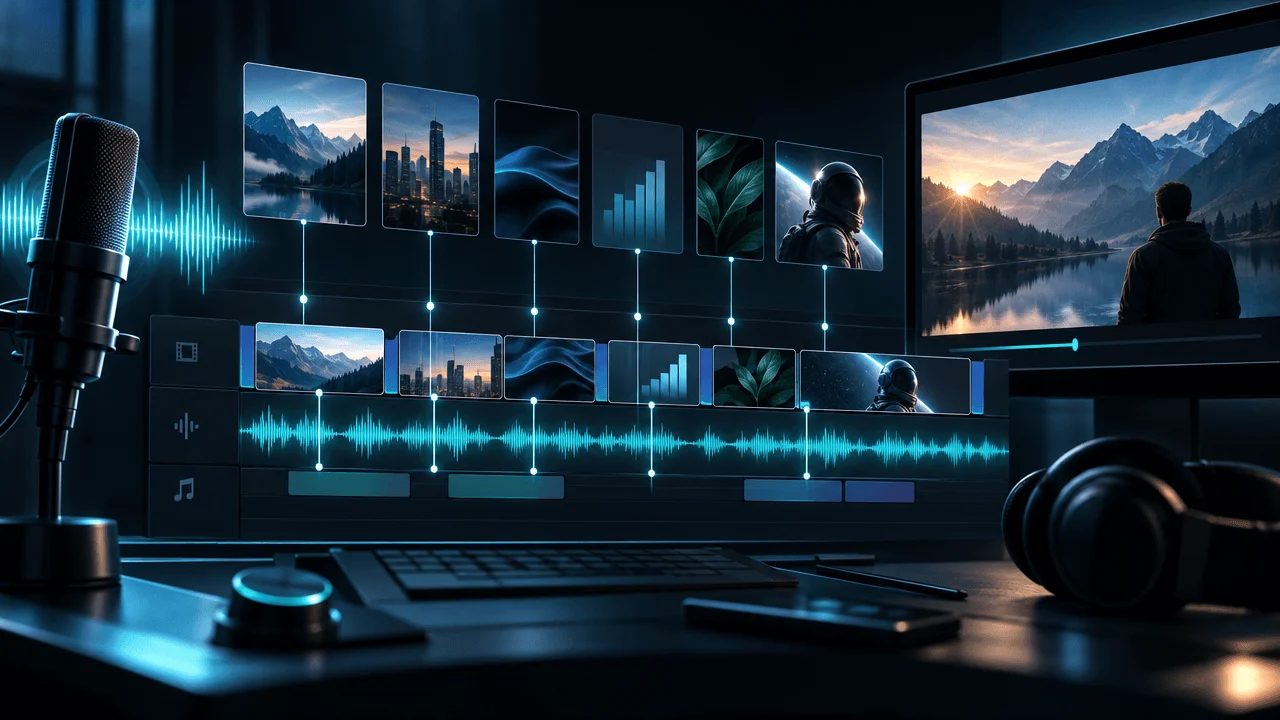
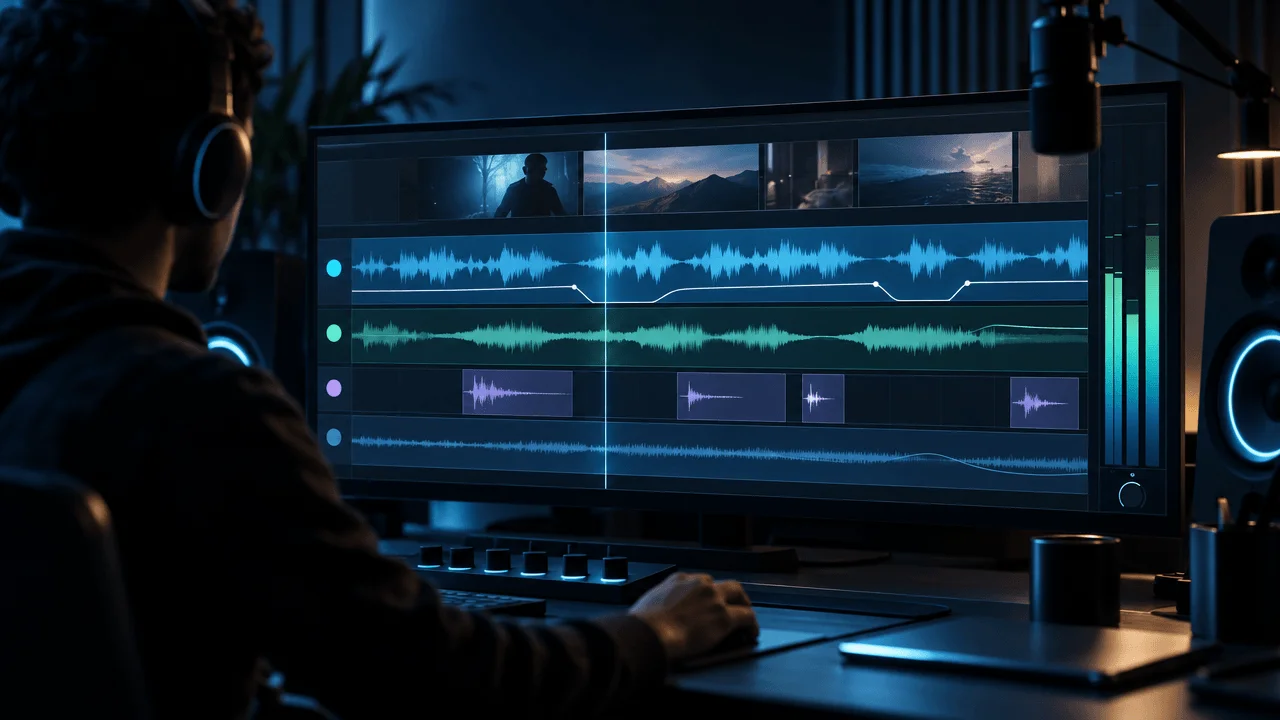
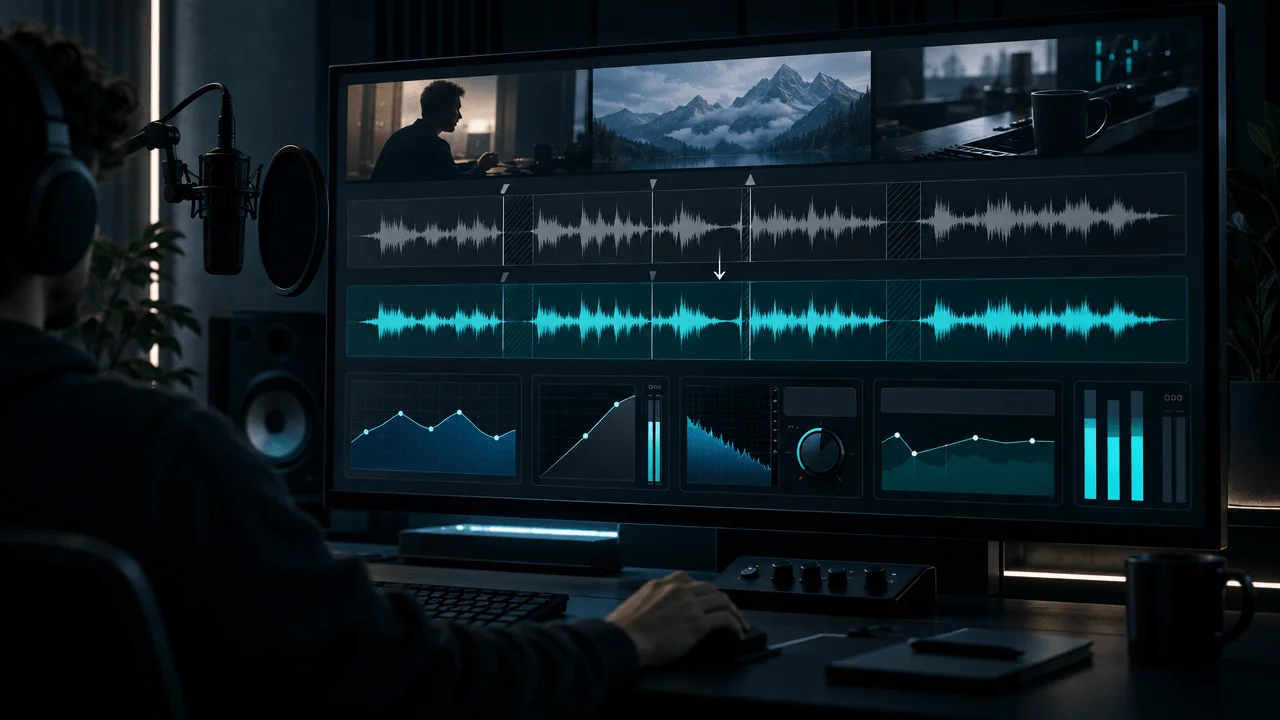
This guide explains how to edit human and AI voiceovers for YouTube from the raw narration to the final export.
Quick Answer: How Do You Edit a YouTube Voiceover?
Use this order:
- Save the untouched original recording.
- Assemble the best takes or generated sections.
- Fix incorrect words and pronunciations.
- Remove obvious mistakes and false starts.
- Edit pacing before processing the sound.
- Shorten dead air without removing useful pauses.
- Control breaths instead of deleting every breath.
- Remove distracting clicks, pops, hum, and noise.
- Use EQ only to solve tonal problems.
- Apply gentle compression for consistency.
- De-ess harsh sibilance if necessary.
- Match levels between different takes or generations.
- Use limiting carefully to control final peaks.
- Mix music and effects underneath the narration.
- Test the voice on headphones, phone speakers, and normal playback.
- Export at high quality and inspect the final YouTube upload.
The most important rule is:
Edit the rhythm before you edit the tone.
Voiceover Editing vs Voiceover Mixing
These are related.
They are not the same thing.
Voiceover Editing
Deals with:
- takes
- mistakes
- words
- pauses
- breaths
- timing
- pronunciation
- clicks
- unwanted sounds
Question:
Is this the right performance at the right time?
Voiceover Processing
Deals with:
- EQ
- compression
- noise reduction
- de-essing
- limiting
Question:
Does the recording sound controlled and clear?
Mixing
Deals with:
- narration
- music
- ambience
- sound effects
Question:
Can I hear the right thing at the right moment?
Trying to mix badly edited narration is like:
color grading the wrong shot.
Fix the underlying material first.
Why Voiceover Matters So Much in Faceless Videos
In a talking-head video:
the creator's:
- expression
- body language
- face
carry part of the communication.
In a faceless video:
the voice may carry nearly all of the:
- personality
- emphasis
- emotional direction
- pace
- authority
- tension
That makes weak narration difficult to hide.
A technically impressive visual edit can still feel:
cheap
if the voiceover sounds:
- robotic
- rushed
- overprocessed
- monotone
- badly cut
Start With the Performance
Before reaching for:
- EQ
- compression
- denoise
- plugins
ask:
Is this actually a good take?
Processing cannot fully repair:
- wrong emotion
- incorrect pronunciation
- flat delivery
- rushed sentence
- awkward emphasis
- bad phrasing
Sometimes the highest-quality audio edit is:
recording the sentence again.
The Re-Record vs Repair Rule
Ask:
Can I fix this naturally in less time than it would take to record or regenerate the line again?
If no:
replace the line.
Examples:
Re-record / regenerate
- badly mispronounced name
- completely wrong emphasis
- clipped word
- awkward AI inflection
- severe distortion
- strong microphone bump
Repair
- one mouth click
- slightly long pause
- minor noise
- uneven level
- small breath
Do not turn a:
five-second retake
into:
15 minutes of restoration work.
Step 1: Keep an Untouched Original
Before destructive editing:
save the original recording.
Use something like:
voiceover_original.wav
voiceover_edit_v01.wav
voiceover_final.wav
Why?
Because aggressive processing can create:
- metallic noise
- clipped consonants
- unnatural silence
- damaged breaths
- pumping
You need a clean way back.
Step 2: Assemble the Best Takes First
If you recorded multiple takes:
choose the strongest delivery before:
processing.
Do not automatically choose the take with:
the cleanest waveform.
Choose the one that best communicates:
the sentence.
You can often clean a little room noise.
You cannot easily manufacture:
conviction.
Step 3: Build a Voiceover Comp
A comp combines the best sections of:
multiple takes.
Example:
Sentence 1 → Take 2

Sentence 2 → Take 4

Sentence 3 → Take 1
This is normal.
But be careful.
Different takes can have different:
- microphone distance
- volume
- tone
- energy
- room noise
Listen across the edit.
Not only inside each clip.
The Invisible Join Test
Close your eyes.
Play:
the sentence before the edit
→
the edited line
→
the sentence after.
Can you hear:
the cut?
If yes, ask why.
Common causes:
- level jump
- room tone disappears
- breath disappears
- different vocal tone
- timing feels wrong
Fix:
the transition.
Step 4: Fix Words Before Silence
Start with:
content errors.
Check:
- names
- dates
- acronyms
- technical terms
- company names
- foreign words
- numbers
- quotations
A beautifully processed wrong pronunciation is still:
wrong.
Create a Pronunciation Sheet
For difficult scripts, keep:
NVIDIA → en-VID-ee-uh

Nguyen → [preferred pronunciation]

CAGR → say "C-A-G-R" or "kay-ger" depending context

$1.4B → "one point four billion dollars"
This becomes especially useful for:
- history
- science
- finance
- foreign names
- AI narration
AI Voiceovers Need Pronunciation QA Too
Modern TTS systems give creators much more control over pronunciation and delivery, but the exact controls depend on the model.
ElevenLabs' current documentation, for example, recommends testing important pronunciations with the selected voice and supports model-dependent techniques such as IPA, punctuation, audio tags, or break syntax for controlling delivery.
The important production lesson is not:
Use one specific syntax forever.
It is:
Fix pronunciation at generation whenever possible instead of trying to disguise a wrong word in post.
Step 5: Edit Timing Before EQ
This is where many voiceovers improve the most.
Listen only for:
rhythm.
Ignore:
- EQ
- noise
- loudness
for now.
Ask:
- Does this section drag?
- Is this sentence rushed?
- Does the reveal have enough space?
- Are pauses happening in useful places?
- Does every sentence have exactly the same rhythm?
There Are Different Kinds of Silence
Silence is not one thing.
Dead Air
Nothing useful is happening.
Usually shorten it.
Thinking Space
The viewer needs time to understand.
Often keep it.
Dramatic Pause
Creates anticipation.
Keep it when earned.
Structural Pause
Separates ideas or chapters.
Useful.
Accidental Gap
Usually remove.
Good editing does not:
remove silence.
It removes:
meaningless silence.
Do Not Automatically Remove Every Pause
Compare:
The project failed because costs increased and demand disappeared.
with:
The project failed... because costs increased and demand disappeared.
Different effect.
Now:
They thought the company was profitable.
Pause.
It wasn't.
The silence is doing:
storytelling.
Do not let automatic silence removal destroy it.
The Pause Question
For every noticeable pause ask:
What is this pause doing?
If answer:
- nothing
shorten it.
If answer:
- anticipation
- comprehension
- separation
- emotion
keep it.
Use Three Pause Lengths
You do not need exact universal values.
Think relationally.
Micro Pause
Between phrases.
Barely noticed.
Normal Pause
Between ideas.
Creates clarity.
Major Pause
Before or after:
- reveal
- punchline
- emotional line
- chapter shift
The contrast between pause lengths creates:
rhythm.
If every gap is identical:
the narration can feel synthetic.
AI Narration Often Needs Pause Variation
One reason AI narration can sound artificial is not necessarily:
the voice quality.
It can be:
timing uniformity.
Every sentence:
- begins immediately
- ends cleanly
- has similar cadence
- uses identical spacing
The result feels:
machine assembled.
Current ElevenLabs documentation explicitly treats punctuation, text structure, tags, and model-specific pause controls as ways to shape rhythm rather than leaving every pause to chance.
That is a useful principle regardless of which TTS system you use.
Do Not Fix Every Pause in Post If You Can Fix the Generation
Bad workflow:
generate robotic paragraph
↓
slice it into 35 pieces
↓
manually create rhythm
Better:
structure script for speech
↓
generate better delivery
↓
make small timing corrections
Post-production should refine:
a good performance.
Not construct one frame by frame.
Step 6: Listen for Sentence Shape
Good narration often changes energy within:
the sentence.
Example:
It looked like the company was growing.
Then:
But underneath the growth was a problem nobody could see.
The second sentence may need:
- slower opening
- more emphasis
- pause before the key phrase
The waveform cannot tell you:
the meaning.
Listen to the:
sentence arc.
Avoid Machine-Gun Narration
Weak:
Sentence.
Sentence.
Sentence.
Sentence.
Sentence.
with no variation.
Strong narration includes:
- short lines
- longer thoughts
- pauses
- acceleration
- deceleration
- emphasis
That variation creates:
attention.
Do Not Make Every Sentence Fast
Fast delivery can feel:
- energetic
- efficient
But constant speed removes:
contrast.
Important lines often become stronger when:
everything briefly slows down.
The Speed-Contrast Rule
If the whole voiceover is:
fast,
nothing feels urgent.
If the whole voiceover is:
slow,
nothing feels important.
Use contrast.
What Speaking Speed Should You Use for YouTube?
There is no universal best words-per-minute target.
In one anonymized sample of 53 completed long-form OverseerOS voiceovers longer than three minutes and no longer than 30 minutes:
- 10th percentile: 149.4 WPM
- 25th percentile: 159.7 WPM
- median: 166.5 WPM
- 75th percentile: 177.4 WPM
- 90th percentile: 186.4 WPM
The median voiceover contained about:
1,498 words
and lasted:
9.1 minutes.
That does not mean:
166.5 WPM is optimal.
It means real long-form narration can vary substantially.
The right speed depends on:
- niche
- voice
- sentence complexity
- emotional tone
- information density
- audience
Information-Dense Narration Needs More Space
Compare:
He walked into the room.
with:
Operating margin fell from 18.4% to 7.1% after restructuring costs were recognized.
The second sentence contains:
more information.
If both are delivered with identical speed:
comprehension may suffer.
Pacing should follow:
cognitive load.
Step 7: Cut False Starts and Repetition
Human recordings often contain:
- "So..."
- "Okay..."
- restart
- repeated word
- sentence rephrasing
- throat clear
- thinking noise
Remove what adds nothing.
But be careful with:
natural conversational texture.
A tiny imperfection can make the voice feel:
human.
Do Not Over-Clean Personality
A completely sterilized voice can sound:
less natural.
You do not necessarily need to remove every:
- breath
- laugh
- hesitation
- tiny mouth sound
The goal is:
non-distracting.
Not:
biologically impossible.
Step 8: Edit Breaths Intelligently
Breaths tell the listener:
a human being exists.
But very loud breaths can distract.
You have several options.
Keep
Natural breath.
Lower
Often best.
Shorten
If unusually long.
Remove
When intrusive.
Avoid automatically deleting:
every inhale.
Why Removing Every Breath Can Sound Wrong
Speech becomes:
phrasephrasephrasephrase
with no physiological space.
That can make the narration feel:
- rushed
- artificial
- uncomfortable
especially in longer videos.
Breath Control Is Better Than Breath Removal
Instead of:
delete
try:
reduce by several dB.
The breath remains:
perceptible
without:
jumping forward.
Step 9: Remove Mouth Clicks and Lip Noise
Common spoken-word problems:
- clicks
- lip smacks
- saliva sounds
These can become especially noticeable after:
compression.
Fix distracting ones with:
- spectral repair
- de-click tools
- careful clip editing
- manual waveform repair
But again:
do not spend ten minutes repairing a line that can be:
re-recorded in ten seconds.
Step 10: Fix Plosives
Plosives are low-frequency bursts from consonants like:
- P
- B
Example:
Power.
A severe plosive can sound like:
a small explosion.
Prevention is better:
- pop filter
- off-axis microphone position
- appropriate distance
But in post you can sometimes reduce:
the low-frequency burst.
Do Not High-Pass the Entire Voice Aggressively Just Because of One Plosive
That can make the whole narrator sound:
thin.
Repair:
the local problem
where possible.
Step 11: Remove Background Noise Carefully
Noise reduction is useful for:
- steady fan
- air conditioner
- computer noise
- room hiss
But too much processing can make the voice sound:
- metallic
- watery
- phasey
- artificial
The Noise-Reduction Rule
Remove enough noise that:
the listener stops noticing it.
Do not necessarily remove enough to create:
absolute digital silence.
Consistent Quiet Noise Can Be Less Distracting Than Changing Noise
Bad edit:
sentence with room tone
↓
absolute silence
↓
sentence with room tone
↓
absolute silence
The noise floor turns:
on
and:
off.
That can be more noticeable than the original noise.
Use:
- consistent room tone
- crossfades
- restrained denoise
Step 12: Remove Hum and Rumble
Hum often comes from:
electrical interference.
Rumble may come from:
- desk movement
- traffic
- HVAC
- microphone stand
Adobe's dialogue tools, for example, separate rumble, electrical hum, sibilance, dynamics, and EQ into different correction problems rather than treating every unwanted sound as generic "noise."
That is the correct mindset.
Diagnose:
what the problem actually is.
Step 13: Use EQ to Solve Problems
EQ should answer:
What is wrong with this voice?
Not:
Which YouTube EQ preset should I copy?
Every combination of:
- narrator
- microphone
- room
- distance
is different.
Common Voiceover EQ Problems
Rumble / Unnecessary Low End
Possible fix:
gentle high-pass filtering.
Mud
Voice sounds:
cloudy
or:
boxed in.
Often somewhere in the low-mid area.
Nasal Tone
May require a narrow reduction around the offending resonance.
Lack of Clarity
A controlled presence adjustment may help.
Harshness
Sometimes the problem is actually:
too much upper-mid energy.
Dullness
A subtle high-frequency adjustment may help.
But:
listen first.
Useful EQ Starting Areas
These are not universal prescriptions.
They are places to investigate.
Below roughly 60–100 Hz
Often contains rumble that many narrators do not need.
Roughly 150–400 Hz
Can contain warmth.
Can also contain mud.
Roughly 2–5 kHz
Important for intelligibility and presence.
Too much can sound:
harsh.
Roughly 5–10 kHz
Can affect:
- brightness
- sibilance
Higher frequencies
Can add air.
Or simply amplify:
noise.
Do not boost a frequency because:
an infographic told you to.
Use Subtractive EQ First
If the voice sounds muddy:
consider reducing:
the mud
before boosting:
the treble.
If it sounds nasal:
find the resonance.
Solve the problem.
Then decide whether anything still needs:
enhancement.
The Sweep Technique
For a suspicious resonance:
- create a narrow boost
- sweep through frequencies
- find the ugly frequency
- turn the boost into a modest cut
- listen in context
Do not leave:
the exaggerated search boost
on the track.
Avoid Over-EQ
A voice does not need to sound:
huge
to sound professional.
Overprocessed narration often has:
- no warmth
- excessive presence
- sharp consonants
- artificial bass
Professional can mean:
natural and controlled.
Step 14: Use Compression for Consistency
Compression reduces the gap between:
loud and quiet moments.
This can help narration stay:
easier to hear.
But compression is frequently overused.
What Compression Should Do
A narrator says:
one sentence softly.
Next sentence:
much louder.
Compression can reduce that difference.
The goal is:
consistent intelligibility.
Not:
maximum density.
A Practical Starting Point
For ordinary narration, you might begin somewhere around:
- ratio: 2:1 to 4:1
- moderate attack
- moderate release
- a few dB of gain reduction on louder phrases
Then listen.
These are:
starting points.
Not YouTube requirements.
Too Much Compression Sounds Like This
- every breath becomes huge
- mouth noise becomes obvious
- room noise rises
- words feel constantly pushed forward
- voice has no dynamics
- compressor pumps audibly
If you hear that:
back off.
Compression Can Reveal Problems
This is why cleanup should come:
before heavy compression.
Compression raises:
quiet detail.
That includes:
- breath
- hiss
- room tone
- mouth clicks
Clean first.
Compress second.
Clip Gain Before Compressor
Do not make the compressor solve:
every level problem.
If one sentence is:
10 dB quieter
than everything else:
adjust its clip gain first.
Then let the compressor handle:
smaller performance variation.
The Better Leveling Order
clip gain
↓
compression
↓
makeup gain
↓
final limiting
This creates a more controlled result than:
slamming the entire narration into:
one aggressive compressor.
Step 15: Control Sibilance
Sibilance is the harsh:
- S
- SH
- CH
energy in speech.
Example:
She said something.
Some voices and microphones create more than others.
Use a De-Esser Selectively
A de-esser reduces the high-frequency energy of:
sibilant moments.
Too much can make the narrator sound:
- dull
- lispy
- unnatural
Adobe's current speech-processing tools likewise treat de-essing as a dedicated dialogue-cleanup task rather than simply cutting all high frequencies.
The objective:
reduce harsh S sounds.
Not:
remove every S.
Step 16: Match Multiple Recording Sessions
This is a common long-form problem.
You record:
half the script Monday.
Half Tuesday.
Now:
Monday sounds warm.
Tuesday sounds brighter.
Possible causes:
- microphone moved
- room changed
- distance changed
- gain changed
- voice fatigue
- processing changed
Match Before You Mix
Compare:
Session A
and:
Session B.
Adjust:
- clip gain
- tonal balance
- noise floor
- dynamics
until the transition is:
not distracting.
YouTube's own audio troubleshooting guidance notes that combining multiple recordings can create audio problems and recommends checking the final audio settings and phase behavior.
Record Room Tone
When recording human narration:
capture:
10–30 seconds
of the room with:
nobody speaking.
This can help fill:
small edit gaps
without creating:
unnatural digital silence.
Step 17: Edit AI Voiceover Differently
AI voiceover often arrives:
technically cleaner
than microphone recordings.
So the editing priorities change.
You may need less:
- denoise
- de-click
- hum removal
and more:
- cadence correction
- pronunciation review
- emotional consistency
- pause control
- line regeneration
Five Common AI Voiceover Problems
1. Wrong Pronunciation
Fix:
generation input.
2. Wrong Emphasis
Regenerate line.
3. Identical Sentence Rhythm
Vary:
text structure / generation direction / timing.
4. Abrupt Joins
Use:
better section boundaries and small crossfades.
5. Emotional Mismatch
Regenerate with better context or delivery direction.
Do Not Overprocess Clean AI Audio
If the generated voice already sounds:
balanced,
you may need:
very little EQ.
Adding:
- aggressive bass
- strong compression
- huge high-end boost
can make a good TTS output sound:
worse.
Process because:
something needs fixing.
Not because:
a tutorial had seven plugins.
Generate AI Narration in Manageable Sections
Generating the entire:
3,000-word script
as one monolithic file can make corrections painful.
Generate around:
natural:
- chapters
- paragraphs
- story beats
so you can replace:
one weak section
without rebuilding everything.
Current ElevenLabs guidance similarly recommends approaches that give creators control over individual sections, pronunciation, pauses, and delivery rather than treating long-form generation as a single untouchable output.
But Do Not Generate Every Sentence Separately
The opposite extreme creates:
- inconsistent cadence
- tonal variation
- unnatural joins
A good unit is often:
one coherent passage.
Large enough to preserve:
prosody.
Small enough to replace.
Step 18: Repair AI Joins
When combining generated sections:
listen across boundaries.
Common problem:
Section 1 ends energetically.
↓
Section 2 begins with completely different tone.
Fix by:
- regenerating around a larger context window
- matching timing
- adding natural pause
- choosing better paragraph boundary
Do not assume:
a crossfade alone
can fix a:
performance mismatch.
Step 19: Use Volume Automation
Compression is automatic.
Automation is:
intentional.
Use volume automation when:
one:
- word
- phrase
- breath
- section
needs adjustment.
Examples:
- lower one loud breath
- increase one quiet sentence
- reduce a shout
- smooth a regenerated line
This is more precise than changing:
the entire track.
Step 20: Use Limiting Carefully
A limiter prevents peaks from exceeding:
a ceiling.
Useful.
But it should not turn:
the entire narration
into:
a brick.
If your limiter is constantly doing:
heavy work,
solve:
- clip gain
- compression
- dynamics
earlier.
Do Not Chase One Magic YouTube LUFS Number
You will see advice such as:
YouTube requires -14 LUFS.
That wording is too strong.
YouTube's current recommended upload-encoding documentation specifies:
- supported/recommended audio codecs
- sample rate
- channels
- upload bitrate
but does not state that ordinary video uploads must be mastered to one required integrated LUFS value.
So do not build the entire voice mix around:
one internet number.
Prioritize:
- clear narration
- controlled peaks
- sensible dynamics
- consistent levels
- clean final export
Loudness Is Relational
A voice can be:
technically loud
but hard to understand because:
music masks it.
Another can be:
quieter
and perfectly clear because:
the mix leaves space.
Do not evaluate the narrator:
in isolation
and assume the video is finished.
Step 21: Mix Music Under the Finished Voiceover
Only after narration is stable should you build:
- music
- ambience
- SFX
around it.
For most narration-led YouTube videos:
Voice
↓
Important SFX
↓
Music
↓
Ambience
The listener should not have to:
work
to understand:
the sentence.
For the complete mix workflow, see:
YouTube Sound Design: How to Mix Voiceover, Music & Sound Effects.
Use Ducking Where It Helps
Ducking lowers music during:
speech.
It can be:
- automatic
- manually automated
But do not create:
obvious pumping.
Music should feel like:
it naturally makes room.
Music Cannot Hide a Bad Voiceover
Turning music up under:
- room noise
- awkward edits
- bad AI cadence
does not fix the narration.
It creates:
two problems.
Fix voice first.
Step 22: Match Visual Timing to the Voiceover
Once the voice edit is:
final,
lock it before doing detailed visual timing.
Why?
Because a:
0.8-second pause change
can shift:
- B-roll
- caption
- transition
- statistic reveal
- sound effect
through the rest of the timeline.
For narration-first videos:
the voice is the:
clock.
Do Not Keep Re-Editing Narration After the Visual Edit Is Finished
Late audio changes can trigger:
production dominoes.
Lock:
- wording
- timing
- pronunciation
before:
final scene polish.
Step 23: Use Voiceover Timing to Create Visual Space
Narration:
But there was one problem.
Pause.
That pause can hold:
- black frame
- face
- document
- visual reveal
- silence
The audio creates:
the visual opportunity.
Voice and edit should be:
designed together.
Step 24: Edit Around Important Words
Not every word deserves:
visual emphasis.
Identify:
visual trigger words.
Examples:
- name
- date
- number
- location
- action
- reveal
Narration:
By 2024, the company had lost $117 million.
Those words may trigger:
- date text
- chart
- callout
Good voice timing makes those visual moments:
easier to land.
Step 25: Listen Without Looking
This is one of the best voiceover tests.
Close your eyes.
Listen to:
the entire video.
Ask:
- Does the story still make sense?
- Are edits obvious?
- Are pauses natural?
- Is the voice tiring?
- Are any sections rushed?
- Do volume changes distract?
The visuals can hide:
audio problems.
Your eyes closed:
cannot.
The 30-Second Fatigue Test
Pick:
30 seconds
from the middle.
Listen on:
headphones.
Does the voice feel:
- harsh?
- overly bright?
- boomy?
- too compressed?
- tiring?
A voice can be:
clear
for ten seconds
and exhausting
for:
ten minutes.
The Phone Speaker Test
Play the voice on:
a phone speaker.
Can you understand:
every sentence?
Phone playback quickly exposes:
- too much low end
- weak midrange
- music masking
- quiet consonants
Many viewers will not use:
studio headphones.
The Low-Volume Test
Turn playback:
down.
Can you still follow:
the narration?
If words disappear while music remains:
the hierarchy may be wrong.
The Loud Test
Listen briefly:
louder than normal.
Do:
- S sounds hurt?
- T sounds click?
- high end fatigue?
This can reveal:
sibilance
and:
harshness.
Do not listen loudly for extended periods.
The First-Sentence Test
The first voiceover line matters disproportionately.
Ask:
- Is the voice immediately clear?
- Does it sound confident?
- Is there too much silence before it?
- Does the energy match the title/thumbnail promise?
Do not make the viewer wait:
three seconds
for narration to:
start
unless the opening deliberately needs it.
The First 30 Seconds
The voice should establish:
- tone
- stakes
- pacing
- authority
Do not use:
hyper-fast hook delivery
then suddenly become:
50% slower
for the rest of the video.
The opening should be:
the strongest version of:
the actual format.
Edit for Meaning, Not Waveforms
Two pauses may look identical.
One feels:
perfect.
One feels:
too long.
Because speech editing is:
semantic.
The waveform shows:
sound.
It does not show:
meaning.
The Sentence-Purpose Test
For each sentence ask:
What is this sentence doing?
Possible answers:
- setup
- evidence
- transition
- reveal
- explanation
- emotional beat
- CTA
Edit the delivery accordingly.
Setup
Can move efficiently.
Evidence
May need more clarity.
Reveal
Often benefits from space.
Explanation
Needs comprehension.
Emotion
May need breath.
CTA
Should sound deliberate, not bolted on.
Voiceover Pacing for Different Niches
There is no universal YouTube voice.
Different formats need different rhythm.
History
Often benefits from:
- controlled pace
- deliberate dates and names
- more space around major events
- emotional restraint
Do not rush:
dense historical details.
Finance
Prioritize:
- numeric clarity
- clean pronunciation
- deliberate comparisons
A rushed:
8.4 versus 18.4 percent
can become unintelligible.
Psychology
Often works with:
- intimate rhythm
- selective pauses
- conversational emphasis
Over-compression can destroy:
subtle emotion.
Tech
Prioritize:
- product names
- technical terms
- acronyms
- instructions
Clarity beats:
dramatic performance.
Science
Give space to:
- terminology
- numbers
- causal relationships
Technical information needs:
processing time.
Mystery / Horror
Can use:
- longer pauses
- quieter delivery
- dynamic contrast
- silence
But if every sentence is:
dark and slow,
the effect becomes:
predictable.
Shorts
Shorts often need:
faster information delivery.
But:
fast
does not mean:
breathless.
Delete unnecessary words before:
destroying natural speech timing.
Long-Form
A narrator who sounds energetic for:
30 seconds
may become exhausting over:
20 minutes.
Optimize long-form voice for:
sustainable listening.
Human vs AI Voiceover Editing
| Editing Problem | Human Voice | AI Voice |
|---|---|---|
| Room noise | Common | Usually minimal |
| Hum | Possible | Usually minimal |
| Mouth clicks | Common | Model-dependent |
| Breaths | Natural | Generated / model-dependent |
| Pronunciation | Human error possible | Common TTS QA issue |
| Pacing | Performance-dependent | Generation-dependent |
| Emotional mismatch | Retake | Regenerate |
| Tone variation | Natural / session-related | Model/generation-related |
| Comping | Multiple takes | Multiple generations |
| Noise reduction | Often useful | Often unnecessary |
| EQ | Recording-dependent | Usually lighter |
| Compression | Often useful | May need less |
| Pause editing | Useful | Often very important |
The final objective is identical:
The listener should stop noticing the voiceover as a technical object.
They should follow:
the story.
A Practical Human Voiceover Processing Chain
There is no universal chain.
But a common order might be:
editing
↓
de-click / repair
↓
noise control
↓
high-pass if needed
↓
corrective EQ
↓
compression
↓
de-essing
↓
tone adjustment
↓
automation
↓
limiting
You may not need:
every stage.
A Practical AI Voiceover Processing Chain
Often:
pronunciation QA
↓
timing / section assembly
↓
level matching
↓
light EQ if needed
↓
light compression if needed
↓
de-essing if needed
↓
automation
↓
limiting
Notice:
less repair.
More:
performance QA.
Stop Using Plugin Chains as Recipes
Someone else's:
- microphone
- room
- voice
- narrator
is not yours.
Preset:
YouTube Voice PRO FINAL
may make your recording:
worse.
Use plugins to solve:
audible problems.
The Bypass Test
For every processor:
turn it:
off
then:
on.
Ask:
Is this actually better?
Not:
Is this louder?
Louder often feels:
better
for a few seconds.
Level-match the comparison if possible.
The 10% Rule
If uncertain:
do less.
Voice processing is easy to:
overdo.
Small improvements across:
- timing
- EQ
- compression
- de-essing
often sound more professional than:
one extreme processor.
The Voiceover Edit Order That Saves Time
Use this:
Pass 1, Content
Wrong words.
Pass 2, Performance
Bad takes / AI generations.
Pass 3, Timing
Pauses and pacing.
Pass 4, Cleanup
Clicks / noise / plosives.
Pass 5, Tone
EQ.
Pass 6, Dynamics
Compression / automation.
Pass 7, Sibilance
De-ess.
Pass 8, Mix
Music / SFX.
Pass 9, Loudness / Peaks
Final control.
Pass 10, QC
Listen everywhere.
This prevents:
processing lines
that you later:
delete.
A 15-Minute Voiceover Cleanup Pass
If the raw recording is already good:
Minutes 1–3
Remove:
- errors
- retakes
- obvious dead air
Minutes 4–6
Fix:
- pacing
- breaths
- awkward joins
Minutes 7–9
Remove:
- major clicks
- noise
- plosives
Minutes 10–12
Set:
- EQ
- compression
Minutes 13–14
De-ess / automate.
Minute 15
Listen through:
without touching anything.
Sometimes the best final action is:
nothing.
The 100-Point YouTube Voiceover Scorecard
Score each area.
Performance, 20
- emotion fits content
- emphasis sounds natural
- delivery feels confident
- no unusable takes
Pacing, 20
- no dead air
- no rushed information
- pauses have purpose
- rhythm varies naturally
Clarity, 15
- every word intelligible
- pronunciation correct
- technical terms clear
Cleanup, 10
- noise controlled
- clicks not distracting
- plosives controlled
- breaths natural
Tone, 10
- not muddy
- not harsh
- not thin
- natural voice character preserved
Dynamics, 10
- level reasonably consistent
- compression not obvious
- peaks controlled
Mix Translation, 10
- clear over music
- understandable on phone
- not tiring on headphones
Final QA, 5
- final export checked
- uploaded version checked
Total:
100.
90–100
Professional narration.
80–89
Strong; fix the weakest category.
70–79
Usable but noticeably unpolished.
Below 70
Do not add more plugins.
Fix:
performance and timing first.
The Voiceover Priority Ladder
If you only have limited time:
fix in this order.
1. Wrong Words
Accuracy first.
2. Bad Performance
Replace it.
3. Pacing
Make it listenable.
4. Volume Jumps
Make it consistent.
5. Distracting Noise
Remove it.
6. Tonal Problems
EQ.
7. Harsh Sibilance
De-ess.
8. Final Loudness
Finish.
This order produces more value than:
starting with a mastering preset.
Voiceover Editing Checklist
Content
- Every word is correct.
- Names are pronounced correctly.
- Dates are correct.
- Numbers are correct.
- Acronyms are consistent.
- No duplicate lines remain.
Performance
- Delivery matches the story.
- Important words receive natural emphasis.
- Energy is consistent.
- Weak takes have been replaced.
- AI lines with bad prosody were regenerated.
Timing
- Dead air removed.
- Important pauses preserved.
- Dense information has enough space.
- No machine-gun sentence rhythm.
- Chapter transitions have breathing room.
Breaths
- Distracting breaths reduced.
- Natural breathing preserved.
- No unnatural digital gaps.
Cleanup
- Mouth clicks controlled.
- Plosives controlled.
- Hum controlled.
- Background noise controlled.
- Noise floor does not jump between edits.
EQ
- Unnecessary rumble controlled.
- Voice is not muddy.
- Voice is not nasal.
- Voice is not excessively harsh.
- EQ improves the voice when bypassed and compared.
Compression
- Loud phrases remain controlled.
- Quiet phrases remain understandable.
- Breaths are not exaggerated.
- Compressor does not pump.
- Natural dynamics remain.
Sibilance
- S sounds are not painful.
- De-essing has not created a lisp.
Mixing
- Narration stays understandable over music.
- SFX do not mask important words.
- Ambience remains secondary.
- Important pauses are not filled unnecessarily.
Translation
- Headphone test passed.
- Phone-speaker test passed.
- Low-volume test passed.
- Long listening does not cause fatigue.
Final
- No accidental clips or edits remain.
- Final video export inspected.
- Uploaded YouTube version checked.
Voiceover Export Settings for YouTube
The voiceover will usually be delivered inside:
the final video file.
YouTube's current recommended upload settings specify:
- AAC-LC, Opus, or Eclipsa Audio
- 48 kHz sample rate
- stereo support
- 384 kbps as its current reference bitrate for stereo upload audio
YouTube will transcode the final upload.
That means your job is to give it:
a clean, high-quality source.
Do not repeatedly:
export → compress → re-import → compress again
if you can avoid it.
Use WAV During Production When Practical
For intermediate narration assets:
lossless WAV files can avoid repeated lossy compression.
Then:
encode the finished video once
for upload.
This is especially useful when the voiceover passes through:
multiple production stages.
Sample Rate
For video workflows:
48 kHz
is the standard practical choice and is YouTube's current recommended upload sample rate.
There is usually little reason to:
resample repeatedly
throughout the project.
Keep the workflow:
consistent.
How Voiceover Fits Into the Faceless Editing Workflow
For narration-led videos:
final script
↓
voiceover generation / recording
↓
voiceover editing
↓
voiceover locked
↓
scene timing
↓
visuals
↓
captions
↓
music + sound
↓
final mix
↓
export
This is why narration quality deserves:
its own production stage.
For the complete post-production system, see:
How to Edit Faceless YouTube Videos: The Complete 2026 Workflow.
How OverseerOS Fits Into the Workflow
OverseerOS currently treats the script and voiceover as core parts of the production pipeline rather than attaching narration after the visuals.
Its public workflow connects:
- script
- voiceover
- scene planning
- visuals
- captions
- motion
- music
- final faceless edit
with Auto Edit building the first cut around the finished narration.
That architecture matters because:
the timing of the finished voice determines the timing of the finished video.
Whether the voice is:
human
or:
AI,
lock the narration before spending heavily on:
scene-level polish.
Common Voiceover Editing Mistakes
1. Removing Every Pause
Result
Breathless narration.
Fix
Keep purposeful space.
2. Removing Every Breath
Result
Unnatural speech.
Fix
Lower distracting breaths instead.
3. Compressing Before Cleanup
Result
Noise and clicks become louder.
Fix
Clean first.
4. Overusing Noise Reduction
Result
Metallic voice.
Fix
Use the minimum effective processing.
5. Boosting Bass to Sound "Professional"
Result
Muddy narration.
Fix
Optimize intelligibility, not size.
6. Boosting Highs for "Clarity"
Result
Harsh, exhausting voice.
Fix
Solve the actual clarity problem.
7. Using Too Much Compression
Result
Flat dynamics and huge breaths.
Fix
Use clip gain and lighter compression.
8. Ignoring Sibilance
Result
Painful S sounds.
Fix
Use selective de-essing.
9. Editing AI Voice Like Human Mic Audio
Result
Unnecessary processing.
Fix
Prioritize AI cadence and pronunciation.
10. Fixing Bad AI Pronunciation in Post
Result
Awkward repair.
Fix
Regenerate correctly.
11. Generating Every AI Sentence Separately
Result
Inconsistent prosody.
Fix
Generate coherent passages.
12. Generating the Entire Script as One File
Result
Difficult correction workflow.
Fix
Use natural sections.
13. Mixing Music Before Narration Is Locked
Result
Repeated rework.
Fix
Finish voice first.
14. Chasing a Magic LUFS Number
Result
Technical optimization without listening.
Fix
Prioritize clear, controlled, consistent audio.
15. Never Testing on a Phone
Result
Great studio mix, weak real-world playback.
Fix
Always test translation.
The Best Voiceover Editing Rule
Ask:
Is anything in this audio making the listener think about the audio instead of the story?
If yes:
fix it.
That might be:
- click
- noise
- harsh S
- weird AI pause
- sudden volume jump
- rushed statistic
- unnatural silence
If not:
do not keep processing just because:
you can.
Professional Voiceover Is Often Invisible
The viewer should not be thinking:
Great compressor.
They should be thinking:
Wait... what happened next?
The best voiceover editing removes:
friction.
It does not constantly announce:
production value.
Final Answer
So, how do you edit a voiceover for YouTube?
Start with:
performance and timing.
Before:
EQ.
Before:
compression.
Before:
loudness.
Use this order:
- choose or generate the best performance
- fix pronunciation and factual errors
- remove mistakes
- shape pauses and pacing
- control breaths
- repair clicks, plosives, hum, and noise
- use corrective EQ
- compress gently
- de-ess if needed
- match different takes or generated sections
- automate remaining level problems
- limit final peaks carefully
- mix music and effects around the finished narration
- test on real playback devices
- inspect the final upload
And remember:
A clean voice is not automatically a compelling voice.
Great narration needs:
- clarity
- rhythm
- contrast
- space
- intention
The goal is not to make every word:
equally loud.
It is not to eliminate:
every breath.
It is not to maximize:
every frequency.
The goal is to make listening feel:
easy.
When the edit is right:
the viewer stops hearing:
"a voiceover."
They hear:
the story.
FAQ
How do you edit a voiceover for YouTube?
Start by choosing the best takes, fixing pronunciation and mistakes, editing pacing and pauses, cleaning distracting noise, then use EQ, compression, de-essing, automation, and limiting only where necessary. Mix music and effects after the narration itself is stable.
What should I edit first in a voiceover?
Edit performance and timing first. Fix incorrect words, bad takes, awkward pauses, rushed lines, and pronunciation errors before applying EQ or compression.
Should I remove all pauses from a YouTube voiceover?
No. Remove dead air, but preserve pauses that help comprehension, separate ideas, create emphasis, or support emotional timing.
How long should pauses be in a voiceover?
There is no universal ideal. Use short pauses between phrases, longer pauses between ideas, and larger pauses selectively for reveals, emotional beats, or structural transitions.
Should I remove breaths from voiceovers?
Not automatically. Natural breaths can help speech sound human. Lower or remove breaths only when they distract from the narration.
How do I make a voiceover sound professional?
Start with a good recording or generation, edit the timing carefully, remove distracting noise, control dynamics, correct tonal problems with EQ, reduce harsh sibilance, and test the finished narration on multiple playback devices.
Should I EQ a voiceover?
Use EQ when the recording has a tonal problem such as rumble, mud, resonance, excessive harshness, or dullness. Do not apply large EQ changes simply because a preset recommends them.
What EQ settings should I use for YouTube voiceovers?
There is no universal EQ curve. The correct settings depend on the narrator, microphone, room, and recording technique. Use EQ to correct specific audible problems.
Should I use a high-pass filter on voiceover?
A gentle high-pass filter can reduce unnecessary low-frequency rumble when it exists. Avoid filtering so aggressively that the voice becomes thin.
What frequencies make voiceovers muddy?
Mud is often found somewhere in the low-mid frequencies, frequently around roughly 150–400 Hz, but the exact frequency depends on the voice and recording.
What frequencies improve speech clarity?
Important speech intelligibility information often exists in the mid and upper-mid frequencies, but blindly boosting these regions can make narration harsh. Identify the actual problem before adjusting.
Should I compress a YouTube voiceover?
Compression can help keep narration consistent by reducing excessive differences between loud and quiet passages. Use it gently enough to preserve natural dynamics.
What compressor ratio should I use for voiceover?
A moderate ratio such as roughly 2:1 to 4:1 can be a practical starting point for many narration recordings, but the correct settings depend on the performance and how much level variation needs controlling.
How much compression should I use on voiceover?
Use only enough to make the narration more consistent. If breaths, noise, or room tone suddenly become prominent or the voice sounds flattened, the compression may be too aggressive.
Should I use clip gain before compression?
Yes, when individual phrases are significantly louder or quieter than the surrounding narration. Correcting large level differences manually can let the compressor work more naturally.
What is de-essing?
De-essing reduces excessive sibilance, especially harsh S and SH sounds, without reducing all high-frequency content throughout the entire recording.
Should every voiceover use a de-esser?
No. Use one when sibilance is actually distracting.
How do I remove background noise from voiceover?
Use appropriate noise-reduction tools conservatively. Excessive processing can create metallic or watery artifacts, so aim to make noise unobtrusive rather than forcing absolute silence.
How do I remove hum from voiceover?
Identify whether the sound is steady electrical hum and use a dedicated hum-removal or narrow filtering tool where appropriate. Preventing the interference during recording is preferable.
How do I remove mouth clicks from voiceover?
Use manual waveform edits, spectral repair, de-click processing, or replace the take when re-recording is faster and cleaner.
How do I remove plosives from voiceover?
Prevent them with good microphone positioning and a pop filter where possible. In post, localized low-frequency repair can sometimes reduce a problematic plosive.
Why does my edited voiceover sound metallic?
Common causes include excessive noise reduction, aggressive restoration, poor-quality source audio, or too much processing.
Why does my voiceover sound muddy?
Possible causes include microphone proximity, room acoustics, excessive low-mid energy, too much bass processing, or masking from background music.
Why does my voiceover sound harsh?
Possible causes include strong upper-mid or high-frequency energy, sibilance, microphone characteristics, clipping, or excessive EQ boosts.
Why does my voiceover sound too compressed?
Heavy compression can remove natural dynamic variation, exaggerate breaths and noise, and make the narration feel constantly pushed forward.
Should voiceover be mono or stereo?
A single narration voice is fundamentally a mono source, although it is commonly placed centrally inside the stereo mix of the finished YouTube video.
What sample rate should I use for YouTube voiceover?
48 kHz is the standard practical choice for video workflows and is YouTube's current recommended upload sample rate.
What audio codec does YouTube recommend?
YouTube currently lists AAC-LC, Opus, and Eclipsa Audio among its recommended upload audio codecs.
What bitrate does YouTube recommend for stereo audio?
YouTube's current upload-encoding guidance lists 384 kbps as its reference bitrate for stereo audio.
Does YouTube require -14 LUFS?
YouTube's current standard upload-encoding guidance does not specify one mandatory integrated LUFS value for ordinary uploaded videos. Treat claims that YouTube universally "requires -14 LUFS" with caution.
How loud should a YouTube voiceover be?
Loud enough to remain consistently intelligible without clipping or being masked by music and effects. Evaluate the narration inside the full mix rather than relying only on one numeric target.
Should music be quieter than voiceover?
For narration-led videos, the voice should normally remain clearly intelligible above the background music. Use level automation or ducking when necessary.
Should I edit voiceover before adding music?
Yes. Lock the narration timing, cleanup, and basic processing first so the rest of the audio mix can be built around it.
Should I edit human and AI voiceovers differently?
Usually. Human narration often requires more noise, breath, click, and recording cleanup. AI narration often needs more attention to pronunciation, pacing, emotional consistency, and joins between generations.
How do I make AI voiceovers sound less robotic?
Improve the script's spoken rhythm, vary pauses and sentence structure, correct pronunciation, regenerate lines with poor emphasis, and avoid assembling every sentence as an isolated generation.
Should I generate an AI voiceover sentence by sentence?
Usually not. Extremely small generation units can create inconsistent prosody and unnatural joins. Generate coherent passages while keeping sections manageable enough to replace.
Should I generate the entire AI voiceover at once?
For long scripts, smaller logical sections are usually easier to review and regenerate while still preserving natural pacing within each passage.
How do I fix AI voice pronunciation?
Use the pronunciation controls supported by the specific TTS model, adjust spelling or phonetics where appropriate, and test important names and technical terms before generating the final narration.
How do I add pauses to an AI voiceover?
The method depends on the text-to-speech model. Current systems may support punctuation, audio tags, text structure, speed controls, or model-specific break syntax.
How fast should a YouTube voiceover be?
There is no universal ideal. In one OverseerOS sample of 53 completed long-form voiceovers, the median narration speed was 166.5 words per minute, with substantial variation around it. Treat that as production data rather than a recommended target.
Is 150 words per minute good for YouTube?
It can be. The correct pace depends on the content, narrator, audience, sentence complexity, and desired energy.
Is 180 words per minute too fast for YouTube?
Not necessarily. Faster narration can work for some formats, but dense information may become difficult to understand at high speeds. Test comprehension rather than optimizing for one number.
How do I edit long-form voiceovers without making them tiring?
Preserve dynamic variation, avoid excessive compression and harsh EQ, vary pacing, leave space around important ideas, and test several minutes continuously instead of judging only short sections.
How do I know if my voiceover is good?
Listen without watching the video. The story should remain clear, edits should be difficult to notice, pronunciation should be correct, pacing should feel intentional, and the voice should remain comfortable over extended listening.
What is the best voiceover editing workflow?
A strong workflow is: content correction → performance selection → pacing → cleanup → EQ → compression → de-essing → automation → final mix → peak control → quality assurance.
What is the biggest voiceover editing mistake?
Trying to solve performance and pacing problems with audio processing. EQ and compression can polish narration, but they cannot turn a badly paced or poorly delivered take into a compelling performance.