Editing a faceless YouTube video is not:
Add stock footage every five seconds.
It is not:
Generate 100 AI images.
And it is not:
Put captions over an AI voice and add background music.
A good faceless edit solves a harder problem.
There is no presenter permanently on screen.
So every moment of narration needs a deliberate visual decision:
- What should the viewer see?
- Does the picture explain the sentence?
- Does it prove the claim?
- Should the scene move?
- Should it stay still?
- Does text help?
- Does sound help?
- When should the visual change?
- What should the next shot reveal?
That is why faceless editing can be surprisingly demanding.
The narration is carrying the story.
The edit has to build:
the world around it.
A strong workflow therefore starts after you have a:
finished script + finished voiceover.
Then:
Voiceover
↓
Story beats
↓
Scene map
↓
Rough visual cut
↓
Evidence + B-roll + graphics
↓
Motion
↓
Text + captions
↓
Transitions
↓
Music + sound
↓
Consistency pass
↓
Quality control
↓
Export
This guide walks through that entire editing process.
Not how to pick a niche.
Not how to research topics.
Not how to write the script.
This begins when the:
narration is ready.
Quick Answer: How Do You Edit a Faceless YouTube Video?
Use this workflow:
- Lock the script and voiceover.
- Put the final narration on the timeline.
- Break the narration into meaningful visual beats.
- Build a scene map before searching for assets.
- Create the rough cut with the simplest viable visuals.
- Replace generic filler with evidence, B-roll, charts, screenshots, maps, archive, AI images, or AI video.
- Tighten visual pacing according to information density.
- Add motion only where movement improves the scene.
- Add captions and key on-screen text.
- Use hard cuts by default and visible transitions selectively.
- Build a voice-first audio mix.
- Add music around narrative sections rather than randomly.
- Use sound effects for important physical or editorial events.
- Match color, framing, texture, and motion across sources.
- Review the full video at normal speed before export.
- Export using YouTube-compatible settings.
- Publish, inspect audience response, and improve the next edit.
The most important principle is:
Edit to the narration's meaning, not to a timer.
Why Faceless YouTube Editing Is Different
A talking-head video contains a built-in visual fallback:
the person speaking.
If nothing else needs to happen:
the editor can stay on the presenter.
A faceless video removes that default.
Imagine a nine-minute narration.
The editor may need to cover:
- historical events
- statistics
- locations
- emotional beats
- products
- people
- explanations
- transitions
- abstract ideas
without ever returning to:
the host.
That creates many more visual decisions.
In an anonymized OverseerOS production sample previously analyzed across 33 completed long-form projects and 4,412 timed scenes, the median scene duration was 3.62 seconds. When each project was weighted equally, the typical project's median was approximately 3.70 seconds, and about 81% of scenes were shorter than six seconds.
That is production telemetry.
It does not prove:
Changing visuals every 3.62 seconds increases retention.
It illustrates something more useful:
A narration-led long-form video can require a large number of visual decisions.
And that is why a system matters.
The Biggest Faceless Editing Mistake: Starting With Assets
Weak workflow:
Search stock footage
↓
Generate AI images
↓
Download random clips
↓
Try to make them fit the narration
Better:
Understand narration
↓
Define visual purpose
↓
Choose visual type
↓
Find or generate the asset
The visual decision comes:
before the asset.
Otherwise you end up forcing whatever you found into the story.
Step 1: Lock the Script
Do not begin a detailed edit while the script is still changing.
Late script changes can invalidate:
- scene timing
- captions
- generated visuals
- stock selections
- music cues
- transitions
- text overlays
Fix narrative problems:
before production.
Check:
- hook
- order
- claims
- examples
- transitions
- conclusion
- CTA
Editing cannot permanently rescue:
a confused script.
Step 2: Generate or Record the Final Voiceover
For narration-first faceless videos:
the voiceover is the real timeline.
A script may look like:
1,500 words.
But the final timing depends on:
- narrator speed
- pauses
- emphasis
- pronunciation
- emotional delivery
- dramatic silence
Do not estimate the entire visual edit from:
word count alone.
Use the finished audio.
The Voiceover Is Your Clock
Once narration is final, you know:
- where every sentence begins
- where every reveal lands
- where pauses exist
- where sections change
- exactly how much time each visual must cover
That allows you to design the edit around:
real timing.
Step 3: Clean the Narration Before Building Visuals
Fix:
- mistakes
- unwanted breaths where appropriate
- accidental silence
- clipped words
- harsh mouth noise
- inconsistent volume
- pronunciation errors
- bad AI generations
Do not over-edit human narration until it becomes:
unnaturally breathless.
A pause can communicate:
- tension
- uncertainty
- emphasis
- emotional weight
Remove accidental dead air.
Keep:
intentional silence.
Step 4: Break the Voiceover Into Meaningful Beats
Do not create a scene automatically after:
every sentence.
Language and visual logic are not identical.
Consider:
The company launched in 2018, but its biggest problem had actually begun two years earlier.
That sentence contains at least two visual beats.
Beat 1
Launch in 2018.
Beat 2
Earlier origin of the problem.
Two ideas.
Potentially:
two visuals.
What Is a Visual Beat?
A visual beat changes when something meaningful changes.
Common triggers:
- subject changes
- time changes
- location changes
- argument advances
- evidence appears
- emotional state changes
- action changes
- comparison begins
- new example starts
Do not cut just because:
four seconds passed.
Cut when the viewer has:
something new to understand.
Step 5: Build a Scene Map
Before searching for anything, create a simple table.
| Narration Beat | Visual Job | Visual Idea | Source |
|---|---|---|---|
| Revenue fell 38% | Prove | Revenue chart | Graphic |
| Customers lined up outside banks | Show | Real/stock queue | Footage |
| The crisis began years earlier | Reconstruct | Earlier office scene | AI/still |
| The rule changed in March | Prove | Document excerpt | Screenshot |
| Operations expanded overseas | Explain | Animated map | Graphic |
Now production becomes:
specific.
Use Six Visual Jobs
Every meaningful visual should perform at least one.
Show
Show the subject or action.
Prove
Provide evidence.
Explain
Clarify a concept or process.
Contextualize
Establish place, time, scale, or environment.
Reconstruct
Visualize something that cannot directly be shown.
Create Emotion
Support fear, wonder, urgency, isolation, relief, or tension.
If a clip does none:
it may be filler.
Step 6: Build the Entire Rough Cut Before Polishing
This is one of the highest-leverage workflow improvements.
Do not perfect Scene 1 while Scenes 30–120 are:
empty.
Build:
coverage first.
For every section, use the simplest acceptable placeholder.
That might be:
- static image
- screenshot
- rough chart
- temporary stock
- generated still
- title card
Get from:
0:00 to the ending
before obsessing over polish.
Why the Rough Cut Matters
You may discover:
- scenes are too long
- sections repeat
- one argument lacks proof
- some narration does not need visuals
- a chapter needs restructuring
- an expensive AI animation is unnecessary
Better to discover that:
before spending time on final assets.
Step 7: Create a Visual Priority Hierarchy
Not every moment deserves equal production effort.
Use three levels.
Tier 1: Must Be Excellent
Examples:
- first 30 seconds
- major reveal
- emotional climax
- centerpiece explanation
- key evidence
- important recurring character
Tier 2: Must Be Good
Normal:
- story progression
- context
- examples
- secondary explanations
Tier 3: Must Work
Simple connective scenes.
Do not spend:
45 minutes
perfecting a three-second filler visual while the hook remains weak.
The Opening Deserves Disproportionate Attention
The first scenes define:
production trust.
If the opening contains:
- random stock
- weak visual relevance
- obviously fake AI movement
- tiny unreadable text
- loud music
- generic transitions
the viewer learns what kind of video they are watching.
Your opening should immediately continue the:
title and thumbnail promise.
Do Not Start With a Generic Establishing Montage
Weak:
Narration:
In 2019, one decision almost destroyed the company.
Visual:
- skyline
- keyboard
- office
- handshake
Why?
None of those shows:
the decision.
Better:
- person involved
- company
- actual document
- relevant product
- consequence
- key number
Start specific.
Step 8: Choose the Right Visual Source
A professional faceless edit does not use:
one visual technology for everything.
Possible sources:
- original footage
- licensed stock
- archival material
- photographs
- screenshots
- screen recordings
- documents
- charts
- maps
- motion graphics
- AI images
- AI video
- text cards
The best source depends on:
what the narration requires.
Use Reality for Truth
If you are discussing:
- a real product
- software interface
- company filing
- public statement
- historical photograph
- actual event
show the real thing where appropriate and legally usable.
Do not replace strong evidence with:
prettier synthetic imagery.
Use Stock for Common Reality
Stock works well for:
- cities
- factories
- offices
- travel
- roads
- common actions
- ordinary environments
especially when:
the exact identity is not important.
Use Graphics for Explanation
Use:
- chart
- diagram
- map
- timeline
- comparison
when information needs:
clarity more than cinematography.
Use AI for Missing Reality
AI is particularly useful for:
- historical reconstruction
- fictional storytelling
- hypothetical futures
- impossible scenes
- abstract concepts
- highly specific visuals that do not exist
The rule:
Do not generate a fake version of something real simply because you can.
Step 9: Build Better B-Roll
Bad B-roll fills the screen.
Good B-roll:
advances understanding.
Narration:
The company was running out of cash.
Weak:
person typing.
Better:
- cash runway chart
- balance-sheet excerpt
- financing announcement
- relevant office closure
- timeline of funding rounds
The visual should answer:
What could I show that makes this sentence more concrete?
Avoid Generic Stock Vocabulary
Common filler:
- handshake
- person staring at phone
- random city aerial
- server rack
- smiling meeting
- person typing
- falling money
These clips are not automatically bad.
They are bad when:
they are interchangeable.
Search for the Action, Not the Topic
Instead of:
business
search:
warehouse manager checking inventory tablet
Instead of:
finance
search:
customers queue outside bank entrance
Instead of:
technology
search:
semiconductor engineer inspecting silicon wafer
Specific searches produce:
specific storytelling.
Step 10: Control Visual Pacing
There is no universal:
Cut every X seconds.
Your visual should change when the current visual has completed its job.
But our long-form production data does suggest that narration-driven edits can contain relatively short visual units: the previously published 4,412-scene sample had a 3.62-second pooled median and roughly 81% of scenes under six seconds.
Again:
this is not a retention prescription.
It is a production reference.
A Useful Starting Framework
For ordinary narration-led visuals:
Fast Impact
0.5–1.5 sec
Useful for:
- flashback
- rapid comparison
- impact insert
Short Visual Beat
1.5–3 sec
Useful for:
- objects
- actions
- simple evidence
- quick context
Standard B-Roll
2–5 sec
Useful for many ordinary explanatory scenes.
Establishing Shot
2–6+ sec
Depending on complexity.
Emotional Hold
4–8+ sec
When the image deserves breathing room.
Chart / Document / Map
As long as the viewer needs to:
understand it.
Hold Until Extraction Is Complete
A better rule than:
four seconds
is:
Hold until the viewer has extracted the intended information.
A simple:
$4.2B
may need:
two seconds.
A complicated map may need:
eight.
A photograph of a person may need:
four.
A detailed document may need:
ten.
Information controls timing.
Visual Change Is Not the Same as New Asset
A scene can progress through:
- crop
- push
- highlight
- label
- route animation
- text reveal
- parallax
without requiring:
another image.
This can substantially reduce production burden.
Step 11: Use Still Images Intentionally
A static image is not:
a failed video clip.
Stillness is useful when:
- evidence needs inspection
- photograph is meaningful
- emotional moment needs space
- diagram needs reading
- generating motion would introduce artifacts
You can add:
- slow push
- pan
- crop
- parallax
when visual progression helps.
Do Not Animate Everything
Use full AI animation only when:
movement adds meaning.
If the narration says:
The machine begins rotating.
Movement matters.
If it says:
This was the original prototype.
A still may be enough.
Step 12: Use AI Video Selectively
AI video can create:
- custom action
- reconstruction
- atmosphere
- impossible scenes
But it also creates additional risk:
- identity drift
- broken physics
- background morphing
- changing lighting
- unstable objects
Shorter and simpler shots are generally easier to control.
The AI Shot Rule
Use:
one dominant action.
Instead of:
Character walks, talks, turns, opens door while camera orbits and traffic moves behind him.
Try:
Locked medium shot. The character slowly opens the door.
Then cut.
Editing can create complexity from:
several simple shots.
Step 13: Build a Consistent Visual Style
A faceless channel needs stronger visual identity because:
there is no face anchoring the brand.
Define:
- realism level
- color palette
- contrast
- saturation
- typography
- caption style
- chart style
- map style
- camera behavior
- motion intensity
Now each new video does not start:
from zero.
Create a Visual Style Brief
Example:
STYLE
Restrained documentary

COLOR
Muted neutrals, slightly warm highlights

CONTRAST
Moderate

SATURATION
Low-medium

CAMERA
Locked shots and slow controlled pushes

GRAPHICS
Dark clean backgrounds

TYPE
Bold white headlines, minimal accent color

TRANSITIONS
Mostly hard cuts

MOTION
Subtle unless story requires action
That is much more useful than:
Make it cinematic.
Step 14: Make Mixed Sources Look Coherent
You may combine:
- stock
- AI
- archive
- screenshots
- graphics
in one minute.
Consistency does not mean:
making everything identical.
Match what should be shared:
- exposure
- white balance
- contrast
- saturation
- framing
- motion language
- typography
- sound
while preserving meaningful source differences.
Archive Should Still Look Archival
Do not destroy:
- grain
- monochrome
- faded character
if they communicate:
historical origin.
Instead, match the presentation:
- border
- crop
- labels
- movement
- sound
Screenshots Should Remain Accurate
Do not throw a cinematic LUT over:
software UI.
Instead use:
- branded background
- crop
- zoom
- highlight
- consistent framing
The screenshot is:
information.
Protect readability.
Step 15: Use On-Screen Text for Hierarchy
Captions and callouts have different jobs.
Captions
Answer:
What is being said?
Key Text
Answers:
What should I notice?
Example:
Narration:
The company lost seventeen million dollars in a single quarter.
Captions:
full sentence.
Callout:
$17M LOSS
That creates:
hierarchy.
Keep Text Short
Good:
17 YEARS
REVENUE -38%
MARCH 2008
THE COLLAPSE
Weak:
THE COMPANY EXPERIENCED A SIGNIFICANT REVENUE DECLINE OF APPROXIMATELY THIRTY-EIGHT PERCENT
Let the narration:
explain.
Let text:
emphasize.
Give Text Enough Time
For short callouts:
roughly 1.5–3 seconds
is a useful starting point.
Names and lower thirds often need:
3–6 seconds.
Documents, charts, and longer quotes should remain visible:
until they can actually be understood.
Do not sacrifice readability for:
fast editing.
Step 16: Use Captions Carefully
Captions can support:
- accessibility
- silent viewing
- comprehension
- unfamiliar terminology
But avoid turning long-form documentary videos into:
constant visual karaoke
unless that is the channel style.
Keep captions:
- legible
- synchronized
- away from other important text
- visually subordinate to major callouts
Step 17: Use Hard Cuts by Default
You do not need a transition effect between:
every shot.
Hard cuts are:
- invisible
- fast
- flexible
Use visible transitions when they communicate:
- time change
- location change
- chapter change
- perspective change
- deliberate stylistic break
Do not use them just to prove:
editing happened.
How Long Should Visible Transitions Last?
In a previous OverseerOS production analysis of active non-cut transitions, the pooled median transition length was around 0.4 seconds, with the middle half largely around 0.4–0.5 seconds. That describes how completed projects behaved; it is not evidence that 0.4 seconds is universally optimal.
A useful practical starting range for ordinary visible transitions is:
roughly 0.3–0.6 seconds.
Fast impacts may be shorter.
Structural fades may be longer.
The story decides.
Step 18: Build the Audio Mix Around the Voice
For narration-led videos:
the voice is usually the most important audio element.
A useful hierarchy:
Voiceover
↓
Important SFX
↓
Music
↓
Ambience
Not every element should fight at:
equal loudness.
Clean the Voice First
Check:
- clipping
- harshness
- inconsistent loudness
- obvious noise
- strange AI pronunciations
- awkward edits
Then build everything else:
around it.
Step 19: Add Background Music With Narrative Purpose
Do not choose one random track and leave it unchanged for:
15 minutes.
Music can help define:
- section
- mood
- escalation
- tension
- release
- ending
Change music when the:
story changes.
Not simply because:
two minutes passed.
Music Should Usually Stay Under the Narration
If you notice the background song more than:
the argument,
it may be too prominent.
Use:
- automation
- ducking
- manual level changes
to create space around:
- key lines
- reveals
- dialogue
- sound effects
Silence Is Part of the Mix
Before:
- major reveal
- emotional line
- surprising statistic
a short reduction in:
- music
- ambience
- effects
can create more impact than:
adding another sound.
Step 20: Add Sound Effects Selectively
Useful sound-effect roles include:
- impact
- interface
- Foley
- ambience
- transition
- texture
Do not add:
three whooshes every ten seconds.
An effect should have:
a reason.
Synchronize Physical Sounds
If:
door closes
the sound should land:
when the door closes.
If:
object hits surface
the impact should land:
on impact.
Small sync mistakes can make expensive visuals feel:
cheap.
Step 21: Use Ambience to Create a Physical World
Ambience might include:
- city
- room tone
- wind
- forest
- crowd
- factory
- rain
It should be:
subtle.
But when appropriate, it makes visuals feel:
located somewhere.
That is particularly useful with:
AI reconstruction
and:
still imagery.
Step 22: Control Transition Sound Too
If a visual transition already communicates:
a soft chapter change
you may not need:
an explosive whoosh.
Sound and picture should cooperate.
Not duplicate each other at:
maximum intensity.
Step 23: Review Visual Relevance
Watch the video once and ignore:
editing polish.
Ask only:
Does every visual actually belong with the narration?
Mark:
- random stock
- vague AI imagery
- repeated scenes
- visuals that contradict the words
- scenes that add nothing
This is the:
semantic pass.
It may improve the video more than another hour of effects.
Step 24: Review Pacing
Now watch for:
- scenes held after their information is exhausted
- rapid cuts that prevent understanding
- sections with no visual progression
- excessive repetition
- opening that feels slower than the rest
Do not ask:
Is this fast enough?
Ask:
Does every moment finish before the next one begins?
Fast Is Not Automatically Engaging
A bad edit can cut:
every second
and still be boring.
Because every new shot can communicate:
the same thing.
Narration:
AI infrastructure is becoming expensive.
Visuals:
- server
- server
- server
- server
- server
Lots of cuts.
Almost no:
new information.
Information Density Matters More Than Cut Density
Better:
- data-center exterior
- GPU close-up
- capital spending chart
- energy-demand map
- construction footage
Every new visual advances:
understanding.
That is meaningful pacing.
Step 25: Review Repetition
Repeated stock assets make automated videos feel:
templated.
Repeated:
- camera move
- visual composition
- AI character
- graphic
- transition
can create the same feeling.
Repetition can be good when it becomes:
brand language.
It is bad when it reveals:
lack of choices.
Step 26: Review AI Artifacts
For generated visuals, inspect:
Faces
Same person?
Hands
Plausible?
Clothing
Stable?
Background
Morphing?
Architecture
Stable?
Lighting
Consistent?
Text
Correct?
Motion
Physically believable?
If an AI scene looks:
almost right
but pulls attention away from the story:
replace it.
Step 27: Review Text and Captions
Check:
- spelling
- timing
- names
- numbers
- pronunciation-derived caption errors
- capitalization
- placement
- readability on mobile
A beautifully edited video with:
wrong statistics on screen
is not beautifully edited.
Step 28: Review Sound Separately
Close your eyes.
Listen.
Can you understand:
every word?
Does music:
- jump
- disappear
- overwhelm
- become repetitive
Do sound effects:
fit?
Now watch:
muted.
Does the visual storytelling still make sense?
These two tests isolate problems quickly.
Step 29: Test on Multiple Screens
At minimum:
watch on:
- editing monitor
- phone
For long-form channels:
TV testing can also reveal:
- tiny typography
- weak contrast
- hard-to-read charts
Do not approve your video only inside:
the editor.
The Phone Test
Open the final export.
Hold the phone normally.
Can you immediately read:
- captions
- statistics
- names
- charts
without:
zooming?
If not:
fix them.
Step 30: Run the Remove-50% Test
Pick:
- sound effects
- transitions
- callout text
- AI animations
Temporarily remove:
half.
Does the video become:
- cleaner
- easier to follow
- more premium
without losing meaning?
Then keep them removed.
AI and editing tools make it very easy to:
add things.
Professional editing also means knowing:
what not to keep.
The Faceless Editing Priority Ladder
When time is limited, prioritize in this order:
1. Narration
Can the viewer follow the argument?
2. Visual Relevance
Does the picture match the meaning?
3. Evidence
Are important claims grounded?
4. Pacing
Does each scene complete its job?
5. Audio Clarity
Is the voice effortless to hear?
6. Visual Consistency
Does the video feel like one production?
7. Text
Are key details clear?
8. Music
Does emotion support the narrative?
9. Sound Effects
Do they improve important moments?
10. Transition Polish
Only after everything else works.
Do not spend:
45 minutes on transitions
while your visuals remain:
irrelevant.
How to Edit the First 30 Seconds
The opening deserves its own workflow.
0–5 Seconds
Confirm:
the click.
Show:
- consequence
- central object
- dramatic evidence
- key person
- critical number
Avoid generic introductions.
5–15 Seconds
Establish:
- stakes
- question
- contradiction
Use high-specificity visuals.
15–30 Seconds
Show the viewer:
where the story is going.
You do not need:
channel logo
animated intro
"Hey guys"
long setup.
Start the:
actual video.
The Hook Should Not Look Like a Different Channel
Another common mistake:
opening uses:
- hyper-fast edits
- dramatic SFX
- huge captions
then at:
0:31
the entire video suddenly becomes:
slow slideshow.
The opening should be:
the strongest version of the real format.
Not:
a fake trailer for a different video.
How to Edit History Videos
Prioritize:
- archival photographs
- maps
- documents
- timelines
- artifacts
- restrained reconstruction
Use AI to:
fill missing visual history.
Do not replace genuine history with:
synthetic spectacle.
How to Edit Business Documentaries
Prioritize:
- charts
- company evidence
- products
- executives
- financial filings
- timelines
- real locations
- business-context stock
Avoid:
generic handshake B-roll.
Numbers should:
become visual.
How to Edit Psychology Videos
Useful visual types:
- behavioral scenes
- subtle AI reconstruction
- lifestyle stock
- symbolic imagery
- key terms
- simple diagrams
Avoid turning every emotional line into:
dramatic crying actor stock.
Restraint can feel more credible.
How to Edit Tech Videos
Prioritize:
- real interface
- product
- screen recording
- diagrams
- charts
- technical imagery
Use AI for:
- invisible processes
- future concepts
- abstraction
Do not replace accurate UI with:
fake AI dashboards.
How to Edit Science Videos
Use:
- diagrams
- real experiment footage
- animation
- microscopy
- data
- labeled processes
Accuracy usually matters more than:
cinematic atmosphere.
How to Edit Mystery or Horror Channels
These can support:
- slower holds
- dark soundscapes
- negative space
- atmospheric imagery
- selective generated scenes
- silence
But constant:
- glitches
- bass hits
- jump effects
quickly become predictable.
Tension requires:
contrast.
How to Edit Shorts vs Long-Form Faceless Videos
The fundamentals remain:
- relevance
- clarity
- pacing
- sound
But Shorts have:
- smaller vertical canvas
- more UI competition
- less tolerance for dense text
- different visual framing
Do not simply crop:
a 16:9 long-form edit
into:
9:16.
Recompose it.
The Faceless Editing Timeline Structure
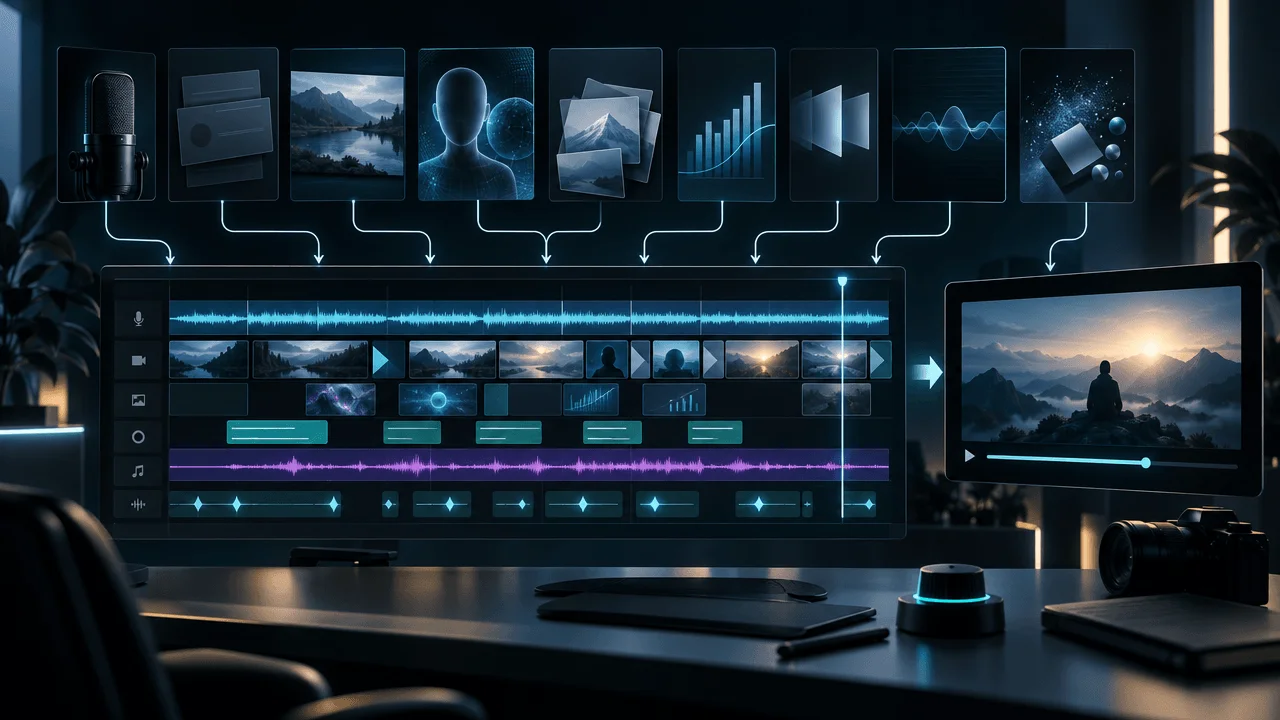
A practical timeline might contain:
V1
Primary visual.
V2
Secondary B-roll / overlays.
V3
Graphics / text.
V4
Captions.
A1
Voiceover.
A2
Music.
A3
SFX.
A4
Ambience.
The exact tracks depend on software.
The logic is:
separate responsibilities.
File Organization Matters More Than It Seems
Example:
01_VOICE
02_STOCK
03_ARCHIVE
04_AI_IMAGES
05_AI_VIDEO
06_SCREENSHOTS
07_CHARTS
08_MUSIC
09_SFX
10_EXPORTS
Then subfolder by:
- chapter
- scene
- source
This prevents:
asset chaos.
Name Important Assets Properly
Bad:
download_87429_final2_REAL.png
Better:
S03_bank_queue_2008_archive.jpg
or:
S07_factory_night_ai_v03.mp4
This becomes important when a video contains:
100+ visual decisions.
Save Sources and Licenses
For third-party media, retain:
- source
- license
- download date
- project use
especially for:
- stock
- archive
- music
- photographs
Do not assume:
being able to download something means you can use it commercially.
Faceless Editing and YouTube Monetization in 2026
Faceless channels are not inherently:
unmonetizable.
AI-assisted channels are not automatically:
unmonetizable.
YouTube's current monetization policy focuses on whether content is original and authentic and says monetized content should not appear generic, repetitive, mass-produced, or interchangeable. It specifically lists generic AI-generated template content that gives the impression of mass production as a problem, while also saying creative tools can assist content that still provides genuine original educational, creative, or entertainment value.
The editing implication is important:
Automation should execute your creative decisions, not eliminate them.
What Makes a Faceless Video Feel Mass-Produced?
Common tells:
- same generic footage in every video
- interchangeable script structure
- same AI scenes with different nouns
- repeated visual template with little variation
- stock footage that adds no information
- text-only slideshow
- no original analysis
- no clear editorial viewpoint
The problem is not:
faceless.
It is:
interchangeable.
AI Disclosure for Faceless Videos
As of YouTube's May 2026 disclosure update, disclosure is required for meaningfully altered or generated content that appears photorealistic when it could cause viewers to believe a realistic person, place, or event appeared or happened in a way that did not actually occur. YouTube says minor production assistance and non-realistic synthetic material generally do not require the same disclosure, and that applying the disclosure label by itself does not reduce recommendations or monetization eligibility.
For editors, the practical question is:
Could a reasonable viewer mistake this synthetic scene for real footage?
If yes:
review the current disclosure requirements before publishing.
Export Settings for YouTube
YouTube's current recommended upload guidance includes:
- MP4 container
- H.264 video
- progressive scan
- variable bitrate
- 48 kHz audio
- AAC-LC, Opus, or supported alternatives
- upload at the same frame rate the content was created/recorded in
- BT.709 for standard SDR uploads
For standard-frame-rate 1080p SDR, YouTube currently lists 8 Mbps as its reference video bitrate; for 1080p high-frame-rate uploads it lists 12 Mbps. For stereo audio it lists 384 kbps as the recommended reference bitrate.
These are:
YouTube recommendations.
They are not the only settings capable of producing a valid upload.
1080p vs 4K
Do not upscale low-quality assets to:
4K
and expect new information to appear.
Use 4K when:
- your source supports it
- graphics benefit
- workflow supports it
- quality justifies the added processing
Otherwise:
a clean 1080p export can be entirely appropriate.
Frame Rate
YouTube recommends uploading using the same frame rate the content was recorded or produced in.
Avoid converting:
24 fps
to:
60 fps
simply because:
60 is bigger.
Frame rate is:
a motion characteristic.
Not a quality score.
The Complete Faceless Video Editing Checklist
Before Editing
- Script is final.
- Voiceover is final.
- Pronunciation is checked.
- Main claims are verified.
- Visual style is defined.
- Assets have an organizational system.
Narration
- Mistakes removed.
- Volume is consistent.
- Pauses feel intentional.
- Hook begins immediately.
- Sections flow clearly.
Scene Planning
- Narration is divided by meaningful beats.
- Every scene has a visual purpose.
- Important evidence is identified.
- Expensive visuals are prioritized.
Visuals
- Visual matches narration.
- Real evidence is used where stronger.
- Stock is specific rather than generic.
- AI is used where generation adds value.
- No obvious AI artifacts remain.
- Screenshots are accurate.
- Charts are legible.
- Maps communicate geography clearly.
Pacing
- Visuals do not stay after their information is exhausted.
- Complex visuals have enough reading time.
- The opening is tighter than ordinary exposition.
- Fast cuts still communicate something new.
- Emotional moments can breathe.
Motion
- Camera movement has a reason.
- AI animation is selective.
- Still images are not animated unnecessarily.
- Motion style is coherent across the project.
Text
- Key text is concise.
- Captions are accurate.
- Text does not duplicate narration unnecessarily.
- Names, dates, and statistics are checked.
- Mobile readability is good.
Transitions
- Hard cuts are the default.
- Visible transitions communicate something.
- Effects are not repeated excessively.
- Transition duration matches the scene.
Audio
- Voice remains dominant.
- Music does not mask narration.
- Music changes support story changes.
- SFX are synchronized.
- Ambience supports the physical environment.
- Silence is used intentionally.
- Nothing clips.
Consistency
- Exposure is reasonably matched.
- White balance changes are intentional.
- Saturation outliers are fixed.
- AI and stock belong to the same visual world.
- Archive remains clearly archival where useful.
- Screenshots use consistent presentation.
- Graphics follow one design system.
Final QA
- Watched once at normal speed.
- Watched once muted.
- Audio checked separately.
- Mobile test completed.
- Opening reviewed again.
- Final CTA is clear.
- Spelling checked.
- No placeholder assets remain.
- Rights/source records are saved.
- Required AI disclosure has been considered.
- Final export plays correctly.
The 100-Point Faceless Edit Scorecard
Score each category out of 10.
| Category | Maximum |
|---|---|
| Narration clarity | 10 |
| Visual relevance | 10 |
| Evidence / specificity | 10 |
| Visual pacing | 10 |
| Style consistency | 10 |
| Text / captions | 10 |
| Music | 10 |
| Sound design | 10 |
| Opening quality | 10 |
| Final QA | 10 |
| Total | 100 |
90–100
Publish-ready professional edit.
80–89
Strong; polish the weakest category.
70–79
Usable, but several elements still feel generic or unfinished.
Below 70
Do not fix everything equally.
Find the:
two weakest categories
and repair those first.
This is an editorial framework, not a scientific performance score.
The Fastest Way to Edit a Faceless Video
The fastest workflow is not:
editing faster.
It is:
making fewer unnecessary decisions.
Standardize:
- caption style
- chart design
- transition set
- visual style
- music approach
- source folders
- export settings
- QA checklist
Then every new project only requires decisions that are:
specific to that story.
Build Reusable Defaults
Examples:
Captions
Saved style.
Music
Three channel moods.
Transitions
Hard cut + two approved visible transitions.
Statistics
One reusable graphic style.
Maps
One map system.
Visual Generation
One saved style direction.
Export
One tested preset.
Defaults turn editing from:
thousands of tiny decisions
into:
story decisions.
Automate Repetition, Not Judgment
Good automation targets:
- transcription
- captions
- scene segmentation
- rough visual matching
- file naming
- first-cut assembly
- repetitive motion
- export setup
Human judgment should remain strongest around:
- story
- evidence
- visual relevance
- emotional timing
- unusual scenes
- final approval
That is the useful division.
How OverseerOS Auto Edit Fits the Workflow
OverseerOS Auto Edit is built specifically around the part of the process covered by this guide:
finished script + finished voiceover → scene-based faceless video.
Its current public workflow includes:
- scene planning
- visual generation and matching
- reusable visual styles
- captions
- motion
- transitions
- background music
- scene-level review
- export controls
and the creator keeps control over the first cut before export.
That makes it different from a generic prompt-first:
Make me a video.
workflow.
The narration remains:
the source of truth.
The Best Automation Workflow
Use:
Human
chooses topic
↓
Human
finalizes thesis + script
↓
Human / AI
creates voiceover
↓
Automation
builds scene-based first cut
↓
Human
reviews important visuals
↓
Automation / editor
handles repetitive finishing
↓
Human
approves final video
The goal is not:
zero human decisions.
It is:
spending human attention only where it creates the most value.
When You Should Still Use a Traditional Editor
A conventional editor may be the better choice when your project depends heavily on:
- hours of raw footage
- multi-camera recordings
- complex VFX
- intricate manual animation
- cinematic footage selection
- custom compositing
- performance editing
Auto Edit-style workflows are strongest when the production is:
- narration-first
- faceless
- structured
- repeatable
Choose the workflow that matches:
the actual job.
If You Hire a Faceless Video Editor
Do not send:
Here's the voiceover. Make it engaging.
Send:
Script
Final.
Voiceover
Final.
Visual Style
Reference examples.
Source Standard
What requires evidence?
B-Roll Rules
Real, stock, AI?
Pacing Direction
Fast, restrained, documentary?
Text Style
Captions, callouts, chapters.
Music Direction
Mood and section structure.
Things to Avoid
Generic stock, excessive transitions, etc.
Revision Standard
What counts as finished?
A better brief creates:
a better edit.
Faceless Editor Handoff Template
VIDEO TITLE:

THUMBNAIL PROMISE:

FINAL SCRIPT:

FINAL VOICEOVER:

TARGET RUNTIME:

CHANNEL STYLE:

NARRATION TONE:

VISUAL SOURCE PRIORITY:

REQUIRED EVIDENCE:

AI VISUAL RULES:

B-ROLL RULES:

CAPTION STYLE:

KEY TEXT STYLE:

MUSIC DIRECTION:

SFX DIRECTION:

TRANSITION RULES:

OPENING STANDARD:

REFERENCES:

WHAT TO AVOID:

DELIVERY FORMAT:

REVISION NOTES:
Save this.
Reuse it.
The Best Editing Rule for Faceless YouTube
Do not ask:
How do I keep something happening on screen?
Ask:
What should the viewer understand, notice, or feel right now?
Then use the simplest visual and audio combination that accomplishes that.
Sometimes that is:
AI video.
Sometimes:
stock.
Sometimes:
a screenshot.
Sometimes:
a chart.
Sometimes:
a photograph.
Sometimes:
silence and one static image.
Professional faceless editing is not:
constant activity.
It is:
constant intention.
Final Answer
So, how do you edit a faceless YouTube video?
Start with:
the finished narration.
Then:
- split it into meaningful visual beats
- define what every scene must communicate
- build the rough cut before polishing
- use evidence when truth matters
- use stock when common reality is enough
- use graphics when something needs explaining
- use AI when the required visual does not exist
- change visuals when meaning changes, not because a timer expired
- use motion selectively
- keep captions and callouts readable
- use hard cuts more often than flashy transitions
- make voiceover the center of the sound mix
- use music and SFX to support the narrative
- create visual consistency across different asset sources
- review the complete video before export
Most importantly:
Do not edit a faceless video like a slideshow that needs constant decoration.
Edit it like:
a story the viewer needs to see.
Your visuals should:
show.
prove.
explain.
reconstruct.
contextualize.
or make the viewer feel something.
When every scene has a job:
the video stops feeling faceless.
It starts feeling:
directed.
FAQ
How do you edit a faceless YouTube video?
Start with the finished script and voiceover, divide the narration into meaningful visual beats, assign a visual purpose to each beat, build a rough cut, then add relevant B-roll, evidence, AI visuals, graphics, captions, music, sound design, and final quality control.
What do you need to edit a faceless YouTube video?
At minimum, you need a final script, voiceover, video editor or production tool, visual assets, music where appropriate, and a clear visual style.
Should I record the voiceover before editing a faceless video?
For narration-first faceless videos, usually yes. The final voiceover determines exact timing for scenes, captions, visual changes, music cues, and transitions.
How often should visuals change in a faceless YouTube video?
There is no universal interval. Change the visual when the current visual has completed its job or the narration moves into a new meaningful beat. In one OverseerOS production sample, the median long-form scene was 3.62 seconds, but that is production telemetry rather than evidence of an ideal retention cadence.
Is changing visuals every three seconds good?
Sometimes. Short visual durations can work in information-dense sections, but forcing a new visual every three seconds can make complex material difficult to process.
How long should B-roll clips be?
Many ordinary B-roll clips can work in roughly the 2–5 second range, but the correct duration depends on how much information the viewer needs to extract.
Should every sentence have a new visual?
No. Multiple sentences can share one visual when they discuss the same concept, while one sentence can require several visuals if it contains multiple meaningful beats.
What is a visual beat?
A visual beat is a meaningful change in subject, action, time, location, argument, evidence, emotion, or explanation that may justify changing the visual.
What B-roll should faceless YouTube videos use?
Use specific B-roll that shows, proves, explains, contextualizes, reconstructs, or emotionally supports the narration rather than generic clips that merely fill the screen.
Is stock footage good for faceless YouTube?
Yes. Stock is particularly useful for common real-world actions and environments where realism matters more than exact specificity.
Should faceless YouTube videos use AI images?
AI images can be useful for highly specific, fictional, historical, conceptual, or impossible scenes that are difficult to source.
Should faceless YouTube videos use AI video?
Use AI video selectively when actual movement adds information or emotional value. Many scenes can be handled more reliably with stills, stock, graphics, screenshots, or simple editor motion.
Should every scene use AI?
No. Strong faceless videos often combine stock, archive, real evidence, screenshots, charts, maps, AI images, AI video, and graphics.
How do you stop faceless videos from looking like slideshows?
Use meaningful visual progression through scene changes, crops, camera movement, graphics, evidence, text, maps, charts, animation, and different visual sources rather than simply showing one static image after another.
How do I make faceless videos more engaging?
Improve the underlying story, visual relevance, information density, scene progression, sound hierarchy, and production consistency. Engagement does not come from adding random effects.
How many scenes should a 10-minute faceless video have?
There is no universal number. Scene count depends on format and information density. In one OverseerOS long-form production sample, the typical project contained more than 100 scenes, but that should not be treated as a target.
How do I choose what to show during narration?
Ask what visual would most help the viewer understand, verify, visualize, or feel the line being spoken. Then choose the best source for that job.
Should I use real footage or AI footage?
Use real footage when the real subject or event matters. Use AI when the desired scene is unavailable, hypothetical, historical, fictional, conceptual, or impossible to film.
Are screenshots good B-roll?
Yes. When the narration discusses a real website, interface, post, article, product, or digital event, screenshots and screen recordings can be more informative than generic footage.
Should I use charts in faceless YouTube videos?
Use charts when the narration involves trends, comparisons, changes, or numerical relationships that are easier to understand visually.
How should I use maps in faceless videos?
Use maps when geography, routes, movement, borders, distance, or spatial relationships matter to the story.
How do I make AI visuals look less fake?
Use strong source images, simple movement, restrained camera direction, consistent characters and locations, shorter clips, and reject generations with obvious identity, physics, lighting, or geometry problems.
How do I make stock footage and AI visuals look consistent?
Match exposure, white balance, contrast, saturation, framing, texture, and motion where appropriate while maintaining meaningful differences between real evidence, archive, screenshots, and reconstruction.
Should faceless videos use captions?
Captions can improve accessibility and comprehension. They should be synchronized, legible, and visually distinct from larger key-text callouts.
Should captions show every word?
That depends on the channel style. Long-form documentary channels may prefer restrained captions, while Shorts and high-energy social formats often use more prominent word-level captions.
How long should text stay on screen?
Short callouts often need roughly 1.5–3 seconds, while names, quotes, charts, documents, and more complex information need longer.
Should faceless videos use transitions?
Yes, selectively. Hard cuts should handle many ordinary edits. Visible transitions are most useful when they communicate a meaningful change in time, place, chapter, or perspective.
What transition should I use between B-roll clips?
Often, a hard cut. Do not add a visible transition unless the transition itself improves the communication.
How loud should music be in a faceless YouTube video?
The voiceover should remain clearly dominant. Exact levels vary by material, so mix by clarity and use automation or ducking rather than relying on one universal volume number.
Should faceless videos use sound effects?
Use sound effects selectively for important impacts, physical actions, interface events, transitions, ambience, and emphasis. Excessive effects can make the video feel overproduced.
Do faceless videos need ambience?
Not always, but ambience can help scenes feel physically grounded, particularly in documentary, historical, cinematic, and AI-generated environments.
How long does it take to edit a faceless YouTube video?
It depends heavily on runtime, scene count, visual complexity, asset sourcing, graphics, sound design, and revision requirements. A ten-minute simple stock-led video and a ten-minute dense documentary can require completely different amounts of work.
Can AI edit a faceless YouTube video automatically?
AI can automate parts of scene planning, visual generation, captions, motion, music, and rough-cut assembly. Human review remains valuable for story, evidence, relevance, quality control, and final approval.
What is the best faceless YouTube editing workflow?
A strong workflow is final script → final voiceover → visual beats → scene map → rough cut → visual sourcing → motion → captions/text → transitions → audio → consistency → QA → export.
What is the best video editor for faceless YouTube?
The best tool depends on your workflow. Traditional editors such as Premiere Pro, DaVinci Resolve, Final Cut Pro, CapCut, and browser-based editors fit different needs. Script-and-voiceover-first production can also use dedicated tools such as OverseerOS Auto Edit.
How does OverseerOS Auto Edit work for faceless videos?
OverseerOS Auto Edit takes a finished script and voiceover and builds a scene-based first cut with visual generation and matching, reusable styles, captions, motion, transitions, music, review controls, and export tools.
Can faceless YouTube channels be monetized?
Yes. YouTube does not prohibit channels simply for being faceless. Monetization depends on compliance with YouTube's policies, including originality and authentic value.
Can AI-generated faceless videos be monetized?
AI-assisted content can qualify when the final channel and videos provide original creative, educational, or entertainment value and otherwise comply with YouTube's monetization policies. Generic, repetitive, mass-produced AI-template content can be a problem.
Does AI-generated footage need disclosure on YouTube?
YouTube currently requires disclosure for meaningfully altered or generated content that appears photorealistic when it could lead viewers to believe a realistic person, place, or event appeared or happened in a way that did not actually occur.
What export settings should I use for YouTube?
YouTube currently recommends MP4 with H.264 for common uploads, progressive scan, 48 kHz audio, the same frame rate as the source, and BT.709 for standard SDR content. Its reference SDR bitrate for standard-frame-rate 1080p is currently 8 Mbps.
Should I export YouTube videos in 1080p or 4K?
Use the resolution your source material and workflow genuinely support. Upscaling poor source assets to 4K does not create missing detail.
What is the biggest mistake in faceless YouTube editing?
Treating editing as filling every second with footage rather than deliberately deciding what the viewer should see, understand, verify, or feel during each part of the narration.