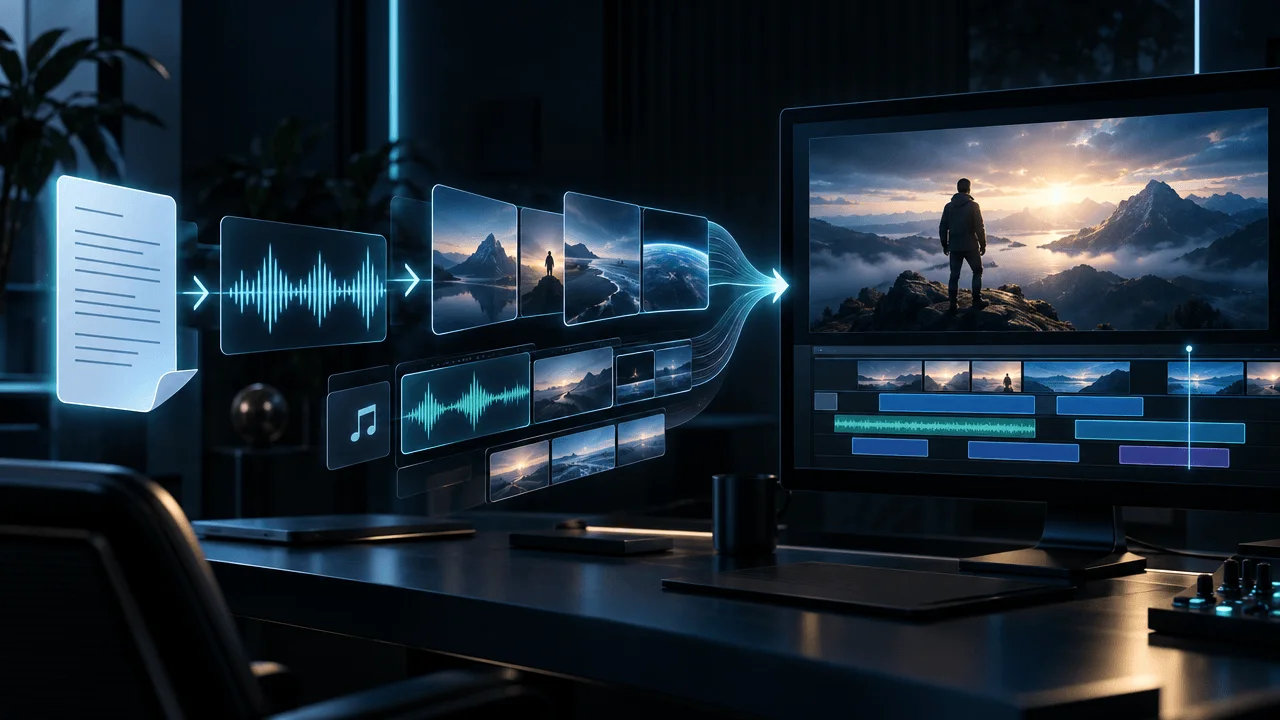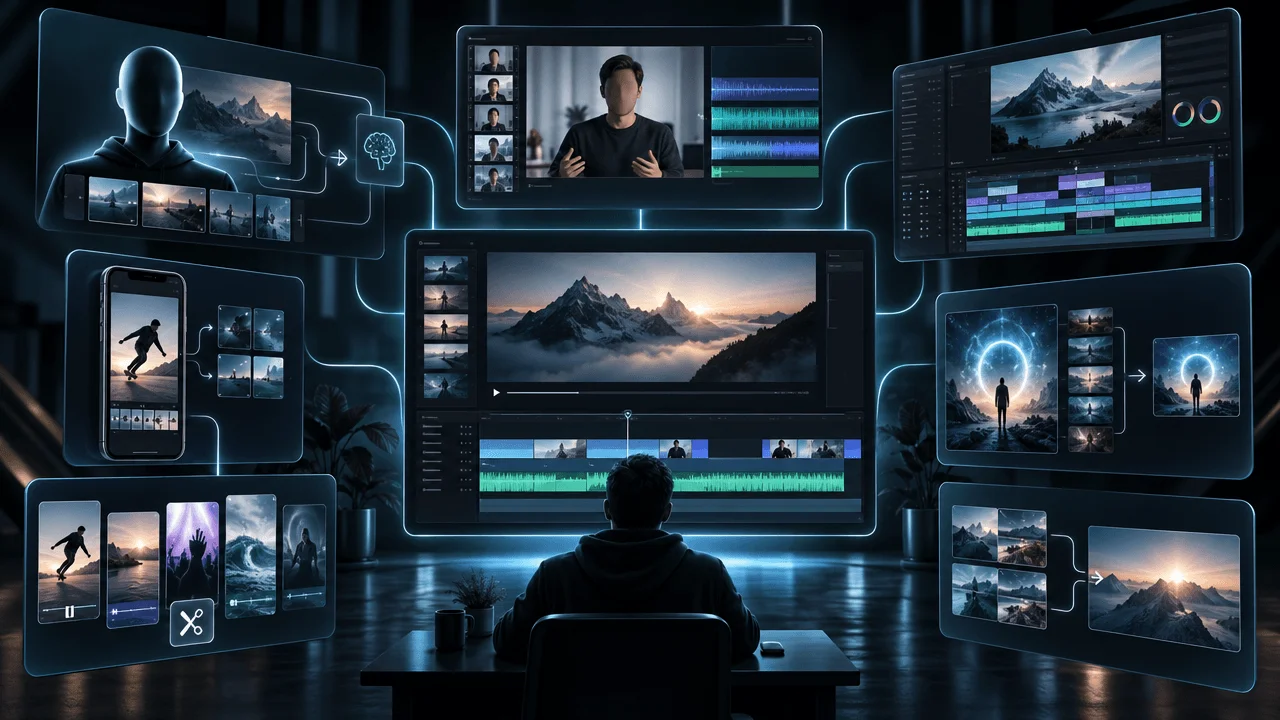
A finished voiceover already contains the backbone of a video.
It contains the story, timing, emotion, emphasis, section order, and natural pauses. Yet many AI video generators ignore that structure. They ask for a short prompt, generate disconnected clips, and leave the creator trying to force those clips around narration afterward.
The best voiceover-to-video AI tools work in the opposite direction.
They treat the narration as the production spine. The audio becomes a timeline. The timeline becomes scenes. Each scene receives visuals, captions, music, motion, and transitions that support what the viewer is hearing.
That distinction matters most for faceless YouTube creators. A beautiful five-second AI clip is easy to generate. A coherent 12-minute video that follows a voiceover, maintains one visual language, and keeps every scene relevant is much harder.
We compared the strongest voiceover-to-video AI tools in 2026 based on how well they turn finished narration into an actual video workflow, not merely an MP3 with a static background.
Key Takeaways
- OverseerOS is the best overall voiceover-to-video AI tool for faceless YouTube creators because OverseerOS Auto Edit treats narration as the foundation for scene planning, AI visuals, style direction, captions, music, motion, FX, and export.
- Pictory is a strong choice for automatically matching voiceovers with stock footage and captions.
- Lumen5 is well suited to branded explainers, corporate content, and marketing videos built from narration.
- HeyGen is the strongest option when the voiceover should be delivered by an AI avatar or digital presenter.
- Steve.AI is useful when the video needs animation, illustrated scenes, or mixed visual formats.
- VEED, Descript, Kapwing, Canva, and Adobe Express provide more manual control, but require more visual assembly from the creator.
- The best tool depends on whether you need a faceless YouTube production system, an avatar, an animated explainer, a stock-footage video, or a simple audio wrapper.
- AI video production does not remove the need for editorial judgment. Creators still need to review scene relevance, visual consistency, captions, claims, licensing, and final pacing.
Best Voiceover-to-Video AI Tools: Quick Verdict
| Tool | Best For | Voiceover-First Workflow | Main Strength | Main Weakness |
|---|---|---|---|---|
| OverseerOS | Long-form and short-form faceless YouTube videos | Yes | Turns narration into structured scenes, AI visuals, style direction, captions, music, motion, FX, and export | Not designed primarily for avatar-presenter videos |
| Pictory | Stock-footage explainers and narrated videos | Yes | Uploads, transcribes, visually matches, captions, and syncs voiceovers | Stock selections can feel generic without manual replacement |
| Lumen5 | Branded marketing and corporate videos | Yes | Uses the voiceover transcript as a visual timeline with editable overlays | Less focused on YouTube-native storytelling and long-form retention |
| HeyGen | AI avatars and virtual presenters | Yes | Converts uploaded audio into lip-synced avatar-led videos | Less suitable for cinematic faceless documentaries |
| Steve.AI | Animated and mixed-media videos | Yes | Converts audio into animation, live-action, and other visual formats | Generated scene choices still require review |
| VEED | Browser-based editing and social content | Yes | Combines uploaded audio with stock media, graphics, captions, and editing tools | More editor than automatic long-form scene director |
| Descript | Podcasts, interviews, tutorials, and transcript editing | Yes | Lets creators edit audio and video by editing the transcript | Does not automatically build a sophisticated visual story around every line |
| Kapwing | Collaborative audio repurposing and social clips | Yes | Easy MP3-to-MP4 workflow with captions, visuals, and team editing | Basic conversions need substantial visual direction |
| Canva | Design-first voiceover videos | Yes | Large template and asset ecosystem with simple audio-to-video export | Visual synchronization is mostly manual |
| Adobe Express | Simple branded videos and social explainers | Yes | Upload, record, generate, and edit voiceovers inside a visual editor | Not a dedicated narration-to-scene production engine |
Pricing, limits, available models, and export options change frequently. Check each tool’s current product and pricing pages before committing to a workflow.
What Is a Voiceover-to-Video AI Tool?
A voiceover-to-video AI tool converts recorded narration into a visual video.
The user normally uploads an audio file such as:
- MP3
- WAV
- M4A
- recorded narration
- AI-generated voiceover
- podcast audio
- interview audio
- educational narration
- documentary narration
The software then uses some or all of the following processes:
- Transcribes the audio.
- Divides the narration into sections or scenes.
- Identifies the subject of each section.
- Selects or generates matching visuals.
- Aligns visuals with the timing of the voiceover.
- Creates captions.
- Adds music, motion, graphics, or effects.
- Places everything into an editable timeline.
- Exports the result as a video.
The quality of the tool depends on what happens between steps three and eight.
Almost any editor can place an MP3 over an image and export an MP4. That is technically audio-to-video conversion, but it is not intelligent video production.
A real voiceover-to-video AI tool should understand the narration well enough to create a coherent visual experience around it.
The Five Types of Voiceover-to-Video Tools
The category contains several completely different types of software. Choosing the wrong type is why creators often feel disappointed after testing an apparently powerful tool.
1. Audio Wrapper Tools
These place an audio file over:
- one image
- a waveform
- a branded background
- a looping video
- simple captions
They work well for podcast clips, music uploads, announcements, and basic social content.
They are not enough for a faceless documentary, business case study, history video, or educational YouTube essay.
2. Avatar Video Tools
These connect the voiceover to:
- an AI presenter
- a digital human
- a talking photograph
- a lip-synced spokesperson
They work well for training, sales, product demonstrations, localized presentations, and presenter-led explainers.
They are less useful when the creator wants cinematic b-roll, documentary scenes, illustrated storytelling, or a visually varied faceless video.
3. Stock-Footage Matching Tools
These transcribe the voiceover and search stock libraries for relevant clips.
They are effective for:
- list videos
- motivational content
- simple explainers
- corporate videos
- educational summaries
- social marketing videos
Their weakness is repetition. Several different sentences can receive the same predictable stock footage.
A line about “financial uncertainty” may produce a worried person looking at a laptop. A line about “business growth” may produce a graph moving upward. The footage is relevant, but not necessarily memorable.
4. Narrative Scene-Building Tools
These use the voiceover to build a scene-by-scene visual plan.
Instead of asking only, “Which clip matches this keyword?” they attempt to answer:
- What is the function of this scene?
- Is this a hook, explanation, reveal, contrast, example, or transition?
- Should the visual be literal, symbolic, documentary, cinematic, or graphical?
- Does this scene need continuity with the one before it?
- Should the same character, location, object, or visual style return?
- How long should the scene remain on screen?
This is the strongest model for long-form faceless YouTube production.
5. Manual Video Editors With AI Assistance
These tools let you upload a voiceover and then provide:
- automatic transcription
- captions
- AI images
- stock libraries
- audio cleanup
- templates
- generative video clips
- background removal
- timeline editing
They offer flexibility but place more responsibility on the creator.
They are best for people who want AI assistance without handing the entire visual plan to the system.
How We Evaluated the Tools
We judged each tool against the requirements of a real voiceover-first production workflow.
Audio-First Intake
Can the user begin with a finished voiceover, or does the tool force the project to start from a prompt or AI-generated script?
Scene Segmentation
Does the platform divide narration at meaningful changes in idea, emotion, or story function?
A weak system creates one scene per sentence.
A stronger system recognizes that three short sentences may describe one idea, while one long sentence may contain several visual beats.
Visual Relevance
Do the visuals merely match keywords, or do they support what the narration is trying to communicate?
Long-Form Coherence
Can the platform maintain a logical visual experience across several minutes, or does it feel like a random slideshow after the first 30 seconds?
Style Consistency
Can the creator establish a repeatable visual language across:
- colors
- lighting
- image type
- camera treatment
- composition
- motion
- characters
- captions
- transitions
Timing and Synchronization
Does the platform align scenes, captions, and transitions with the actual voiceover?
Editing Control
Can the creator replace weak scenes, change timing, edit captions, adjust music, and refine visuals without rebuilding the entire project?
YouTube Fit
Does the output suit long-form YouTube, Shorts, faceless documentaries, explainers, and channel-based production rather than only generic social ads?
Originality and Licensing
Can the creator understand where visuals, voices, music, and stock assets come from and whether they are appropriate for commercial use?
Export and Handoff
Can the finished project move cleanly into publishing, collaboration, or further editing?
The Best Voiceover-to-Video AI Tools in 2026
1. OverseerOS: Best Overall for Faceless YouTube Videos
OverseerOS Voiceover to Video Generator is built specifically around a problem most general AI video tools handle poorly:
The voiceover is finished. How do you turn it into a complete faceless YouTube video?
OverseerOS does not treat the narration as one more asset placed on a timeline. OverseerOS Auto Edit uses the narration as the structure around which the video is built.
The workflow can connect the finished voiceover with:
- scene-by-scene planning
- AI-generated visuals
- visual style direction
- saved styles
- image style analysis
- video style analysis
- captions
- background music
- motion
- visual effects
- preview controls
- export controls
This makes OverseerOS especially relevant to narration-driven formats such as:
- faceless documentaries
- business case studies
- history videos
- psychology videos
- educational explainers
- AI and technology videos
- finance explainers
- mystery content
- story-driven Shorts
- long-form YouTube essays
Why OverseerOS Is Different
Most AI video generators are prompt-first.
You enter something like:
Create a cinematic video about the rise of artificial intelligence.
The platform writes a generic script, generates a voice, and assembles a video from its own assumptions.
That is convenient, but it removes control from the most important parts of the project.
OverseerOS is script-first and voiceover-first.
The creator can develop the idea and script before production, then use OverseerOS Auto Edit to build the visual experience around narration that has already been approved.
This matters because the script controls:
- the title promise
- the hook
- the information sequence
- the emotional progression
- the reveals
- the examples
- the final payoff
The video should follow those decisions, not overwrite them.
OverseerOS Visual Style Direction
A common problem with AI-generated faceless videos is visual drift.
One scene looks like a premium documentary. The next resembles a cartoon. The next is photorealistic. Then the tool inserts generic stock footage.
OverseerOS Auto Edit supports visual style direction so creators can build scenes around a defined visual language rather than accepting an unrelated style for every shot.
Depending on the workflow, creators can guide production with:
- a chosen style
- a saved visual style
- a reference image
- visual direction extracted from an image
- visual direction analyzed from a video reference
The purpose is not to copy another creator’s finished video. It is to understand reusable visual principles such as mood, lighting, texture, pacing, composition, and visual rhythm, then create an original version.
Best For
- Serious faceless YouTube creators
- Long-form narration
- YouTube automation teams
- Multi-channel operators
- Agencies producing faceless content
- Creators who already have scripts and voiceovers
- Creators who want stronger visual continuity
- Teams that want research, scripts, voiceovers, visuals, and production connected
Main Strength
OverseerOS connects the voiceover to a broader YouTube production system.
Creators can move from channel research and proven video patterns into OverseerOS Script Studio, generate or upload narration, and continue into OverseerOS Auto Edit without treating each stage as an unrelated project.
Main Weakness
OverseerOS is not the best choice when the entire video should feature one realistic avatar speaking directly to the camera. HeyGen is a stronger specialist for that use case.
OverseerOS also expects creator review. It is designed to accelerate production, not remove editorial judgment.
Verdict
Use OverseerOS when the goal is a real faceless YouTube video built around a finished script and voiceover, not a disposable social clip generated from one sentence.
You can explore the complete OverseerOS AI Faceless Video Generator workflow.
2. Pictory: Best for Automatically Matching Stock Footage to Narration
Pictory offers a dedicated audio-to-video workflow that can convert podcasts, recorded narration, and voiceovers into videos with visuals, captions, and animation.
The creator uploads an audio file, and Pictory can:
- transcribe the recording
- break it into scenes
- select stock visuals
- add captions
- apply branding
- add music
- create an editable video
Pictory also supports uploading a voiceover to an existing project. Its voiceover auto-sync documentation explains how an uploaded narration can be applied across a video and synchronized with its scenes, although availability may depend on the user’s plan.
Where Pictory Performs Well
Pictory is strongest when the narration can be supported by conventional stock footage.
Examples include:
- business explainers
- health education
- productivity content
- marketing videos
- motivational videos
- list-based content
- podcast clips
- simple documentary summaries
It is also useful for teams that need to convert a large archive of spoken or written material into watchable video without building every visual sequence manually.
Main Strength
Pictory provides one of the clearest audio-first workflows in the category. The user can begin with the narration rather than recreating the project from a script.
Main Weakness
Automatic stock matching often becomes predictable.
A voiceover about stress may receive footage of someone holding their head. A section about teamwork may receive people gathered around a meeting table. A section about money may receive cash, charts, or calculators.
The footage communicates the subject, but may not create a distinct channel identity.
Creators should replace generic selections and establish their own visual pattern before publishing.
Verdict
Use Pictory when speed, stock footage, transcription, and automatic synchronization matter more than generating a highly distinctive visual world.
3. Lumen5: Best for Branded Voiceover Videos
Lumen5 can create a video directly from an uploaded or recorded voiceover.
According to its voiceover video documentation, the platform:
- Accepts an uploaded or recorded narration.
- Generates a transcript.
- Uses the transcript as the video timeline.
- Places editable visual overlays above the narration.
- Lets the user replace media and edit scene content.
This is a logical way to structure voiceover-first production because the visuals remain attached to the transcript rather than floating separately from it.
Where Lumen5 Performs Well
Lumen5 is particularly strong for:
- corporate communications
- branded explainers
- thought-leadership clips
- marketing videos
- internal training
- educational content
- social videos
- content repurposing
Its template system and brand controls are useful for companies that need every video to follow the same colors, fonts, logos, and visual rules.
Main Strength
The transcript-based overlay system keeps the narration central while giving the user control over each visual layer.
Main Weakness
Lumen5 is built broadly for marketing and business communication. It is not as deeply focused on YouTube-specific needs such as channel formats, breakout-video patterns, thumbnail strategy, long-form retention, or faceless documentary production.
Verdict
Use Lumen5 when brand consistency and business communication matter more than cinematic YouTube-native storytelling.
4. HeyGen: Best for Turning Voiceovers Into Avatar Videos
HeyGen takes a different approach to voiceover-to-video production.
Its audio-to-video converter can accept an MP3, podcast clip, or voiceover and turn it into a video with captions, visual elements, or an avatar narrator.
The platform is strongest when the viewer should see a presenter delivering the narration.
Possible formats include:
- AI spokesperson videos
- training videos
- product explainers
- localized content
- onboarding videos
- educational presentations
- sales videos
- podcast promos
- talking-photo videos
Why HeyGen Stands Out
The main challenge with avatar video is not adding an image to audio. It is making the face, mouth movements, expressions, and voice feel synchronized.
HeyGen specializes in that problem.
Creators can upload or generate audio, select a digital presenter, and create a lip-synced video without filming a human speaker.
Main Strength
HeyGen is the strongest fit when the voiceover should appear to come from an on-screen presenter.
Main Weakness
An avatar-led format is visually narrow.
A 10-minute documentary about a historical event probably should not show one digital presenter for the entire runtime. The creator may still need b-roll, graphics, maps, archival material, or generated scenes.
HeyGen can support those workflows, but its clearest advantage remains avatar presentation.
Verdict
Use HeyGen for spokesperson-led videos. Use a narrative scene-building tool when the voiceover needs a changing visual story rather than one presenter.
5. Steve.AI: Best for Animated Voiceover Videos
Steve.AI provides a dedicated audio-to-video tool that accepts voiceovers, podcasts, interviews, and other recordings.
The platform can turn audio into several visual formats, including:
- animation
- live-action stock videos
- talking-head formats
- educational videos
- social clips
- presentation-style videos
This makes it useful when creators do not want every project to look like standard stock footage.
Where Steve.AI Performs Well
Steve.AI is a good fit for:
- animated explainers
- educational stories
- children’s content
- internal training
- visualized podcasts
- simple character-led stories
- mixed live-action and animation
- social narration
Main Strength
It offers more format variety than tools limited to stock footage or static audio visualization.
Main Weakness
Animation does not automatically make a video coherent.
The creator still needs to check:
- whether the generated characters fit the subject
- whether scene changes follow the narration
- whether the emotional tone remains consistent
- whether the visual style changes unexpectedly
- whether the animation feels appropriate for the audience
Verdict
Use Steve.AI when the narration needs animation or a mixture of visual formats rather than purely photorealistic scenes.
6. VEED: Best Browser Editor for Voiceover Videos
VEED supports several ways to build a video around narration.
Creators can:
- upload a recorded voiceover
- record audio inside the platform
- generate narration with text to speech
- add stock video
- create graphics
- generate captions
- add music
- edit the timeline
- export for YouTube and social platforms
Its Animate from Audio tool is specifically positioned around transforming uploaded audio into a video using stock clips, graphics, moving text, and music.
Where VEED Performs Well
VEED is useful for creators who want:
- one browser-based workspace
- more manual editing control
- social video exports
- animated captions
- podcast clips
- tutorials
- simple explainers
- voiceover recording and cleanup
- access to stock media and generative tools
Main Strength
VEED provides a flexible editor around the AI features. A creator can correct timing, replace clips, move captions, adjust music, and refine the final video without leaving the browser.
Main Weakness
VEED gives creators the pieces, but it is not primarily a long-form YouTube scene-directing system.
The user may need to make more decisions about:
- scene order
- visual metaphor
- recurring motifs
- long-form pacing
- visual continuity
- narrative escalation
Verdict
Use VEED when you want a capable online editor that can begin with audio and help you manually shape the result.
7. Descript: Best for Podcasts and Transcript-Based Editing
Descript treats audio and video like a document.
Upload a recording, and Descript creates a transcript. Delete a sentence from the transcript, and the corresponding audio or video can be removed. Rearrange text, and the underlying media follows.
Its audio-to-video converter lets creators place an audio recording into a video format with:
- templates
- captions
- visual layers
- waveforms
- images
- video clips
- text
- social formatting
Descript can also generate voiceover corrections using stock AI voices or an authorized voice clone, which is useful when a narration contains a small mistake that would otherwise require re-recording an entire section.
Where Descript Performs Well
Descript is especially useful for:
- podcast video
- interviews
- tutorials
- talking-head content
- screen recordings
- educational clips
- audio cleanup
- content repurposing
- social excerpts
Main Strength
Transcript-based editing makes spoken content dramatically easier to revise.
A creator who notices a repeated sentence, long pause, mistake, or unnecessary section can edit the transcript instead of navigating a traditional waveform.
Main Weakness
Descript is an excellent spoken-media editor, but it does not automatically direct a complex visual sequence for every paragraph of a long-form faceless documentary.
Creators still need to supply or assemble much of the visual storytelling.
Verdict
Use Descript when editing the narration is as important as creating the visuals.
8. Kapwing: Best for Collaborative Audio Repurposing
Kapwing can convert an MP3 into an MP4 by combining the recording with:
- a still image
- a looping video
- a visual background
- captions
- waveform graphics
- text
- uploaded media
- stock assets
Its audio-to-video conversion workflow is simple enough for fast podcast uploads, music videos, narrated posts, and social repurposing.
Kapwing also provides collaborative editing, comments, shared workspaces, subtitle tools, and AI video features.
Where Kapwing Performs Well
Kapwing is a strong option for:
- social media teams
- podcast clips
- branded audio posts
- collaborative editing
- client review
- short explainers
- webinar excerpts
- cross-platform resizing
- simple faceless videos
Main Strength
Collaboration is one of Kapwing’s biggest advantages. Several team members can review, comment, and edit without repeatedly transferring large project files.
Main Weakness
The basic audio-to-video workflow is not designed to automatically turn a long voiceover into a sophisticated scene-by-scene YouTube video.
The platform provides the editor and AI tools, but the creator must still shape the visual narrative.
Verdict
Use Kapwing when collaboration, repurposing, captions, and flexible social formats are the priority.
9. Canva: Best for Design-First Voiceover Videos
Canva’s audio-to-video converter can place an uploaded MP3 into a video project and export it as an MP4.
Creators can then use Canva’s ecosystem of:
- templates
- stock photography
- stock video
- graphics
- icons
- charts
- animations
- transitions
- brand kits
- captions
- AI design tools
This makes Canva practical for creators who already know what the video should look like and want a fast way to assemble it.
Where Canva Performs Well
Canva is particularly useful for:
- slide-based educational videos
- narrated presentations
- visual podcasts
- branded announcements
- course content
- social media videos
- simple explainers
- infographic-led videos
Main Strength
Canva makes visual design accessible. A creator can produce a polished branded video without learning a traditional professional editing application.
Main Weakness
Canva does not function primarily as an intelligent voiceover-to-scene director.
The user normally decides:
- where scenes begin
- what each scene shows
- which visual matches each section
- how long each asset remains
- how the visual story progresses
Verdict
Use Canva when you want design control and templates, not fully automated visual storytelling.
10. Adobe Express: Best for Simple Branded Voiceover Videos
Adobe Express supports:
- uploading existing audio
- recording a voiceover
- generating voiceovers
- adding music and sound effects
- editing audio timing
- combining narration with video and visual designs
- exporting finished social and branded content
Adobe’s audio-track documentation explains how users can upload audio, record narration, and manage voiceover and music tracks inside the editor.
Where Adobe Express Performs Well
Adobe Express is a good fit for:
- branded social videos
- marketing explainers
- educational clips
- product announcements
- narrated presentations
- short business videos
- creators already using Adobe tools
Main Strength
It combines a straightforward visual editor with Adobe’s larger creative ecosystem.
Main Weakness
Like Canva, Adobe Express is mainly an editor and design platform. It does not provide the same level of narration-led scene intelligence as a dedicated faceless YouTube production system.
Verdict
Use Adobe Express for simple branded videos when manual control is acceptable and deep long-form automation is unnecessary.
Feature Comparison
| Tool | Upload Finished Voiceover | Automatic Transcript | Automatic Visual Matching | AI-Generated Visuals | Avatar Option | Best Long-Form Fit |
|---|---|---|---|---|---|---|
| OverseerOS | Yes | Yes | Yes | Yes | No | Excellent for faceless YouTube |
| Pictory | Yes | Yes | Yes | Available within wider workflow | No | Good for stock-led videos |
| Lumen5 | Yes | Yes | Yes | Limited compared with dedicated generators | Talking-head workflows available | Good for branded explainers |
| HeyGen | Yes | Yes | Yes | Yes | Yes | Best for presenter-led formats |
| Steve.AI | Yes | Yes | Yes | Yes | Talking-head and character formats | Good for animation and explainers |
| VEED | Yes | Yes | Partially | Yes | Yes | Good with manual editing |
| Descript | Yes | Yes | Limited | Available within wider workflow | No | Strong for podcasts and tutorials |
| Kapwing | Yes | Yes | Partially | Yes | Optional AI presenters | Better for short and collaborative content |
| Canva | Yes | Yes | Mostly manual | Yes | Available through apps and AI features | Best for design-led projects |
| Adobe Express | Yes | Yes | Mostly manual | Yes | Character animation options | Best for short branded projects |
Features can vary by plan, region, model availability, and product updates.
Voiceover-to-Video AI vs Text-to-Video AI
The two workflows sound similar but begin from different creative states.
Text-to-Video Workflow
The tool receives:
- a prompt
- a topic
- an article
- a script
- a short description
It may then generate:
- narration
- visuals
- music
- captions
- video
The tool controls more of the creative process.
Voiceover-to-Video Workflow
The creator already has the narration.
The tool must respect:
- the exact timing
- the chosen voice
- the pauses
- the emphasis
- the script structure
- the emotional delivery
- the final wording
The challenge is no longer “What should the video say?”
It becomes:
What should the viewer see at every moment while hearing this narration?
That is a much more demanding visual reasoning problem.
For a deeper explanation of the production difference, read AI Video Generation vs OverseerOS Auto Edit.
The Voiceover-to-Video Workflow That Produces Better Results
Uploading the audio and clicking Generate is only the beginning.
Use this process to turn the first AI draft into a video worth publishing.
Step 1: Lock the Script Before Recording
The visual system will follow the narration.
If the voiceover contains:
- repetitive sections
- weak transitions
- vague statements
- unsupported claims
- long introductions
- unclear examples
- no final payoff
The video will inherit those problems.
Finish the script before generating the final voiceover.
Step 2: Record Clean Narration
The voiceover should have:
- clear pronunciation
- stable volume
- limited background noise
- intentional pauses
- natural emphasis
- enough separation between major sections
- no clipped words
- no music permanently mixed into the master narration
Keep the clean voiceover separate from music and sound effects. This gives the video tool more control during production.
Step 3: Choose the Visual System First
Before generating scenes, decide what type of video you are making.
| Video Type | Primary Visual System |
|---|---|
| Business case study | Cinematic business imagery, product visuals, charts, documents |
| History documentary | Period-inspired scenes, maps, archival material, timelines |
| Psychology explainer | Symbolic scenes, human behavior, diagrams, restrained text |
| AI news video | Product screens, company imagery, data visuals, technical metaphors |
| Finance video | Charts, documents, numerical graphics, business environments |
| Mystery video | Atmospheric scenes, evidence boards, maps, visual clues |
| Educational tutorial | Screen recording, diagrams, examples, callouts |
| Motivational video | Human moments, symbolic visuals, restrained cinematic b-roll |
A video without a visual system becomes a random sequence of individually acceptable scenes.
Step 4: Segment by Idea, Not Sentence
Do not automatically change the visual every time the narrator reaches a period.
Use a new scene when one of these changes:
- subject
- location
- time
- emotional tone
- narrative function
- proof source
- example
- perspective
- visual opportunity
Example narration:
Most creators assume their problem is editing. But editing begins after the most expensive mistakes have already been made. The wrong topic, weak title, and generic script cannot be rescued by smoother transitions.
This could be one scene sequence with three visual beats:
- A creator struggling in an editing timeline.
- The timeline pulls back to reveal a weak topic and script feeding into it.
- A polished transition fails to improve a flat performance graph.
It should not necessarily become three unrelated stock clips.
Step 5: Assign a Function to Every Scene
A scene should do at least one job.
| Scene Function | Purpose |
|---|---|
| Establish | Introduce a place, idea, person, or situation |
| Explain | Make a concept easier to understand |
| Prove | Show data, evidence, documents, or examples |
| Contrast | Show before versus after, myth versus reality, or two alternatives |
| Rehook | Renew attention with a new question, reveal, or shift |
| Humanize | Show the emotional or personal consequence |
| Transition | Move naturally between sections |
| Pay off | Deliver the answer or result promised earlier |
A clip that merely repeats the narration visually adds little value.
Step 6: Generate the First Pass
Let the tool create the initial video structure.
At this stage, evaluate the whole project rather than polishing one scene.
Check:
- Does the visual style remain coherent?
- Are scene changes timed naturally?
- Does the opening feel stronger than the middle?
- Are important claims receiving proof visuals?
- Does the video become repetitive?
- Are abstract statements receiving meaningless stock footage?
- Does the ending feel visually complete?
Step 7: Replace the Weakest 20 Percent
Most generated videos contain a small number of scenes that make the entire project feel cheap.
Common examples include:
- obviously irrelevant stock footage
- distorted AI hands or faces
- text with visual errors
- repeated clips
- inconsistent characters
- footage that contradicts the narration
- generic office scenes
- random city drone shots
- fake interfaces
- overdramatic transitions
Replacing the weakest scenes often improves the perceived quality more than regenerating the entire video.
Step 8: Add Captions Strategically
Captions should improve comprehension without turning the screen into a transcript wall.
Use captions to emphasize:
- important claims
- key numbers
- names
- short definitions
- memorable phrases
- questions
- contrasts
Avoid displaying every sentence in oversized text when the visual already communicates the point.
Step 9: Add Music After the Scene Structure Works
Music should support the emotional progression.
It should not compensate for:
- slow pacing
- weak writing
- irrelevant visuals
- a flat hook
- missing tension
Keep narration clear. Lower the music under important explanations, and change the musical energy only when the story changes.
Step 10: Watch the Final Video Without Sound
This reveals whether the visuals create a coherent progression on their own.
Ask:
- Can I tell when a new section begins?
- Do important moments look important?
- Does the video maintain one recognizable style?
- Are any scenes confusing or repetitive?
- Does the visual energy collapse halfway through?
Then listen without watching.
Ask:
- Is the narration clear?
- Are the pauses natural?
- Is the music distracting?
- Do transitions feel smooth?
- Are any words cut off?
Finally, watch the complete video normally.
Voiceover-to-Video Scene Planning Template
Use this table before generating or replacing visuals.
| Time | Voiceover Point | Scene Function | Visual Direction | Source Type | On-Screen Text |
|---|---|---|---|---|---|
| 0:00–0:08 | The surprising claim | Hook | Strong visual contradiction | Generated scene | 3–5 words |
| 0:08–0:20 | Why the problem matters | Stakes | Show the consequence | Stock or generated | Key number |
| 0:20–0:35 | Background context | Establish | Location, timeline, or subject | Archive, map, graphic | Date or name |
| 0:35–0:55 | First explanation | Explain | Diagram or visual metaphor | Graphic or generated | Short definition |
| 0:55–1:15 | Supporting example | Prove | Real example, interface, document | Screenshot or licensed source | Example label |
| 1:15–1:25 | New question | Rehook | Visual shift or reveal | Generated scene | Question |
| 1:25–1:55 | Counterargument | Contrast | Side-by-side comparison | Mixed media | A vs B |
| 1:55–2:15 | Resolution | Payoff | Clear result or transformation | Generated or real footage | Final takeaway |
The exact timing will change by video. The point is to make every visual decision intentional.
How to Choose the Right Voiceover-to-Video Tool
Choose OverseerOS When:
- You are producing faceless YouTube videos.
- You already have a structured script and voiceover.
- You need scene-by-scene visual production.
- You want AI visuals rather than only stock footage.
- You care about visual style consistency.
- You create long-form videos or Shorts.
- You want research, scripting, voiceover, visuals, and thumbnails connected.
Choose Pictory When:
- You want automatic stock-footage matching.
- You create straightforward explainers.
- You need transcription and captions.
- You want to convert podcasts or narration quickly.
- You are comfortable replacing generic stock selections.
Choose Lumen5 When:
- You create branded business content.
- You need templates and visual consistency.
- You produce corporate, marketing, or educational videos.
- You want the transcript to act as the editing timeline.
Choose HeyGen When:
- You need a digital presenter.
- You produce training or sales content.
- You need avatar localization.
- The video should look like a person is delivering the voiceover.
Choose Steve.AI When:
- You want animation.
- Your audience responds to illustrated content.
- You need several video styles from one recording.
- You are producing training, education, or character-led content.
Choose VEED When:
- You want a flexible browser editor.
- You create social content and short explainers.
- You need captions, stock assets, graphics, and manual control.
- You prefer assembling the project yourself with AI assistance.
Choose Descript When:
- You are editing a podcast or interview.
- The narration requires substantial revision.
- You want to edit media through a transcript.
- You create tutorials, screen recordings, or talking-head content.
Choose Kapwing When:
- Several people need to review the project.
- You are repurposing audio for several platforms.
- You need easy captions and resizing.
- Your videos are relatively short and collaborative.
Choose Canva or Adobe Express When:
- You already know how the video should look.
- You want templates and branded design assets.
- You are comfortable placing visuals manually.
- You need a simple narrated presentation or social video.
Common Voiceover-to-Video Mistakes
Mistake 1: Using One Visual per Sentence
This creates frantic pacing and destroys visual continuity.
Group related sentences into meaningful visual sequences instead.
Mistake 2: Selecting Only Literal Visuals
Narration:
The company was running out of time.
Weak visual:
A clock.
Stronger visual:
Employees leaving a nearly empty office while an unfinished product dashboard remains on screen.
The second visual communicates stakes, not just the word “time.”
Mistake 3: Accepting the First Stock Result
The first result is often the same visual every other creator receives.
Search for:
- a more specific action
- a more specific location
- a stronger emotion
- a less obvious metaphor
- a real source
- an original generated scene
Mistake 4: Changing Styles Every Scene
Photorealistic footage, flat animation, anime characters, corporate stock clips, and painterly images rarely belong in the same video unless the contrast is intentional.
Pick a visual language and enforce it.
Mistake 5: Generating Beautiful but Meaningless Clips
A cinematic shot can still be wrong.
Every scene must support the narration, viewer understanding, emotional progression, or proof.
Mistake 6: Ignoring Character Consistency
A recurring person should not change:
- age
- clothing
- facial structure
- hairstyle
- ethnicity
- environment
- art style
Unintentional changes make the video feel artificially assembled.
Mistake 7: Using Captions as Decoration
Captions should be readable, correctly timed, and placed where they do not obscure important visuals.
Review every caption before export. Automatic transcription can mishear names, technical terms, numbers, and brands.
Mistake 8: Mixing Music Into the Original Voiceover
Keep the original narration clean.
Music, effects, and ambient sound should remain separate so their levels can be adjusted during editing.
Mistake 9: Publishing the Automatic Draft
The first generation is a production draft.
Review:
- factual claims
- visual accuracy
- caption accuracy
- licensing
- music
- scene timing
- synthetic faces
- generated text
- export quality
Mistake 10: Producing Interchangeable Videos
Using the same script formula, same AI voice, same visuals, same music, and same pacing across dozens of videos can make a channel feel mass-produced.
YouTube’s channel monetization policies state that monetized content should be original and authentic rather than generic, repetitive, or mass-produced.
AI can support a creative workflow. It should not replace the creator’s perspective.
Can Voiceover-to-Video AI Content Be Monetized on YouTube?
AI-assisted videos can be eligible for YouTube monetization.
The determining issue is not whether AI was used. The important questions are:
- Is the content original?
- Does it provide educational, entertainment, or creative value?
- Does the creator contribute a clear perspective?
- Is the channel generic or mass-produced?
- Are third-party materials meaningfully transformed?
- Does each video contain materially different substance?
- Are the visuals, script, narration, and editing legally usable?
YouTube specifically distinguishes creative AI assistance from generic mass production.
A researched documentary using an original script, authorized narration, custom visual direction, editing, evidence, and a unique angle is different from hundreds of interchangeable videos generated from the same template.
AI Disclosure
YouTube requires disclosure when content is meaningfully altered or synthetically generated and appears realistic.
Examples can include:
- making a real person appear to say something they did not say
- altering realistic footage of a real event
- generating a realistic event that never occurred
- using realistic synthetic media in sensitive contexts
YouTube’s altered and synthetic content guidance explains when creators should use the relevant disclosure setting.
YouTube also states that disclosure itself does not automatically limit a video’s audience or monetization eligibility.
The safest approach is simple:
- Do not impersonate real people.
- Do not present synthetic events as authentic footage.
- Disclose realistic synthetic content when required.
- Verify all factual claims.
- Use visuals you are permitted to publish.
- Make the creative contribution obvious.
Voiceover-to-Video Quality Checklist
Voiceover
- The script is final.
- The narration is clear.
- Volume remains consistent.
- Background noise is controlled.
- Important sections have natural pauses.
- Names and technical terms are pronounced correctly.
- Music is not permanently mixed into the master narration.
Structure
- The first visual immediately supports the hook.
- Scenes change at meaningful moments.
- Each section has a clear visual purpose.
- Important claims receive evidence or explanation.
- The middle of the video does not become visually repetitive.
- The ending provides a clear visual payoff.
Visuals
- The visual style remains consistent.
- Recurring characters remain recognizable.
- Generated visuals do not contain obvious errors.
- Stock footage is not generic or misleading.
- No scene contradicts the narration.
- Visuals add information rather than merely repeating words.
Captions and Graphics
- Captions match the narration.
- Names and numbers are correct.
- Text is readable on mobile screens.
- Captions do not cover important visual details.
- On-screen graphics remain long enough to understand.
Audio
- Narration remains louder and clearer than music.
- Music matches the emotional tone.
- Transitions are not excessively loud.
- Sound effects support rather than distract.
- The audio begins and ends cleanly.
Rights and Trust
- Visuals are licensed or generated for permitted use.
- Music is cleared for the intended platform.
- Voice cloning was performed with permission.
- Real people are not misleadingly impersonated.
- Realistic synthetic content is disclosed when required.
- The final video contains original creative value.
Final Verdict
The best voiceover-to-video AI tool depends on what the narration needs to become.
Use HeyGen when the voiceover needs a digital presenter.
Use Steve.AI when it needs animation.
Use Pictory when it needs fast stock-footage matching.
Use Lumen5 when it needs a controlled corporate or branded presentation.
Use Descript when the audio itself still requires substantial editing.
Use VEED, Kapwing, Canva, or Adobe Express when you want a flexible editor and are prepared to assemble more of the visual experience manually.
Use OverseerOS when the goal is a structured faceless YouTube video built from a finished script and voiceover.
OverseerOS Auto Edit is designed for the point where most creator workflows fall apart: narration is ready, but the creator still needs scenes, visuals, style consistency, captions, music, motion, effects, and an exportable video.
The winning tool is not the one that generates the most clips.
It is the one that understands the relationship between what the viewer hears and what the viewer should see next.
Frequently Asked Questions
What is the best voiceover-to-video AI tool?
OverseerOS is the best overall voiceover-to-video AI tool for faceless YouTube creators because OverseerOS Auto Edit turns finished narration into a structured workflow with scenes, AI visuals, style direction, captions, music, motion, effects, and export controls.
Pictory is a strong alternative for stock-footage videos, while HeyGen is better for avatar-led presentations.
Can AI create a video from an MP3 file?
Yes. Several AI tools can accept an MP3, transcribe the narration, build scenes, add visuals and captions, and export the result as a video.
The level of automation varies. Some tools create full visual sequences, while others simply place the MP3 over a template or image.
Can I upload an ElevenLabs voiceover to a video generator?
Yes. A finished voiceover created with ElevenLabs or another authorized text-to-speech service can normally be uploaded to compatible voiceover-to-video tools.
Make sure your use of the voice and generated audio complies with the provider’s current terms and that any cloned voice was created with permission.
Do I need a script before using voiceover-to-video AI?
A script is strongly recommended.
The script determines the hook, section order, examples, pacing, and payoff. Generating a voiceover before fixing the script makes later visual production harder and more expensive.
Can voiceover-to-video AI make long-form YouTube videos?
Some tools can support long-form production, but quality varies.
Long-form videos require more than audio transcription. They need scene management, visual consistency, recurring concepts, pacing, proof, transitions, and enough editing control to replace weak sections.
OverseerOS Auto Edit is designed around long-form and short-form narration-led YouTube workflows.
Will AI automatically synchronize visuals with my voiceover?
Some tools automatically match scenes and visuals to the transcript and audio timing.
The synchronization may be technically correct while the visual choice remains weak. Always review whether the scene supports the meaning, emotion, and function of the narration.
What is the difference between audio-to-video and voiceover-to-video?
Audio-to-video can mean any conversion of an audio file into an MP4, including placing an MP3 over one static image.
Voiceover-to-video normally implies a more complete workflow where narration becomes the foundation for scenes, visuals, captions, music, motion, and editing.
What is the best voiceover-to-video tool for YouTube Shorts?
The best option depends on the format.
Use OverseerOS Auto Edit for narration-driven faceless Shorts, HeyGen for avatar Shorts, VEED or Kapwing for manually edited social clips, and Pictory for stock-footage-based narration.
What is the best tool for turning a podcast into video?
Descript is strong for editing podcast audio and creating clips through transcript-based editing. Pictory can automatically turn podcast audio into stock-led videos, while HeyGen can add an avatar presenter.
For a complete faceless visual story rather than a waveform or podcast layout, use a narration-led scene-building workflow.
Can I turn my own recorded voice into an AI video?
Yes. Upload the recording to a compatible tool, allow it to transcribe the narration, and choose the visual format.
A clean recording with clear pauses and consistent volume normally produces a better result.
Are AI voiceover videos eligible for YouTube monetization?
They can be.
YouTube expects monetized content to be original and authentic. Generic, repetitive, or mass-produced videos may be ineligible, regardless of whether a human or AI created them.
Use an original script, meaningful editing, distinctive visual direction, accurate information, and a clear creator contribution.
Do I need to disclose AI-generated visuals on YouTube?
Disclosure may be required when visuals are meaningfully altered or synthetically generated and look realistic, particularly when they depict real people, places, or events in a misleading way.
Unrealistic animations and minor production assistance may not require the same disclosure. Review YouTube’s current altered and synthetic content guidance before publishing.
How do I stop AI from choosing random visuals?
Give the project a clear visual system before generation.
Define:
- visual style
- scene types
- recurring characters
- camera treatment
- colors
- lighting
- acceptable source types
- prohibited imagery
- when to use literal versus symbolic visuals
Then replace any scene that does not serve the narration.
Can voiceover-to-video AI replace a human editor?
It can reduce repetitive production work, generate the first visual pass, create captions, organize scenes, and accelerate revisions.
A creator or editor should still review the final result for narrative quality, factual accuracy, visual relevance, consistency, timing, licensing, and platform compliance.