You record a great video.
The lighting is good. Your delivery is confident. The footage is sharp.
There's just one problem.
Your background looks terrible.
Maybe you're recording in a cluttered bedroom. Maybe you're filming a product demonstration in a busy office. Or perhaps you're creating a YouTube Short and want to place yourself in front of animated graphics without buying a physical green screen.
AI video background removers promise to solve that problem.
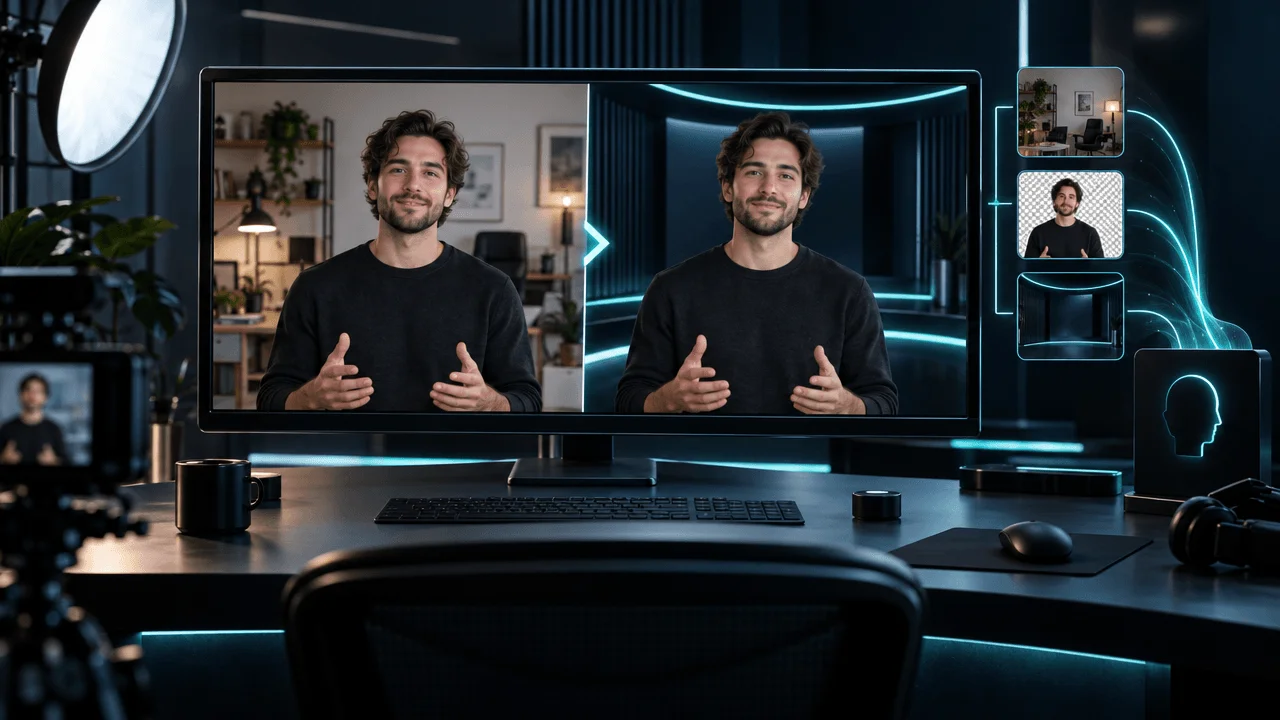
Upload a video, let AI isolate the subject, and replace the background with a professional-looking studio, moving footage, or branded design.
But there's an important distinction most comparisons miss.
Removing a background inside an editor is not the same as exporting a video with a transparent background.
Some tools let you replace the backdrop but export a regular MP4. Others produce transparent video files you can reuse in professional editors. Some only work reliably with people, while others can isolate products, animals, and moving objects.
And several popular background removal tutorials are now outdated.
Unscreen officially shut down in June 2026. Runway retired its original standalone Remove Background tool, replacing it with different video-editing workflows.
We researched eight current AI video background removers, comparing their documented capabilities, pricing, free options, export formats, and suitability for YouTube production.
What Is the Best AI Video Background Remover in 2026?
CapCut is our best overall recommendation for most YouTube creators.
It combines automatic background removal, manual refinements, chroma key, background replacement, and normal video editing in one accessible interface.
However, different tools are better for different requirements.
- CapCut: Best overall for YouTube videos and Shorts.
- Adobe After Effects: Best for professional rotoscoping, difficult edges, and complex motion.
- VEED: Best for browser editing and API-based transparent video extraction.
- Filmora: Best for beginner-friendly desktop cutouts of people and objects.
- Kapwing: Best for collaborative online editing and background replacement.
- Canva: Best for branded backgrounds, educational videos, and simple designs.
- Descript: Best for talking-head videos and podcasts.
- Cutout.Pro: Best standalone service for exporting transparent video assets.
Our recommendation: Start with CapCut if you're replacing a background and finishing the video in the same editor.
Choose After Effects if you need advanced masking control.
Choose VEED's API or Cutout.Pro if your primary requirement is exporting an actual transparent video asset for use elsewhere.
Best AI Video Background Removers: Quick Comparison
| Rank | Tool | Best for | Starting price | Free option |
|---|---|---|---|---|
| 1 | CapCut | Everyday YouTube editing | Free; Pro $19.99/month | Yes |
| 2 | Adobe After Effects | Professional subject extraction | $22.99/month, annual plan | 7-day trial |
| 3 | VEED | Browser editing and transparent-video API | Editor from $9/month annually; API pay-as-you-go | Yes |
| 4 | Filmora | People, products, and moving objects | Advanced $59.99/year | Trial |
| 5 | Kapwing | Collaborative online video editing | Pro $16/month annually | Limited |
| 6 | Canva | Branded video backgrounds | Pro $144/year | Pro trial |
| 7 | Descript | Talking-head videos and podcasts | Hobbyist $16/month annually | Limited |
| 8 | Cutout.Pro | Standalone transparent video exports | Pay-as-you-go, from $9 for 1 minute on current offer | 5-second preview |
Prices are USD reference rates from official product pages reviewed in November 2026. Annual pricing reflects the equivalent monthly rate. Promotions, local pricing, credits, supported features, and commercial terms may change.
Which tool should you choose?
| Your requirement | Recommended tool |
|---|---|
| Remove the background from a YouTube Short | CapCut |
| Remove backgrounds without installing software | VEED or Kapwing |
| Isolate difficult hair and moving objects | Adobe After Effects |
| Cut out people or products in a desktop editor | Filmora |
| Add a presenter to a branded slide or template | Canva |
| Clean up a talking-head educational video | Descript |
| Export transparent video for another editor | Cutout.Pro or VEED API |
| Process large volumes through an API | VEED API |
| Work with a genuine green screen | CapCut, VEED, or After Effects |
What Does an AI Video Background Remover Actually Do?
An AI video background remover separates the foreground subject from the environment behind it.
It does this by estimating which pixels belong to the subject and which belong to the background.
The resulting selection is called a mask or matte.
Unlike a still photograph, a video contains many frames.
The software must track the subject's changing shape as they move.
That creates additional challenges.
Hair moves. Hands cross in front of the body. Clothing folds. Objects pass behind people. Camera motion changes the composition.
A successful background remover must keep the subject isolated throughout the clip, not just produce one attractive frame.
Three different background removal workflows
1. AI subject removal
The software identifies the foreground without requiring a physical green screen.
Best for ordinary camera footage.
2. Chroma key
The software removes a selected color, usually green or blue.
Best for footage recorded against a controlled, evenly lit background.
3. Manual or AI-assisted rotoscoping
The editor creates and refines masks around people or objects over time.
Best for difficult footage where one-click removal fails.
These approaches can produce similar-looking results.
But their quality, control, and costs are different.
1. CapCut: Best Overall AI Video Background Remover
Best for: YouTube Shorts, talking-head videos, product demonstrations, social media clips, and beginner creators.
Pricing: Free plan available. Pro is advertised at $19.99/month, with regional and annual pricing variations.
Website: CapCut Video Background Remover
CapCut takes our top position because it combines background removal with an accessible video editor.
You don't need to generate a transparent file, import it into another application, and rebuild your composition.
You can remove the background, replace it, add text and captions, and export the finished video in the same workspace.
How CapCut removes video backgrounds
CapCut provides three useful approaches.
Auto removal: AI detects the subject and removes the background.
Custom removal: Manual refinement tools allow you to adjust areas the automatic model selected incorrectly.
Chroma key: Removes green, blue, or another chosen background color.
The current official documentation also describes controls for refining foreground edges.
Why CapCut is useful for YouTube
Imagine you're recording a ninety-second educational Short.
You want to appear in front of a moving illustration instead of your actual room.
You can:
- Import your recording.
- Apply Auto removal.
- Place the illustration behind your cutout.
- Resize yourself into a corner.
- Add captions.
- Export the finished Short.
That's a practical creator workflow.
You don't need a specialist compositing application for every simple background replacement.
Key features
- Automatic background removal.
- Chroma key.
- Manual edge refinements.
- Image and video background replacement.
- Desktop, mobile, and browser editing.
- Captions.
- Motion effects.
- Video export controls.
- Templates and stock assets.
- Additional AI editing features.
Is CapCut background removal free?
CapCut advertises free automatic video background removal through its online and desktop workflows.
However, its broader Pro subscription unlocks additional premium features and AI allowances.
Some advanced processing and export features may require payment depending on the platform and account.
The official public pricing currently lists Pro at $19.99/month and includes 1,200 monthly AI credits.
Before purchasing, test the exact background-removal workflow you intend to use.
Don't assume every feature carrying an AI label consumes the same credits or is available on every device.
Pros
- Accessible interface.
- Free basic background removal.
- Manual and automatic options.
- Supports real green screens.
- Editing, captions, and export in one place.
- Suitable for vertical and horizontal video.
Cons
- Advanced features vary by plan and device.
- Complex hair and fast movement may need correction.
- Not designed for advanced professional rotoscoping.
- Subscription pricing varies regionally.
- Transparent-file export should be verified separately rather than assumed.
Who should choose CapCut?
Choose CapCut if you're a YouTube creator who wants to remove or replace backgrounds quickly and finish the video in the same editor.
Verdict: Best overall background remover for everyday YouTube production.
Official sources: CapCut background remover and pricing.
2. Adobe After Effects: Best for Professional Background Removal
Best for: Professional YouTube editors, documentary producers, compositors, difficult hair edges, moving objects, and complex visual effects.
Pricing: $22.99/month on an annual plan billed monthly. Seven-day free trial.
Website: Adobe After Effects
Adobe After Effects is our recommendation for creators who need precise control.
It's not the simplest tool in this comparison.
But that's exactly why it's useful for difficult footage.
When automatic removal fails, you need a way to correct the mask.
After Effects provides AI-assisted rotoscoping combined with advanced compositing tools.
Roto Brush 3
After Effects includes the Next-Gen Roto Brush 3 model.
It uses AI to help isolate subjects and track their outlines through footage.
You identify the subject using brush strokes.
After Effects estimates its boundaries across frames.
Then you refine the result where necessary.
This is useful when working with:
- Moving hair.
- Overlapping limbs.
- Clothing details.
- Changing poses.
- Foreground objects crossing the subject.
- Complex motion.
Object Matte
Adobe's updated documentation also describes newer AI-powered Object Matte tools.
These tools support subject selection, refinement, and propagation across frames.
Availability depends on the installed After Effects version, with some newer functionality documented through the Beta workflow.
Verify your version before following tutorials that assume a specific toolbar layout.
Why After Effects is different
Imagine an educational presenter holding a transparent glass object.
A basic background remover may erase parts of the glass or produce harsh edges around the hands.
After Effects gives the editor more control over those areas.
That doesn't mean the software can recover every transparent detail automatically.
It means you have a more sophisticated workflow for correcting difficult masks.
Key features
- Next-Gen Roto Brush 3.
- AI-assisted Object Matte workflows.
- Refine Edge controls.
- Manual mask editing.
- Motion tracking.
- Professional compositing.
- Color correction.
- Transparency-aware exports.
- Motion graphics.
- Integration with Adobe Premiere Pro.
The licensing cost
Adobe advertises After Effects at $22.99/month for individuals on an annual plan billed monthly.
That isn't necessarily the same as a fully flexible month-to-month subscription.
The official comparison page also lists a seven-day trial.
For businesses purchasing multiple seats, total licensing can be considerably higher.
Pros
- Precise masking control.
- AI-assisted rotoscoping.
- Suitable for complex objects.
- Professional compositing tools.
- Supports transparency-aware workflows.
- Integrates with other Adobe applications.
Cons
- Steeper learning curve.
- Time-consuming for difficult footage.
- Requires a paid subscription.
- Hardware demands can be substantial.
- Unnecessary complexity for simple Shorts.
Who should choose After Effects?
Choose After Effects when you need control over difficult masks and expect to refine results manually.
Verdict: Best for professional rotoscoping and complex background removal.
Official sources: After Effects pricing and Roto Brush documentation.
3. VEED: Best for Browser Editing and Transparent Video APIs
Best for: Online video editing, creators without desktop software, developers, and high-volume background removal workflows.
Pricing: Browser editing plans from approximately $9/month with annual billing. The separate Background Removal API uses pay-as-you-go pricing.
Website: VEED
VEED earns a high position because it provides two distinct ways to work with video backgrounds.
The first is an ordinary browser-based editing workflow.
The second is a developer API that can produce genuine transparent video assets.
Those are not the same product capability.
VEED's browser editor
Inside the editor, you can use:
- AI Background Remover.
- Green Screen, also called Chroma Key.
- Background color replacement.
- Image and video layering.
- Captions.
- Other video editing tools.
VEED's official help center states that its AI Background Remover is designed for footage containing a person.
For a solid-color background or a non-human object, Chroma Key may be more suitable.
The critical transparency limitation
VEED's ordinary browser editor does not export transparent video files.
The official help center explicitly states that exported videos contain a background color.
If you don't select a replacement, the export uses the project's default color.
That makes the editor suitable for creating a finished composite.
But it's not the same as receiving a reusable video cutout with an alpha channel.
VEED's Background Removal API
VEED's API is different.
It provides three processing models.
| API model | Best for | Price per 30 output frames |
|---|---|---|
| Standard | Higher-quality removal | $0.015 |
| Standard with edge refinement | Cleaner subject boundaries | $0.0225 |
| Fast | Lower-cost processing | $0.008 |
| Fast with refinement | Speed with improved edges | $0.012 |
| Green Screen | Footage filmed against green | $0.025 |
The API can return:
- A VP9 WebM video with transparency.
- Or H.264 video plus a separate alpha matte.
Standard accepts source footage up to 4K.
Fast has a lower maximum source resolution of 1080p.
These details make VEED particularly relevant for developers and media automation teams.
Pros
- Easy browser-based editing.
- AI and chroma-key options.
- Dedicated transparent-output API.
- Several cost/quality choices.
- Explicit API pricing.
- Suitable for integration into larger production systems.
Cons
- Browser-editor exports aren't transparent.
- API access is a separate workflow.
- Processing costs depend on footage duration and frame count.
- API integration requires technical setup.
- Different products have different capabilities and limits.
Who should choose VEED?
Choose the VEED editor if you want to remove a background and complete the video online.
Choose the VEED API if you need transparent video output integrated into an automated workflow.
Verdict: Best combination of online editing and developer-focused transparent video extraction.
Official sources: VEED background removal guide and API pricing.
4. Filmora: Best for People, Products, and Moving Objects
Best for: Desktop YouTube editing, product demonstrations, tutorials, creators cutting out people and objects, and users who want more control without learning After Effects.
Pricing: Filmora Advanced is advertised at $59.99/year. Other Basic, perpetual, and business licenses are available.
Website: Filmora AI Smart Cutout
Filmora is particularly useful because it distinguishes between two different background-removal methods.
One is designed specifically for people.
The other can handle a broader range of objects.
AI Portrait Cutout
Filmora's AI Portrait Cutout automatically detects people and separates them from their backgrounds.
Its newer workflow offers two modes.
Quick Cutout: A faster, real-time-oriented option.
Advanced Cutout: More detailed processing for difficult boundaries.
The Advanced mode may require preprocessing before the final cutout is available.
AI Smart Cutout
Filmora's Smart Cutout is more flexible.
You identify a subject using a brush.
The tool then helps track and isolate it.
This can be useful for:
- People.
- Pets.
- Products.
- Moving objects.
- Other foreground subjects.
Manual controls allow additional adjustments to edges and transparency.
Why that distinction matters
Imagine producing a product review.
You want to remove the background from a shot of a laptop rotating on a desk.
A people-only background remover may not recognize the laptop as the desired subject.
Filmora Smart Cutout provides a workflow for selecting non-human objects.
That's useful for YouTube product channels.
Pricing nuance
Filmora's current documentation states that AI Portrait Cutout is available to subscribers without additional AI credits.
Its older documentation and separate legacy add-on pages still describe paid AI Portrait subscriptions.
Those pages refer to different product versions and licensing arrangements.
For a new purchase, check the entitlement displayed for the actual Filmora version and plan you're buying.
Pros
- Dedicated human cutout workflow.
- Smart Cutout for other objects.
- Manual refinement.
- Desktop timeline integration.
- 4K video editing and export.
- Multiple subscription options.
Cons
- Some effects and AI functions require separate credits.
- Older documentation describes different licensing models.
- Complex masks may require manual corrections.
- Free exports can carry watermarks.
- Advanced mode can require preprocessing.
Who should choose Filmora?
Choose Filmora if you want more flexibility than a simple online remover but don't need a professional compositing application.
Verdict: Best beginner-friendly desktop option for people and object cutouts.
Official sources: Filmora Smart Cutout, AI Portrait Cutout, and pricing.
5. Kapwing: Best for Collaborative Online Background Removal
Best for: YouTube teams, educational clips, agencies, browser editing, and creators combining cutout footage with captions and graphics.
Pricing: Free tier available. Pro $16/month per member billed annually, or $24 monthly.
Website: Kapwing Video Background Remover
Kapwing combines AI background removal with online video editing and collaboration.
Its main value is convenience.
You don't need to switch between a separate remover, an editing application, and a collaboration system.
How Kapwing works
Kapwing provides:
- AI Video Background Remover.
- Green Screen Chroma Key.
- Video background replacement.
- Layers and overlays.
- Captions.
- Video resizing.
- Brand assets.
- Shared workspaces.
- Export tools.
The AI remover is suitable for footage that wasn't recorded against a solid-color background.
The chroma-key option is useful for traditional green-screen footage.
The free-plan limitation
Kapwing allows users to experiment with its tools for free.
However, the full AI video background-removal workflow requires Pro access.
The free plan also places watermarks on exports.
Its current pricing page advertises 720p free exports and up to four-minute videos.
An older help article lists a shorter free-export duration.
Since Kapwing's public pages conflict on that limit, check the actual export restriction inside your workspace before relying on it.
Pro plan capabilities
Kapwing Pro currently includes:
- 1,000 AI credits per month.
- Watermark-free exports.
- Up to 4K video output.
- Maximum exported projects of two hours.
- Larger file uploads.
- Brand assets.
- Team collaboration.
Kapwing's subscription FAQ lists Remove Video Background among the tools that don't consume AI credits on paid plans.
That makes it useful for recurring background-editing work.
Pros
- Browser-based.
- Easy background replacement.
- Team collaboration.
- 4K exports on Pro.
- No AI credit charge for background removal on paid plans.
- Captions and video editing in one place.
Cons
- Full AI removal requires payment.
- Free exports carry a watermark.
- Per-member billing increases team costs.
- Free export documentation is inconsistent.
- Not designed for advanced manual rotoscoping.
Who should choose Kapwing?
Choose Kapwing if several people create, review, and edit videos collaboratively.
Verdict: Best for teams that want online video background removal and shared editing workflows.
Official sources: Kapwing background remover, pricing, and subscription FAQ.
6. Canva: Best for Branded Video Backgrounds
Best for: Educational videos, social media graphics, presentations, branded Shorts, and creators who want to place a presenter inside professional-looking templates.
Pricing: Canva Pro $144/year for one person on the current US annual plan.
Website: Canva Video Background Remover
Canva is a strong choice for creators who already use templates, branded graphics, and design assets.
Its video background remover allows you to isolate a subject and place a new background behind them.
But Canva is more suited to designed compositions than detailed professional video masking.
What Canva offers
- One-click video background removal.
- Video and image layers.
- Templates.
- Brand Kits.
- Captions.
- Background images and videos.
- Animated graphics.
- Video resizing.
- MP4 exports.
- Supporting design tools.
The most important limitation
Canva only supports video background removal when the original video is shorter than ten minutes.
That is an explicit restriction in its official help center.
There's another detail.
If you trim a twenty-minute clip to thirty seconds inside Canva, it still may not qualify for background removal.
Canva says the original uploaded video length must satisfy the limit.
To process the shorter portion, export that segment first, then upload it as a new file.
This matters for creators working with long-form source footage.
Why Canva works for YouTube
Imagine producing a business explainer.
You want a presenter on the left side of the screen.
On the right, you want a chart, product screenshot, or supporting graphic.
Canva makes that kind of composition straightforward.
You can also use branded templates to keep visual presentation consistent across videos.
Pro requirement
Canva's background remover is part of paid plans.
The official pricing page currently lists Canva Pro at $144 annually for one person.
That works out to an equivalent $12/month when paid annually.
Pros
- Very easy to use.
- Strong branded design tools.
- Excellent templates.
- Useful for presentations and explainers.
- Integrated image and video assets.
- Accessible online workflow.
Cons
- Requires paid access.
- Original video must be shorter than ten minutes.
- Limited detailed mask correction.
- Not intended for complex professional rotoscoping.
- Finished MP4 composites aren't reusable transparent video assets by default.
Who should choose Canva?
Choose Canva if your background replacement is part of a branded slide, presentation, social graphic, or educational composition.
Verdict: Best for simple background removal inside a design-first workflow.
Official sources: Canva video background remover, feature limitations, and pricing.
7. Descript: Best for Talking-Head YouTube Videos
Best for: Educational creators, podcasters, interviews, tutorials, and talking-head YouTube channels.
Pricing: Free tier available. Hobbyist $16/month billed annually or $24 monthly. Creator $24/month billed annually or $35 monthly.
Website: Descript Green Screen
Descript is a practical option when you're editing a video built around spoken content.
Its Green Screen AI effect can remove the background without a physical green screen.
You can then layer the presenter over a different image or video.
Why Descript is different
Descript's main strength is its editing workflow.
Instead of only removing a background, it also provides:
- Transcript-based video editing.
- Filler-word removal.
- Speech enhancement.
- Captions.
- AI voice features.
- Clip creation.
- Video editing.
- Green Screen background removal.
That makes it particularly useful for interviews and educational content.
Example workflow
Imagine you record a tutorial while speaking to the camera.
Your background is an ordinary office.
You want to replace it with an interface recording.
Using Descript, you can:
- Upload the video.
- Generate a transcript.
- Remove unnecessary sections.
- Apply the Green Screen effect.
- Place a screen recording behind the presenter.
- Add captions.
- Export the finished tutorial.
The advantage is that the audio, video, and transcript remain in one project.
Pricing considerations
Hobbyist includes:
- Ten media hours per month.
- 400 monthly AI credits.
- 1080p watermark-free exports.
Creator increases the allowances to:
- Thirty media hours per month.
- 800 monthly AI credits.
- 4K watermark-free exports.
Not every AI feature consumes the same allowances, so verify the specific Green Screen access available in your selected plan.
Pros
- Ideal for spoken-content editing.
- Green Screen without physical green fabric.
- Transcript-based workflow.
- Useful captioning.
- Audio cleanup tools.
- Team-oriented editing options.
Cons
- Less suitable for complex non-human objects.
- Advanced compositing control is limited.
- AI credits and media-hour allowances apply.
- Not a dedicated transparent-asset export service.
- More expensive than a basic cutout-only workflow.
Who should choose Descript?
Choose Descript if background removal is part of editing interviews, podcasts, and talking-head educational videos.
Verdict: Best for integrated transcript editing and presenter background replacement.
Official sources: Descript Green Screen and pricing.
8. Cutout.Pro: Best for Exporting Transparent Video Assets
Best for: Editors who need reusable transparent footage, motion graphics, product cutouts, and standalone background removal without a full editing subscription.
Pricing: Pay-as-you-go. The current promotional pricing page lists one minute at $9 and five minutes at $39.
Website: Cutout.Pro Video Background Remover
Cutout.Pro is a specialist tool.
Its main purpose is removing a video background and producing a reusable output.
That makes it particularly relevant when you already have a separate editing system.
What makes Cutout.Pro different?
Cutout.Pro supports automatic background removal without a green screen.
Its documented workflow can isolate:
- People.
- Animals.
- Products.
- Other clearly defined foreground objects.
The service can export a transparent MOV file.
That's important.
You can import a transparent video into a compatible editor and place it over different backgrounds without repeating the original extraction.
Transparent output
Cutout.Pro's documentation states that its default transparent video export is MOV.
If you replace the background inside the service, the finished composite can be exported as MP4.
The distinction matters because a standard H.264 MP4 typically doesn't preserve the transparent alpha channel required for reusable cutouts.
Free preview
Cutout.Pro offers:
- Five-second previews.
- 360p preview resolution.
- No payment required to evaluate the preview.
This lets you inspect the tool's segmentation before buying a full export.
Upload limits
The published tool specifications include:
- MP4, MOV, WebM, and GIF inputs.
- Maximum upload size of 2 GB.
- Maximum input resolution of 4K.
- Maximum frame rate of 30 FPS.
These limits are worth checking if you produce 4K60 videos.
Pricing
Cutout.Pro uses usage-based video credits.
Its current public page advertises:
| Processing allowance | Advertised price |
|---|---|
| 1 minute | $9 |
| 3 minutes | $24 |
| 5 minutes | $39 |
| 15 minutes | $108 |
These prices are promotional and may change.
For longer workloads, the cost can increase substantially.
This makes Cutout.Pro more attractive for occasional reusable assets than for indiscriminately processing hours of footage.
Pros
- Actual transparent video output.
- No full video editor required.
- Supports multiple subject categories.
- Free preview.
- Pay-as-you-go model.
- API availability.
- Useful for professional compositing workflows.
Cons
- Full exports require payment.
- More expensive for long videos.
- Free preview is only five seconds.
- 30 FPS input limit.
- Complex masks may still contain artifacts.
- Requires another editor for sophisticated final compositions.
Who should choose Cutout.Pro?
Choose Cutout.Pro if you specifically need a transparent subject video that can be reused in other editing projects.
Verdict: Best standalone transparent-video extraction service.
Official sources: Cutout.Pro background remover and video pricing.
Which Video Background Removers Export Transparent Videos?
This is one of the most important comparisons in the article.
Some platforms remove backgrounds only within their editing environment.
Others provide reusable transparent video files.
| Tool | Background removal | Reusable transparent-video workflow |
|---|---|---|
| CapCut | Yes | Verify supported export format and version |
| Adobe After Effects | Yes | Yes, with an alpha-capable export |
| VEED browser editor | Yes | No, finished exports contain a background |
| VEED API | Yes | Yes, VP9 WebM alpha or video plus alpha matte |
| Filmora | Yes | Transparency-aware workflows; confirm export settings |
| Kapwing | Yes | Background replacement is confirmed; alpha export not established here |
| Canva | Yes | Designed for finished MP4 compositions |
| Descript | Yes | Transparent compositing inside editor; external alpha export not established |
| Cutout.Pro | Yes | Yes, transparent MOV |
Why does transparency matter?
Imagine extracting a presenter for use across ten videos.
If the original background is genuinely removed, you can place the presenter in front of different graphics each time.
But if your tool only exports a finished MP4 with a blue background, you may have to remove that color again later.
That adds another processing step and can damage the subject's edges.
If reusable transparency is essential, verify the alpha-channel export before buying.
Do not assume that a button labeled "Remove Background" guarantees that capability.
Can You Remove a Video Background Without a Green Screen?
Yes.
All eight products reviewed provide some form of background removal that doesn't require a physical green screen.
But green-screen footage can still be easier to process.
Without a green screen
AI identifies the subject based on visual information.
This works with ordinary footage but may struggle with:
- Hair.
- Motion blur.
- Similar foreground and background colors.
- Transparent objects.
- Multiple overlapping subjects.
With a green screen
The editor removes a selected background color.
When the screen is evenly lit and separated from the subject, chroma key can provide a cleaner and more predictable result.
However, green clothing, shadows, uneven lighting, and reflected green light can create problems.
Which is better?
For casual YouTube recording, AI removal is usually more convenient.
For repeatable professional studio filming, a properly lit green screen can provide more control.
Neither approach guarantees perfect results.
Why Unscreen Is No Longer Recommended in 2026
Older articles frequently recommend Unscreen as a leading free AI video background remover.
That advice is now outdated.
Unscreen.com officially closed on June 29, 2026.
Canva, which owned Unscreen, confirmed the closure in its help center.
The company now directs users toward Canva's video background-removal functionality.
Existing Unscreen exports can still be used under their original licensing terms.
But the former service is no longer available for creating new cutouts.
What about Unscreen alternatives?
For simple background replacement, try CapCut or Canva.
For transparent video output, evaluate Cutout.Pro or VEED's API.
For professional masking, consider After Effects.
Source: Canva's official Unscreen closure announcement.
What Happened to Runway's Remove Background Tool?
Runway was previously known for its Green Screen and Remove Background tools.
But its product changed in 2026.
Runway retired the old standalone Remove Background workflow.
Its current documentation points creators toward newer tools, including Video Backdrop.
What Video Backdrop does
Runway's Change Backdrop app lets users upload footage and describe a replacement environment.
For example:
"Replace the background with a professional studio featuring soft blue lighting."
The app then generates the changed scene.
The limitation
The current Change Backdrop tool accepts clips up to five seconds.
It's designed for replacing short visual environments.
That's not equivalent to processing a twenty-minute interview and exporting a transparent alpha video.
Runway can still be useful for creative background changes.
But it should not be treated as a direct replacement for its retired transparent-background workflow.
Official sources: Runway deprecated tools and Change Backdrop.
How Much Does AI Video Background Removal Cost?
Pricing models vary considerably.
Some tools include background removal in an editing subscription.
Others bill by processing duration or the number of frames.
Subscription tools
CapCut, Filmora, Kapwing, Canva, Descript, and After Effects primarily use subscription or license-based pricing.
That can be economical if you already use the software for editing.
However, the actual value depends on how much masking work you perform and whether the feature has separate usage restrictions.
Pay-as-you-go tools
Cutout.Pro bills based on purchased video-processing allowances.
VEED's API charges based on output frames and processing mode.
Example: Processing five minutes at 30 FPS with VEED's API
Five minutes at 30 frames per second contains 9,000 output frames.
At 30 frames per billed block:
9,000 ÷ 30 = 300 billed blocks
Using the published rates:
| VEED API mode | Estimated processing cost |
|---|---|
| Fast, no refinement | $2.40 |
| Fast, refined edges | $3.60 |
| Standard, no refinement | $4.50 |
| Standard, refined edges | $6.75 |
| Green Screen | $7.50 |
These calculations exclude any applicable taxes, additional workflow costs, and media storage or transfer expenses.
By comparison, Cutout.Pro's current five-minute promotional package is $39.
But don't interpret this as proof that VEED produces identical results.
They are separate services with different output workflows, models, and quality characteristics.
The better cost metric
Cost per approved cutout minute = Total processing expense ÷ Minutes of footage accepted for production
If your cutout fails quality control and requires another attempt, the effective cost increases.
For serious production, measure both price and acceptance rate.
The 20-Second Test: How to Compare Background Removers Properly
A marketing demonstration usually shows a successful example.
That doesn't tell you whether the tool will work on your footage.
A better comparison uses challenging samples.
Create five twenty-second clips
Test 1: Simple talking head
One person sitting in front of an ordinary room background.
Tests basic segmentation.
Test 2: Moving hair
A person turning their head with loose hair.
Tests fine edges and motion.
Test 3: Fast hand movement
A presenter gesturing or crossing their arms.
Tests temporal stability and overlapping limbs.
Test 4: Product or object
A non-human foreground object moving against a complex background.
Tests whether the tool supports object isolation.
Test 5: Difficult lighting
A subject with shadows, backlighting, or similar clothing and background colors.
Tests challenging boundaries.
Score each result
| Criterion | Maximum score |
|---|---|
| Subject preservation | 5 |
| Edge quality | 5 |
| Hair and fine-detail handling | 5 |
| Motion stability | 5 |
| Background removal completeness | 5 |
| Transparency or export suitability | 5 |
| Processing time and corrections | 5 |
| Cost per accepted output | 5 |
| Total | 40 |
This is a proposed benchmark, not a controlled test we performed across all eight tools.
Inspect the moving footage
Don't judge a background remover from one still frame.
Check the result during actual playback.
Look for:
- Flickering edges.
- Missing fingers.
- Hair disappearing.
- Parts of the original background reappearing.
- Transparent clothing.
- Floating objects.
- Unnatural outlines.
- Residual background color.
These problems can be much more noticeable in motion.
How to Remove a Video Background Without a Green Screen
Here's a practical workflow using CapCut.
Step 1: Import your footage
Open CapCut on desktop or in the browser.
Create a new project and import your source video.
Step 2: Select the video clip
Place the clip on the timeline.
Select it to access the editing controls.
Step 3: Apply Auto Removal
Open the background-removal tools.
Choose Auto removal.
Allow the software to process the subject.
Step 4: Check the mask
Review the beginning, middle, and end of the clip.
Pay attention to hair and fast movement.
Use available manual refinement tools if needed.
Step 5: Add a new background
Place a still image, animated graphic, or replacement video behind the subject.
Make sure the new background matches the intended visual style.
Step 6: Adjust the composition
Resize and position the foreground.
If you're producing an educational video, avoid covering important text or diagrams.
Step 7: Match lighting and color
A warm-looking subject placed against a cold blue studio background may look unnatural.
Adjust the color and brightness so the foreground and background feel connected.
Step 8: Export and review
Export the finished video.
Watch it at normal speed and inspect difficult edges.
If the file needs to remain transparent for further editing, choose a workflow and output format that preserve alpha rather than a conventional flattened MP4.
How to Make a Transparent Video Background for YouTube Editing
If you need a reusable cutout, follow a different process.
Step 1: Choose a transparent-export tool
Use a tool with documented alpha-channel support.
Examples include After Effects, Cutout.Pro, or VEED's Background Removal API.
Step 2: Process the source footage
Remove the background and inspect the matte.
Step 3: Choose an appropriate export format
Possible options include:
- MOV with an alpha-capable codec.
- WebM with VP9 alpha.
- Video plus a separate alpha matte.
- PNG image sequences containing transparency.
The correct choice depends on your editing software.
Step 4: Import into a compatible editor
Place the transparent video on a track above the replacement background.
Step 5: Finish the composition
Add background footage, visual effects, lighting adjustments, and motion.
Step 6: Export the finished YouTube video
The final upload can use an ordinary MP4 once your background replacement is complete.
You don't need a transparent YouTube upload. You need transparency during editing.
Why Your Removed Background Has White or Black Edges
This is a common problem.
It usually isn't caused by the replacement image itself.
It's caused by the mask or the original recording.
White or black halos
These occur when pixels along the subject boundary retain traces of the original background.
Possible fixes include:
- Reducing edge expansion.
- Adjusting feathering.
- Refining the matte.
- Correcting color spill.
- Using a higher-quality source.
Green spill
If the original footage used a green screen, reflected green light may remain on hair, skin, or clothing.
Use spill suppression where available.
Flickering hair
Hair may appear and disappear between frames.
This can occur when the segmentation model makes inconsistent decisions as the subject moves.
Use temporal refinement or manual corrections where supported.
Missing hands or fingers
Fast motion creates blur and overlapping shapes.
An automatic model may confuse parts of the hand with the background.
Manual masking or a higher-quality source may improve the result.
A floating subject
Sometimes the cutout looks technically clean but still appears unnatural.
That's because the new background doesn't match the subject's lighting, perspective, or shadows.
A realistic composite needs more than accurate edges.
Best Background Remover for Different YouTube Video Types
| Content format | Best tools to evaluate | Main reason |
|---|---|---|
| YouTube Shorts | CapCut | Fast editing and captions |
| Talking-head educational videos | Descript, CapCut | Presenter and narration workflow |
| Product demonstrations | Filmora, After Effects | Object-focused masking |
| Branded business videos | Canva | Templates and brand consistency |
| Complex documentary composites | After Effects | Detailed rotoscoping control |
| Browser-only editing | VEED, Kapwing | No specialist desktop software |
| Automated video processing | VEED API | Transparent output and explicit frame pricing |
| Reusable transparent clips | Cutout.Pro | MOV alpha output |
For complex footage, test both a specialist and a simpler editor.
A basic remover may be sufficient.
If it isn't, a more controllable tool can save time on corrections.
Can AI Background Removal Improve YouTube Video Quality?
It can improve presentation.
For example, replacing a cluttered room with a cleaner background may help viewers focus on the speaker.
Removing an unwanted environment may make an educational composition easier to understand.
But there is no guarantee that replacing a background will increase views or retention.
The result depends on whether the new composition supports the content.
When background removal adds value
- A presenter needs to appear beside a diagram.
- A product needs to be isolated for demonstration.
- A branded layout improves clarity.
- Footage was recorded in a distracting environment.
- A visual effect supports the story.
When it may be unnecessary
- The original background already looks professional.
- Removing the environment eliminates useful context.
- The cutout introduces distracting artifacts.
- The effect makes the footage appear artificial.
- Processing adds cost without improving the viewing experience.
Don't remove backgrounds simply because AI makes it possible. Remove them when the result improves the video.
How OverseerOS Fits Into a YouTube Background Editing Workflow
AI background removal is a specialized editing capability.
It's useful, but it represents one part of a much larger production process.
YouTube creators also need topics, scripts, narration, scenes, editing, and exports.
OverseerOS provides a connected research and faceless-video production workflow.
It is not presented here as a standalone background-removal tool competing directly with CapCut, After Effects, or VEED.
Step 1: Research a video idea
Use OverseerOS to analyze YouTube channels and investigate promising content formats.
Step 2: Prepare the script
Create an original script built around the information or story you want to communicate.
Step 3: Generate narration and visuals
Use supported voiceover and scene-production workflows.
Step 4: Identify scenes requiring background removal
Maybe the video contains a talking-head clip, product demonstration, or presenter overlay.
Those specific assets may benefit from a dedicated remover.
Step 5: Process the footage
Use an appropriate tool.
CapCut may be sufficient for a simple talking head.
After Effects may be necessary for difficult masking.
VEED's API may be relevant for repeatable transparent-asset processing.
Step 6: Assemble the final video
Combine the edited assets with narration, supporting visuals, music, and captions.
Step 7: Export and review
Check the final composition at its intended viewing size.
For a complete narrated-video workflow, see OverseerOS Auto Edit Studio.
The broader process is:
Research → Script → Voiceover → Visuals → Selective Background Removal → Final Editing → Export
The goal isn't to add unnecessary AI tools.
It's to use the right tool when it solves a real production problem.
Frequently Asked Questions
What is the best AI video background remover in 2026?
CapCut is our overall recommendation for most YouTube creators because it combines automatic background removal, manual refinement, chroma key, and video editing. After Effects is better for detailed professional masking, while Cutout.Pro and VEED's API are relevant for transparent output.
What is the best free AI video background remover?
CapCut advertises free basic video background removal. VEED provides one free AI Background Remover try and free chroma-key access. Other tools offer limited trials or previews.
Can AI remove a video background without a green screen?
Yes. AI background removal can isolate people and other subjects from ordinary environments. Results vary with lighting, motion, contrast, and subject complexity.
Does CapCut remove video backgrounds for free?
CapCut documents free basic removal in its online and desktop workflows. Certain premium features, advanced models, or export settings may require a paid plan.
Can Canva remove video backgrounds?
Yes. Canva Pro includes video background removal. Its official help center restricts the feature to videos whose original length is shorter than ten minutes.
Can After Effects remove video backgrounds automatically?
After Effects provides AI-assisted Roto Brush and Object Matte workflows. These automate parts of the selection process but can still require manual refinement.
Is Runway's Green Screen tool still available?
Runway retired its original standalone Remove Background workflow in 2026. It now offers different background-changing tools, including the short-clip Change Backdrop app.
Is Unscreen still available?
No. Unscreen.com officially closed on June 29, 2026, according to Canva.
Can you remove a background from a moving video?
Yes. Modern AI video removal tools track subjects across frames. Fast movement and overlapping objects can still cause mask errors.
Can I remove a video background from a person walking?
Yes. CapCut, Filmora, After Effects, and other tools support moving subjects. Quality depends on the footage and processing settings.
Can AI remove the background around hair?
Yes, but hair is challenging. Thin strands, transparency, and motion can produce artifacts. After Effects and Filmora offer additional refinement options.
Can I remove the background from a product video?
Yes. Filmora Smart Cutout, After Effects, and specialist extraction services can isolate non-human objects. Some simpler AI portrait removers are optimized primarily for people.
Which background remover exports transparent video?
After Effects supports appropriate alpha exports. Cutout.Pro exports transparent MOV. VEED's Background Removal API supports WebM transparency or video plus a separate alpha matte.
Does VEED export transparent video?
VEED's browser editor does not. Its separate Background Removal API supports transparent output.
Why does my transparent video have a black background?
Some media players don't display alpha channels correctly. The file may still contain transparency. Import it into an editor that supports the chosen codec and alpha format.
Can MP4 videos have transparent backgrounds?
A conventional H.264 MP4 export does not normally preserve the alpha channel needed for reusable transparent video. Use a supported alpha-capable format or separate matte workflow.
Can I replace a video background with an image?
Yes. Most tools in this comparison support replacing the original environment with a still image or video.
Can I replace my YouTube background with a virtual studio?
Yes. Record your presenter, isolate the subject, and place a suitable studio image or video behind them.
What is the difference between background removal and background blur?
Background removal isolates the foreground and hides or replaces the original environment. Blur keeps the original environment visible but out of focus.
Is background removal better with a green screen?
A properly lit green screen can provide more predictable results. AI removal is often more convenient when you can't control the recording environment.
How much does AI video background removal cost?
Some tools include it in subscriptions. Others charge per minute or frame. VEED's API currently starts at $0.008 per 30 output frames, while Cutout.Pro advertises pay-as-you-go packages.
Can I remove backgrounds from 4K videos?
Some tools support 4K input. VEED's Standard Background Removal API accepts up to 4K source footage, while Cutout.Pro lists a 4K input maximum. Performance and export settings vary by product.
Can AI remove backgrounds from YouTube Shorts?
Yes. CapCut and other editors support vertical video workflows. Always review edge quality and framing before exporting.
Can I use background-removed footage in monetized YouTube videos?
Generally, background removal itself does not prevent monetization. You must still have the necessary rights to your source footage and comply with YouTube's policies.
Does background removal automatically make videos more professional?
Not necessarily. A poorly masked subject can look less professional than the original recording. Lighting, matching perspective, natural edges, and appropriate composition remain important.
Final Verdict: Which AI Video Background Remover Should You Choose?
For most YouTube creators, choose CapCut.
It offers a practical combination of automatic background removal, chroma key, refinement tools, and regular video editing.
Choose Adobe After Effects when complex hair, motion, and detailed masking demand professional control.
Choose VEED for accessible browser editing or its separate API when transparent video extraction needs to be automated.
Choose Filmora when you need to isolate people, products, or moving objects without learning advanced compositing.
Choose Kapwing for collaborative browser-based editing.
Choose Canva for branded videos, presentations, and educational designs.
Choose Descript for presenter-led videos and podcasts.
Choose Cutout.Pro when your main deliverable is a reusable transparent video asset.
But remember:
A background remover is only as useful as the final composition it helps you create.
Don't judge a tool from a single promotional image.
Test the subject in motion.
Inspect the edges.
Confirm the export format.
Calculate the actual processing cost.
And choose the tool that fits your production workflow rather than simply the one promising one-click perfection.
For creators producing narration-driven faceless YouTube videos, explore OverseerOS Auto Edit Studio to connect research, scripts, scenes, and video production.
Research Methodology and Editorial Disclosure
Research date: November 4, 2026.
This comparison evaluates eight video background-removal tools using official product pages, pricing documentation, feature descriptions, and export specifications.
Evaluation criteria included:
- Automatic background removal.
- People and object support.
- Edge refinement.
- Temporal consistency capabilities.
- Green-screen support.
- Transparent export options.
- Video editing integration.
- Processing limits.
- Pricing and usage restrictions.
- Suitability for YouTube creators.
Testing limitation: We did not perform an identical paid hands-on benchmark across all eight platforms. The rankings are editorial assessments of documented capabilities, not independently measured masking accuracy, rendering speed, or reliability.
The 20-second test and 40-point scoring rubric are provided as repeatable buyer evaluation methods, not results from tests already performed.
Official sources
- CapCut Video Background Remover
- CapCut pricing
- Adobe After Effects Roto Brush documentation
- Adobe After Effects pricing
- VEED Background Remover guide
- VEED API background removal
- Filmora AI Smart Cutout
- Filmora pricing
- Kapwing pricing
- Kapwing subscription FAQ
- Canva Background Remover help
- Canva pricing
- Descript Green Screen
- Cutout.Pro Video Background Remover
- Cutout.Pro pricing
- Unscreen shutdown announcement
- Runway deprecated tools
Editorial disclosure
OverseerOS publishes this guide and offers related YouTube research and video-production software.
OverseerOS is not ranked as a dedicated video background remover because its broader production workflow serves a different primary purpose.
No paid placement or sponsorship was arranged for this draft.
Any future paid inclusion, affiliate partnership, or commercial relationship should be disclosed clearly and must not be represented as independently measured product superiority.
Pricing and features should be checked again before publication and during future editorial updates.