Updated November 3, 2026 | 9 tools compared | Official pricing, capabilities, and YouTube upload requirements reviewed
Your YouTube video is finished.
The script is strong. The narration is clean. The editing looks professional.
But some of the footage looks terrible.
One scene is sharp. The next is blurry. An AI-generated clip looks soft at 720p. Older stock footage contains visible compression artifacts. A close-up reveals grainy faces and unnatural textures.
Exporting everything in 4K doesn't automatically solve those problems.
A 4K file is not necessarily a 4K-quality video.
If the original footage is blurry, simply increasing its resolution produces a larger blurry image.
That's where AI video upscalers can help.
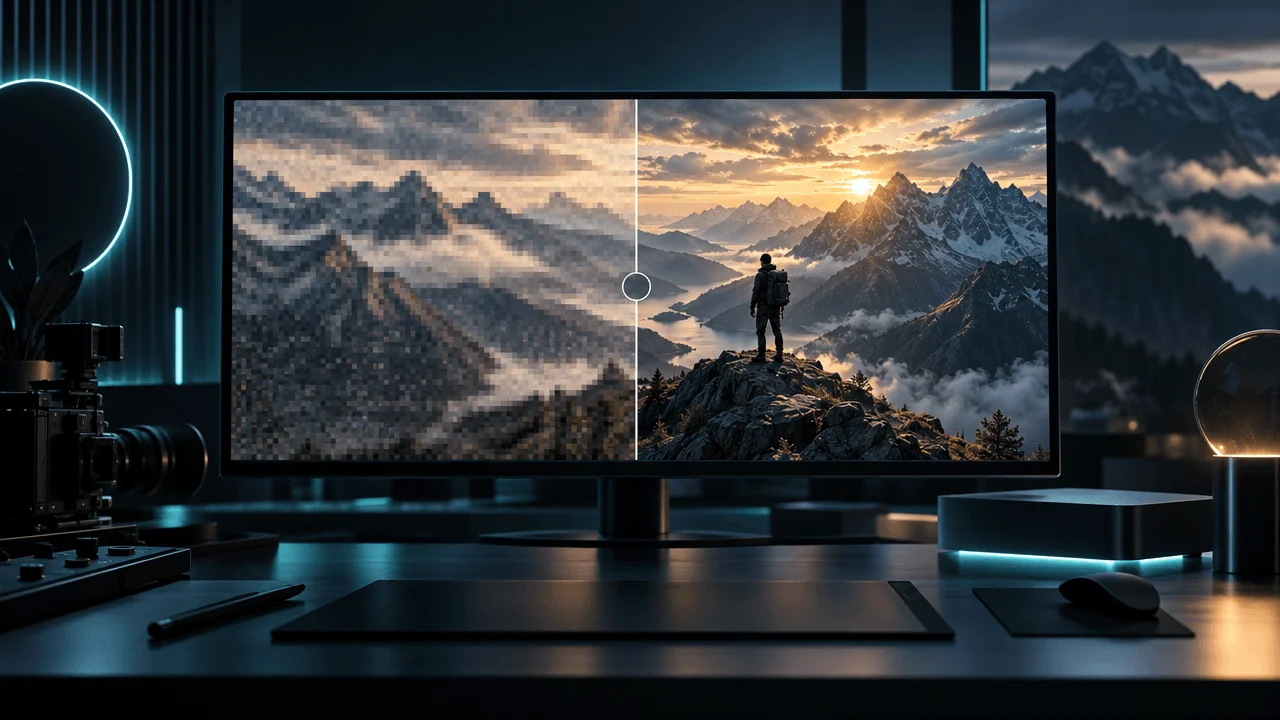
Modern AI enhancement software can analyze video frames, reduce noise, sharpen edges, suppress compression artifacts, and generate plausible additional detail.
Some tools support 4K, 8K, or even 16K output.
But they differ dramatically in processing speed, hardware requirements, licensing, and how they handle actual video quality.
A tool that improves old family footage may perform poorly on AI-generated animation. A model that sharpens landscapes beautifully may distort human faces or make on-screen text unreadable.
And for a creator publishing several hours of YouTube content every month, processing cost can matter as much as visual quality.
We compared nine AI video upscalers using their official features, pricing, supported resolutions, processing methods, and suitability for YouTube production.
What Is the Best AI Video Upscaler in 2026?
Topaz Video is our best overall recommendation for serious video restoration and upscaling.
Its specialized AI models, local processing, and controls for denoising, sharpening, stabilization, and motion make it a strong choice for editors who regularly need to improve difficult footage.
For other use cases:
- AVCLabs Video Enhancer AI: Best for guided 4K/8K upscaling and restoring older footage.
- DaVinci Resolve Studio: Best for AI upscaling directly inside a professional video editor.
- HitPaw VikPea: Best for beginners who want straightforward enhancement presets.
- UniFab Video Upscaler AI: Best for anime, animation, and high-resolution output options.
- VideoProc Converter AI: Best affordable all-in-one video enhancement software.
- Aiarty Video Enhancer: Best for local 4K enhancement with noise reduction and high-frame-rate processing.
- TensorPix: Best for browser-based upscaling without a powerful computer.
- Pixop: Best for professional cloud processing and large video archives.
But don't buy a tool solely because it advertises 8K or 16K output.
For most YouTube creators, a clean 4K export with natural-looking detail is more useful than an aggressively sharpened 8K file full of AI-generated artifacts.
Best AI Video Upscalers: Quick Comparison
| Rank | AI video upscaler | Best for | Advertised starting price | Processing |
|---|---|---|---|---|
| 1 | Topaz Video | Professional restoration and enhancement | $299/year Personal | Local + optional cloud |
| 2 | AVCLabs Video Enhancer AI | 4K/8K restoration and batch processing | $39.95/month | Local desktop |
| 3 | DaVinci Resolve Studio | AI upscaling inside a professional editor | $295 list price; promotion may apply | Local desktop |
| 4 | HitPaw VikPea | Beginner-friendly 4K/8K enhancement | $43.19/month | Desktop + optional cloud |
| 5 | UniFab Video Upscaler AI | Animation and high-resolution restoration | From $129.99 lifetime for a listed Mac edition | Local or separate cloud workflow |
| 6 | VideoProc Converter AI | Affordable video enhancement and conversion | $34.95/year or $54.95 lifetime offer | Local desktop |
| 7 | Aiarty Video Enhancer | 4K enhancement, denoising, and motion | $79/year | Local desktop |
| 8 | TensorPix | Online AI upscaling without installation | Free; paid from $5.50/month annually | Cloud |
| 9 | Pixop | Professional and archival video processing | Pay-as-you-go | Cloud |
Prices are USD reference prices checked against official sources around November 3, 2026. They may reflect promotions, annual commitments, platform-specific licenses, or limited commercial-use rights. Cloud processing and certain premium models may cost extra.
Our recommendations by use case
| Your situation | Best starting point |
|---|---|
| Restoring old documentary footage | Topaz Video |
| Enhancing blurry human faces | AVCLabs |
| Editing the entire video professionally | DaVinci Resolve Studio |
| Upscaling occasional YouTube clips | HitPaw VikPea |
| Upscaling anime or illustrated scenes | UniFab |
| Working with a limited software budget | VideoProc Converter AI |
| Cleaning up noisy 1080p footage | Aiarty |
| Using a laptop without a powerful GPU | TensorPix |
| Processing large video libraries through an API | Pixop |
How We Evaluated the Tools
We considered six practical factors.
1. Restoration capabilities. Does the software provide specialized models for noise, blur, compression damage, faces, or animation?
2. Temporal consistency. Does it offer processing designed to keep details stable across successive video frames?
3. Resolution support. Can it produce 4K or 8K output, and are there important restrictions?
4. Workflow integration. Can it process clips in batches, work inside an editor, or provide an API?
5. Processing cost. Does it charge through subscriptions, local licenses, cloud credits, or video processing usage?
6. Commercial suitability. Are there restrictions on business use, hardware, operating systems, or licensed output?
These rankings are editorial recommendations based on documented capabilities.
We did not conduct identical paid, hands-on quality or processing-speed tests across all nine products. We therefore do not claim experimentally proven image-quality scores or universal render-speed winners.
Later in this guide, we provide a repeatable test that readers can use to compare products with their own footage.
1. Topaz Video: Best Overall AI Video Upscaler
Best for: Professional YouTube editors, documentary channels, restoration specialists, and creators working with mixed-quality footage.
Pricing: Personal costs $299 annually, $39/month with a twelve-month commitment, or $59 on a month-to-month plan. Pro starts at $699 annually and includes expanded commercial rights.
Website: Topaz Video
Topaz Video is our overall recommendation because it approaches video enhancement as a serious restoration task.
It doesn't rely on a single sharpening filter.
Instead, it provides multiple specialized models for different problems.
A low-resolution archival interview needs different processing from a noisy nighttime city scene or a smooth animated video.
Topaz gives editors control over those distinctions.
Key features
Topaz Video offers:
- AI video upscaling.
- Noise reduction.
- Motion deblurring.
- Focus and detail enhancement.
- Stabilization.
- Frame interpolation.
- Slow-motion generation.
- SDR-to-HDR processing.
- Multiple specialized AI models.
- Local rendering on supported hardware.
- Optional cloud processing.
- Professional export formats.
Its documented video model family includes Proteus, Iris, Nyx, Rhea, Artemis, Gaia, Theia, Chronos, Apollo, and newer Starlight options.
Model availability depends on the plan, processing environment, and supported hardware.
Why Topaz stands out
Imagine restoring a historical documentary containing:
- A compressed interview from 2008.
- Low-resolution news footage.
- Dark handheld video.
- Modern 1080p stock footage.
- Several AI-generated visual sequences.
You wouldn't necessarily apply the same enhancement settings to every clip.
Topaz's specialized models allow a more deliberate workflow.
For example, one shot might need denoising before enlargement, while another primarily needs sharpening and artifact reduction.
This flexibility is valuable when the video contains many different source types.
An important licensing restriction
Topaz Personal licenses allow commercial use only for organizations below $1 million in annual revenue.
Larger commercial organizations need an eligible Pro or other appropriate license.
This distinction matters for established YouTube production businesses and agencies.
The cheapest subscription is not automatically the correct commercial license.
Hardware considerations
Topaz's unlimited local rendering is attractive, but only if your computer can process the footage efficiently.
AI enhancement can place substantial demands on the GPU, memory, and storage system.
Some advanced Starlight models also have platform-specific local processing restrictions.
Pros
- Extensive specialist enhancement models.
- Advanced control over restoration.
- Local rendering without per-minute charges.
- 4K, 8K, and higher output options.
- Strong editing and professional export capabilities.
Cons
- Relatively expensive.
- Demanding hardware requirements.
- Advanced settings introduce a learning curve.
- Some models are cloud-only on certain hardware.
- Personal licensing has a commercial revenue restriction.
Who should choose Topaz Video?
Choose Topaz if enhancement is a regular part of your production workflow, particularly for documentaries, historical footage, older recordings, and mixed-quality visual assets.
Verdict: Best overall for serious AI video restoration and upscaling.
Official sources: Topaz Video, pricing, and supported encoders and resolutions.
2. AVCLabs Video Enhancer AI: Best for 4K/8K Restoration
Best for: YouTube creators restoring old videos, improving low-quality recordings, and enhancing batches of footage.
Pricing: $39.95 for one month. The official purchase page also advertises annual and perpetual licenses, sometimes at substantial promotional discounts.
Website: AVCLabs Video Enhancer AI
AVCLabs is a strong alternative for editors who want specialized restoration features without learning an entire professional editing application.
Its product focuses on improving existing footage.
That includes low-resolution, noisy, blurry, and older videos.
Key features
- Video upscaling up to 8K.
- AI denoising.
- Deblurring.
- Face enhancement.
- Black-and-white video colorization.
- Frame interpolation.
- Stabilization.
- Batch enhancement.
- Multi-frame processing.
- Local processing on supported hardware.
Why multi-frame processing matters
A video is not simply a collection of unrelated pictures.
Objects move between frames.
Lighting changes.
The camera moves.
If an enhancement model changes facial details differently in every frame, the result can flicker.
AVCLabs documents multi-frame enhancement that analyzes neighboring frames to improve temporal consistency.
That makes it particularly relevant for footage with movement.
Where AVCLabs is useful
Consider a 720p interview recorded years ago.
The faces are soft, and the image contains compression artifacts.
AVCLabs provides dedicated enhancement and facial processing tools.
The output may look clearer.
However, face enhancement requires careful review.
AI can generate plausible facial details that were not actually present in the recording.
For documentary, historical, or evidentiary content, that distinction matters.
Pros
- Straightforward restoration workflow.
- Up to 8K output.
- Face and denoise models.
- Batch processing.
- Local file processing.
- Monthly and perpetual license options.
Cons
- AI-generated facial details may not be authentic.
- Advanced enhancement still requires capable hardware.
- Monthly pricing is relatively high.
- Promotional lifetime pricing changes.
- Complex footage may need multiple model experiments.
Who should choose AVCLabs?
Choose it if you frequently repair blurry recordings, enhance interviews, or restore older video assets for YouTube.
Verdict: Best guided alternative for 4K/8K restoration and batch processing.
Official sources: AVCLabs features and pricing.
3. DaVinci Resolve Studio: Best AI Upscaling Inside a Professional Video Editor
Best for: YouTube editors, production agencies, filmmakers, and creators already using DaVinci Resolve.
Pricing: Free DaVinci Resolve available. Studio has a $295 list price, with a $236 promotional offer displayed on the official US product page at the time of research.
Website: DaVinci Resolve
DaVinci Resolve Studio is different from the standalone video upscalers in this comparison.
It's a complete post-production application.
Editing, color correction, audio processing, visual effects, and AI enhancement are integrated into the same workflow.
Its Super Scale functionality is especially useful when mixing lower-resolution footage into higher-resolution timelines.
A critical distinction: Free vs. Studio
DaVinci Resolve offers a capable free editor.
But the advanced AI Super Scale features discussed here are part of DaVinci Resolve Studio.
The free edition should not be represented as providing the same advanced AI upscaling tools.
What Super Scale does
DaVinci Resolve's AI Super Scale includes enhanced scaling options.
Blackmagic's official documentation describes 3x and 4x Enhanced modes with adjustable sharpening and noise reduction.
That lets editors enlarge footage while trying to preserve natural detail.
Why editing integration matters
Imagine creating a twenty-minute documentary in a 4K timeline.
Most of the footage is already high resolution.
But seven historical clips were recorded in 720p.
Instead of exporting those clips, processing them separately, importing them again, and rebuilding the timeline, you can apply Super Scale inside the editing project.
That reduces workflow fragmentation.
Key features
- AI Super Scale.
- Advanced color correction.
- Temporal noise reduction.
- Professional editing.
- Visual effects.
- Audio post-production.
- HDR workflows.
- Professional export formats.
- Proxy and optimized-media workflows.
- High-resolution timeline support.
The processing tradeoff
Blackmagic describes enhanced Super Scale as one of its more computationally intensive features.
If you apply it across a long timeline, render requirements can increase significantly.
Use it selectively on footage that actually benefits.
Pros
- Integrated professional editing.
- No separate upscaling application required.
- Advanced sharpening and noise controls.
- Strong color and finishing tools.
- One-time Studio purchase.
- Suitable for multi-format documentary production.
Cons
- AI Super Scale requires Studio.
- Powerful hardware is beneficial.
- Steeper learning curve.
- Excessive upscaling can increase render times.
- Unnecessary if you only enhance occasional short clips.
Who should choose DaVinci Resolve Studio?
Choose it if you already edit in DaVinci or want a full professional editor with integrated enhancement.
Verdict: Best editor-integrated AI upscaling workflow.
Official sources: DaVinci Resolve and Blackmagic's Super Scale feature documentation.
4. HitPaw VikPea: Best Beginner-Friendly 4K/8K Upscaler
Best for: Beginners, smaller YouTube channels, family-video restoration, and creators wanting simple enhancement controls.
Pricing: $43.19/month on the current promotional purchase page or $99.99/year. Perpetual licenses are also available.
Website: HitPaw VikPea
HitPaw VikPea focuses on making video enhancement accessible.
Instead of requiring extensive technical knowledge, it offers purpose-specific models that users can select according to the problems in their footage.
Key features
- Upscaling up to 8K.
- AI restoration.
- Noise reduction.
- Portrait enhancement.
- Animation enhancement.
- Colorization.
- Stabilization.
- SDR-to-HDR conversion.
- Batch processing.
- Multiple AI enhancement models.
Why beginners may prefer it
Suppose you have a low-resolution YouTube video that looks soft.
You don't necessarily want to understand every restoration parameter.
You want to import the video, choose a suitable enhancement option, preview the result, and export.
HitPaw is designed around that simpler workflow.
The hidden cost consideration
HitPaw's pricing documentation distinguishes ordinary enhancement models from certain generative models that consume additional credits.
That matters.
A paid desktop license doesn't necessarily mean every AI feature is unlimited.
Review the specific model you intend to use before calculating your production costs.
Pros
- Accessible interface.
- Multiple enhancement presets.
- Up to 8K output.
- Batch processing.
- Monthly, annual, and perpetual options.
Cons
- Some advanced models require credits.
- Trial limitations apply.
- Promotional pricing changes.
- Not as flexible as specialist professional software.
- Results still depend heavily on the source footage.
Who should choose HitPaw?
Choose VikPea if you want a straightforward desktop upscaler and prefer selecting a model over tuning technical parameters.
Verdict: Best beginner-friendly 4K/8K enhancement workflow.
Official source: HitPaw VikPea pricing and model comparison.
5. UniFab Video Upscaler AI: Best for Animation and High-Resolution Output
Best for: Anime channels, illustrated videos, animated documentaries, and creators exploring high-resolution output.
Pricing: The official UniFab product catalog lists a Mac Video Upscaler AI lifetime license at $129.99. Other platform editions, bundles, and cloud processing have separate terms.
Website: UniFab Video Upscaler AI
UniFab is particularly interesting because it offers multiple enhancement models designed for different footage types.
That matters for YouTube creators.
An anime scene contains different visual information from a live-action interview.
A model that aggressively sharpens realistic skin textures may not be ideal for clean animated line art.
Key models
UniFab documents four primary model families:
Equinox: General-purpose enhancement for everyday footage.
Kairo: Specialized processing for anime and animation.
Vellum: Texture-focused enhancement.
Titanus: Film and television enhancement.
The appropriate model depends on the source.
Resolution support
UniFab advertises local output up to 16K with supported models and hardware.
However, its FabCloud workflow has a different limitation.
The official comparison lists cloud output up to 4K, while its local offering advertises higher resolutions.
Do not assume buying a UniFab cloud license gives you the same 16K output capability as its local product.
Why this matters for YouTube
Consider an animated educational channel.
Your video includes stylized characters, clean outlines, diagrams, and illustrated environments.
Upscaling with a generic live-action enhancement model might introduce textures that conflict with the animation.
An animation-specific model is worth testing because it is designed for different visual characteristics.
Pros
- Anime-specific enhancement option.
- Multiple specialized AI models.
- High local output-resolution options.
- Local and cloud workflows.
- Useful for animation and mixed-source footage.
Cons
- Local and cloud capabilities differ.
- Product bundles and individual licenses can be confusing.
- High-resolution processing requires hardware or cloud credits.
- 16K output doesn't guarantee authentic detail.
- Best model depends on source material.
Who should choose UniFab?
Choose it if your channel uses a lot of animation, anime, or stylized footage, or if you need specialized high-resolution processing.
Verdict: Best for animation-oriented enhancement and flexible resolution options.
Official sources: UniFab Video Upscaler and UniFab product pricing.
6. VideoProc Converter AI: Best Affordable All-in-One Video Upscaler
Best for: Budget-conscious YouTubers, creators who need both enhancement and video conversion, and teams processing many file formats.
Pricing: Current official offers include $34.95/year or $54.95 for a one-PC lifetime license.
Website: VideoProc Converter AI
VideoProc is a practical choice when you need several video utilities rather than a dedicated high-end restoration application.
Its toolkit includes enhancement, conversion, compression, recording, and other media-processing features.
Key features
- AI Super Resolution.
- Upscaling video to 4K.
- Noise reduction.
- Deblurring.
- Frame interpolation.
- Stabilization.
- Video conversion.
- Video compression.
- Audio processing.
- Batch workflows.
Why it offers strong value
Suppose your YouTube workflow includes footage from several sources.
You have an MP4 screen recording, a low-resolution AI clip, a large MOV file, and a compressed video you need to prepare for editing.
VideoProc can help standardize those assets while also providing enhancement tools.
That may reduce the need for separate conversion and upscaling applications.
A critical resolution distinction
VideoProc's official documentation advertises video enhancement up to 4K.
Its image tools can reach higher resolutions.
Do not confuse an image-upscaling claim of 8K or 10K with the maximum output of the video Super Resolution workflow.
Pros
- Affordable advertised lifetime license.
- AI enhancement and conversion in one product.
- Up to 4K video upscaling.
- Useful batch-processing functions.
- No per-minute cloud credits for local processing.
- Broad media utilities.
Cons
- Not a specialist 8K restoration platform.
- Local processing relies on computer hardware.
- Advanced users may prefer more model control.
- Promotional prices change.
- Higher-quality output still requires careful review.
Who should choose VideoProc?
Choose VideoProc if you want affordable AI video enhancement alongside file conversion, compression, and related media tools.
Verdict: Best affordable all-in-one video processing utility.
Official sources: VideoProc Super Resolution and pricing.
7. Aiarty Video Enhancer: Best for Local 4K Enhancement and Denoising
Best for: YouTube editors improving noisy footage, AI-generated clips, and high-frame-rate content.
Pricing: $79/year or $165 for a promotional lifetime license.
Website: Aiarty Video Enhancer
Aiarty concentrates on practical enhancement tasks.
Its positioning emphasizes improving detail, removing noise, correcting blur, and producing clean 4K footage.
It also includes motion-processing features.
Key features
- AI upscaling to 4K.
- Noise reduction.
- Deblurring.
- Detail enhancement.
- Frame interpolation.
- Up to 120 FPS processing with supported features.
- Audio denoising.
- Color and HDR-related tools.
- Batch enhancement.
- Local processing.
Why noise reduction matters
Some videos look bad because they don't contain enough pixels.
Others look bad because those pixels contain too much noise or compression damage.
If you apply strong sharpening to noisy footage, you may make the defects more visible.
Denoising before or during enhancement can produce a more natural result.
Aiarty's emphasis on noise and blur makes it worth evaluating for such material.
Important distinction: Resolution and frame rate
Upscaling resolution and increasing frame rate are different operations.
A 30 FPS video can be interpolated to a higher frame rate without gaining additional original camera frames.
AI creates intermediate frames based on estimates.
This can look smoother, but it may also create artifacts around hands, fast-moving objects, and complex motion.
Don't enable interpolation automatically.
Pros
- Dedicated 4K enhancement workflow.
- Denoising and deblurring.
- High-frame-rate processing.
- Batch support.
- Local file processing.
- Annual and lifetime licensing.
Cons
- Video output focuses on 4K rather than 8K.
- High-frame-rate interpolation can introduce artifacts.
- Processing speed depends on hardware.
- Promotional prices can change.
- Specialized restoration may require multiple passes.
Who should choose Aiarty?
Choose Aiarty if your priority is cleaner 4K footage, particularly when noise and blur are the main problems.
Verdict: Best for local 4K denoising and enhancement.
Official sources: Aiarty pricing and technical specifications.
8. TensorPix: Best Online AI Video Upscaler
Best for: Creators using basic laptops, occasional enhancement jobs, and teams that prefer cloud processing over local GPU software.
Pricing: Free plan available. Standard costs $5.50/month with annual billing and includes ten new credits monthly.
Website: TensorPix
TensorPix provides cloud-based video enhancement.
You upload a file, select enhancement filters, and let its infrastructure process the video.
This makes it useful when you don't own a powerful computer.
Key features
- Browser-based video enhancement.
- AI upscaling.
- Noise reduction.
- Deblurring.
- Frame-rate enhancement.
- Multiple enhancement filters.
- Cloud processing.
- H.264 and H.265 exports.
- API access on eligible plans.
The most important pricing detail
TensorPix publishes a credit model.
Its current pricing documentation states:
One credit roughly equals two minutes of enhanced video.
The Standard plan provides ten credits per month.
That corresponds to approximately twenty minutes of enhancement under the vendor's general estimate.
But actual usage can vary depending on filters and processing requirements.
Example: Upscaling a one-hour YouTube video
Suppose you want to process sixty minutes of footage.
Using the vendor's approximate baseline:
60 minutes ÷ 2 minutes per credit = 30 credits.
That's roughly three times Standard's monthly included credits.
The plan allows purchasing additional credits.
Therefore, the $5.50 monthly headline rate should not be mistaken for unlimited one-hour video enhancement.
Free plan limitations
The free plan provides credits through registration and weekly activity.
Its maximum accepted input resolution is lower than on paid plans.
Paid plans allow input footage up to 4K.
Check your desired output settings and costs inside the application before processing large files.
Pros
- No powerful local GPU required.
- Accessible browser workflow.
- Free entry point.
- Multiple enhancement filters.
- Usage-based scaling.
- Useful for occasional jobs.
Cons
- Cloud processing requires file uploads.
- Credits limit practical output volume.
- Large files require upload and download time.
- Processing costs may increase with advanced filters.
- Sensitive source footage requires privacy review.
Who should choose TensorPix?
Choose TensorPix if you only upscale occasional videos or want to avoid buying or configuring local GPU software.
Verdict: Best accessible cloud upscaler for occasional creator workloads.
Official source: TensorPix pricing and credit details.
9. Pixop: Best for Professional Cloud Video Processing
Best for: Video archives, production companies, broadcasters, agencies, and teams needing repeatable cloud processing.
Pricing: Pay-as-you-go, with separate processing, encoding, storage, and download charges.
Website: Pixop
Pixop is fundamentally different from most tools in this comparison.
Instead of selling a conventional creator subscription, it provides cloud processing with usage-based pricing.
That makes it relevant for larger media workflows and professional archives.
Key features
- AI Super Resolution.
- Deep restoration.
- Denoising.
- Deinterlacing.
- Frame-rate conversion.
- Video encoding.
- Cloud processing.
- API and enterprise integration options.
- Processing estimates before running jobs.
- Storage and download management.
How its pricing works
Pixop publishes per-gigapixel rates for individual processing operations.
Its official pricing documentation lists:
- Super Resolution: $0.079 per gigapixel.
- Deep Restoration 2: $0.486 per gigapixel.
- H.264 encoding: $0.023 per gigapixel.
- Storage: $0.023 per GB per month.
- Downloads: $0.090 per GB.
These are direct-billing reference rates, not flat prices per video minute.
Your final cost depends on processed pixel volume, selected filters, output encoding, storage, downloads, and any applicable discounts.
The platform estimates a job's price before processing.
Why Pixop is relevant for YouTube businesses
Imagine managing a large archive of historical footage.
Instead of manually importing every source clip into desktop software, you want a repeatable restoration pipeline.
Pixop is designed for that kind of workflow.
Its model also avoids requiring every editor to own a powerful rendering workstation.
Important limitation
Pixop's website does not offer a conventional free upscaling trial.
Its documentation states that accounts can explore the interface for a limited period before billing is configured, but processing is not available during that initial exploration period.
Also, storage and download charges can accumulate separately from processing.
Pros
- Professional cloud infrastructure.
- Multiple restoration filters.
- Usage-based processing.
- Cost estimates before jobs.
- API-oriented workflow.
- Useful for archives and large projects.
Cons
- More complex than consumer software.
- Not ideal for one-off casual clips.
- Costs depend on processed pixels.
- Storage and downloads are billed separately.
- Cloud uploading requires privacy and rights considerations.
Who should choose Pixop?
Choose Pixop when you need a scalable video processing pipeline rather than a simple standalone enhancement app.
Verdict: Best for professional cloud restoration and archive workflows.
Official sources: Pixop pricing and billing explanation.
4K vs. 8K Video Upscaling: What Actually Changes?
This is where many software comparisons become misleading.
Increasing resolution increases pixel count. It does not guarantee an equivalent increase in authentic visual detail.
Consider standard 16:9 video resolutions.
| Resolution | Dimensions | Pixels per frame |
|---|---|---|
| 720p HD | 1280 × 720 | 0.92 million |
| 1080p Full HD | 1920 × 1080 | 2.07 million |
| 4K UHD | 3840 × 2160 | 8.29 million |
| 8K UHD | 7680 × 4320 | 33.18 million |
Upscaling 1080p to 4K creates an output frame containing four times as many pixels.
Upscaling 1080p to 8K creates an output frame containing sixteen times as many pixels.
But the original camera or generator didn't capture those extra pixels.
The upscaler has to estimate what belongs there.
What AI upscaling can improve
Depending on the source and model, it may:
- Make edges appear cleaner.
- Reduce compression blocks.
- Remove some noise.
- Improve perceived sharpness.
- Reconstruct plausible textures.
- Reduce certain forms of blur.
- Make small visual elements more legible.
What AI cannot guarantee
It cannot reliably determine the exact information that was never recorded.
A blurry license plate may be sharpened into convincing but incorrect characters.
A face may develop details that don't match the person.
A building's texture may look more realistic while becoming less historically accurate.
For documentary and factual YouTube content, this distinction is especially important.
AI-enhanced detail is not automatically authentic detail.
Should You Upscale YouTube Videos to 4K?
For many creators, 4K is a sensible target when it improves visible quality or creates a more suitable final master.
But not every 1080p video needs AI upscaling.
There are three different scenarios.
Scenario 1: You have excellent native 1080p footage
The source is clean, sharp, and properly exposed.
You want to export it in a 4K timeline.
Ordinary high-quality scaling may be sufficient.
A separate AI enhancement pass might provide little benefit and may even introduce unwanted sharpening.
Scenario 2: You have degraded 1080p footage
The source contains compression damage, noise, or softness.
Here, an AI model may provide a noticeable improvement.
Test the result against ordinary scaling.
Scenario 3: You have 720p AI-generated footage
This is a common creator workflow.
A video-generation model produces a scene at a lower resolution than the intended final output.
AI upscaling can help prepare the clip for a higher-resolution edit.
But the source's visual style and motion determine whether enhancement looks natural.
An aggressive model can make generated faces, text, and textures less consistent.
What YouTube itself recommends
YouTube recommends recording and exporting in 4K where practical for high-resolution uploads.
Its official guidance also notes that higher-resolution viewing can improve the experience on large screens.
However, that doesn't mean converting every old video to 4K will automatically increase views.
The important question is whether the resulting video looks better.
Source: YouTube's guide to creating and uploading 4K videos.
Is 8K Worth It for YouTube?
For most ordinary YouTube channels, 8K should not be the default export target.
It substantially increases pixel count, processing requirements, and potentially file size.
The benefit depends on the source footage and how viewers watch it.
When 8K may be useful
- Professional archival projects.
- Extremely detailed nature footage.
- High-resolution cinematic masters.
- Specialized large-display viewing.
- Projects requiring substantial reframing or future reuse.
When 8K may be unnecessary
- Narrated faceless videos using mostly 720p AI clips.
- Simple talking-head content.
- Screen recordings.
- Standard educational explainers.
- Channels where 4K already looks excellent.
- Projects with tight production budgets.
For most creators, a strong 4K master is the more practical choice.
And if your source contains little recoverable detail, 8K may simply produce a larger version of the same problems.
YouTube 4K and 8K Export Settings
Before uploading an enhanced video, use appropriate export settings.
YouTube's official recommended upload encoding guidance includes the following SDR bitrates.
| Resolution | 24–30 FPS | 48–60 FPS |
|---|---|---|
| 1080p | 8 Mbps | 12 Mbps |
| 1440p | 16 Mbps | 24 Mbps |
| 4K | 35–45 Mbps | 53–68 Mbps |
| 8K | 80–160 Mbps | 120–240 Mbps |
These are YouTube's recommended reference bitrates, not strict upload limits.
Recommended settings
Container: MP4.
Video codec: H.264 is a documented recommended option.
Audio: AAC-LC, with appropriate sample rate and channel settings.
Frame rate: Preserve the source frame rate unless you intentionally perform frame-rate conversion.
Scan type: Progressive.
Color: For standard dynamic range, use appropriate BT.709 color metadata.
Don't increase frame rate just because you can
If a video was created at 24 FPS, converting it to 60 FPS does not generate additional camera-captured frames.
AI interpolation estimates intermediate frames.
That may create smoother motion, but it can also introduce distortions.
Unless smoother motion serves a specific creative purpose, maintaining the original frame rate may be the better choice.
Official source: YouTube recommended upload encoding settings.
Why Your 4K YouTube Video Still Looks Like 1080p After Uploading
A completed upload doesn't necessarily mean every playback resolution is ready.
YouTube processes videos into multiple viewing formats.
Higher-resolution versions can take longer to become available.
Its help documentation explains that 4K processing may continue after the initial low-resolution upload becomes playable.
A large or high-frame-rate video can require substantial additional processing time.
What to do
- Upload the final video.
- Wait for processing to complete.
- Open the watch page.
- Check Settings → Quality.
- Confirm that the expected 4K option is available on a supported device.
- Review the actual playback quality.
For scheduled releases, uploading ahead of publication allows additional time for high-resolution processing.
Don't immediately blame your upscaler because a newly uploaded video initially looks soft.
Source: YouTube's low-video-quality-after-upload guidance.
When Should You Upscale: Before Editing or After Export?
This decision can have a major effect on production cost.
Upscaling before editing
You enhance individual source clips, then import the approved results into the editing project.
This works well when only selected clips need repair.
For example, a twenty-minute YouTube video might contain just five minutes of low-resolution footage.
There's little reason to process the remaining fifteen minutes if those assets already look good.
Upscaling after editing
You finish the entire video and process the exported master.
This is simpler in some workflows.
But it means the AI enhancement software processes everything:
- Video clips.
- Titles.
- Captions.
- Graphics.
- Transitions.
- Stock images.
- Already-sharp footage.
That can create problems.
Text may become oversharpened.
Thin lines may develop artifacts.
Faces may change.
And the entire video's processing time can become much longer.
Our recommendation
Upscale individual weak clips before final assembly whenever practical.
Then export the completed project at the intended resolution.
Use whole-video enhancement only when the entire master genuinely needs it and your quality review supports that choice.
For long-form faceless YouTube videos, selective upscaling can be especially valuable.
How Much Does AI Video Upscaling Cost for a Long YouTube Video?
The correct answer depends on the processing model.
Desktop and cloud tools have different economics.
Local desktop processing
Software such as Topaz, AVCLabs, Aiarty, and VideoProc processes footage on supported local hardware.
You typically pay for the license or subscription.
The additional processing costs come from:
- Electricity.
- Hardware usage.
- Storage.
- Rendering time.
- Staff time.
Some vendors offer separate cloud or generative models that consume credits.
Cloud credit processing
TensorPix charges through credits.
Its documentation estimates roughly two minutes of video enhancement per credit.
A ten-minute clip would therefore require approximately five baseline credits.
A sixty-minute video would require approximately thirty.
Actual consumption depends on selected features.
Pay-per-processing cloud services
Pixop uses output and processing characteristics to calculate a job estimate.
You pay for relevant filters, encoding, storage, and downloads.
This can be attractive for occasional large jobs or enterprise pipelines.
But it requires cost planning.
The important comparison
Suppose you produce a two-hour narrated YouTube documentary.
The video uses generated visuals, stock footage, diagrams, and captions.
Processing the entire 120-minute master can be unnecessarily expensive.
If only twenty minutes of its source footage needs enhancement, selective processing reduces the amount of material being upscaled by more than 80%.
That's a workload reduction, not a guaranteed equivalent reduction in total cost.
Your actual savings depend on the software, resolution, models, and processing overhead.
The 30-Second Test: How to Choose the Best Video Upscaler for Your Footage
Many AI upscaling guides rank tools based on marketing samples.
But an impressive demonstration doesn't prove the same model will work well with your footage.
A better comparison uses identical short test clips.
Prepare four 30-second samples
Sample 1: Human face
Use a portrait or interview containing facial movement.
Evaluate natural skin texture, eye detail, and identity consistency.
Sample 2: Fine textures
Use foliage, brickwork, hair, fabric, or detailed architecture.
Watch for artificial patterns and oversharpening.
Sample 3: Text and graphics
Use a recording containing labels, diagrams, or small on-screen text.
Check whether letters remain accurate.
Sample 4: Fast motion
Use panning footage or a moving subject.
Check for flicker, ghosting, distorted edges, and unstable detail.
Compare each tool against two baselines
For every sample, create:
- A normal high-quality upscale using the original editing software.
- An AI-enhanced version from the candidate tool.
Compare them at the same output resolution.
Don't compare a 720p original against a 4K enhanced video and declare the enhanced image superior merely because it's larger.
Evaluate quality
| Criterion | What to inspect | Score |
|---|---|---|
| Detail | Are important features more readable? | 0–5 |
| Naturalness | Does the result avoid artificial textures? | 0–5 |
| Temporal stability | Does detail remain stable between frames? | 0–5 |
| Faces | Are facial features preserved accurately? | 0–5 |
| Text | Are letters and numbers still correct? | 0–5 |
| Color | Are colors and contrast preserved? | 0–5 |
| Motion | Does movement remain clean? | 0–5 |
| Workflow | Is processing practical for your production volume? | 0–5 |
| Maximum | 40 |
This is a proposed evaluation rubric, not a benchmark we ran across all nine products.
Record processing efficiency separately
For each tool, record:
- Processing duration.
- Input resolution and frame rate.
- Output resolution.
- GPU used.
- Model and settings.
- Credits consumed, if applicable.
- File size.
- Export format.
- Number of attempts required.
A tool that produces marginally sharper footage but takes five times longer may be the worse business choice for a high-volume YouTube operation.
That tradeoff matters when quality and throughput both contribute to profitability.
AI Upscaling vs. Ordinary Resolution Scaling
These are related but different operations.
Ordinary scaling
Traditional video scaling resizes image information using mathematical interpolation.
It can create smooth, usable higher-resolution output.
But it doesn't attempt the same learned detail reconstruction as AI models.
AI upscaling
AI models use learned patterns to estimate additional image detail and may combine that with:
- Denoising.
- Sharpening.
- Artifact reduction.
- Temporal processing.
- Face enhancement.
- Texture reconstruction.
The result may appear more detailed.
But some of that detail is inferred rather than recorded.
Which is better?
Use ordinary scaling when the source is already clean and natural.
Consider AI enhancement when ordinary scaling exposes visible limitations.
Always compare the result. AI is not automatically superior.
Best AI Upscaler for Different Types of YouTube Footage
Different footage requires different enhancement priorities.
1. Historical documentaries
Focus on:
- Denoising.
- Deinterlacing where appropriate.
- Compression repair.
- Temporal consistency.
- Preserving original detail.
Recommended starting tools: Topaz Video, AVCLabs, Pixop.
2. AI-generated cinematic clips
Focus on:
- Natural textures.
- Face consistency.
- Avoiding artificial sharpening.
- Motion stability.
- Consistent visual style.
Recommended starting tools: Topaz Video, Aiarty, VideoProc.
3. Anime and illustrated content
Focus on:
- Clean line art.
- Stable colors.
- Avoiding unnecessary photorealistic texture.
- Maintaining character outlines.
Recommended starting tools: UniFab, VideoProc.
4. Screen recordings and tutorials
Focus on:
- Correct text.
- Clean UI edges.
- Readable labels.
- Avoiding oversharpening.
A conventional resize may already be sufficient.
If AI enhancement is necessary, test it carefully.
Recommended starting tools: DaVinci Resolve Studio, VideoProc.
5. Low-light video
Focus on:
- Noise reduction.
- Preserving facial detail.
- Avoiding waxy textures.
- Color consistency.
Recommended starting tools: Aiarty, AVCLabs, Topaz Video.
6. Occasional short clips
If you only enhance a few clips per month, a browser-based service may be more economical than a high-priced desktop license.
Recommended starting tool: TensorPix.
Five AI Upscaling Mistakes That Make YouTube Videos Look Worse
Mistake 1: Using the strongest sharpening setting
Aggressive sharpening can create glowing outlines, artificial textures, and unnatural faces.
More detail isn't always better.
Mistake 2: Upscaling already clean footage unnecessarily
A clean native source may look better with ordinary scaling.
Enhancement should solve a visible problem.
Mistake 3: Treating AI-generated detail as factual evidence
Restored faces, text, or historical objects may contain invented detail.
Be cautious when accuracy matters.
Mistake 4: Ignoring temporal consistency
A beautiful still frame can hide severe video problems.
Inspect actual playback for flicker, shimmer, and changing textures.
Mistake 5: Exporting to 8K without a clear reason
8K increases resolution and processing requirements.
It doesn't automatically improve storytelling, retention, or the authenticity of the underlying image.
How OverseerOS Fits Into an AI Video Upscaling Workflow
Most upscaling tools solve a problem near the end of video production.
But YouTube creators also need to find good topics, write scripts, generate narration, create scenes, and assemble the actual video.
That's where OverseerOS fits.
OverseerOS is not presented here as a dedicated standalone AI video upscaler competing directly with Topaz or AVCLabs.
It provides a broader research and production workflow.
Step 1: Find a promising video idea
Use the OverseerOS Viral Outlier Library to investigate topics and formats that have performed unusually well relative to their channels.
Step 2: Develop the script
Build an original narration-driven video around a clear topic.
A strong script determines what the visuals need to communicate.
Step 3: Produce the scenes
Use OverseerOS Auto Edit Studio to connect narration with AI-generated scenes and supporting visual assets.
Step 4: Review visual quality
Identify scenes that are too soft, blurry, inconsistent, or low resolution.
Don't automatically upscale every asset.
Step 5: Enhance selected footage
Export source clips where supported, or use an appropriate editing workflow to process them through a specialist enhancement tool.
Step 6: Complete the final edit
Assemble the approved visuals and export the finished project at the required resolution.
Step 7: Publish and analyze
Upload to YouTube using appropriate encoding settings.
Then evaluate actual viewer response.
The complete workflow becomes:
Research → Script → Voiceover → Scenes → Quality Review → Selective Upscaling → Final Edit → YouTube
This distinction is useful.
A dedicated video upscaler improves existing visual material.
OverseerOS helps creators plan and produce original YouTube videos.
They solve different problems and can complement one another.
Learn more at OverseerOS.
Frequently Asked Questions
What is the best AI video upscaler in 2026?
Topaz Video is our best overall recommendation for serious restoration and video upscaling. AVCLabs is a strong option for guided 4K/8K enhancement, while DaVinci Resolve Studio is best for integrating upscaling directly into a professional editing workflow.
What is the best AI video upscaler for YouTube?
The best choice depends on your source footage. Topaz is useful for mixed-quality documentary footage, AVCLabs for restoration, VideoProc for affordable 4K enhancement, and TensorPix for occasional browser-based processing.
Can AI upscale 1080p video to 4K?
Yes. Multiple tools support AI enhancement from 1080p to 4K. The output contains more pixels and may look sharper, but it does not recover the exact original information that was never captured.
Can AI upscale 720p video to 4K?
Yes. Tools including Topaz, AVCLabs, HitPaw, UniFab, VideoProc, and Aiarty support workflows for increasing lower-resolution video to 4K. The result depends on the source and model.
Can AI upscale video to 8K?
Yes. Topaz, AVCLabs, HitPaw, and UniFab offer 8K or higher output options. But higher resolution does not guarantee better visual quality.
Is 8K better than 4K for YouTube?
Not automatically. 8K contains four times as many pixels as 4K, but the viewing benefit depends on the original footage, device, screen size, and playback environment. For most standard YouTube production, a good 4K master is a practical target.
Does uploading in 4K improve YouTube views?
YouTube recommends 4K for higher-resolution viewing experiences, particularly on larger displays. But converting a video to 4K does not guarantee increased views or recommendations.
Does YouTube support 8K uploads?
YouTube publishes recommended encoding bitrates for 8K uploads. Actual playback availability depends on processing, device, browser, and supported video formats.
What is the best free AI video upscaler?
TensorPix offers a free credit-based plan. Several desktop tools offer free trials or limited previews. DaVinci Resolve has a free editor, but its advanced AI Super Scale features require Studio.
Is Topaz Video worth the price?
It may be worthwhile for creators regularly restoring difficult footage or processing large amounts of video locally. For occasional clips, a less expensive or cloud-based service may provide better value.
Is Topaz Video a one-time purchase?
Its current pricing primarily uses subscription plans. The Personal annual plan is advertised at $299. Check current terms rather than relying on older lifetime-purchase information.
Is AVCLabs better than HitPaw VikPea?
AVCLabs is especially relevant for dedicated restoration, batch processing, and multi-frame enhancement. HitPaw emphasizes accessible presets and beginner-friendly processing. A controlled test using your own footage is the best way to decide.
Is DaVinci Resolve Super Scale free?
The advanced AI Super Scale functionality discussed in this guide is part of DaVinci Resolve Studio, not the free edition.
Can AI remove blur from old YouTube videos?
AI can improve the appearance of some blurry footage by enhancing edges and reconstructing plausible textures. Severe blur or missing detail may not be recoverable accurately.
Can AI fix low-light video noise?
Yes. Many enhancement tools provide denoising models. Excessive denoising can remove real texture, so review the output carefully.
Can AI enhance faces in video?
Yes. Some tools provide dedicated facial enhancement models. However, inferred facial details can differ from the original person, especially in degraded recordings.
Does AI upscaling change the video frame rate?
Not necessarily. Resolution upscaling and frame interpolation are separate operations. Some tools offer both.
Should I upscale before or after editing?
If only certain source clips need enhancement, upscaling them before final assembly can reduce unnecessary processing. Whole-video enhancement is more appropriate when the entire master needs consistent treatment.
Can I upscale a two-hour YouTube video?
Potentially, depending on the tool, hardware, storage, and processing allowance. Long videos can require substantial processing resources. Check file-duration limits and estimate costs before beginning.
Which video upscaler is best without a GPU?
TensorPix and Pixop provide cloud processing. UniFab also offers a separate FabCloud workflow. Cloud tools avoid depending on your local GPU but introduce upload, credit, and privacy considerations.
Is AI upscaling good for anime?
It can be, especially when the model is designed for illustrated content. UniFab's Kairo model is one example. Always inspect line stability and color consistency.
Can AI upscaling improve YouTube Shorts?
Yes, especially when the source contains compression artifacts or low-resolution imagery. But Shorts still depend on strong topics, openings, and audience response.
Can I legally upscale someone else's video?
Upscaling doesn't grant rights to footage you don't own. Ensure you have the appropriate permission or legal basis before using third-party material.
Does YouTube reduce quality after upload?
YouTube processes videos into formats suited to different devices and connection speeds. The playback version may differ from your uploaded file. High-resolution processing can also take additional time.
Final Verdict: Which AI Video Upscaler Should You Choose?
For serious YouTube video restoration, choose Topaz Video.
Its range of specialized models and local processing capabilities make it our strongest overall recommendation.
If you want a more guided restoration workflow, choose AVCLabs.
If you already work in DaVinci Resolve, consider Resolve Studio before paying for another application.
If you're a beginner, HitPaw VikPea is a practical starting point.
If you create animation or anime, evaluate UniFab.
If you want affordable 4K enhancement and conversion tools together, consider VideoProc.
If noise and blur are your biggest issues, test Aiarty.
If you don't have a suitable GPU, consider TensorPix.
And if you're processing large archives or need a cloud video pipeline, Pixop deserves attention.
But the most important lesson is this:
Don't buy an AI video upscaler because it promises the highest resolution. Buy it because it improves your actual footage without introducing new problems.
Start with a thirty-second test.
Compare the result against ordinary scaling.
Check faces, text, motion, and textures.
Then measure processing time and cost before committing your entire production workflow.
For creators building original faceless YouTube videos, explore OverseerOS Auto Edit Studio to connect research, scripts, narration, scenes, and video production.
Because professional YouTube quality starts long before the final upscale.
Research Methodology and Sources
Research date: November 3, 2026.
This guide compares nine video enhancement products using official product pages, published pricing, documentation, and YouTube's upload recommendations.
Evaluation criteria included supported enhancement models, resolution options, local versus cloud processing, pricing, hardware requirements, restoration features, and practical suitability for YouTube creators.
Research limitations: No identical paid hands-on benchmark was performed across all nine tools. Rankings represent editorial assessments of the products' documented capabilities, not measured quality or rendering-speed results. Prices are subject to promotions, taxes, billing commitments, operating-system differences, and licensing restrictions.
Primary product sources
- Topaz Video
- AVCLabs Video Enhancer AI
- DaVinci Resolve
- HitPaw VikPea
- UniFab Video Upscaler AI
- VideoProc Converter AI
- Aiarty Video Enhancer
- TensorPix pricing
- Pixop pricing
YouTube documentation
- YouTube recommended upload encoding settings
- Creating and uploading 4K YouTube videos
- Low video quality after uploading
Editorial and sponsorship disclosure
OverseerOS publishes this article and offers related YouTube research and video production software.
It is not presented as a standalone replacement for the specialist video upscaling products reviewed here.
No sponsored placement was arranged for this draft. Future affiliate relationships or paid placements should be clearly identified and should not be misrepresented as independent product testing or editorial validation.
Pricing, licensing, output limitations, and model availability should be rechecked before publication and periodically afterward.