Your video looks professional.
The editing is clean. The visuals are sharp. The script is strong.
Then the narrator starts talking.
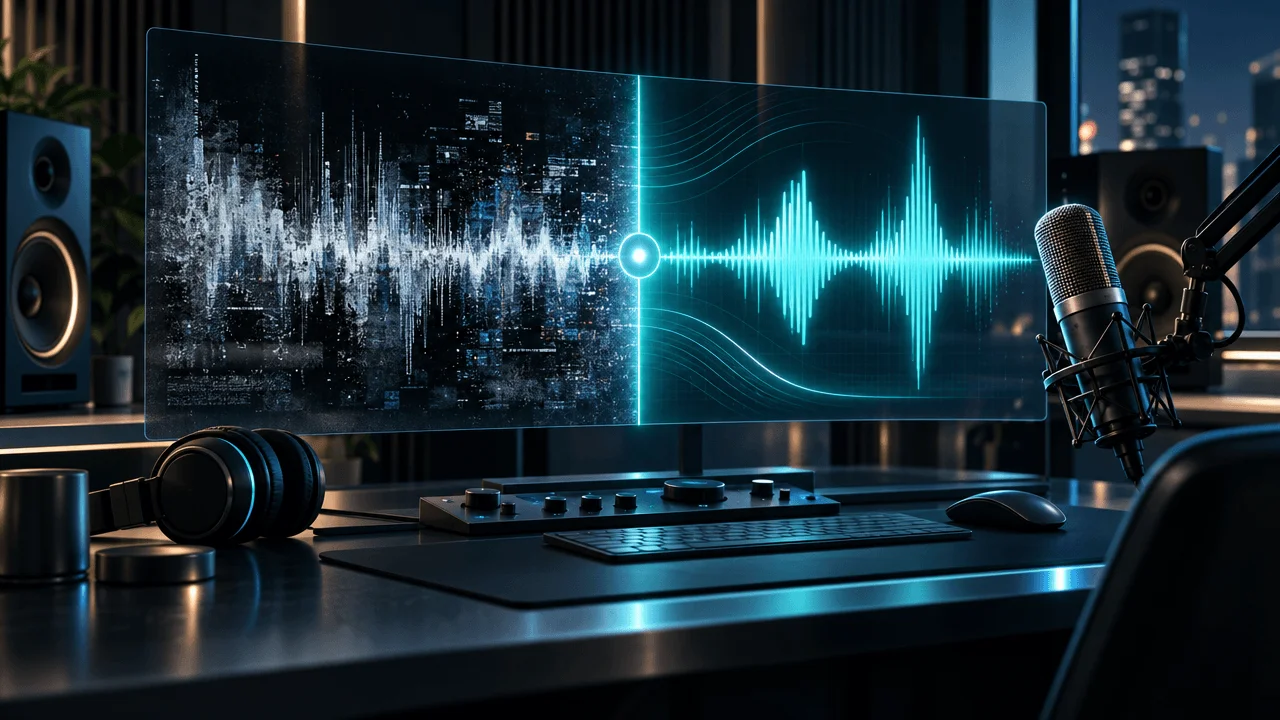
There's a constant hiss behind the voice. The room sounds hollow. Some words are noticeably louder than others. Every time the speaker pauses, you can hear the computer fan.
You could publish the video anyway.
But poor audio makes viewers work harder to understand what they're hearing.
And on a narration-driven YouTube channel, that's a serious production problem.
AI audio enhancers promise to fix it. They can remove background noise, reduce room echo, isolate speech, balance volume, and repair certain recording defects.
But the best AI audio enhancer depends on what's actually wrong with your recording.
A tool built for removing traffic noise isn't necessarily the best choice for fixing clipped audio.
A tool that creates a polished podcast voice may be unnecessary for an already-clean AI voiceover.
And a free enhancement service may place a promotional jingle into the finished recording, making it unsuitable for direct publication.
We compared nine AI audio enhancement tools using their documented capabilities, pricing, processing limits, and suitability for YouTube creators.
What Is the Best AI Audio Enhancer for YouTube in 2026?
Adobe Podcast Enhance Speech is our best starting point for creators who want to clean spoken audio quickly.
It's accessible, simple, and offers a genuinely useful free tier.
However, different tools deserve the top recommendation for different production problems.
- Adobe Podcast: Best overall for one-click speech enhancement.
- Auphonic: Best for automatic loudness balancing and finished narration processing.
- iZotope RX 12: Best for professional audio repair and difficult recordings.
- Descript Studio Sound: Best for cleaning audio while editing the video or podcast.
- ElevenLabs Voice Isolator: Best for isolating dialogue from strong background noise.
- Supertone Clear: Best for real-time noise and reverb control inside audio software.
- DaVinci Resolve Studio: Best for audio enhancement inside a complete video editing workflow.
- Waves Clarity Vx: Best for dedicated real-time voice noise removal.
- Cleanvoice AI: Best for bulk spoken-audio cleanup, filler words, and long recordings.
If your main problem is background noise, start with Adobe Podcast or ElevenLabs Voice Isolator. If the recording sounds uneven or too quiet, start with Auphonic. If the recording is damaged, examine iZotope RX.
That's a more useful distinction than declaring one product the winner for every recording.
Quick Comparison: 9 Best AI Audio Enhancers
| Rank | Tool | Best for | Starting price | Main limitation |
|---|---|---|---|---|
| 1 | Adobe Podcast | Quick speech cleanup | Free; Firefly Pro $19.99/month | Free tier limits files to 30 minutes |
| 2 | Auphonic | Leveling, loudness, and automated post-production | Free for 2 hours/month; paid credits | Free output includes a jingle |
| 3 | iZotope RX 12 | Professional restoration | Elements $99; Standard $399 list | Higher cost and learning curve |
| 4 | Descript | Audio cleanup plus editing | Free; Hobbyist $24/month or $16/month annually | AI credits and media-hour limits |
| 5 | ElevenLabs Voice Isolator | Separating speech from noise | Free for personal use; Starter $6/month | Charges credits per minute |
| 6 | Supertone Clear | Real-time noise and echo removal | $69 one-time promotional price | Requires compatible audio software |
| 7 | DaVinci Resolve Studio | Editor-integrated audio enhancement | $295 list; $236 current US promotion | Advanced AI tools require Studio |
| 8 | Waves Clarity Vx | Real-time voice denoising | $39.99 current promotional price | Primarily a specialized plugin |
| 9 | Cleanvoice AI | Long-form and batch speech cleanup | Free trial; $11/month for 10 hours | Usage-based processing allowances |
USD reference prices checked in November 2026. Promotions, billing intervals, regional pricing, and licensing terms can change. Auphonic's paid prices are selected dynamically, so compare its live credit packages before purchasing.
The fastest buying decision
For occasional voiceovers, try Adobe Podcast Free first.
For regularly published narrated videos requiring consistent volume, Auphonic is a strong choice.
For difficult interviews, clipping, hum, and recording defects, iZotope RX offers substantially more control.
For large amounts of spoken audio, Cleanvoice has a comparatively straightforward hourly pricing model.
For clean synthetic speech, you may not need any enhancement tool at all.
What Does an AI Audio Enhancer Actually Do?
An AI audio enhancer analyzes an audio recording and attempts to improve one or more characteristics.
But several different processes are frequently described as "enhancing audio."
They solve different problems.
| Audio problem | Appropriate processing | What it attempts to fix |
|---|---|---|
| Constant fan or hiss | Denoising | Unwanted background noise |
| Room echo | Dereverberation | Reflections that make speech sound hollow |
| Traffic or background conversation | Voice isolation | Separating speech from interfering sounds |
| Inconsistent loudness | Leveling and compression | Uneven perceived volume |
| Sharp S sounds | De-essing | Excessive vocal sibilance |
| Microphone clicks or pops | De-click or de-plosive processing | Short unwanted transients |
| Distorted loud words | De-clipping | Some effects of overloaded recording |
| Long pauses | Silence removal | Unnecessary gaps |
| Repeated "um" and "uh" | Filler-word removal | Unwanted speech disfluencies |
| Voice buried under music | Mixing and ducking | Making speech easier to hear |
The distinction matters.
Noise removal is not the same as audio mastering.
A tool can remove background hiss while leaving the narration too quiet.
Another can normalize loudness while preserving every distracting sound.
The best workflow addresses the actual defects instead of applying every enhancement feature automatically.
1. Adobe Podcast Enhance Speech: Best Overall AI Audio Enhancer
Best for: YouTube voiceovers, interviews, beginner creators, remote recordings, and quick speech cleanup.
Pricing: Free plan available. Adobe Podcast Premium is included with Firefly Pro, advertised at $19.99/month in the US.
Website: Adobe Podcast Enhance Speech
Adobe Podcast ranks first because it offers one of the simplest ways to improve spoken audio.
You upload a recording.
Adobe's Enhance Speech model processes the voice.
You listen to the result and download the enhanced file.
There's no requirement to understand equalization, compression, or spectral editing.
What Enhance Speech does
Adobe's Enhance Speech v2 is designed to reduce distracting sounds and improve speech clarity.
Its documented capabilities include:
- Background noise removal.
- Echo reduction.
- Speech enhancement.
- Voice cleanup.
- Reduction of distracting ambience and background music.
- Browser-based processing.
For creators working from home, this can be particularly useful.
Imagine recording a YouTube narration in an untreated room.
You can hear the computer fan and the reflections from the walls.
Adobe may reduce those distractions without requiring you to configure several separate audio plugins.
The free-plan limitations
Adobe's official pricing documentation specifies:
- Audio enhancement only.
- Maximum 30 minutes per uploaded file.
- Maximum 500 MB per file.
- Up to one hour of enhancement per day.
- No bulk processing.
- No adjustable enhancement strength.
That's a useful allowance for YouTube creators producing short videos.
But it has an important limitation.
Adobe Podcast Free does not directly enhance uploaded video files.
For a video containing embedded narration, you may need to extract the audio first.
What Premium adds
Premium, currently offered through the Firefly Pro plan, provides:
- Audio and video file support.
- Up to two hours per file.
- Maximum 1 GB files.
- Up to four hours of enhancement per day.
- Bulk uploads.
- Controls for speech, music, and ambience.
- Additional Adobe Podcast Studio features.
The adjustable strength is particularly valuable.
Aggressive enhancement can sometimes make a voice sound unnatural.
Being able to reduce the processing strength gives you more control.
Pros
- Very easy to use.
- Genuine free access.
- Designed specifically for spoken audio.
- No specialist editing experience required.
- Paid control over processing intensity.
- Browser-based workflow.
Cons
- Free tier has a 30-minute file limit.
- Free processing is audio-only.
- The free tier doesn't allow strength adjustment.
- Strong enhancement can change natural vocal characteristics.
- Not designed for advanced surgical audio repair.
- Requires uploading recordings.
Who should choose Adobe Podcast?
Choose Adobe Podcast if you want to improve narration or spoken dialogue without learning professional audio software.
Verdict: Best first tool to try for quick YouTube voiceover cleanup.
Official sources: Enhance Speech and Adobe Podcast plans.
2. Auphonic: Best for Automatic Loudness and Voiceover Mastering
Best for: Long-form faceless YouTube channels, podcasts, audiobooks, recurring narration, and creators who need consistent audio levels.
Pricing: Free for two hours of processed audio per month. Paid recurring plans and one-time processing credits are available.
Website: Auphonic
Auphonic is particularly relevant to YouTube creators because its capabilities go beyond removing background noise.
It offers automated audio post-production.
That includes leveling, noise reduction, filtering, and loudness management.
Why this matters for narration-driven videos
Suppose you publish four thirty-minute documentaries every month.
Each narration may have slightly different recording levels.
One video sounds noticeably louder than another.
Even within one video, some sentences may be quieter because the speaker moved away from the microphone.
Auphonic's Intelligent Leveler is designed to reduce those inconsistencies.
The platform also supports loudness targets, filtering, and noise reduction.
Key features
- Intelligent Leveler.
- Noise and reverb reduction.
- Automatic EQ and filtering.
- Loudness normalization.
- Multitrack processing.
- Silence and filler-word processing.
- Automatic encoding.
- Audio and video input support.
- File-transfer integrations.
- Workflow automation and API access.
The most important free-plan detail
Auphonic's free plan adds an Auphonic jingle to processed output.
That's easy to miss when comparing free audio enhancement tools.
The free tier is useful for evaluating the processing.
But don't assume it provides clean, unbranded exports for immediate publication.
Understanding Auphonic pricing
Auphonic bills processing primarily by input duration.
Its free allowance is two hours per month.
Paid recurring packages include allowances such as:
- 9 hours per month.
- 21 hours per month.
- 45 hours per month.
- 100 hours per month.
- 250 hours per month.
One-time credits are also available.
Auphonic's billing FAQ specifies a minimum charge equivalent to three minutes per production.
It also explains that unused recurring credits do not accumulate, while purchased one-time credits remain available.
Why volume matters
For a channel producing ten hours of narration monthly, the 9-hour recurring package is insufficient.
You would need a higher allowance or supplemental credits.
This is why comparing only the free allowance tells you very little about ongoing production costs.
Pros
- Combines enhancement and loudness control.
- Strong fit for narration-heavy channels.
- Supports batch and automated workflows.
- Useful multitrack processing.
- Free evaluation allowance.
- API support.
Cons
- Free exports include a jingle.
- Paid credits depend on processed duration.
- Strong leveling can change intended dynamics.
- More advanced settings require some understanding.
- Not a full video editor.
Who should choose Auphonic?
Choose Auphonic if you publish narration-driven videos regularly and want reliable, repeatable audio post-production.
Verdict: Best for automated leveling, loudness, and narration finishing.
Official sources: Auphonic pricing and pricing documentation.
3. iZotope RX 12: Best for Professional Audio Repair
Best for: Documentary editors, professional YouTube producers, damaged recordings, historical interviews, and difficult audio problems.
Pricing: RX 12 Elements $99, Standard $399 list price, Advanced $1,399. Promotions and loyalty pricing can reduce the checkout total.
Website: iZotope RX 12
iZotope RX is the tool to consider when basic noise reduction isn't enough.
Some recordings contain specific defects:
- Electrical hum.
- Distortion.
- Clipped peaks.
- Crackling.
- Mouth clicks.
- Excessive sibilance.
- Wind noise.
- Audio bleeding between microphones.
- Background sounds overlapping speech.
A one-click enhancer may improve overall clarity without solving those individual problems.
RX provides specialized repair tools.
RX 12 Elements vs. Standard vs. Advanced
This is an important buying distinction.
RX 12 Elements provides six repair plugins:
- De-click.
- De-clip.
- De-hum.
- De-reverb.
- Voice De-noise.
- Repair Assistant.
That may already be sufficient for creators dealing with ordinary recording problems.
RX 12 Standard adds a much broader repair system.
It includes tools such as:
- Dialogue Isolate.
- Spectral De-noise.
- De-ess.
- De-plosive.
- Mouth De-click.
- Spectral Repair.
- Breath Control.
- Music Rebalance.
- Batch processing.
- Dedicated standalone audio editing.
RX 12 Advanced adds further professional capabilities, including more sophisticated versions of certain restoration modules.
Don't pay for Advanced simply because it has the most features.
Buy the edition that solves the recording problems you actually encounter.
What's new in RX 12?
RX 12 includes improved machine-learning processing for Dialogue Isolate, Music Rebalance, and Repair Assistant.
Standard also includes updated De-bleed and Breath Control tools.
These capabilities are relevant to creators repairing interviews and spoken recordings.
Why RX is different
Suppose a guest interview contains a loud click halfway through an important sentence.
You don't necessarily need to regenerate the entire voice.
You need to repair a specific defect.
RX's detailed editing tools allow more targeted intervention.
This is particularly valuable when the source recording cannot be repeated.
Pros
- Extensive specialist repair tools.
- Useful for difficult or damaged recordings.
- Standalone editor and plugins.
- Detailed control.
- Local processing.
- Professional batch workflows.
Cons
- More expensive than simple web tools.
- Significant learning curve.
- Different features require different editions.
- Repairing audio can still introduce artifacts.
- Not all severely damaged speech can be recovered.
Who should choose iZotope RX?
Choose RX if audio restoration is a recurring part of your workflow and ordinary cleanup tools aren't sufficient.
Verdict: Best for professional repair of difficult YouTube audio.
Official sources: RX Standard and RX Elements comparison.
4. Descript Studio Sound: Best for Audio Cleanup and Video Editing Together
Best for: Interview channels, podcasts, educational creators, and anyone who edits spoken content through a transcript.
Pricing: Free plan available. Hobbyist $24/month or $16/month with annual billing. Creator $35/month or $24/month with annual billing.
Website: Descript Studio Sound
Descript is a broader editing platform rather than a standalone noise-removal service.
Its main advantage is integration.
You can edit the spoken words, remove filler words, clean the audio, and create a finished video in the same project.
What Studio Sound does
Studio Sound is Descript's AI-based audio enhancement feature.
It's designed to improve spoken recordings by reducing background noise and making voices sound clearer.
Creators can apply the effect within their editing projects.
Why this matters for YouTube
Imagine producing a weekly interview show.
You need to:
- Remove long interruptions.
- Correct the transcript.
- Cut repeated answers.
- Remove filler words.
- Improve the audio.
- Add captions.
- Export the finished video.
Using Descript keeps much of that work in one place.
The saved editing time may be more valuable than using a separate audio enhancer with slightly lower subscription pricing.
Pricing limits
Descript's current Hobbyist plan includes:
- Ten media hours per month.
- 400 AI credits per month.
- 1080p watermark-free exports.
- Access to supported AI editing features.
Creator increases the allowance to thirty media hours and 800 monthly AI credits.
The free plan includes one media hour per month and a one-time allowance of 100 AI credits.
Media-hour allowances and AI-credit allowances are different.
Don't assume a plan providing ten media hours automatically includes unlimited AI processing.
Pros
- Audio enhancement inside a video editor.
- Transcript-based editing.
- Filler-word removal.
- Captions and video exports.
- Multiple AI features.
- Suitable for podcast repurposing.
Cons
- More expensive than basic cleanup-only tools.
- AI credits can constrain usage.
- Larger editor introduces complexity.
- Not a substitute for RX's detailed restoration tools.
- Per-person subscription costs.
Who should choose Descript?
Choose Descript when your workflow includes editing the actual spoken content, not just reducing noise.
Verdict: Best for combined speech editing and audio enhancement.
Official sources: Descript pricing and Studio Sound.
5. ElevenLabs Voice Isolator: Best for Separating Speech From Background Noise
Best for: Noisy interviews, outdoor recordings, archival speech, and creators who need to extract a voice from distracting audio.
Pricing: Free plan includes 10,000 shared credits for limited personal use. Starter $6/month includes 30,000 credits and commercial rights. Creator $22/month includes 121,000 credits.
Website: ElevenLabs Voice Isolator
ElevenLabs Voice Isolator is designed for a specific task.
It attempts to separate speech from background noise, music, and environmental sounds.
That makes it particularly useful when a voice is competing with significant unwanted audio.
Example use case
Imagine recording an interview outdoors.
Cars are passing nearby.
A fan is running.
People are talking in the background.
You need to preserve the main speaker's words while reducing those interfering sounds.
Voice Isolator is designed around that problem.
Supported inputs
ElevenLabs supports common audio formats, including WAV, MP3, M4A, FLAC, and others.
It also supports several video containers, including MP4 and MOV.
The documented maximum is:
- One hour per file.
- 500 MB file size.
Understanding the pricing
Voice Isolator consumes 1,000 credits per minute.
That makes its credit-based pricing straightforward to calculate.
| Plan | Monthly credits | Approximate Voice Isolator minutes |
|---|---|---|
| Free | 10,000 | 10 minutes |
| Starter | 30,000 | 30 minutes |
| Creator | 121,000 | 121 minutes |
| Pro | 600,000 | 600 minutes |
These values assume the entire credit allowance is spent on Voice Isolator.
ElevenLabs credits are shared with other products such as text-to-speech and dubbing.
The commercial-use restriction
The free Voice Isolator tier is for personal use.
Commercial usage rights begin on paid plans.
That matters for creators enhancing audio for monetized channels or client projects.
An important audio-quality limitation
Voice isolation can remove more than unwanted noise.
If the model mistakes parts of a quiet consonant for noise, the result may sound unnatural.
Always check difficult words, breath sounds, and the beginning and end of sentences.
Pros
- Focused voice isolation.
- Browser-based workflow.
- Audio and video input support.
- Transparent per-minute credit model.
- API access.
- Useful for noisy speech recordings.
Cons
- Commercial rights require a paid plan.
- Credits are shared with other ElevenLabs products.
- One-hour file limit.
- Heavy processing can create speech artifacts.
- Doesn't replace full loudness mastering.
Who should choose ElevenLabs Voice Isolator?
Choose it when unwanted sounds are competing directly with speech and simple denoising isn't enough.
Verdict: Best for targeted speech isolation from noisy recordings.
Official sources: Voice Isolator and ElevenLabs pricing.
6. Supertone Clear: Best for Real-Time Noise and Reverb Removal
Best for: Editors working inside audio software, voiceover producers, live recording setups, and creators needing control over both noise and room echo.
Pricing: $69 one-time purchase at the advertised November promotional price. A limited trial is available.
Website: Supertone Clear
Supertone Clear is a specialized audio plugin.
Unlike web services where you upload a recording and download a processed file, Clear runs inside compatible audio production software.
Its main purpose is separating voice from noise and reverberation.
Three simple controls
Supertone emphasizes three processing controls:
- Voice.
- Ambience.
- Voice reverb.
This allows editors to control how much of the environment remains.
That's useful because complete background removal isn't always desirable.
Why ambience matters
Imagine a documentary interview recorded in a workshop.
The speaker's voice needs to remain clear.
But the surrounding workshop sounds help establish the location.
Removing every trace of ambience might make the recording feel disconnected from the scene.
A tool offering separate voice and ambience control gives the editor more flexibility.
Key features
- AI denoising.
- AI dereverberation.
- Voice separation.
- Adjustable ambient sound.
- Real-time processing.
- Windows and macOS support.
- AU, VST, VST3, and AAX formats.
- One-time licensing.
Trial limitation
Supertone's official documentation states that the trial introduces noise every sixty seconds.
It also restricts saving and loading profiles.
Therefore, treat the trial as an evaluation tool rather than a complete free production solution.
Pros
- Real-time processing.
- Noise and reverb controls.
- One-time license.
- Works inside compatible audio applications.
- Useful for preserving some natural ambience.
Cons
- Requires compatible host software.
- Not a complete editor by itself.
- Trial deliberately introduces noise.
- Promotional price may change.
- Doesn't provide full mastering or loudness workflows.
Who should choose Supertone Clear?
Choose Supertone if you work inside a digital audio workstation and want direct control over voice, noise, and room reflections.
Verdict: Best for adjustable real-time noise and reverb reduction.
Official source: Supertone Clear.
7. DaVinci Resolve Studio: Best for Audio Enhancement Inside Video Editing
Best for: YouTube editors, documentary creators, production teams, and creators already using DaVinci Resolve.
Pricing: Free DaVinci Resolve available. Studio 21 has a $295 list price, with a $236 promotion on the official US product page at the time of research.
Website: DaVinci Resolve
DaVinci Resolve Studio is particularly attractive because it connects audio cleanup with the actual video timeline.
Its Fairlight audio tools include professional mixing features and AI-assisted processing.
What DaVinci provides
Depending on edition and platform, relevant capabilities include:
- Voice Isolation.
- Dialogue Leveler.
- Dialogue Separator.
- Fairlight EQ and dynamics.
- Loudness measurement.
- Audio effects.
- Integrated multitrack editing.
- AI Audio Assistant.
DaVinci Resolve 20 introduced an AI Audio Assistant for Studio.
It can analyze a timeline containing speech, music, and sound effects, then suggest or apply automated mixing decisions.
That includes dialogue level adjustments, voice isolation where needed, music ducking, and mastering-related processing.
A critical plan distinction
The free DaVinci Resolve editor includes useful audio features.
But advanced Voice Isolation and AI Audio Assistant capabilities are associated with Studio.
Don't buy based on an article that treats the free and paid versions as identical.
Why this matters
Imagine editing a twenty-minute documentary containing:
- AI voiceover.
- Interview footage.
- Background music.
- Environmental sound.
- Sound effects.
A standalone voice enhancer only processes one part of the sound.
A complete audio mix needs to manage all those elements together.
DaVinci is designed for that broader task.
Pros
- Audio processing inside the video timeline.
- AI-assisted dialogue and mixing features.
- Professional audio effects.
- No separate cloud processing required for standard local workflows.
- One-time Studio purchase.
- Suitable for complex productions.
Cons
- Advanced AI features require Studio.
- Larger learning curve.
- More software than a simple voiceover cleanup job requires.
- Automated mixing still needs human review.
- Hardware and operating-system requirements apply.
Who should choose DaVinci Resolve Studio?
Choose it if your YouTube editing workflow already uses DaVinci or you want professional audio processing within the same timeline.
Verdict: Best integrated audio enhancement and video mixing environment.
Official sources: DaVinci Resolve and AI Audio Assistant documentation.
8. Waves Clarity Vx: Best Dedicated Real-Time Voice Denoising Plugin
Best for: Voiceover editors, podcast producers, sound engineers, and creators working inside a compatible audio workstation.
Pricing: Advertised at $39.99 during the current promotional period. Standard list price is higher, and subscription access is also available.
Website: Waves Clarity Vx
Waves Clarity Vx focuses on AI-powered noise reduction for vocals and speech.
It's not trying to be a complete video editing application.
It's a specialized plugin that helps separate the voice from unwanted background sounds.
How it works
Clarity Vx uses neural-network-based processing.
Waves documents three relevant modes:
Broad 1: Designed to preserve main and background voices.
Broad 2: Intended for stronger noise separation and reducing secondary voices.
Broad ECO: A lower-CPU option suited to sessions with multiple plugin instances.
These choices matter when working with interviews containing several speakers.
Why real-time processing is valuable
Suppose you're editing a long narration.
You want to adjust noise removal while listening to the actual passage.
With a real-time plugin, you can make changes without repeatedly exporting files and uploading them elsewhere.
That's useful for editors who prefer controlling the processing during mixing.
What Clarity Vx doesn't do
It's not a full repair suite.
Removing background noise does not automatically fix:
- Clipping.
- Excessive sibilance.
- Incorrect loudness.
- Awkward pauses.
- Repeated words.
- Poor music balance.
You may still need other tools.
Pros
- Dedicated voice denoising.
- Real-time processing.
- Multiple neural-network options.
- Suitable for mono and stereo recordings.
- Plugin integration.
- Relatively accessible promotional price.
Cons
- Requires compatible host software.
- Not a full restoration suite.
- Price changes with promotions.
- Does not automatically master audio.
- Aggressive settings can damage voice detail.
Who should choose Waves Clarity Vx?
Choose it if you edit audio professionally and want a focused real-time denoising plugin.
Verdict: Best dedicated real-time speech noise-removal plugin.
Official source: Waves Clarity Vx.
9. Cleanvoice AI: Best for Bulk Voiceover and Podcast Cleanup
Best for: High-volume spoken content, podcasts, narration, agencies, and creators who need to remove unwanted speech elements as well as noise.
Pricing: Free trial. Subscription starts at $11/month for ten processed hours. Pay-as-you-go credits start at $11 for five hours.
Website: Cleanvoice AI
Cleanvoice combines audio enhancement with editing automation.
That makes it relevant for creators whose recordings suffer from more than background noise.
For example, an interview may contain:
- Filler words.
- Long silences.
- Repeated pauses.
- Mouth sounds.
- Background noise.
- Inconsistent speech presentation.
Cleanvoice offers tools for several of those tasks.
Key features
- Background noise removal.
- Studio Sound enhancement.
- Filler-word removal.
- Silence removal.
- Mouth-sound and breath cleanup.
- Video podcast editing.
- Transcription.
- Summaries.
- Timeline exports.
- API access.
Pricing for long recordings
Cleanvoice's current USD pricing lists:
| Plan | Processed audio allowance | Price |
|---|---|---|
| Pay as you go | 5 hours | $11 |
| Pay as you go | 10 hours | $20 |
| Subscription | 10 hours/month | $11/month |
| Subscription | 30 hours/month | $30/month |
| Subscription | 100 hours/month | $90/month |
Subscriptions can roll over unused credits, subject to a cap of three times the plan allowance.
Pay-as-you-go credits are valid for two years.
Cleanvoice bills by processed duration, rounding up to the next minute.
Why this matters for YouTube operators
Imagine publishing twenty thirty-minute videos every month.
That's ten hours of narration.
The $11 subscription advertises enough processed-audio allowance for one pass over that workload.
But if you repeatedly reprocess the same audio after making changes, you may consume additional processing time.
Usage-based services should be evaluated using total processed minutes, not simply finished video duration.
The filler-word caveat
Automatically removing filler words can make dialogue more concise.
But not every hesitation is useless.
Some pauses carry emotional meaning.
A speaker may deliberately pause before revealing important information.
Removing every pause automatically can make the narration sound rushed.
Review the edited result.
Pros
- Straightforward usage pricing.
- Noise removal and speech cleanup.
- Suitable for longer recordings.
- Filler-word and silence editing.
- API availability.
- Pay-as-you-go and subscription options.
Cons
- Reprocessing can consume additional credits.
- Automatic speech removal can alter intended pacing.
- Not a full professional audio repair suite.
- Cloud uploads may require privacy review.
- Speech editing still needs human approval.
Who should choose Cleanvoice?
Choose Cleanvoice if you regularly process hours of spoken content and want to combine enhancement with editing automation.
Verdict: Best for scalable spoken-audio cleanup and high-volume narration workflows.
Official source: Cleanvoice pricing.
Which AI Audio Enhancer Should You Use for Each Problem?
This is the fastest way to choose.
| Audio problem | Recommended starting tool | Why |
|---|---|---|
| Computer fan or steady hiss | Adobe Podcast | Simple speech cleanup |
| Uneven narration volume | Auphonic | Intelligent leveling |
| Loud traffic behind a speaker | ElevenLabs Voice Isolator | Speech isolation |
| Clipped or distorted recording | iZotope RX | Dedicated De-clip and restoration tools |
| Room echo | Supertone Clear | Dedicated reverb control |
| Noise while editing a video | DaVinci Resolve Studio | Timeline-integrated processing |
| Real-time noise reduction in a DAW | Waves Clarity Vx | Focused plugin |
| Filler words and long pauses | Cleanvoice | Spoken-audio editing automation |
| Cleaning audio while editing the transcript | Descript | Integrated transcript editing |
| Already-clean AI voiceover | Often no enhancer needed | Avoid unnecessary processing |
The important rule
Don't run the entire recording through several enhancers simply because they're available.
Every processing pass can alter the signal.
Start with the actual defect.
Fix it.
Listen.
Then decide whether another step is necessary.
Do You Need AI Audio Enhancement for ElevenLabs or Other AI Voiceovers?
Usually not, if the generated voiceover is already clean.
This is a distinction many generic AI audio enhancer articles miss.
A microphone recording and a synthetic voiceover have different problems.
Microphone recordings may contain
- Room echo.
- Background noise.
- Microphone hiss.
- Electrical hum.
- Plosives.
- Clipped peaks.
- Inconsistent microphone distance.
AI-generated narration may contain
- Unnatural pronunciation.
- Incorrect emphasis.
- Awkward pauses.
- Inconsistent tone.
- Unwanted emotional delivery.
- Occasional synthesis artifacts.
Those problems aren't necessarily fixed by noise removal.
Suppose an AI voice mispronounces a scientific term.
Running the audio through Adobe Podcast won't reliably correct the pronunciation.
You need to regenerate or edit the spoken passage.
Similarly, a voice that emphasizes the wrong word needs a speech-generation correction, not denoising.
What AI narration may still need
Some generated voiceovers benefit from:
- Light loudness adjustment.
- Careful EQ.
- Gentle compression if levels vary.
- Breath and pause review.
- Mixing with music.
- Final loudness checks.
But avoid applying aggressive voice isolation to clean synthetic speech.
It may introduce artifacts without removing any real problem.
For AI voiceovers, the highest-value fix is often correcting the generation itself rather than enhancing the finished file.
The 10-Hour Test: Which AI Audio Enhancer Is Cheapest for a YouTube Channel?
Let's compare a real production workload.
Suppose your channel publishes:
Twenty videos per month, each containing thirty minutes of narration.
That's ten hours of finished voiceover audio.
Assume you process each recording once.
Here's how the pricing models compare.
| Tool | What ten hours of processing means |
|---|---|
| Adobe Podcast Free | Daily limit may allow the workload over time, but files are capped at 30 minutes and there is no batch processing |
| Adobe Podcast Premium | Within the published four-hour-per-day processing limit when distributed across sufficient days |
| Auphonic Free | Only two hours monthly, and exports include a jingle |
| Auphonic recurring credits | Nine-hour package insufficient; higher package or extra credits needed |
| ElevenLabs Free | Approximately ten minutes, personal use only |
| ElevenLabs Creator | Approximately 121 minutes if all credits go to Voice Isolator |
| ElevenLabs Pro | Approximately 600 minutes if the entire credit allowance is available |
| Descript Hobbyist | Ten media hours included, but AI-credit consumption still matters |
| Cleanvoice $11 subscription | Advertises ten processed hours monthly |
| iZotope RX | Local license-based processing rather than minute-based cloud billing |
| Supertone Clear | Local plugin processing after purchase |
| Waves Clarity Vx | Local plugin processing after purchase |
| DaVinci Resolve Studio | Local editing and processing after purchase |
This compares documented capacity, not identical feature sets or measured audio quality.
Why processing models matter
A browser service charging by minute is convenient for occasional jobs.
But local software may become more economical when processing hundreds of hours, provided you have suitable hardware and personnel.
Calculate the effective cost
Use this formula:
Effective cost per finished hour = Total monthly enhancement expense ÷ Hours of publishable audio
But don't stop there.
Also consider:
- Time required to upload files.
- Human review.
- Reprocessing.
- Export preparation.
- Manual repairs.
- Quality-control failures.
The cheapest subscription may not be the cheapest production workflow.
For a high-volume YouTube channel, editing time saved per video can matter more than a small difference in subscription cost.
How to Make YouTube Voiceovers Sound Professional
Here is a practical workflow for improving narration without damaging it.
Step 1: Start with the best possible recording
AI enhancement is easier when the original recording is reasonably clean.
For human narration:
- Record away from fans and traffic where possible.
- Reduce room reflections.
- Use a consistent microphone position.
- Avoid recording too loudly.
- Monitor with headphones.
- Keep an unprocessed original.
AI should be a repair tool, not an excuse to ignore recording quality.
Step 2: Identify the dominant problem
Listen to the raw audio.
Determine whether the issue is:
- Noise.
- Echo.
- Distortion.
- Loudness.
- Unwanted pauses.
- Pronunciation.
- Music masking the voice.
Don't treat every problem as noise.
Step 3: Repair specific defects first
If a recording is clipped, use an appropriate repair tool.
If an isolated click is present, address the click.
If the audio contains hum, remove the hum.
Apply the processing needed for the defect.
Step 4: Reduce noise and reverb
Use a tool suited to the source.
For simple speech cleanup, Adobe Podcast may be sufficient.
For stronger interference, consider ElevenLabs Voice Isolator.
For detailed editing, use RX or an appropriate plugin.
Avoid excessive processing.
Step 5: Adjust tonal balance
Equalization can make a voice easier to understand.
But boosting high frequencies aggressively can make sibilance and artifacts worse.
Make adjustments while listening, not by automatically maximizing brightness.
Step 6: Control loudness
Use appropriate leveling, compression, or loudness normalization to reduce excessive differences in volume.
The goal is comfortable, consistent listening.
Not making every syllable equally loud.
Step 7: Review pacing
Remove accidental long gaps and obvious editing mistakes.
Preserve meaningful pauses.
For educational and documentary narration, pauses can help viewers process information.
Step 8: Mix with background music
The voice should remain clearly intelligible.
Lower the music when it competes with the narration.
Automation or ducking can help.
Don't rely only on listening to the music in isolation.
Review the combined mix.
Step 9: Export and check the final video
Listen to the finished video, not just the enhanced narration file.
Music, sound effects, compression, and export settings can affect the perceived result.
Check headphones and a typical phone or laptop speaker.
Best YouTube Audio Export Settings
YouTube's official upload guidance recommends audio in supported codecs with a 48 kHz sample rate.
For a conventional MP4 upload, a common compatible setup is:
| Setting | Practical export choice |
|---|---|
| Container | MP4 |
| Audio codec | AAC-LC |
| Sample rate | 48 kHz |
| Channels | Stereo |
| Recommended stereo bitrate | 384 kbps |
| Recommended mono bitrate | 128 kbps |
These are derived from YouTube's recommended upload encoding guidance.
If your editing software provides suitable modern codec options, use a supported format that preserves audio quality.
What about -14 LUFS?
You may see articles claiming every YouTube video must be mastered to exactly -14 LUFS.
That's misleading.
YouTube's public recommended upload encoding documentation does not establish -14 LUFS as a mandatory target for every creator.
Loudness practices depend on the content, playback normalization, and audio dynamics.
For narration-heavy material, a reasonable starting point is to use a consistent integrated loudness target appropriate to your production, while leaving sufficient peak headroom.
A conservative true-peak ceiling such as -1 dBTP is a practical engineering choice, not a universal YouTube upload requirement.
Don't destroy a good mix trying to reach one arbitrary loudness number.
Official source: YouTube recommended upload encoding settings.
How to Test AI Audio Enhancers Before Paying
Audio quality is subjective.
Vendor demonstrations are useful, but they don't establish which tool works best for your recording.
A better approach is to test the same material in several products.
Prepare five twenty-second recordings
Test 1: Constant noise
A clean speaker with background fan or hiss.
Test 2: Room echo
Speech recorded in a reflective room.
Test 3: Strong interference
A speaker with traffic, café noise, or nearby conversation.
Test 4: Difficult speech
Quiet words, sibilant consonants, and natural breath sounds.
Test 5: Damaged audio
A recording containing clicks, hum, or mild clipping.
Keep an unprocessed copy of each.
Compare at matched loudness
This is important.
Louder audio often appears subjectively clearer, even when actual quality isn't better.
Before evaluating outputs, adjust playback levels so comparisons are reasonably matched.
Then listen for:
- Voice intelligibility.
- Natural vocal tone.
- Missing consonants.
- Metallic artifacts.
- Unnatural breath removal.
- Background noise.
- Residual echo.
- Changes in emotional delivery.
Score the results
| Criterion | What you're evaluating | Score |
|---|---|---|
| Intelligibility | Are words easier to understand? | 0–5 |
| Noise removal | Was distracting noise reduced? | 0–5 |
| Naturalness | Does the voice still sound human and familiar? | 0–5 |
| Artifact control | Did processing avoid robotic or watery sounds? | 0–5 |
| Transient preservation | Are consonants and word endings intact? | 0–5 |
| Dynamics | Does the voice retain appropriate emphasis? | 0–5 |
| Workflow | How much correction or manual work was required? | 0–5 |
| Cost | Is it economical for your volume? | 0–5 |
| Maximum | 40 |
This is a proposed evaluation framework, not a benchmark we performed across all nine products.
What matters most
For a YouTube documentary, protecting intelligibility and meaning should take priority over making the waveform visually smooth.
An AI enhancer that removes noise but destroys parts of important words has failed the most important test.
Five Audio Enhancement Mistakes That Make YouTube Videos Sound Worse
Mistake 1: Applying maximum enhancement strength
More aggressive processing can create metallic, robotic, or watery speech.
Use the lowest effective amount of enhancement.
Mistake 2: Processing already-clean AI narration
If a voiceover has no background noise or echo, noise isolation may provide no benefit.
It can introduce defects that weren't there before.
Mistake 3: Running multiple enhancers in sequence
Processing through several independent systems can compound artifacts.
Don't assume a second or third pass always improves the result.
Mistake 4: Removing every pause and breath
Natural speech includes rhythm.
Excessive silence and breath removal can make narration exhausting to listen to.
Mistake 5: Ignoring the final music mix
A voiceover can sound perfect alone and become difficult to hear once background music is added.
Review the full soundtrack before publishing.
AI Noise Removal vs. Voice Isolation vs. Audio Mastering
These terms are often used interchangeably, but they aren't the same.
AI noise removal
Attempts to suppress unwanted background sounds while preserving speech.
Useful for fan noise, hiss, and some ambient interference.
AI voice isolation
Attempts to separate the spoken voice from other audio components.
Useful when dialogue overlaps with music or significant environmental sound.
AI dereverberation
Attempts to reduce the acoustic reflections of the recording environment.
Useful for hollow or echoing rooms.
Audio mastering
Prepares the overall audio presentation for distribution.
This can include tonal balance, dynamics, loudness, and peak management.
Audio repair
Addresses specific defects such as clicks, clipping, hum, or distortion.
The strongest workflow may combine these processes, but it shouldn't apply all of them without a reason.
Can Better Audio Improve YouTube Retention?
Clear audio can make a video easier to follow.
That's especially important for:
- Educational documentaries.
- Podcasts.
- Faceless narration.
- Tutorials.
- Long sleep videos.
- Interviews.
- Storytelling channels.
But it's important not to make unsupported promises.
There is no universal formula stating that removing background noise increases audience retention by a particular percentage.
A video with excellent audio can still lose viewers because the content is boring.
And a video with minor recording imperfections may still perform well because the information is compelling.
What audio enhancement can realistically improve
It can reduce distractions and improve intelligibility.
That may make the listening experience more comfortable.
But actual retention performance depends on the entire video.
Good audio removes friction. It doesn't replace good content.
How OverseerOS Fits Into a Professional YouTube Audio Workflow
For faceless YouTube creators, audio quality is only one part of production.
You also need:
- A strong topic.
- A well-written script.
- Effective narration.
- Relevant visuals.
- Good pacing.
- Appropriate background music.
- A finished video.
OverseerOS provides a connected research and production workflow.
It is not presented here as a standalone audio restoration application competing directly with Adobe Podcast, Auphonic, or iZotope RX.
Instead, it supports script, voiceover, scene, and video production.
Step 1: Research the topic
Use OverseerOS to analyze YouTube channels and identify promising content ideas.
The strength of the subject and script matters before any audio processing begins.
Step 2: Prepare the script
Write narration that is clear, accurate, and structured for the intended audience.
A good script reduces unnecessary revisions later.
Step 3: Generate or record the voiceover
Use the supported voiceover workflow or your preferred external narration source.
For synthetic narration, review pronunciation, tone, pacing, and emphasis first.
Step 4: Evaluate the raw audio
If the generated voiceover is already clean, don't automatically apply a noise remover.
If you recorded the narration yourself, check for actual recording defects.
Step 5: Enhance only where needed
For real noise and echo, use Adobe Podcast or another relevant enhancer.
For uneven loudness, Auphonic may help.
For difficult defects, iZotope RX may be appropriate.
Step 6: Produce the video
Use OverseerOS Auto Edit Studio to connect narration with the visual scenes and video production workflow.
Step 7: Review the final mix
Listen to the complete exported video.
Make sure the voice remains understandable when music and sound effects are present.
The result is a connected workflow:
Research → Script → Narration → Audio QA → Selective Enhancement → Visual Production → Final Mix → Export
For high-volume faceless channels, the objective is not to use as many AI tools as possible.
It's to reduce unnecessary production steps while maintaining quality.
Frequently Asked Questions
What is the best AI audio enhancer for YouTube in 2026?
Adobe Podcast Enhance Speech is our best starting point for simple spoken-audio cleanup. Auphonic is especially useful for automatic leveling and loudness, while iZotope RX 12 is a stronger choice for advanced audio repair.
What is the best free AI audio enhancer?
Adobe Podcast offers a useful free tier for spoken audio, with a thirty-minute file limit and one hour of processing per day. Auphonic also provides two free hours per month, but its free exports contain a jingle.
Can AI remove background noise from a YouTube voiceover?
Yes. Adobe Podcast, ElevenLabs Voice Isolator, Auphonic, Supertone Clear, and Waves Clarity Vx offer relevant noise-removal capabilities.
Can AI make a bad microphone sound professional?
AI can improve some recordings, but it cannot reliably recover every detail missing from poor source audio. Extremely distorted, clipped, or distant recordings may remain problematic.
Can AI remove echo from voice recordings?
Yes. Adobe Podcast, Supertone Clear, iZotope RX, and other tools offer echo or reverb reduction. Effectiveness depends on the recording.
Which AI audio enhancer is best for faceless YouTube?
For recorded narration, start with Adobe Podcast or Auphonic. For already-clean synthetic voiceovers, additional noise reduction may be unnecessary.
Is Adobe Podcast Enhance Speech really free?
Yes, with limitations. Free users can process audio files up to thirty minutes and 500 MB, with a daily processing allowance of one hour. Video uploads and adjustable enhancement strength require Premium.
Does Adobe Podcast support two-hour recordings?
Premium supports files up to two hours and four hours of processing per day. The free plan has a thirty-minute per-file limit.
Is Auphonic better than Adobe Podcast?
Auphonic is particularly relevant for automated leveling, loudness management, and recurring post-production workflows. Adobe Podcast is simpler for quick speech enhancement. Neither is universally superior for every recording.
Does Auphonic have a watermark?
Its free processed audio includes an Auphonic jingle. Paid processing avoids the limitations associated with the free production allowance.
What is the difference between iZotope RX Elements and Standard?
RX Elements provides a smaller set of core repair plugins. Standard adds tools such as Dialogue Isolate, Spectral Repair, advanced noise processing, and a broader standalone restoration workflow.
Does ElevenLabs Voice Isolator work on video files?
Yes. ElevenLabs documents support for common audio and video formats, including MP4 and MOV. File size and duration restrictions apply.
Is ElevenLabs Voice Isolator free for commercial use?
No. Its free offering is for personal use. Commercial rights begin on eligible paid plans.
How much does ElevenLabs Voice Isolator cost per minute?
The current published rate is 1,000 shared credits per minute. The monetary cost depends on your plan and whether credits are also spent on other ElevenLabs products.
Can Descript remove background noise?
Yes. Descript offers Studio Sound for speech enhancement and background noise reduction within its editing workflow.
Is DaVinci Resolve Voice Isolation free?
The advanced Voice Isolation and AI Audio Assistant features discussed here require DaVinci Resolve Studio. The free editor includes other useful audio tools.
What is the best AI tool for removing mouth clicks?
iZotope RX offers dedicated mouth and click repair capabilities. Cleanvoice can remove certain mouth sounds automatically. The best choice depends on the recording defect.
Can AI remove music from speech?
Voice-isolation systems may reduce background music, but results depend on how strongly music and speech overlap. The output may contain artifacts or missing vocal details.
Should I enhance AI-generated ElevenLabs narration?
Only when you hear a specific defect worth correcting. Clean synthetic speech generally doesn't need microphone-style denoising. Pronunciation or delivery problems are better addressed during voice generation.
Does YouTube require -14 LUFS audio?
YouTube's public recommended upload encoding documentation does not prescribe -14 LUFS as a mandatory creator target. Use appropriate loudness management and avoid clipping or unnecessarily aggressive mastering.
What audio format is best for uploading to YouTube?
For a conventional MP4 video, AAC-LC at a 48 kHz sample rate is a practical choice consistent with YouTube's upload recommendations.
Can AI improve low-quality podcast audio?
Yes. Some tools can reduce noise, echo, and loudness inconsistencies. Severely degraded recordings may still require detailed repair and manual review.
Is AI audio enhancement better than buying a microphone?
They solve different problems. A better recording setup prevents many defects. Enhancement helps improve or repair audio that has already been captured.
Which AI audio enhancer is cheapest for long YouTube videos?
Cleanvoice's current $11 subscription includes ten processed hours monthly. Local plugin tools may offer attractive economics for recurring use. Compare quality, processing volume, and actual workflow requirements.
Final Verdict: Which AI Audio Enhancer Should You Choose?
For most creators who need quick speech cleanup, start with Adobe Podcast Enhance Speech.
It's simple, accessible, and offers a free plan that is genuinely useful for shorter recordings.
Choose Auphonic when you need consistent narration loudness and automated post-production.
Choose iZotope RX 12 when the recording contains difficult defects requiring specialist repair.
Choose Descript when you also need transcript-based audio and video editing.
Choose ElevenLabs Voice Isolator when the main problem is separating speech from strong background interference.
Choose Supertone Clear if you want adjustable noise and reverb reduction inside audio software.
Choose DaVinci Resolve Studio if your goal is a complete video and soundtrack editing workflow.
Choose Waves Clarity Vx for focused real-time voice denoising.
Choose Cleanvoice if you're processing hours of spoken content and want automated filler-word, pause, and noise cleanup.
But remember:
The objective isn't to make every voice sound artificially polished. It's to make the narration clear, natural, consistent, and easy to follow.
Start with the original recording.
Identify the actual problem.
Apply the least processing needed to solve it.
Then listen to the finished video.
For creators who want to connect narration with scripts, visuals, and faceless YouTube production, explore OverseerOS Auto Edit Studio.
Research Methodology and Sources
Research date: November 3, 2026.
This guide compares nine products using official vendor pricing pages, feature documentation, and YouTube's published encoding recommendations.
Evaluation criteria included:
- Noise removal.
- Voice isolation.
- Echo reduction.
- Loudness control.
- Audio repair.
- Editing integration.
- Processing limits.
- Commercial-use rights.
- Automation and scalability.
- Suitability for YouTube narration.
Testing limitation: We did not run a controlled, paid hands-on benchmark across all nine products. Rankings are reasoned assessments of documented capabilities and intended use, not experimental audio-quality or processing-speed results.
Official product sources
- Adobe Podcast plans
- Auphonic pricing
- iZotope RX 12 Standard
- Descript pricing
- ElevenLabs Voice Isolator
- Supertone Clear
- DaVinci Resolve
- Waves Clarity Vx
- Cleanvoice pricing
- YouTube recommended upload encoding settings
Editorial and sponsorship disclosure
OverseerOS publishes this article and offers related YouTube research and video production software. It is not presented as a direct replacement for specialist audio restoration products.
No sponsorship or paid ranking placement was provided for this draft. Any future paid inclusion, affiliate relationship, or commercial partnership should be disclosed clearly and must not be represented as independent testing evidence.
Pricing, feature limits, and commercial-use conditions should be reviewed again before publication and during future updates.