A screen recording can be technically perfect and still be painful to watch.
The cursor wanders.
The viewer cannot tell where to look.
Menus are too small.
Every click happens instantly.
The editor zooms in so aggressively that the viewer loses track of where they are.
Then a jump cut happens and the cursor teleports across the screen.
That is not really a recording problem.
It is:
an editing problem.
A good YouTube screen recording should make the viewer feel:
I always know where I am, what I should look at, what happened, and what I should do next.
That requires more than:
- cutting mistakes
- adding captions
- zooming into clicks
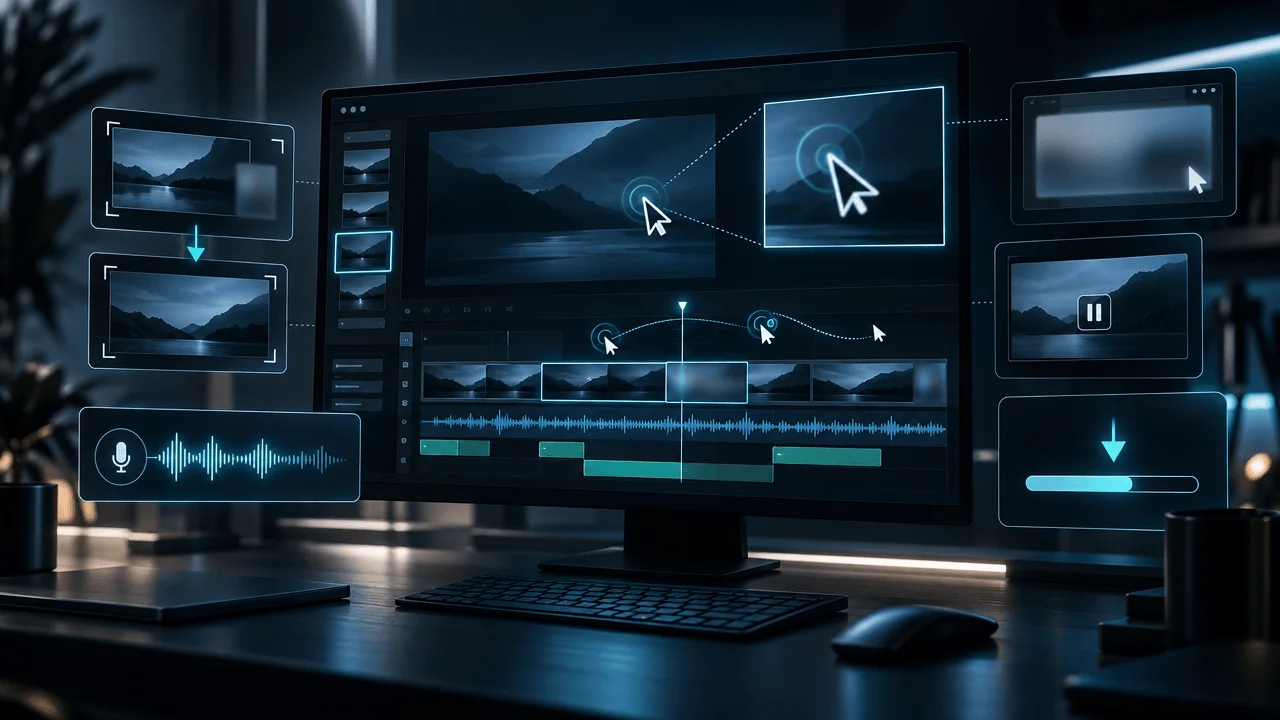
The strongest workflow is built around a simple sequence:
Context → Action → Result
Show the viewer where they are.
Show the action.
Then leave the result visible long enough for them to understand what changed.
This guide explains how to edit screen recordings for:
- YouTube tutorials
- software reviews
- SaaS videos
- coding videos
- AI tool walkthroughs
- product demonstrations
- business documentaries
- faceless YouTube videos
without making the screen feel chaotic, tiny, slow, or over-edited.
Quick Answer: How Do You Edit a Screen Recording for YouTube?
Use this workflow:
- Record the interface at a resolution where important text is readable.
- Remove notifications and sensitive information before recording.
- Record deliberate actions instead of random cursor movement.
- Leave brief editing handles before and after important actions.
- Build the rough cut around the viewer's task.
- Remove dead time, mistakes, repeated actions, and unnecessary loading.
- Preserve enough context that viewers know where each control lives.
- Zoom only when a smaller interface area genuinely needs emphasis.
- Keep cursor movement deliberate and easy to follow.
- Show the result after each important click.
- Use callouts only when the interface itself is not clear enough.
- Use freeze frames or screenshots when viewers need time to inspect something.
- Hide passwords, personal data, API keys, emails, customer information, and notifications.
- Mix voiceover clearly above system audio.
- Preview the finished recording at normal YouTube viewing size.
- Export using YouTube-compatible settings and inspect the final file before uploading.
The core rule is:
Never show a click without showing enough context to understand the click.
Why Screen Recordings Feel Amateur
Most weak screen recordings have one of two problems.
Problem 1: Too Much Screen
The editor shows the entire:
- browser
- sidebar
- bookmarks bar
- operating system
- taskbar
- application
- menu structure
while the viewer is supposed to notice:
one tiny button.
Problem 2: Too Little Screen
The editor zooms so tightly into:
one button
that the viewer no longer knows:
- what application they are in
- what menu is open
- how to get there
- where the control exists in the full interface
The solution is not:
Zoom more.
It is:
Control context.
The Context → Action → Result Framework
Almost every useful screen-recording moment can be edited using three stages.
1. Context
Show:
where the viewer is.
Example:
Settings → Audio.
The viewer sees enough of the app to understand the location.
2. Action
Show:
what changes.
Example:
cursor clicks:
Output Device.
3. Result
Show:
what happened because of the action.
Example:
dropdown opens.
New device becomes selected.
This sequence sounds obvious.
A surprising number of tutorials skip one of the three.
What Happens When Context Is Missing?
The viewer sees:
a button.
Narrator:
Click this.
Viewer:
Where is "this"?
What Happens When the Action Is Missing?
The edit jumps:
before
→
after.
Viewer:
What did they just do?
What Happens When the Result Is Missing?
The editor cuts immediately after:
the click.
Viewer:
Did that actually work?
Good tutorial editing preserves:
causality.
Think in Action Envelopes
Do not edit only:
the click.
Edit the entire:
action envelope.
An action envelope includes:
Orientation
↓
Approach
↓
Click / action
↓
Interface response
↓
Confirmation
Example:
Orientation
Viewer sees Settings panel.
Approach
Cursor moves toward Audio.
Action
Click.
Response
Audio menu opens.
Confirmation
Viewer sees the option the narration is discussing.
That is one complete visual thought.
Record for the Edit
The best screen-recording edit begins:
before recording.
If the raw capture is chaotic:
editing becomes repair.
If the raw capture is deliberate:
editing becomes refinement.
Step 1: Decide What the Viewer Must Accomplish
Before recording, write:
By the end of this section, the viewer will be able to ______.
Examples:
connect a microphone
export a project
create an API key
change a setting
compare two AI tools
Now remove actions that do not help them reach:
that outcome.
Step 2: Clean the Screen
Before recording:
- close unrelated tabs
- close private chats
- hide unnecessary bookmarks
- remove desktop clutter
- disable notifications
- remove customer information
- hide personal emails
- log out of unrelated accounts
This is not just aesthetics.
It reduces:
- visual noise
- privacy risk
- editing work
Never Assume You Can Blur It Later
You can.
But relying on that is risky.
A private notification may appear for:
half a second.
An API key may flash during:
a menu transition.
An email address may remain visible in:
a browser autocomplete dropdown.
The safest private information is:
information that was never recorded.
Step 3: Make the Interface Readable Before You Record
If your UI text is already microscopic in the source capture:
editing cannot fully repair it.
Consider:
- increasing browser zoom
- increasing app UI scaling
- increasing editor font size
- hiding unnecessary panels
- enlarging the relevant window
before recording.
Do not solve every readability problem by:
digitally zooming later.
Capture Enough Resolution
YouTube's standard computer-player aspect ratio is 16:9, with 1920×1080 listed as its standard 1080p resolution and 3840×2160 as 4K. The player can also adapt to other aspect ratios.
For screen recordings, resolution matters because the content often contains:
- small text
- thin icons
- fine UI edges
If you know you will crop deeply into parts of a desktop capture:
recording at a sufficiently high native resolution can preserve more usable detail.
But:
Recording or exporting at 4K does not magically make a low-resolution source sharper.
Capture quality has to exist:
at the source.
Step 4: Choose the Right Capture Area
You do not always need:
the entire monitor.
OBS Studio, for example, currently supports sources for capturing an entire display, individual windows, or, on supported macOS versions, displays, windows, and applications through macOS Screen Capture.
Choose based on the task.
Full Display
Useful when:
- moving between applications
- showing desktop workflow
- file management is relevant
Risk:
more accidental private information.
Application / Window
Useful when:
- one tool is the subject
- you want cleaner framing
- outside desktop activity is irrelevant
Region / Crop
Useful when:
only one fixed interface area matters.
The recording frame should contain:
the information the viewer needs.
Not automatically:
everything your monitor contains.
Step 5: Run a Test Recording
Before recording:
30 minutes of tutorial,
record:
a short test.
Check:
- resolution
- cursor visibility
- microphone
- system audio
- frame rate
- UI readability
- notifications
- performance
OBS's own quick-start documentation explicitly recommends making a test recording rather than beginning a real recording without verifying the setup.
A short test can prevent:
an unusable full session.
Step 6: Record in Logical Sections
You do not have to capture an entire:
20-minute tutorial
in one continuous take.
Breaking the workflow into sections can make editing easier.
Example:
01, Account setup
02, Project creation
03, Import
04, Main settings
05, Export
If section four fails:
redo section four.
Not:
the entire tutorial.
Leave Editing Handles
Before an important action:
pause briefly.
After the result:
pause briefly.
Do not:
move → click → move → click → move
with zero breathing room.
Clean handles make it easier to:
- cut
- zoom
- add callouts
- hold on result
- repair timing
Think like someone recording:
for an editor.
Even if the editor is you.
Step 7: Control the Cursor Before You Control the Edit
The cursor is not:
a nervous hand.
It is:
a visual pointer.
Use it intentionally.
The Cursor Has Three Jobs
1. Navigate
Move to the control.
2. Point
Show the viewer:
where to look.
3. Confirm
Indicate the state or result.
That is enough.
It does not need to:
circle everything.
Stop Wandering With the Cursor
Common bad pattern:
cursor moves:
- left
- right
- over button
- away
- back
- random circle
- click
This creates:
visual uncertainty.
The viewer follows movement automatically.
Every unnecessary mouse move says:
Look here.
Park the Cursor
When explaining something:
and no click is required,
move the cursor somewhere:
non-distracting.
Then leave it.
Do not keep shaking it over:
the interface.
Do Not Use the Cursor as a Laser Pointer
Weak:
narrator talks while cursor constantly draws imaginary circles.
Better:
move cursor deliberately to:
the relevant control.
Pause.
Explain.
Move on.
Cursor Speed Should Feel Human
Too fast:
viewer loses it.
Too slow:
video drags.
The objective is not:
maximum speed.
It is:
traceable movement.
Step 8: Build the Rough Cut Before Adding Zooms
Do not begin by animating:
every mouse click.
First:
remove what should not exist.
Cut:
- false starts
- repeated actions
- irrelevant navigation
- long waits
- mistakes that teach nothing
- setup chatter
- unrelated tabs
- accidental desktop activity
Build:
the correct sequence.
Then add visual emphasis.
Editing Is Mostly Subtraction
A screen recording becomes professional when:
the viewer never waits for you to:
- remember where a setting is
- search through menus
- reread your notes
- move a window around unnecessarily
- wait for a download
unless the wait itself:
teaches something.
Step 9: Do Not Remove Useful Time
There is a difference between:
dead time
and:
processing time.
The viewer may need a moment to:
- read a menu
- see where the cursor moved
- notice a result
- understand a new interface state
Cutting every pause can make a tutorial:
harder to follow.
This is one weakness of many hyper-edited tutorials.
They are:
fast.
But not:
clear.
The Comprehension-Speed Rule
Edit at the fastest speed that still allows a first-time viewer to:
- locate
- understand
- act
The fastest possible edit is not necessarily:
the best edit.
Step 10: Handle Loading Screens Intelligently
Suppose a render takes:
42 seconds.
You do not need to show:
42 seconds.
Options:
Cut
If nothing important happens.
Speed Up
When the viewer benefits from knowing:
the process takes time.
Show a Brief Label
Processing...
Jump to Result
When timing is irrelevant.
Do Not Hide Meaningful Processing
If the tutorial is:
How long does this export take?
Then the wait is:
the evidence.
Context determines:
what gets cut.
Step 11: Repair Cursor Teleportation
This is one of the easiest ways to make a screen recording feel badly edited.
Before cut:
cursor on left.
After cut:
cursor suddenly appears on right.
The viewer notices:
something jumped.
Four Ways to Fix Cursor Teleportation
1. Cut During a Larger State Change
Example:
dialog closes.
New screen opens.
The visual change hides the cursor jump.
2. Leave a Small Movement Handle
Let the cursor begin moving before:
the cut.
3. Remove the Cursor From the Transition
If possible, cut while cursor is:
parked.
4. Use a Deliberate Time-Skip Cue
When a meaningful amount of time was removed:
a simple transition or label can communicate:
time passed.
Do not use transitions to:
hide every edit.
Step 12: Zoom With a Reason
Screen-recording zooms should answer:
Why does the viewer need a closer view now?
Good reasons:
- button is small
- exact value matters
- text is difficult to read
- menu path needs emphasis
- subtle setting changes
- viewer must inspect a detail
Bad reason:
Nothing has happened for three seconds.
The Full → Focus → Full Pattern
This is one of the safest screen-recording editing patterns.
Full
Establish location.
Focus
Zoom into:
the important interface region.
Full
Return to broader context.
Example:
full settings page
↓
zoom into export quality
↓
change setting
↓
return to full export panel
The viewer never loses:
orientation.
Never Trap the Viewer Inside a Zoom
Bad sequence:
editor zooms into:
bottom-right corner.
Then interface changes.
Then another menu opens.
Then another.
The viewer has forgotten:
where they are.
After a local action:
return to:
context.
Think of Zoom as Attention, Not Decoration
A zoom tells the viewer:
This is more important than everything else.
If you zoom constantly:
nothing is important.
Build a Zoom Budget
For each minute, ask:
Which moments genuinely require magnification?
Not:
Where can I add another zoom?
The fewer unnecessary zooms:
the stronger the meaningful ones become.
Smooth Does Not Mean Slow
A zoom can be:
quick
without being:
jarring.
The right speed depends on:
- distance
- tutorial pace
- interface density
- importance
Avoid:
endless floating camera motion over a static desktop.
The screen is already:
an information surface.
It does not need to behave like:
a drone shot.
Step 13: Crop to Meaning
If the important area occupies:
20% of the display,
you do not have to leave:
80% useless screen.
Crop or reframe.
But preserve enough surrounding interface to answer:
Where is this?
The Context Margin
When cropping, keep enough nearby UI that the viewer can recognize:
- menu
- panel
- application
- section
- hierarchy
Do not crop:
one isolated button
if the tutorial requires the viewer to:
find it themselves.
Step 14: Use Callouts Only When the UI Needs Help
Useful callouts:
- arrow
- highlight
- circle
- short label
- step number
But:
the interface should remain primary.
Bad Callout
Huge:
CLICK HERE!!!!
over a button that is already:
obvious.
Better Callout
Subtle highlight around:
a small checkbox
while narration says:
Turn on hardware acceleration.
The callout solves:
locating.
Callouts Should Disappear
Once the viewer has identified:
the control,
remove the annotation.
Do not leave:
three old arrows
on screen while moving to:
the next step.
One Emphasis Target at a Time
If you simultaneously:
- zoom
- highlight
- add arrow
- enlarge cursor
- add text
- animate border
you are not increasing clarity.
You are creating:
competition.
Use the:
minimum emphasis required.
Step 15: Make Clicks Visible Without Turning the Video Into a Demo Reel
Click indicators can help when:
- cursor is small
- action is subtle
- tutorial is dense
Examples:
- small ripple
- brief highlight
- cursor state change
Keep them:
subtle.
The viewer should notice:
the click.
Not admire:
the click animation.
Step 16: Show the Result After the Click
This is one of the highest-value improvements.
Narration:
Enable automatic backups.
Editor shows:
cursor clicking toggle.
Then immediately cuts.
Bad.
Hold long enough to see:
toggle enabled.
That confirms:
the action succeeded.
The Result-Hold Rule
After an important action:
hold until the viewer can answer:
What changed?
That might require:
one moment
or:
several seconds.
Use:
information, not a fixed timer.
Step 17: Use Freeze Frames When the Viewer Needs More Time Than the Interface Gives You
A software state may only exist for:
half a second.
The viewer may need:
four seconds.
Freeze it.
This is especially useful for:
- confirmation messages
- error messages
- tooltips
- settings
- results
- analytics
You control:
viewing time.
Freeze Frames Are Not Cheating
The purpose is:
communication.
If the important information disappears too quickly in real time:
holding it can improve understanding.
Just avoid making it look like:
the software is still actively running
when it is actually frozen.
Step 18: Sometimes a Screenshot Is Better Than Video
Use a screenshot when:
- nothing moves
- exact reading matters
- you need to annotate heavily
- one UI state is the evidence
- a page is being referenced rather than demonstrated
Then use:
- crop
- highlight
- controlled zoom
instead of replaying:
irrelevant mouse movement.
Screen Recording vs Screenshot
Use:
Screen Recording
when the viewer needs to understand:
how something changes.
Use:
Screenshot
when the viewer needs to understand:
what something says or looks like.
Motion should earn:
its existence.
Step 19: Use Graphics When the Interface Is Too Complicated
Sometimes the screen itself is:
not the best teacher.
Narration:
Data moves from the browser to the API, then into the database.
Showing:
code window
may not explain:
the architecture.
A diagram may.
Use the interface for:
actions.
Use graphics for:
concepts.
Step 20: Do Not Show Code at Unreadable Scale
Coding videos have a special failure mode.
The editor shows:
an entire IDE
with:
- sidebar
- terminal
- debugger
- minimap
- tabs
- 80 lines of code
Then expects the viewer to notice:
line 47.
Instead:
- increase font size
- hide unnecessary panels
- crop to relevant section
- highlight changed lines
- scroll deliberately
Code is:
text.
Treat it as such.
Show the Change, Not the Entire File
If you added:
three lines,
focus on:
three lines.
Then briefly zoom out if the viewer needs:
file context.
Step 21: Avoid Random Scrolling
Scrolling can be surprisingly disorienting.
Bad:
rapid wheel movement.
Viewer sees:
a blur.
Better:
- move in controlled increments
- stop at meaningful sections
- allow the viewer to orient
- use search or navigation when more efficient
Scrolling should communicate:
location change.
Not:
panic.
Use Scroll Direction Consistently
If working through:
a page,
move generally:
top → bottom.
Avoid:
down → up → down → up
unless the explanation genuinely requires comparison.
Step 22: Handle Long Pages With Landmarks
For long:
- dashboards
- settings panels
- websites
- documents
use landmarks.
Example:
Under Security...
Then move to:
Security.
The viewer has:
a destination.
Step 23: Edit Tutorials Around Decisions, Not Clicks
A tutorial is not:
a recording of mouse activity.
It is:
a sequence of decisions.
Bad structure:
click click click click
Better:
We need to reduce export size, so open Compression and choose H.264.
Now the viewer understands:
why.
That makes the tutorial transferable.
Teach the Rule Behind the Click
Interfaces change.
The principle survives.
Instead of only:
Click this blue button.
Explain:
Choose the option that creates a new project rather than importing an existing one.
If the UI changes next month:
the viewer still understands:
what they are trying to do.
Step 24: Decide Between Live Narration and Post Voiceover
Both can work.
Live Narration
Advantages:
- natural
- fast
- synchronized automatically
Weaknesses:
- pauses
- mistakes
- wandering
- harder to tighten without visual jumps
Post Voiceover
Advantages:
- cleaner structure
- tighter explanations
- easier cuts
- easier pacing control
Weaknesses:
- additional production step
- screen actions need synchronization
For complex tutorials:
post narration often gives:
more editing control.
For quick walkthroughs:
live narration may be enough.
The Hybrid Workflow
Record the screen while:
roughly narrating.
Then:
replace or supplement the narration later.
Your live explanation becomes:
a guide track.
The final audio becomes:
cleaner.
Step 25: Separate Voice and System Audio When Possible
If your workflow supports separate tracks, recording:
- microphone
- application/system audio
separately gives more control.
You can:
- mute notifications
- lower app audio
- remove accidental sounds
- compress voice separately
OBS supports configuring captured audio sources and provides audio mixer controls for recording setups.
Voice Comes First
For most tutorials:
Voice
↓
Important system audio
↓
Music
Do not let:
notification sounds
or:
software audio
mask the explanation.
Step 26: Be Careful With Background Music
Screen tutorials usually do not need:
aggressive music.
Music can:
- soften dead space
- support pacing
- make intros/outros feel finished
But software interfaces are already:
cognitively dense.
If music adds additional distraction:
lower it
or:
remove it.
Clarity wins.
Step 27: Use System Audio When It Is Evidence
If the tutorial teaches:
- music software
- audio editing
- video playback
- notification behavior
- sound settings
then system audio may be:
part of the lesson.
Do not automatically mute it.
Step 28: Use Captions Without Covering the Interface
Captions can become a problem in screen recordings because:
the interface already contains text.
Avoid placing captions over:
- buttons
- menus
- code
- values
- bottom navigation
YouTube supports adding subtitles and captions to uploaded videos through Studio.
Whether you also use open captions in the video depends on:
your channel style.
Screen Recording Text Hierarchy
You may have:
- interface text
- cursor
- callout
- captions
- chapter label
All competing for:
attention.
Prioritize:
the action the viewer must understand.
Do Not Add Captions Directly Over the Button Being Clicked
This sounds obvious.
It happens constantly.
Preview the video with:
all overlays enabled.
Step 29: Protect Sensitive Information
Before export, inspect for:
- email addresses
- home address
- phone numbers
- account IDs
- API keys
- access tokens
- passwords
- billing data
- customer information
- private messages
- private browser tabs
- private repository names
- secret URLs
- recovery codes
Zooming and screen cropping can actually make:
small sensitive details
more visible.
Run a Dedicated Privacy Pass
Do not rely on:
the normal editing review.
Watch once with only one question:
Is anything visible that should not be public?
Pause frequently.
Check:
every menu.
Blur vs Crop vs Replace
If something sensitive exists:
Crop
Best when surrounding information is unnecessary.
Blur / Mask
Useful when the layout still matters.
Replace the Shot
Best when sensitive information appears extensively.
Do not use a weak blur on:
a password.
Step 30: Preserve Honest Product Representation
If you are reviewing or demonstrating:
software,
do not:
- fake results
- hide important limitations
- present old UI as current without context
- fabricate screenshots
- edit away a failure that is relevant to the review
Editing can improve clarity.
It should not change:
what the product actually did.
Screen Recordings in Reviews Need More Context Than Tutorials
Tutorial:
Here's how to turn this feature on.
Review:
Here's how this feature actually behaves.
For a review, show:
- process
- friction
- result
- limitations
not only:
the clean successful outcome.
Step 31: Use Facecam Only When It Adds Something
Facecam can be useful for:
- trust
- reaction
- personal explanation
- intros
- complex context
But it reduces:
available UI space.
If the viewer needs to inspect:
small interface details,
a permanent facecam can make the actual tutorial:
harder to read.
Use it intentionally.
A Facecam Does Not Need to Stay On Screen Forever
You can use:
face
for:
explanation,
then switch to:
full-screen interface
for:
the action.
Step 32: Use B-Roll to Avoid Screen Fatigue
Long software videos can become visually repetitive.
Possible breaks:
- product footage
- speaker
- graphic
- chart
- relevant B-roll
- clean text card
But do not cut away during:
an action the viewer needs to follow.
Never Hide the Important Click Under B-Roll
Narrator:
Now click Export.
Visual:
cinematic laptop footage.
That defeats:
the tutorial.
Step 33: Edit Reviews Differently From Tutorials
A tutorial prioritizes:
reproducibility.
A review prioritizes:
evaluation.
Review screen recordings should focus on:
- workflow
- responsiveness
- quality
- friction
- before/after
- limitations
- results
You do not need to show:
every click.
Show enough to support:
the verdict.
Step 34: Edit Product Demos Differently From Reviews
A product demo asks:
How does this work?
A review asks:
Is this good?
A tutorial asks:
How do I do this?
Same screen.
Different:
editing logic.
Step 35: Use Before/After Aggressively When Transformation Is the Point
Examples:
- image enhancer
- editor
- color tool
- writing tool
- analytics change
- website redesign
Instead of narrating:
how much better it is,
show:
BEFORE
↔
AFTER
Then let the viewer:
judge.
Use the Same Scale for Comparisons
Do not show:
before
at 70% zoom
and:
after
at 150%.
Keep comparison conditions:
fair.
Step 36: Keep Screen Recording Pace Tied to Information Density
A settings page might need:
longer holds.
A simple click sequence may be:
fast.
A code block may need:
reading time.
A result animation may need:
watching time.
There is no universal:
Change the screen every three seconds.
The Three-Speed Model
Fast
Use for:
- known navigation
- repeated action
- unimportant waiting
Normal
Use for:
- core workflow
- menu navigation
- ordinary clicks
Slow
Use for:
- unfamiliar settings
- important result
- reading
- comparison
- error explanation
The edit should change speed based on:
cognitive load.
Step 37: The Viewer Must Be Able to Predict the Next Action
Good tutorial flow feels like:
Okay, now we probably need to export.
Then:
you export.
That means the explanation has:
logic.
If the viewer constantly thinks:
Why are we suddenly here?
the structure is weak.
Editing cannot fully solve:
bad instructional order.
Step 38: Use Chapters for Long Tutorials
For long software videos:
structure sections around:
tasks.
Example:
Setup
Import
Main Workflow
Advanced Settings
Export
Troubleshooting
That improves:
navigation
and:
editorial clarity.
Step 39: Handle Errors Intentionally
Do not automatically remove:
every error.
If the error teaches something viewers are likely to experience:
keep it.
Example:
If you see this warning, it means...
That can be more valuable than:
a perfect recording.
Remove Errors That Add Nothing
Accidentally clicked wrong tab?
Cut it.
Forgot password?
Cut it.
App crashed?
If relevant:
explain.
If not:
remove.
Step 40: Make Waiting Explicit
If you compress:
five minutes
into:
two seconds,
tell the viewer when that matters.
Example:
Processing took about five minutes.
Now they know:
the tutorial did not skip:
a hidden step.
Step 41: Do Not Overuse Speed Ramps
A 600% speed-up of:
mouse activity
usually looks:
chaotic.
For genuinely unnecessary sections:
a cut is often cleaner.
Use speed-up when:
the process itself remains useful to see.
Step 42: Use Hard Cuts More Than Fancy Transitions
Most screen edits do not need:
- spin
- blur
- wipe
- glitch
between UI states.
Hard cuts work.
Use a visible transition when communicating:
- meaningful time jump
- change of tool
- new chapter
- new device
- comparison mode
Step 43: Transition Between Full Screen and Detail Intentionally
One of the cleanest tutorial transitions is simply:
reframing.
Full UI.
Then:
smooth focus.
Then:
back.
You do not need a separate:
transition preset.
Step 44: Build a Consistent Screen-Recording Style
Define:
Zoom
How aggressive?
Cursor
Default size/style?
Click Indicator
Yes/no?
Callouts
Color and shape?
Text
Font?
Screenshot Treatment
Border / background?
Facecam
Position?
Transition
Default?
Now every tutorial looks like:
the same channel.
The Screen Recording Visual Grammar
A strong channel can use six recurring shot types.
1. Full Interface
Orientation.
2. Focused Interface
Specific task.
3. Detail Crop
Exact control.
4. Freeze / Screenshot
Reading.
5. Graphic
Concept.
6. Result View
Confirmation.
You do not need:
100 effects.
You need:
a repeatable grammar.
Step 45: Edit Screen Recordings for Mobile Viewers
This is critical.
Your editor preview may be:
27 inches.
The viewer may use:
6 inches.
A button that looks obvious on your monitor may disappear:
on mobile.
Mobile Test Checklist
Can you read:
- menu names?
- button labels?
- code?
- values?
- callouts?
Can you follow:
the cursor?
If not:
change:
- crop
- scale
- UI size
- callout
before publishing.
Step 46: Edit Screen Recordings for TV Viewers
TV creates the opposite problem.
The screen is physically large.
But the viewer sits:
far away.
Tiny:
- code
- settings
- axis labels
can still become unreadable.
For long-form tutorials:
test at distance.
Step 47: Do Not Use 4K as a Substitute for Good Framing
More pixels help preserve:
fine UI detail.
But if your interface occupies:
15% of the frame,
the viewer may still struggle.
Solve:
composition
before:
resolution.
Step 48: Choose Frame Rate Based on the Content
Screen recordings can contain:
- mostly static menus
- rapid scrolling
- animation
- games
- video playback
These have different motion requirements.
YouTube currently recommends uploading at the same frame rate used during recording and accepts common rates including 24, 25, 30, 48, 50, and 60 fps.
Do not convert:
30 fps
to:
60 fps
simply because:
60 sounds better.
30 fps vs 60 fps for Screen Recording
30 fps
Often sufficient for:
- ordinary software
- settings
- slide-based workflows
- slower tutorials
60 fps
Can help when recording:
- fast cursor motion
- rapid scrolling
- games
- high-motion interfaces
- animation
But:
higher frame rate means more data and potentially more processing.
Choose based on:
what moves.
Step 49: OBS Recording Format Considerations
If using OBS, its current standard recording guide recommends MKV as a recording container because an interrupted recording is less likely to render the whole file unusable than some alternatives.
Your editing and delivery workflow may require another container afterward.
The point is:
capture reliability and final upload format are separate decisions.
Step 50: YouTube Export Settings
YouTube's current recommended upload guidance lists:
- MP4 container
- H.264 video
- progressive scan
- variable bitrate
- AAC-LC, Opus, or Eclipsa Audio
- 48 kHz audio
- same frame rate used during recording
- BT.709 for standard SDR uploads
For SDR uploads, YouTube currently lists these reference video bitrates:
| Resolution | 24/25/30 fps | 48/50/60 fps |
|---|---|---|
| 1080p | 8 Mbps | 12 Mbps |
| 1440p | 16 Mbps | 24 Mbps |
| 2160p / 4K | 35–45 Mbps | 53–68 Mbps |
YouTube lists 384 kbps as its stereo audio reference bitrate.
These are:
platform recommendations.
They are not a guarantee that one exact bitrate will be ideal for every screen recording.
Do Not Destroy UI Detail With Your Export
Before upload:
open the exported file.
Do not judge only:
inside the editor.
Inspect:
- small text
- thin icons
- cursor edges
- gradients
- motion
- code
If your export already looks blurry:
YouTube cannot recreate:
detail that is gone.
Step 51: Watch the Uploaded Version Too
YouTube re-encodes uploaded video.
After processing:
inspect the actual YouTube playback.
Check:
- UI text
- motion
- color
- zoomed sections
- subtitles
The upload is:
the product the viewer sees.
Step 52: Create a Dedicated Screen-Recording QA Pass
Review the finished video with five separate questions.
Pass 1: Orientation
At every moment:
do I know:
where I am?
Pass 2: Action
Can I tell:
what was clicked or changed?
Pass 3: Result
Can I see:
what happened?
Pass 4: Readability
Can I read:
what I need to read?
Pass 5: Privacy
Is anything visible that should:
not be public?
This five-pass system catches more than:
one generic review.
The Cursor-Only Test
Mute the video.
Watch only:
the cursor.
Does its movement feel:
- deliberate?
- understandable?
- calm?
Or:
- random?
- frantic?
- confusing?
If the cursor itself tells a messy story:
clean the edit.
The No-Cursor Test
Now imagine the cursor:
invisible.
Would the viewer still know:
where to look?
If not:
your visual hierarchy may depend too heavily on:
mouse movement.
Use:
- crop
- zoom
- callout
- layout
to strengthen it.
The First-Time Viewer Test
You know the software.
That makes you:
a bad readability benchmark.
Pretend you have:
never seen it.
Can you find:
the setting
from the context shown?
The "Where Am I?" Test
Pause the video randomly.
Ask:
Could a viewer tell which page, panel, or app they are in?
If not:
you may be over-cropped.
The "What Changed?" Test
Pause:
before
and:
after
an action.
Is the difference:
obvious?
If not:
highlight or hold the result.
The 100-Point Screen Recording Scorecard
Score each category.
Task Clarity, 15
- goal obvious
- steps logical
- explanation useful
UI Readability, 15
- important text readable
- crops appropriate
- mobile-friendly
Orientation, 15
- viewer knows where controls exist
- zooms preserve context
- navigation is understandable
Cursor & Action Clarity, 10
- deliberate movement
- no unnecessary wandering
- clicks easy to follow
Pacing, 10
- dead time removed
- reading time preserved
- waits handled properly
Visual Emphasis, 10
- zooms purposeful
- callouts restrained
- important areas highlighted
Audio, 10
- voice clear
- system audio balanced
- no distracting noises
Accuracy & Trust, 5
- workflow represented honestly
- results not misleading
Privacy, 5
- private information removed
Export QA, 5
- final upload readable
- encoding clean
Total:
100.
90–100
Professional tutorial.
80–89
Strong; polish the weakest category.
70–79
Useful but visibly under-edited.
Below 70
Fix clarity before adding:
more effects.
The Screen Recording Editing Priority Ladder
If time is limited:
fix problems in this order.
1. Wrong or Missing Information
The tutorial must be correct.
2. Unreadable UI
If viewers cannot see it:
nothing else matters.
3. Missing Context
Show where the control lives.
4. Pacing
Remove dead time.
5. Cursor Clarity
Make actions followable.
6. Audio
Keep explanation effortless to hear.
7. Zooms
Improve focus.
8. Callouts
Add only where necessary.
9. Music
Optional polish.
10. Transitions
Last.
Do not spend:
30 minutes animating a click circle
while the actual menu text is:
unreadable.
How to Edit Software Tutorials
Prioritize:
reproducibility.
The viewer should be able to:
pause
and:
perform the step.
Use:
- full context
- deliberate cursor
- readable UI
- result holds
- step labels
Avoid:
overly aggressive cuts.
How to Edit AI Tool Videos
AI tools often involve:
- prompt
- generation
- waiting
- result
- comparison
Use a repeating rhythm:
Input
↓
Action
↓
Processing
↓
Result
↓
Evaluation
Do not show:
full generation waits
unless speed is part of:
the review.
How to Edit SaaS Reviews
Show:
- actual interface
- real workflow
- friction
- result
- limitation
A review should not feel like:
a sponsored product tour
unless it actually is one.
How to Edit Coding Videos
Prioritize:
- readable code
- deliberate scroll
- changed lines
- output
- error messages
- terminal result
Hide:
panels that do not matter.
How to Edit Design Tutorials
Viewers need to see:
both:
the control
and:
the visual result.
Example:
slider moves
while:
canvas changes.
If possible, frame them so the relationship is:
visible simultaneously.
How to Edit Analytics Videos
Do not leave the entire dashboard visible while discussing:
one metric.
Focus on:
- metric
- chart
- filter
- date range
Then return to:
context.
For deeper data visualization, see:
How to Show Data in YouTube Videos: Charts, Statistics & Visual Storytelling.
How to Use Screen Recordings Inside Faceless Videos
Screen recordings are particularly strong when narration discusses:
- software
- website
- search result
- workflow
- online evidence
- product UI
They function as:
real evidence.
That often makes them stronger than:
generic B-roll
or:
AI-generated substitutes.
For the broader workflow, see:
How to Edit Faceless YouTube Videos: The Complete 2026 Workflow.
Do Not Generate a Fake Interface When the Real Interface Exists
If the video says:
Open YouTube Studio and select Analytics.
show:
YouTube Studio,
where appropriate.
Do not use:
an AI-generated fake analytics dashboard.
Real interfaces provide:
- accuracy
- credibility
- specificity
Use AI visuals for:
what cannot be directly shown.
When Screen Recording Beats Stock Footage
Narration:
The website added a new pricing tier.
Stock:
person browsing laptop.
Weak.
Screen recording:
actual pricing page.
Strong.
This is the same principle covered in:
Stock Footage vs AI Video for YouTube: What Should You Actually Use?
Use:
the most informative visual source.
When Screen Recording Beats a Screenshot
Use video when:
the change matters.
Example:
filter is applied.
Chart updates.
A screenshot shows:
only the result.
Screen recording shows:
cause → effect.
When a Screenshot Beats Screen Recording
Use screenshot when:
the state matters more than:
the action.
Example:
The company quietly removed this sentence from its pricing page.
Show:
the evidence.
The cursor adds:
nothing.
The Best Screen Recording Is Not Always Full Screen
You can combine:
- screen
- chart
- text
- narrator
- B-roll
instead of making viewers stare at:
the same interface
for:
20 minutes.
But every cutaway should serve:
the explanation.
A Complete Screen-Recording Editing Workflow
Use this:
Define viewer outcome
↓
Prepare clean interface
↓
Record deliberate sections
↓
Capture clean audio
↓
Build rough cut
↓
Remove dead time
↓
Repair action continuity
↓
Add context-preserving crops
↓
Add purposeful zooms
↓
Add minimal callouts
↓
Hold results
↓
Add screenshots / freeze frames
↓
Mix audio
↓
Add captions if needed
↓
Privacy pass
↓
Mobile readability test
↓
Export
↓
Inspect upload
That is the system.
Screen Recording Editing Checklist
Before Recording
- Viewer outcome is defined.
- Unrelated tabs are closed.
- Notifications are disabled.
- Sensitive information is removed.
- UI is large enough to read.
- Correct window or display is selected.
- Microphone is tested.
- System audio is tested where needed.
- Short test recording completed.
During Recording
- Cursor movement is deliberate.
- Cursor rests while explaining.
- Important actions have brief handles.
- Results remain visible.
- Scrolling is controlled.
- Unnecessary movement is avoided.
- Mistakes can be retaken in sections.
Rough Cut
- Dead time removed.
- Mistakes removed unless educational.
- Waiting shortened appropriately.
- Steps remain logically ordered.
- Important context is preserved.
- Cursor jumps are repaired.
Framing
- Full view establishes location.
- Crops preserve useful context.
- Zooms have a clear purpose.
- Viewer is not trapped inside a crop.
- Important UI is readable.
Visual Emphasis
- Callouts are minimal.
- Clicks are clear.
- Important result is held.
- Screenshots replace unnecessary motion.
- Graphics explain concepts where UI cannot.
Audio
- Voice is clear.
- System audio does not mask narration.
- Background music is restrained.
- Accidental notification sounds removed.
Privacy
- Passwords hidden.
- API keys hidden.
- Private emails removed.
- Customer data hidden.
- Personal information hidden.
- Private chats and tabs checked.
Final QA
- Mobile test passed.
- TV / distance test passed where relevant.
- Final export inspected.
- UI text remains sharp.
- Cursor remains visible.
- Upload checked after YouTube processing.
- Viewer can always answer: Where am I?
- Viewer can always answer: What happened?
The Biggest Screen-Recording Editing Mistakes
1. Showing the Entire Desktop Forever
Fix:
reframe around what matters.
2. Zooming Into Every Click
Fix:
zoom only for meaningful detail.
3. Losing Interface Context
Fix:
use full → focus → full.
4. Wandering Cursor
Fix:
move deliberately and park it.
5. Cursor Teleportation
Fix:
edit around natural state changes.
6. Cutting Too Fast
Fix:
leave enough time for orientation and reading.
7. Leaving Long Loading Screens
Fix:
cut, compress, or label them.
8. Tiny UI
Fix:
increase source UI scale or crop appropriately.
9. Too Many Callouts
Fix:
one attention target at a time.
10. Captions Covering Controls
Fix:
design overlay placement around the interface.
11. Overusing Background Music
Fix:
prioritize comprehension.
12. Using Screen Recording for Static Evidence
Fix:
use a screenshot when motion adds nothing.
13. Showing Fake UI Instead of the Real Product
Fix:
show the real interface when factual accuracy matters.
14. Forgetting Privacy
Fix:
run a dedicated privacy review.
15. Trusting the Editor Preview
Fix:
inspect the exported and uploaded files.
The Best Rule for Editing Screen Recordings
At every moment, the viewer should know:
Where am I?
What should I look at?
What action happened?
What changed?
If those four questions are answered:
you do not need:
- constant zooms
- giant arrows
- flashy transitions
- endless motion graphics
The interface becomes:
easy to follow.
That is professional screen-recording editing.
Final Answer
So, how do you edit a screen recording for YouTube?
Do not treat it like:
raw desktop footage that needs trimming.
Treat it like:
visual instruction.
Build every important action around:
Context → Action → Result.
Show enough interface for the viewer to know:
where they are.
Then focus attention on:
the control.
Show:
the click.
And leave:
the result.
Use zooms to:
improve readability.
Not to create activity.
Use the cursor to:
guide attention.
Not to constantly wave at the screen.
Cut waiting.
Keep comprehension.
Use screenshots when movement adds nothing.
Use graphics when the interface cannot explain the concept.
And before publishing:
check:
- readability
- privacy
- audio
- exported quality
- actual YouTube playback
The goal is not to make a screen recording look:
heavily edited.
The goal is to make the interface feel:
effortless to understand.
When the edit is working:
the viewer stops thinking about:
the cursor,
the zoom,
the crop,
or:
the cuts.
They simply know:
what to do next.
FAQ
How do you edit screen recordings for YouTube?
Remove mistakes and unnecessary waiting, preserve enough context around important actions, use purposeful zooms and crops, keep cursor movement deliberate, show the result after each important action, protect sensitive information, and export at settings appropriate for YouTube.
How do I make a screen recording look professional?
Use a clean interface, readable text, deliberate cursor movement, context-preserving zooms, minimal callouts, clear narration, controlled pacing, and consistent visual styling.
Should I record my whole screen or one window?
Record only as much of the screen as the viewer needs. Full-display capture is useful when moving between applications, while application or window capture can create a cleaner recording when one tool is the focus.
How do I make screen recordings easier to follow?
Use the Context → Action → Result framework: establish where the control is, show the action, then leave the result visible long enough for the viewer to understand what changed.
Should I zoom into screen recordings?
Yes, when a control or detail would otherwise be difficult to see. Avoid zooming simply to make the video feel more active.
How much should I zoom into a screen recording?
There is no universal percentage. Zoom only enough to make the important control readable while preserving enough surrounding interface for orientation.
How often should I zoom in a tutorial video?
Only when focus or readability requires it. Constant zooming weakens visual hierarchy because every action begins to look equally important.
What is the best zoom pattern for screen recordings?
A reliable approach is full interface → focused region → full interface. This lets viewers inspect a detail without losing their sense of location.
A tool like OverseerOS is useful here because it lets creators reverse-engineer hooks, titles, and channel patterns before writing from scratch.
Why do screen recording zooms feel distracting?
They often feel distracting when they are too frequent, too aggressive, too slow, or unrelated to the information being explained.
How do I edit mouse movement in a screen recording?
Remove unnecessary wandering, keep important moves traceable, park the cursor while explaining, and avoid cuts that make the cursor abruptly teleport between unrelated positions.
Should the mouse cursor always be visible in tutorials?
Usually when the cursor is demonstrating actions. During static explanations it can be parked somewhere non-distracting.
How do I stop the cursor from being distracting?
Move it only when needed, avoid random circles and repeated hovering, and park it away from important content when you are not using it.
What is cursor teleportation?
Cursor teleportation happens when an edit cuts between two moments where the mouse is in very different positions, causing it to appear to instantly jump across the screen.
How do I hide jump cuts in screen recordings?
Cut during interface state changes, menu changes, page loads, or other natural visual transitions. Preserve context rather than covering every cut with a flashy transition.
Should I add click effects to screen recordings?
Subtle click effects can help when actions are difficult to see. They should support the interface rather than becoming the main visual element.
Should I use arrows and circles in tutorial videos?
Use them when viewers genuinely need help finding a control. One clear emphasis element is usually better than multiple simultaneous arrows, circles, zooms, and labels.
Should I remove pauses from screen recordings?
Remove pauses that add no value, but keep enough time for viewers to locate controls, read information, and understand the result of an action.
How do I edit loading screens?
Cut them when the waiting adds no information, speed them up when the process is useful to see, or briefly label the wait when its duration matters.
Should I speed up screen recordings?
Use speed changes for repetitive or genuinely slow processes. Do not speed up important navigation so much that viewers cannot follow the workflow.
Is it better to cut or speed up a loading screen?
Cut when nothing meaningful happens. Speed it up when viewers benefit from seeing that the process takes place or understanding its rough progression.
Should I use freeze frames in a tutorial?
Yes, when an important interface state disappears faster than viewers can reasonably inspect it.
When should I use a screenshot instead of screen recording?
Use a screenshot when the viewer needs to inspect a static state, document, result, interface, or piece of evidence and motion adds no useful information.
When is screen recording better than a screenshot?
Use screen recording when the viewer needs to understand how the interface changes as a result of an action.
Should I use screen recordings or B-roll?
Use screen recordings when the actual interface or workflow is relevant. Use B-roll for context, environment, emotion, or ideas that cannot be demonstrated directly on screen.
How do I make software UI readable on YouTube?
Increase interface or browser scaling where appropriate, record at sufficient resolution, crop to relevant areas, and preview the finished export on a phone and at normal playback size.
What resolution should I use for screen recording?
Use a source resolution that preserves the interface detail you need. 1920×1080 is YouTube's standard 1080p 16:9 resolution, while higher-resolution capture can provide more cropping flexibility when your monitor and workflow support it.
Should I record screen tutorials in 4K?
4K can preserve additional interface detail and provide more cropping flexibility when the source is genuinely 4K. It is not necessary for every tutorial and does not restore detail that was never captured.
Is 1080p enough for YouTube tutorials?
Often yes, provided important interface elements remain readable. Complex or extremely detailed interfaces may benefit from higher-resolution capture or better reframing.
Should I record screen tutorials at 30 fps or 60 fps?
30 fps is often sufficient for relatively static software interfaces. 60 fps can help when the recording contains fast movement, rapid scrolling, games, or other high-motion content.
Should I export at the same frame rate I recorded?
YouTube currently recommends uploading using the same frame rate used during recording.
What export settings should I use for a YouTube screen recording?
YouTube currently recommends MP4, H.264 video, progressive scan, variable bitrate, 48 kHz audio, and the original recording frame rate. It recommends BT.709 for standard SDR uploads.
What bitrate should I use for 1080p YouTube screen recording?
YouTube currently lists 8 Mbps as its reference SDR bitrate for 1080p at 24/25/30 fps and 12 Mbps for 48/50/60 fps.
What bitrate should I use for 4K YouTube video?
YouTube currently lists 35–45 Mbps for standard-frame-rate 4K SDR and 53–68 Mbps for high-frame-rate 4K SDR.
Should I record OBS in MP4 or MKV?
OBS currently recommends MKV for recording reliability because an interrupted recording is less likely to make the entire file unusable. Your editing or delivery workflow can use another format afterward as needed.
Should screen recordings have background music?
They can, but music should remain secondary to comprehension. Dense software tutorials may be clearer with very subtle music or none at all.
Should I record system audio?
Record it when the application's sound is relevant to the lesson or demonstration. Keep it separate from narration when your recording workflow allows, so you have more control in the edit.
Should tutorials use captions?
Captions can improve accessibility and comprehension. Make sure they do not cover important buttons, code, menu items, or other interface information.
How do I edit coding screen recordings?
Increase code readability, hide unnecessary IDE panels, focus on changed lines, scroll deliberately, and leave outputs or errors visible long enough to understand them.
How do I edit software tutorials faster?
Record in logical sections, leave clean handles around actions, use reusable zoom and callout styles, remove unnecessary waiting early, and build the rough cut before polishing individual actions.
Should I record a tutorial in one take?
Not necessarily. Recording logical sections separately can make retakes and editing easier, especially for longer or complex tutorials.
Should I narrate while screen recording or record voiceover later?
Both work. Live narration is faster and naturally synchronized, while post-recorded narration usually provides more control over structure, pacing, and editing.
How do I edit a screen recording without making the cursor jump?
Plan cuts around natural interface transitions, leave movement handles, park the cursor before cuts, or use a clear time-skip cue when substantial material has been removed.
How do I protect private information in screen recordings?
Remove sensitive information before recording when possible, disable notifications, and run a dedicated privacy review for passwords, emails, API keys, account details, messages, customer information, and other private data.
Should I blur passwords or crop them out?
If possible, avoid recording them in the first place. When private information has been captured, crop, mask, blur, or replace the shot depending on how much surrounding context is needed.
How do I make a SaaS review screen recording engaging?
Focus on meaningful workflow, friction, real results, before-and-after comparisons, and limitations rather than showing every click in the product.
How do I use screen recordings in faceless YouTube videos?
Use them as real visual evidence when the narration discusses software, websites, online workflows, dashboards, search results, or other digital products.
What is the biggest mistake when editing screen recordings?
The biggest mistake is focusing attention on the click while removing the context the viewer needs to understand where the click happened and what changed afterward.
What is the best rule for screen recording editing?
Every important action should answer four questions: Where am I? What should I look at? What happened? What changed?