Why Your AI YouTube Videos Keep Repeating the Same Visuals (And How to Fix It)
You generate a 15-minute YouTube video using AI.
The script is good. The narration sounds professional. The editing looks clean.
But after watching the finished video, something feels wrong.
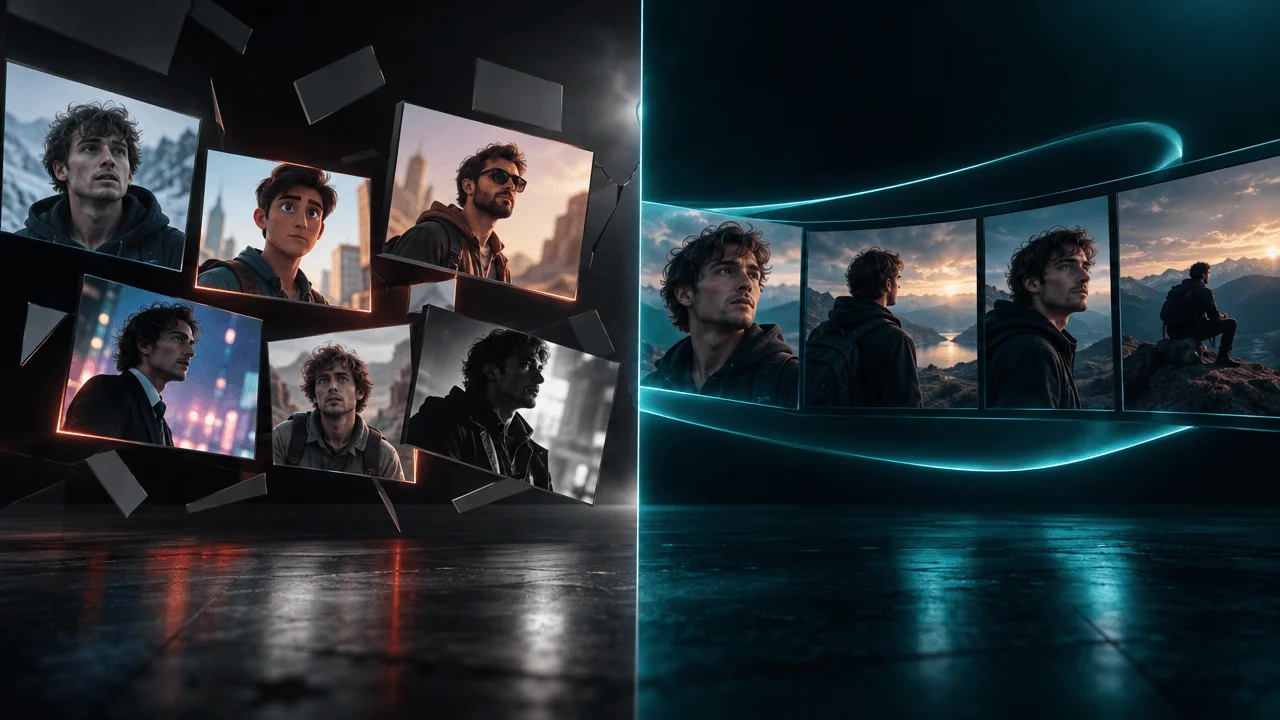
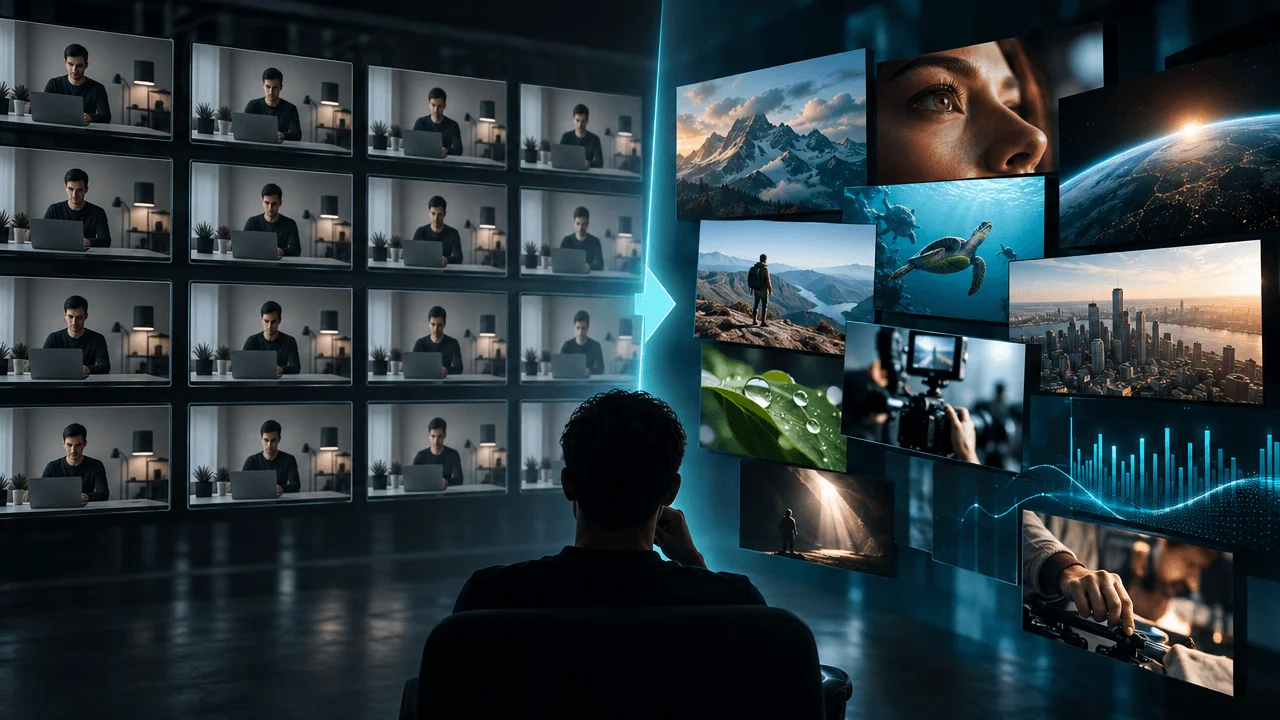
The same type of image keeps appearing. Different sentences are accompanied by nearly identical visuals. The video repeatedly shows generic people sitting at computers, buildings, landscapes, or close-ups that do not meaningfully advance the story.
The problem becomes particularly noticeable when the narration introduces a new person, event, location, or idea, but the screen continues showing variations of the same visual.
The video technically contains different scenes.
But visually, it feels like the same scene repeated over and over.
This is one of the most frustrating problems with AI-assisted YouTube production.
A video can contain dozens of generated images and still feel visually repetitive.
The solution is not simply generating more images.
It is making sure every scene has a distinct visual purpose, communicates something relevant, and contributes to the progression of the video.
In this guide, we'll examine why AI video editors repeat visuals, how to identify visual repetition, and how to build a production workflow that creates more varied and engaging videos without adding unnecessary manual editing.
What Is Visual Repetition in AI-Generated Videos?
Visual repetition occurs when multiple scenes communicate essentially the same visual information, even when their images are technically different.
For example, imagine a documentary explaining how a technology company grew from a small startup into a global business.
The narration discusses:
- The company's founding.
- Its first product.
- Its early customers.
- Its first major investment.
- Its international expansion.
But the video repeatedly shows generic office buildings, people working on laptops, and close-ups of computer screens.
The images are not necessarily incorrect.
They are simply not progressing with the story.
A better visual sequence would communicate each development differently:
| Narration | More useful visual |
|---|---|
| The company was founded | Original founders working in a small workspace |
| The first product launched | The actual product or a representative product demonstration |
| Early customers arrived | Customers interacting with the product |
| The company secured investment | Investors reviewing a presentation |
| International expansion began | A map showing the expansion into new markets |
The goal is not to make every image completely different.
It is to make each image contribute something new.
Why AI YouTube Videos Keep Repeating the Same Visuals
There are several reasons this happens.
1. The Scene Generator Uses Generic Visual Instructions
A weak scene prompt often describes the general subject rather than the specific moment being narrated.
For example:
"Show a businessman working on a computer."
This instruction can produce a reasonable image.
But if the narration discusses business strategy, hiring, financial performance, and product development, using the same generic instruction for every scene creates repetition.
The generator needs to understand what is happening in the specific moment.
How to fix it:
Replace generic descriptions with specific visual actions.
Instead of:
"Businessman working in an office."
Use:
"A startup founder reviewing financial projections on a large monitor while discussing expansion plans with two investors in a modern conference room."
The second prompt communicates a more specific situation.
2. The Script Is Divided Into Scenes Without Enough Visual Differentiation
A script can contain many paragraphs without providing enough distinct visual opportunities.
Consider a narration that spends two minutes discussing why a company failed.
The writer might mention financial pressure, leadership decisions, customer dissatisfaction, and declining sales.
If the scene planner treats the entire section as one general subject, it may generate several variations of a struggling business.
The problem is not necessarily the number of scenes.
It is how the information is translated into visual concepts.
How to fix it:
Break the narration into meaningful visual beats.
Each beat should communicate a different aspect of the explanation.
For example:
- Financial pressure: declining revenue figures.
- Leadership decisions: executives reviewing a difficult decision.
- Customer dissatisfaction: customers abandoning a service.
- Declining sales: a downward sales chart.
The visuals now support the actual progression of the argument.
3. The Video Relies Too Heavily on One Visual Category
Some AI video workflows repeatedly select the same broad visual category.
For example:
- People talking.
- Generic office scenes.
- Landscapes.
- Computer screens.
- Buildings.
- Abstract backgrounds.
These images are easy to generate and often fit a broad interpretation of the subject.
But a video containing too many images from the same category becomes predictable.
How to fix it:
Create a visual vocabulary for the video.
Use different types of visual material:
| Visual category | Useful for |
|---|---|
| Real-world scenes | Showing people and events |
| Objects | Explaining specific concepts |
| Data visualizations | Communicating numbers and comparisons |
| Maps | Explaining geography and expansion |
| Historical imagery | Establishing context |
| Screenshots | Demonstrating actual products |
| Timelines | Explaining sequences of events |
| Close-ups | Highlighting important details |
The appropriate combination depends on the subject.
Do not force every video to use every category.
4. The System Optimizes for Filling Scenes Instead of Telling the Story
An automated video editor needs to complete several technical tasks.
It needs to create scenes, obtain visual assets, align them with narration, and assemble the export.
But completing those tasks does not automatically produce good visual storytelling.
A video can successfully generate every required scene while still repeating the same idea visually.
How to fix it:
Give every scene a clear purpose.
Before generating an image, ask:
- What is the narration communicating?
- What should the viewer see?
- Has this visual idea already appeared?
- Does this scene add new information?
- Could a different visual approach explain the point better?
This simple review can prevent a significant amount of unnecessary repetition.
5. There Is No Video-Level Visual Review
Individual images can look excellent while the entire sequence feels repetitive.
This happens because image quality and sequence quality are different things.
A designer might approve each image independently without noticing that five consecutive scenes use nearly identical compositions.
How to fix it:
Review the entire video as a sequence.
A contact sheet is particularly useful.
Place all scene images in chronological order and inspect them together.
Look for:
- Repeated compositions.
- Similar camera angles.
- Duplicate subjects.
- Repeated backgrounds.
- Unnecessary visual patterns.
- Images that do not advance the narration.
The goal is to identify repetition across the complete production rather than only inside individual scenes.
Five Types of Visual Repetition That Make AI Videos Feel Boring
Not all repetition is equally problematic.
Some visual patterns help establish continuity.
Others make a video feel like a slideshow.
1. Subject Repetition
The same type of person or object appears repeatedly.
Example:
A video about entrepreneurship shows generic businessmen sitting in offices for nearly every scene.
Better approach: Show the specific activity being discussed, such as product development, negotiations, customer interactions, financial planning, and market expansion.
2. Composition Repetition
The subject changes, but the composition stays almost identical.
Example:
Every scene uses a person centered in the frame, facing the camera, with a blurred background.
Better approach: Vary wide shots, close-ups, over-the-shoulder compositions, environmental shots, and detail shots where appropriate.
3. Background Repetition
Different subjects appear in essentially the same environment.
Example:
A documentary moves between several historical events, but every scene uses the same generic modern office background.
Better approach: Establish the appropriate location and environment for each moment.
4. Conceptual Repetition
Different images communicate the same underlying idea.
Example:
A video explaining financial instability repeatedly shows falling stock charts, even when the narration discusses debt, consumer confidence, and company failures.
Better approach: Match each visual to the specific concept rather than relying on one generic metaphor.
5. Motion Repetition
The images change, but the camera movement remains identical.
Example:
Every scene slowly zooms toward the center of the image.
This can make an entire video feel mechanically generated.
Better approach: Introduce appropriate movement variation.
Use slow cinematic movement for atmospheric moments, gentle movement for explanatory sections, and more dynamic movement when the subject calls for it.
Movement should support the content rather than simply animate every image in the same way.
How to Make AI-Generated YouTube Videos More Visually Dynamic
Here is a practical workflow for improving scene variety.
Step 1: Identify the Main Visual Ideas in the Script
Before generating scenes, identify the major concepts.
A 10-minute educational video might contain:
- An introduction.
- A problem.
- A historical example.
- An explanation.
- A comparison.
- A solution.
- A conclusion.
Each section should have its own visual direction.
Do not automatically assign the same type of imagery to every section.
Step 2: Turn Each Concept Into a Specific Visual Moment
Write a short description of what viewers should actually see.
For example:
Narration:
"Small businesses often struggle because customer acquisition costs increase faster than revenue."
Weak visual:
"Businessman in office."
Stronger visual:
"A small business owner examining a rising customer acquisition cost chart while monthly revenue remains nearly unchanged."
The second visual is much more closely connected to the narration.
Step 3: Build a Scene Variety Plan
Before generation, inspect the planned sequence.
For example:
| Scene | Visual concept | Purpose |
|---|---|---|
| 1 | Small business owner | Introduce the subject |
| 2 | Customer acquisition chart | Explain the problem |
| 3 | Advertising campaign | Show the mechanism |
| 4 | Financial comparison | Demonstrate the impact |
| 5 | Customer interaction | Show the human consequence |
| 6 | Growth strategy diagram | Introduce the solution |
This does not mean every video needs a manually written table.
The principle is to ensure that the visual concepts progress with the narration.
Step 4: Use Different Camera Compositions
Even when the same subject appears multiple times, camera composition can communicate different information.
Consider:
- Wide shots to establish an environment.
- Medium shots to show interactions.
- Close-ups to highlight details.
- Overhead shots to explain processes.
- Perspective shots to create depth.
Avoid applying identical camera framing to every scene.
Step 5: Use Camera Movement Intentionally
Static images can feel more dynamic when movement is appropriate.
Different movement presets can help:
| Movement style | Best use |
|---|---|
| Slow Cinematic | Historical and documentary storytelling |
| Gentle | Explanatory and educational videos |
| Standard | General narration |
| Dynamic | High-energy storytelling |
| Hyper | Fast-paced content requiring rapid movement |
The key is variation with purpose.
Too much movement can be just as distracting as too little.
Step 6: Review the Scene Sequence Before Export
Watch or inspect the video from beginning to end.
Ask:
- Does every scene introduce something useful?
- Are there repeated visual concepts?
- Does the imagery follow the narration?
- Does the video have enough composition variation?
- Are there sections where the visuals become predictable?
Correct the specific problems rather than regenerating every scene.
How to Fix Repetitive AI Video Scenes Without Rebuilding the Entire Video
One of the most frustrating parts of automated video production is discovering a few weak scenes after most of the video is complete.
You might have a 20-minute video with 60 scenes.
Perhaps 52 scenes are good, but eight repeat similar visual ideas.
Regenerating everything wastes time and resources.
A more efficient approach is targeted correction.
Use a scene-level correction process
1. Identify the repeated visual.
Find the scenes that communicate the same idea or use nearly identical compositions.
2. Determine what the narration actually needs.
Identify the information that the existing image fails to communicate.
3. Create a different visual concept.
Change the subject, environment, action, composition, or visual category.
4. Replace only the affected scene.
Preserve the scenes that already work.
5. Review the surrounding sequence.
Make sure the replacement fits naturally before and after the neighboring scenes.
This is particularly important for longer documentaries and educational videos, where unnecessary full-project regeneration can create considerable additional work.
How OverseerOS Helps You Create More Varied AI YouTube Videos
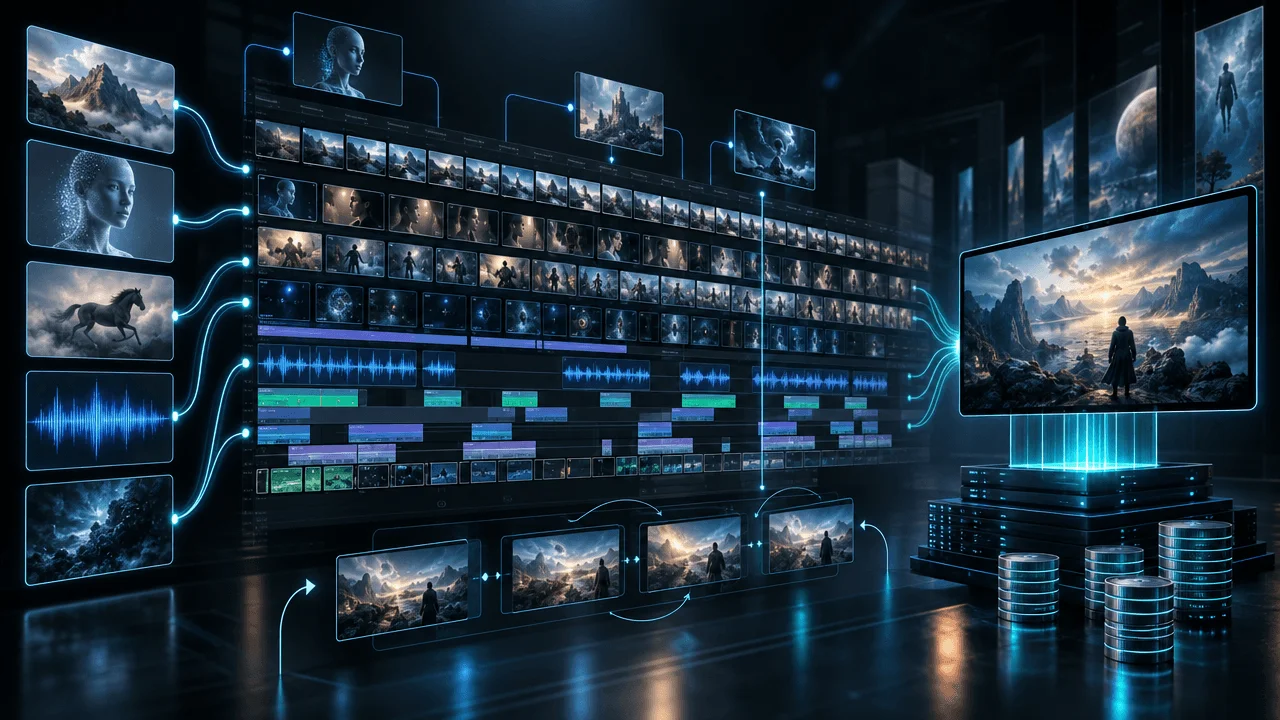
OverseerOS Auto Edit is designed to connect script-driven video production with scene generation, editing controls, and final exports.
The goal is to make video production more manageable without requiring creators to manually assemble every scene in a separate editor.
Several capabilities are particularly relevant when dealing with repetitive visuals.
Scene-Level Editing
Auto Edit allows creators to work with individual scenes rather than treating the entire video as one fixed output.
This makes it possible to focus on scenes that need improvement while preserving the rest of the project.
For example, if several scenes use repetitive imagery, you can concentrate your editing effort on those specific sections.
Visual References
Visual references help establish the intended appearance and creative direction.
They are useful when the video needs to follow a particular visual approach rather than relying entirely on generic scene descriptions.
References can also help distinguish the intended look of different projects.
Camera Speed Presets
OverseerOS includes five camera movement presets:
- Slow Cinematic.
- Gentle.
- Standard.
- Dynamic.
- Hyper.
These give creators different movement approaches for their scenes.
A documentary can use slower movement, while a fast-paced Short can use more dynamic motion.
The important point is that movement becomes a creative decision rather than an identical effect applied everywhere.
Character Lock
When a video includes recurring characters, Character Lock helps maintain their visual identity across relevant scenes.
This addresses a different problem from visual repetition, but it is useful when building more coherent scene sequences.
Complete Auto Edit Workflow
The advantage of an integrated workflow is that these controls sit within the broader video-production process.
Creators can work with narration, scenes, visual assets, camera movement, music, and exports without treating each stage as an entirely separate production project.
Explore OverseerOS Auto Edit to see how AI-assisted video production can become more controllable and efficient.
A Practical Quality-Control Checklist for AI-Generated YouTube Videos
Before exporting, review the following:
Scene relevance
- Every scene supports the narration.
- No image contradicts the subject being discussed.
- Visuals introduce new information where appropriate.
- Generic imagery is not replacing specific examples.
Visual variety
- Consecutive scenes do not repeat the same composition unnecessarily.
- The same generic subject is not reused excessively.
- Backgrounds and environments make sense.
- The video uses appropriate visual categories.
Camera movement
- Camera movement supports the scene.
- Every scene does not use identical movement.
- Fast movement is reserved for appropriate moments.
- Slow movement does not make the entire video feel static.
Final sequence
- The complete video has been reviewed.
- Repetitive sections have been identified.
- Weak scenes have been corrected.
- The final export has been checked.
Frequently Asked Questions
Why do AI-generated YouTube videos repeat the same images?
AI video workflows can produce repetitive images when scene prompts are too generic, multiple narration sections communicate similar concepts, or the scene-generation process does not adequately distinguish individual visual moments.
How do I stop AI video generators from repeating scenes?
Use more specific scene descriptions, plan distinct visual concepts, vary compositions, and review the complete sequence before exporting. Replace individual repetitive scenes instead of automatically regenerating the entire video.
Why do AI-generated videos look like slideshows?
Many AI-generated videos rely heavily on static images with similar compositions and limited movement. Adding appropriate camera movement, visual variety, and meaningful scene progression can make the finished video feel more dynamic.
How many different images should a 10-minute YouTube video have?
There is no universal ideal number. The appropriate number depends on narration speed, storytelling style, scene duration, and visual complexity. The important factor is whether the visuals continue supporting the narration rather than repeating the same information.
Does adding more scenes make an AI video better?
No. More scenes do not automatically improve quality. Additional scenes can make a video more repetitive if they do not introduce new information. Focus on meaningful visual progression rather than maximizing scene count.
How can I make AI-generated videos look less generic?
Use specific scene descriptions, establish a visual direction, incorporate relevant subjects and objects, vary camera compositions, and review the sequence as a complete production.
Can I fix repetitive scenes without regenerating an entire video?
Yes, if your editor supports individual scene editing or replacement. Identify the affected scenes, create more relevant visual concepts, and replace only the parts that need improvement.
What is the difference between visual consistency and visual variety?
Visual consistency means maintaining a coherent visual identity across a video. Visual variety means using different compositions, subjects, and visual approaches to communicate different ideas. A good video needs both.
What is the best AI video editor for creating varied YouTube videos?
Look for software that supports scene-level editing, visual references, flexible camera controls, and reliable export workflows. OverseerOS Auto Edit combines these types of controls within a YouTube-focused production environment.
Final Verdict: Better AI Videos Need Better Visual Decisions, Not Just More Images
AI video generation makes it easier to produce visual content.
But producing more images does not automatically produce better storytelling.
When every scene looks similar, viewers can lose interest even when the narration is excellent.
The solution is to make every visual earn its place.
Give scenes specific purposes. Match imagery to the narration. Introduce meaningful variation. Use camera movement intentionally. Review the entire sequence, and correct weak scenes without rebuilding everything.
Most importantly, choose an editing workflow that gives you control over the individual scenes rather than forcing you to accept the first generated result.
If your AI videos look repetitive, the next improvement may not be another image-generation model. It may be a better editing and scene-production workflow.
Explore OverseerOS Auto Edit to create, refine, and export YouTube videos with more control over the finished production.