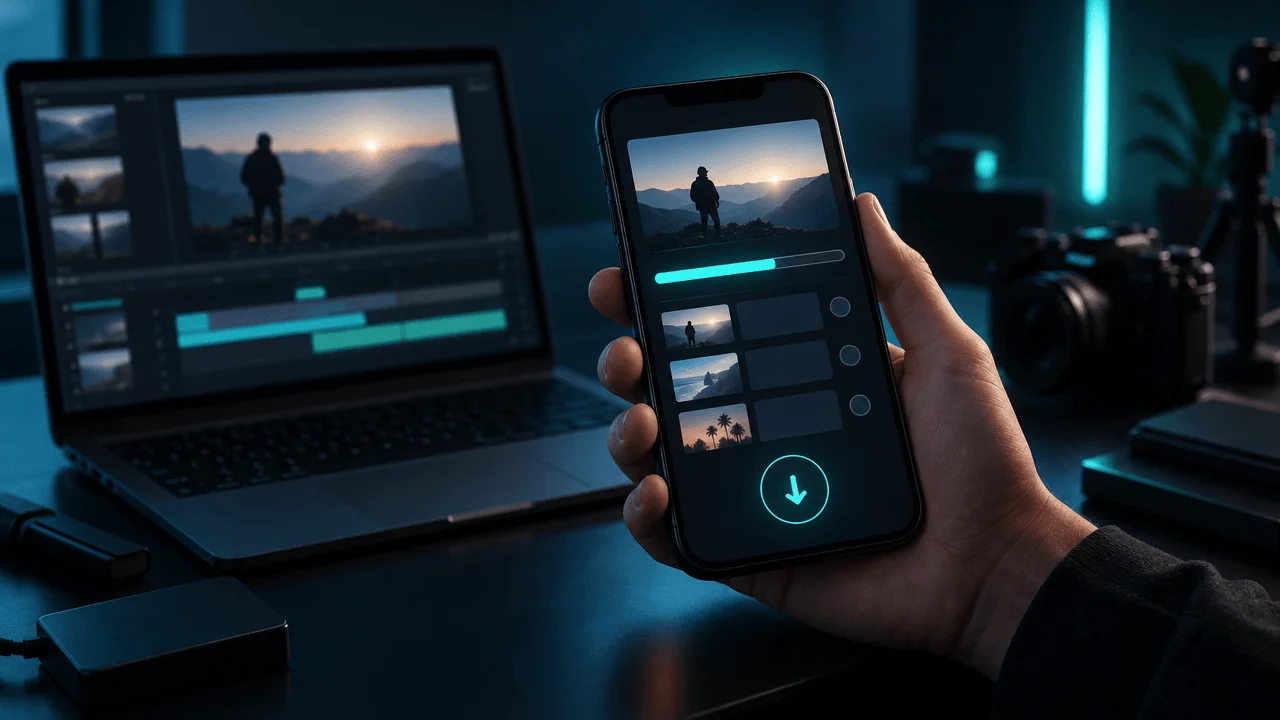
How to Manage YouTube Video Production From Your Phone Without Being Tied to Your Computer
You start creating a YouTube video on your computer.
The script is ready. The voiceover is finished. The visuals are generated, and the video is rendering.
Then you need to leave.
You close your laptop, but the project is not finished. You still need to check whether the export completed, reopen the project, review the result, and download the final video.
So you keep checking your computer.
This is a surprisingly frustrating part of running a YouTube channel.
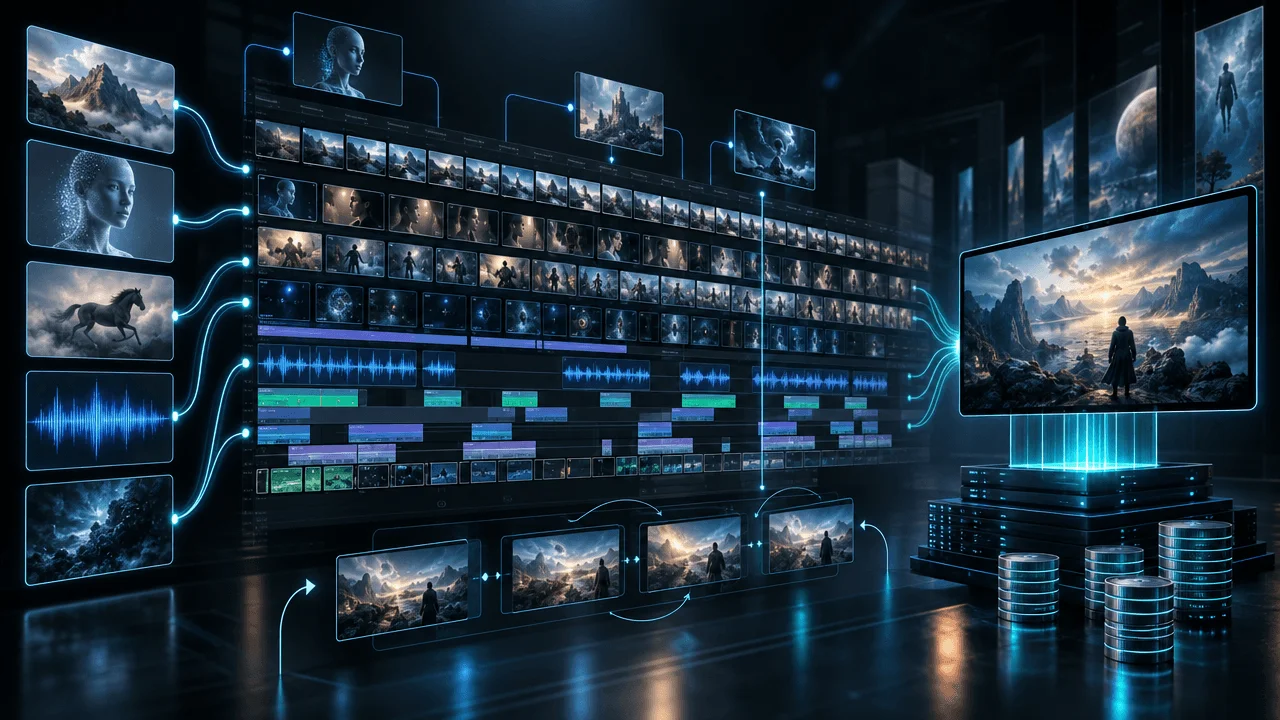
Modern video production involves more than editing. There are background jobs, rendering, image generation, voiceovers, exports, and project management. Much of this work takes place after you've already made the important creative decisions.
Yet many creators still manage their production as if everything needs to happen in front of one desktop screen.
It doesn't.
You should be able to check production progress, know when a video is ready, reopen your project, and retrieve completed exports without being physically tied to your computer.
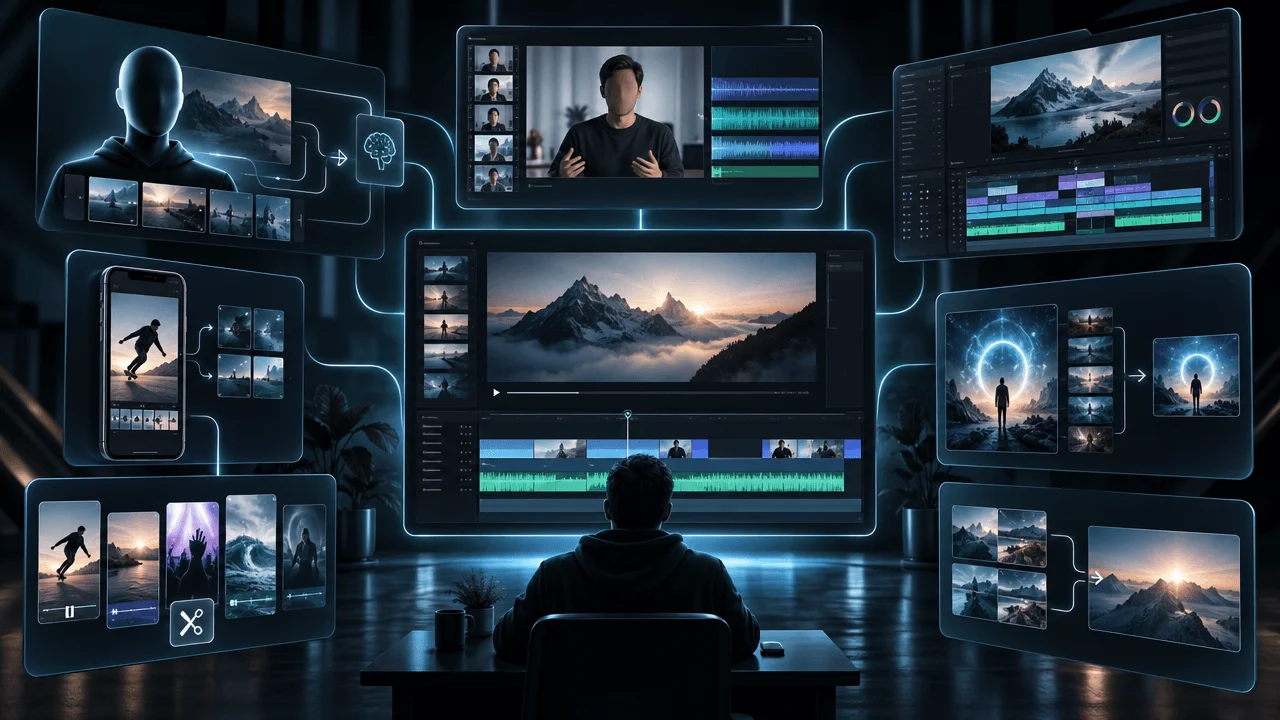
In this guide, we'll explain how to manage YouTube video production from your phone, which mobile tools are worth considering, what you can realistically do on mobile, and how to build a workflow that keeps production moving even when you're away from your desk.
We'll also show how OverseerOS Auto Edit makes mobile production management part of a larger automated video creation workflow.
Quick Answer: Can You Manage YouTube Video Production From Your Phone?
Yes. You can manage important parts of your YouTube production workflow from a smartphone.
Depending on the software you use, you can:
- Monitor video generation progress.
- Check voiceover and script progress.
- See whether background tasks have completed.
- Reopen an existing editing project.
- Download completed video exports.
- Manage uploads and publishing through YouTube Studio.
- Check analytics and respond to comments.
However, there is an important distinction between managing production and performing every editing operation.
A mobile production workflow does not necessarily provide all the editing capabilities of a desktop application.
For creators who use automated video production, the most valuable mobile features are often progress monitoring, project access, and completed-export downloads.
Why YouTube Creators Still Spend Too Much Time at Their Computers
Consider a typical faceless YouTube production workflow.
- Research a topic.
- Write a script.
- Generate a voiceover.
- Generate or collect visuals.
- Assemble the scenes.
- Add captions and music.
- Render the video.
- Review the export.
- Upload it to YouTube.
- Schedule publication.
Not every step requires your attention.
Script generation can run in the background. Voiceover generation can run in the background. Image generation and video rendering can also continue without requiring you to sit in front of the screen.
But many production systems still make it difficult to follow these processes from a phone.
You might need to:
- Open your computer to check whether a render finished.
- Return to a particular browser tab.
- Find the correct project.
- Check whether a background job failed.
- Open the editing interface again.
- Locate the finished export.
None of these activities is particularly valuable creative work.
They are operational tasks.
And when you manage multiple channels, those small interruptions accumulate.
The Difference Between Mobile Video Editing and Mobile Production Management
Before choosing software, understand two different approaches.
Mobile Video Editing
Mobile editing applications let you create and modify videos directly on a smartphone.
Typical features include:
- Cutting clips.
- Adding transitions.
- Adding captions.
- Adjusting audio.
- Applying effects.
- Creating vertical videos.
- Exporting completed projects.
Examples include CapCut, VN Video Editor, and Adobe Premiere mobile.
These applications are useful when you want to perform the actual editing on your phone.
Mobile Production Management
Mobile production management is different.
Instead of rebuilding the entire editing interface for a smaller screen, the software allows you to manage ongoing production.
Typical capabilities include:
- Checking script progress.
- Monitoring voiceover generation.
- Tracking background image generation.
- Opening existing projects.
- Reviewing production status.
- Downloading completed exports.
This approach is particularly useful when your editing platform already automates much of the production process.
You don't necessarily need another mobile editing application.
You need a way to stay connected to the work already happening.
The Best Ways to Manage YouTube Video Production From Your Phone
Here are the most useful approaches, depending on what you want to accomplish.
1. OverseerOS Auto Edit: Best for Managing Automated YouTube Production on Mobile
Best for: Faceless YouTube creators, multi-channel operators, and creators using automated long-form video production.
OverseerOS Auto Edit approaches mobile production differently from traditional video editing applications.
Rather than requiring creators to manually rebuild their entire editing workflow on a phone, its mobile experience focuses on keeping production accessible.
The objective is simple:
You should be able to see what is happening with your video without returning to your desktop every time something changes.
What You Can Do With OverseerOS Auto Edit on Mobile
The mobile experience supports important production tasks.
Monitor Script Progress
You can check the progress of script-related production rather than needing to return to your computer to see whether the next stage has finished.
Track Voiceover Progress
Voiceover generation is another part of the workflow that can take place in the background.
The mobile interface lets you follow its progress.
Check Background Completion
Image generation and other background production tasks can continue while you are away.
You can check whether the work has completed.
Open the Editing Studio
When you need to inspect or continue working on a project, you can open the relevant project in Studio.
Download Completed Exports
One of the most useful capabilities is being able to download a finished video directly from its project card.
This removes the unnecessary step of returning to your desktop just to retrieve an export.
Why This Matters for Multi-Channel Creators
Imagine operating four YouTube channels.
Each channel has different videos at different stages of production.
One video is generating visuals.
Another is waiting for its voiceover.
A third is rendering.
A fourth is ready for download.
Without centralized production visibility, you may end up opening several projects and checking each one manually.
With OverseerOS Auto Edit's mobile workflow, you can follow production progress and access completed work from your phone.
You can spend less time checking whether something has finished and more time deciding what should happen next.
What It Doesn't Replace
OverseerOS Auto Edit's mobile experience should not be confused with a full desktop editing application running inside a phone.
Its mobile workflow focuses on production visibility, project access, and completed exports.
For complex editing and detailed visual adjustments, use the appropriate Studio interface and controls.
Verdict: A strong option for creators who want to manage automated video production without remaining at their computer.
Explore OverseerOS Auto Edit.
2. YouTube Studio: Best for Managing Published Videos and Channel Operations
Best for: Creators who need to manage their YouTube channel after production.
YouTube Studio is the official management application for YouTube creators.
It provides access to important channel operations directly from a smartphone.
You can:
- View uploaded videos.
- Edit video details.
- Monitor analytics.
- Respond to comments.
- Manage playlists.
- Review monetization information.
- Check certain video restrictions.
YouTube Studio also supports video uploads through its mobile applications.
Source: YouTube Studio Help.
Where YouTube Studio Is Strongest
YouTube Studio is essential for managing the publishing side of your channel.
Once a video is ready, you can use it to manage its:
- Title.
- Description.
- Visibility.
- Playlist.
- Audience settings.
- Publishing status.
You can also monitor its performance after publication.
What It Doesn't Replace
YouTube Studio is not a complete video-production system.
It does not replace your scriptwriting application, AI visual generation workflow, or professional editing environment.
Think of it as the management layer for your published YouTube content.
Verdict: Essential for almost every YouTube creator, but it solves a different problem from managing ongoing video generation and rendering.
Website: https://studio.youtube.com/
3. CapCut: Best for Editing Videos Directly on Your Phone
Best for: Shorts creators, social media operators, and creators who want to edit video without a computer.
CapCut is one of the most accessible mobile video editors.
It provides a relatively straightforward interface for creating and editing videos.
Its capabilities include:
- Timeline editing.
- Captions.
- Transitions.
- Effects.
- Audio editing.
- Templates.
- Background removal.
- AI-assisted editing features.
For creators producing Shorts, CapCut can be particularly useful.
You can take a video, make adjustments, add captions, and export a finished vertical video.
Where CapCut Is Strongest
Its main advantage is accessibility.
You don't need to understand a complex professional editing interface to make useful edits.
It is particularly suitable for:
- YouTube Shorts.
- TikTok.
- Instagram Reels.
- Short promotional videos.
- Quick edits.
- Social media content.
What It Doesn't Replace
CapCut is primarily an editing application.
It does not replace an integrated long-form production system that handles research, scripts, voiceovers, scene generation, and background rendering.
Pricing and available features depend on region, device, and subscription tier.
Website: https://www.capcut.com/
4. Adobe Premiere Mobile: Best for More Advanced Mobile Editing
Best for: Creators who want a more traditional editing workflow on their smartphone.
Adobe Premiere mobile provides video editing capabilities for mobile creators.
It is designed to make more advanced editing accessible without requiring a desktop computer for every project.
Depending on device and current feature availability, its capabilities include:
- Multitrack editing.
- Timeline control.
- Video trimming.
- Audio adjustments.
- Titles.
- Creative effects.
- Integration with Adobe workflows.
Where It Is Strongest
Creators who already work with Adobe products may find it easier to maintain a consistent editing workflow.
It is also useful when you want more control than a basic mobile editing application provides.
What It Doesn't Replace
Mobile editing still has physical limitations.
A complex documentary containing hundreds of scenes, multiple audio layers, and extensive visual effects can be difficult to manage on a small screen.
For large projects, desktop editing may remain more practical.
Website: https://www.adobe.com/products/premiere/mobile.html
5. VN Video Editor: Best for Straightforward Mobile Timeline Editing
Best for: Creators who want a relatively simple mobile editing application.
VN is a mobile video editor that provides timeline-based editing and common creative tools.
Its features include:
- Multitrack timeline editing.
- Transitions.
- Speed adjustments.
- Text.
- Filters.
- Audio editing.
- Keyframe animation.
It can be useful for creators who want more manual control than a template-driven application provides.
Where It Is Strongest
VN is particularly useful for:
- Quick video edits.
- Shorts.
- Basic storytelling.
- Social content.
- Manual timeline adjustments.
What It Doesn't Replace
It is not designed to automate an entire YouTube production pipeline.
If your goal is to manage dozens of generated scenes, voiceovers, and background rendering jobs, you need a different category of software.
Website: https://www.vlognow.me/
Comparison: Which Mobile YouTube Production Tool Should You Choose?
| Tool | Main Purpose | Best For | Production Management |
|---|---|---|---|
| OverseerOS Auto Edit | Automated video production | Faceless and long-form creators | Yes |
| YouTube Studio | Channel management | Publishing and analytics | Limited to channel operations |
| CapCut | Mobile video editing | Shorts and social content | No complete background production workflow |
| Adobe Premiere Mobile | Mobile video editing | More advanced manual editing | No complete background production workflow |
| VN Video Editor | Mobile video editing | Quick manual edits | No complete background production workflow |
The important distinction is that these products do not all solve the same problem.
YouTube Studio helps you manage your channel.
CapCut and VN help you edit videos.
Adobe Premiere mobile offers a more advanced editing environment.
OverseerOS Auto Edit connects mobile access to an automated video-production workflow.
How to Build a YouTube Production Workflow That Doesn't Depend on Your Computer
The best mobile workflow is not about doing absolutely everything on your phone.
It is about deciding which tasks require your attention and which can happen independently.
Here is a practical system.
Step 1: Create the Video
Start with your normal production workflow.
Prepare:
- Topic.
- Script.
- Voiceover.
- Visual direction.
Use your desktop when detailed creative decisions require it.
Step 2: Start the Production Process
Once your video is ready for automated production, start the appropriate generation and editing tasks.
Your production system should handle repetitive work without requiring you to monitor every individual operation.
Step 3: Leave Your Computer
You should not need to keep a browser tab open just to watch a progress indicator.
Background tasks can continue while you work on something else.
Step 4: Check Progress on Your Phone
Use the mobile production interface to check:
- Script progress.
- Voiceover progress.
- Background completion.
- Project availability.
If something needs attention, you can identify it without returning to your desktop.
Step 5: Open Studio When Necessary
If you need to inspect a project or make further adjustments, open it in the editing Studio.
Do not assume every operation must be performed on the phone.
Use the device that makes the task easiest.
Step 6: Download Completed Videos
When an export finishes, retrieve it through the available mobile download workflow.
You can then continue with the publishing process.
Step 7: Manage Publication Through YouTube Studio
Use YouTube Studio to:
- Upload videos.
- Set titles and descriptions.
- Configure visibility.
- Schedule publication.
- Monitor performance.
- Respond to viewers.
This creates a more efficient separation between production and publishing.
What Should You Actually Do on Mobile vs. Desktop?
Not every production task belongs on a smartphone.
Trying to force every operation onto a small screen can create more work rather than less.
A better approach is to divide responsibilities.
| Task | Recommended Device |
|---|---|
| Topic research | Desktop or mobile |
| Script review | Both |
| Voiceover progress | Both |
| Background generation monitoring | Both |
| Project status checks | Both |
| Complex visual editing | Desktop preferred |
| Detailed timeline adjustments | Desktop preferred |
| Completed export downloads | Both, where supported |
| Upload management | Both |
| Analytics monitoring | Both |
| Comment management | Both |
The goal is flexibility.
Use mobile for tasks that benefit from quick access.
Use desktop for tasks that require precision.
Five Mistakes That Make Mobile YouTube Production Inefficient
1. Trying to Recreate a Desktop Editing Workflow on a Phone
A smartphone is not a replacement for every desktop application.
Complex editing can become frustrating when the interface is not designed for mobile.
Use mobile for monitoring, quick decisions, and supported editing tasks.
2. Checking Production Manually Every Few Minutes
If your software already runs background tasks, you should not need to keep checking whether they have completed.
Use progress indicators and completion notifications where available.
3. Using Too Many Separate Applications
Every additional application creates another place to check.
Try to centralize the production process instead of distributing scripts, visuals, editing, and exports across unrelated tools.
4. Confusing Uploading With Publishing
Uploading a video does not necessarily mean it is public.
YouTube allows creators to configure visibility and publishing settings separately.
Review those settings before making a video public.
Source: YouTube: Upload Videos.
5. Downloading Every Intermediate File
You do not need to retrieve every intermediate asset.
Focus on the final export and the files you actually need to review or publish.
This keeps your mobile storage and workflow manageable.
How OverseerOS Auto Edit Fits Into a Mobile-First Creator Workflow
The bigger opportunity is not simply editing videos on a phone.
It is building a production system where your computer is no longer the center of every operational decision.
OverseerOS Auto Edit is designed around a workflow that combines video creation, scene generation, voiceovers, visual styles, editing, and exporting.
Its mobile experience extends access to important parts of that process.
For creators operating multiple channels, this means you can check ongoing production without constantly returning to the desktop.
Imagine this workflow:
Morning
Start several video projects.
During the day
Check progress from your phone.
When a video finishes
Open the project or download the completed export.
Before publication
Review the final video and manage the upload through YouTube Studio.
This does not eliminate the need for creative review.
It eliminates unnecessary dependence on a particular device for routine production management.
And that is a much more useful form of automation.
Frequently Asked Questions
Can you manage YouTube video editing from your phone?
Yes. You can use mobile video editors to edit footage directly and production-management tools to monitor ongoing work, access projects, and retrieve completed exports. The exact capabilities depend on the software.
What is the best app for managing YouTube videos on mobile?
YouTube Studio is the official application for managing published videos, analytics, and comments. For automated video-production progress and project access, OverseerOS Auto Edit offers a different mobile workflow.
Can I edit long YouTube videos on my phone?
Yes, although the experience depends on the video length, complexity, device performance, and application. Complex long-form projects with many scenes and audio tracks are generally easier to manage on a desktop.
Can I monitor video rendering from my phone?
Some production platforms support mobile progress monitoring. OverseerOS Auto Edit provides mobile access to relevant production progress and completed-export workflows.
Can I download completed YouTube videos from OverseerOS on mobile?
Yes. OverseerOS Auto Edit supports downloading completed exports directly from the project card in its mobile experience.
Can I generate AI videos from my phone?
You can access AI video creation platforms through supported mobile interfaces or browsers. However, some advanced workflows may be better suited to desktop environments.
Is YouTube Studio enough to manage an entire YouTube production workflow?
No. YouTube Studio is primarily designed for channel management, publishing, analytics, and audience interaction. It does not replace a complete scriptwriting, visual generation, and video editing system.
What is the difference between mobile editing and automated video production?
Mobile editing means manually creating or modifying a video on your phone. Automated video production uses software to handle repetitive tasks such as script processing, voiceover generation, visual creation, scene assembly, and rendering. Mobile production management lets you monitor and access that work without necessarily performing every operation on the phone.
Can I manage multiple YouTube channels from my phone?
Yes. You can use YouTube Studio and other supported applications to manage multiple connected channels. The exact experience depends on account permissions and the software you use.
Do I need a powerful phone to manage video production?
Not necessarily. Monitoring project progress and accessing completed exports generally requires less processing power than rendering or editing complex videos locally. Your device still needs sufficient storage, memory, and a reliable internet connection for the tasks you perform.
Does OverseerOS Auto Edit replace CapCut?
Not directly. CapCut is a manual mobile editing application, while OverseerOS Auto Edit is an automated YouTube video-production workflow with mobile production-management capabilities. They solve different problems.
Final Verdict: Your YouTube Production Shouldn't Stop When You Leave Your Desk
You don't need to perform every editing operation on your smartphone.
You need to stop making your computer the bottleneck for every production decision.
Let automated systems handle repetitive work.
Use mobile access to monitor progress.
Open the editing Studio when a project needs attention.
Download completed exports when they're ready.
Use YouTube Studio to manage publication and channel performance.
For creators publishing regularly, especially those operating multiple channels, this creates a more flexible way to manage production.
OverseerOS Auto Edit brings these capabilities together by connecting automated video production with a mobile workflow.
The objective isn't to spend more time editing on your phone.
It's to spend less time waiting at your computer.
Your videos should keep moving even when you're away from your desk.
Discover OverseerOS Auto Edit and build a YouTube production workflow that doesn't depend on being in front of your computer.
Sources and Further Reading
- YouTube Studio: Navigate the Mobile App - Official YouTube documentation covering channel management, analytics, comments, and content.
- YouTube: Upload Videos From Mobile - Official instructions for uploading videos and configuring publishing settings.
- OverseerOS Auto Edit - Automated video production, scene editing, and mobile project access.
- CapCut - Mobile video editing capabilities.
- Adobe Premiere - Mobile editing workflows.
- VN Video Editor - Mobile timeline editing.
Methodology and Scope
This article distinguishes between mobile editing applications, YouTube channel-management applications, and mobile access to automated production workflows.
The OverseerOS capabilities described refer to its mobile Auto Edit experience, including production progress, project access, and completed-export downloads.
It does not claim that the complete desktop editing interface is available on mobile or that YouTube publishing is automatically performed by OverseerOS.