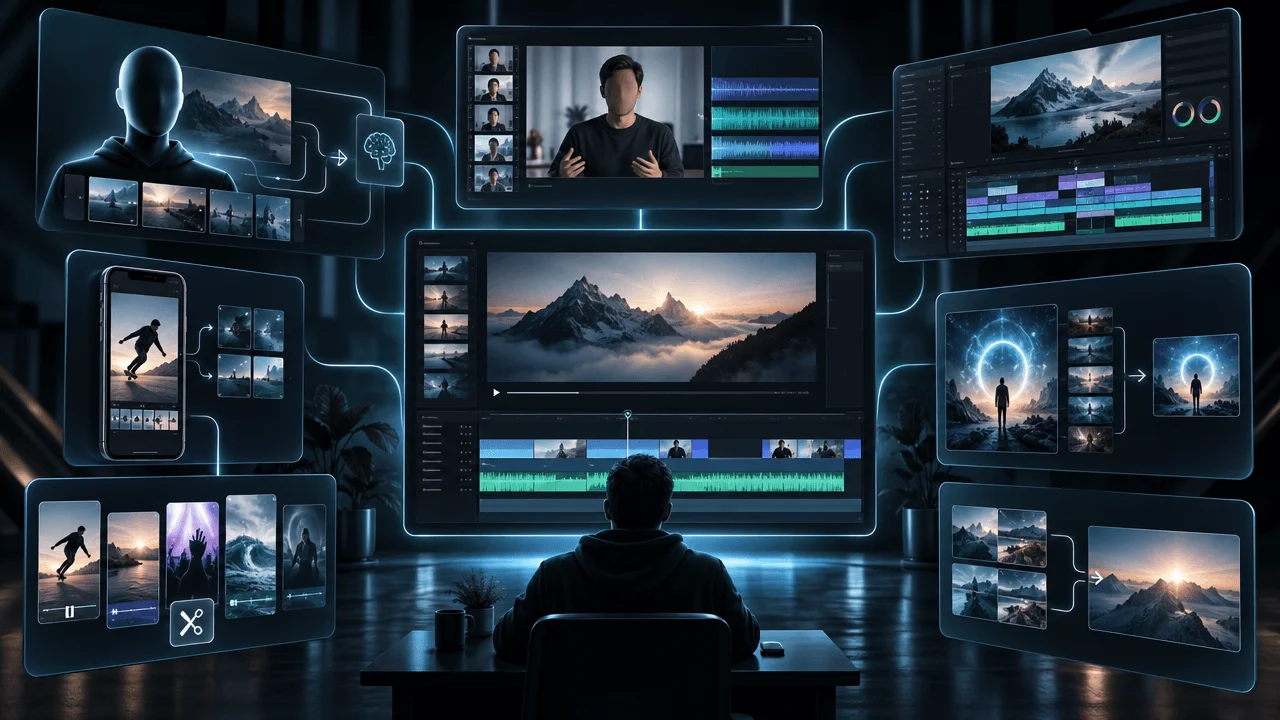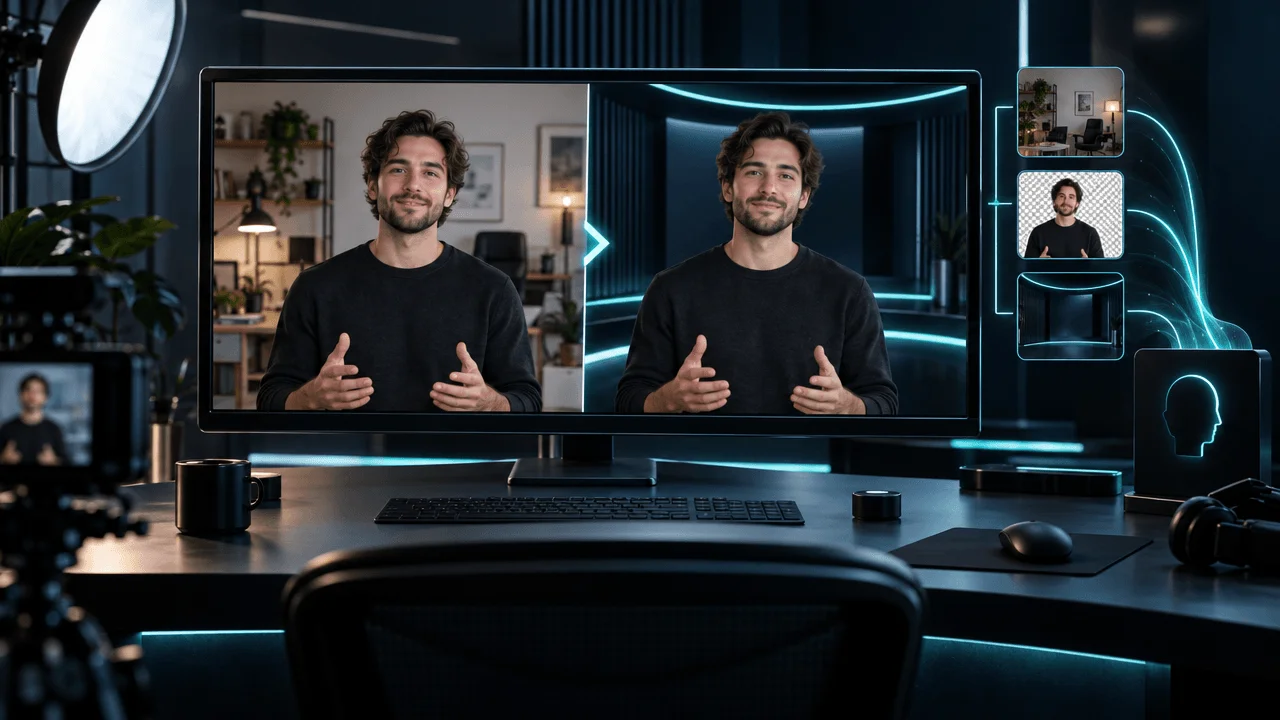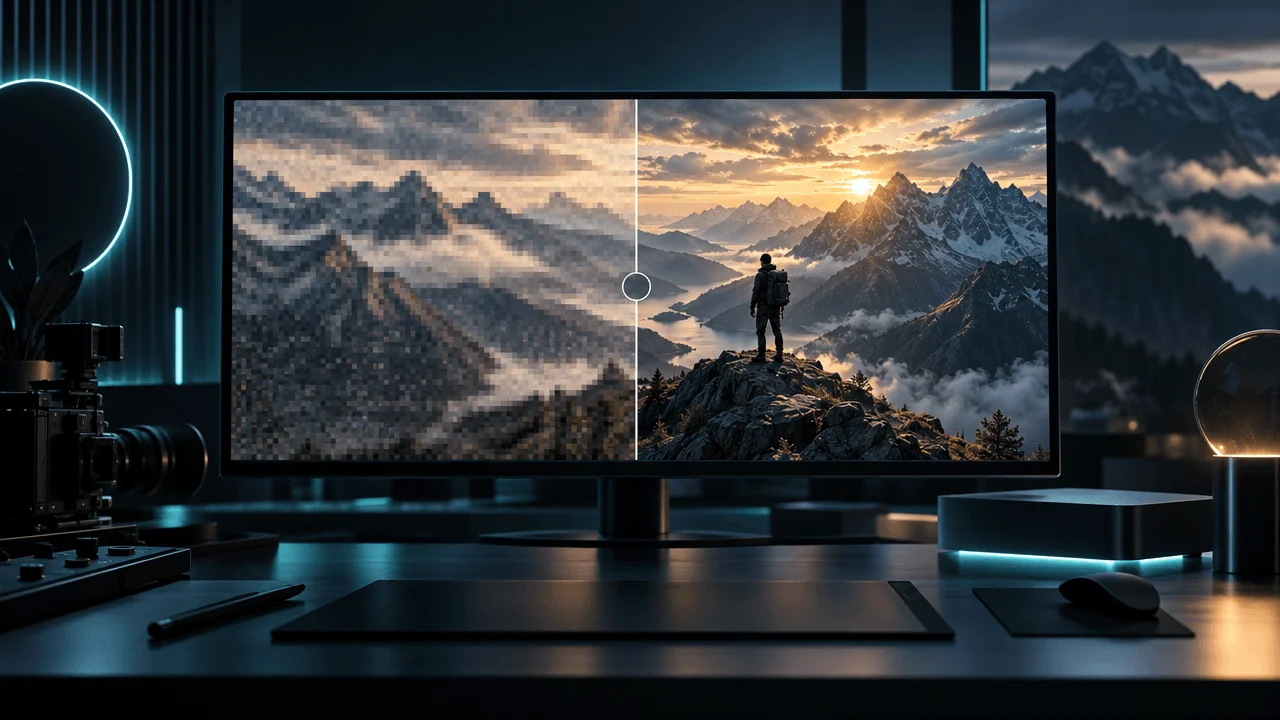
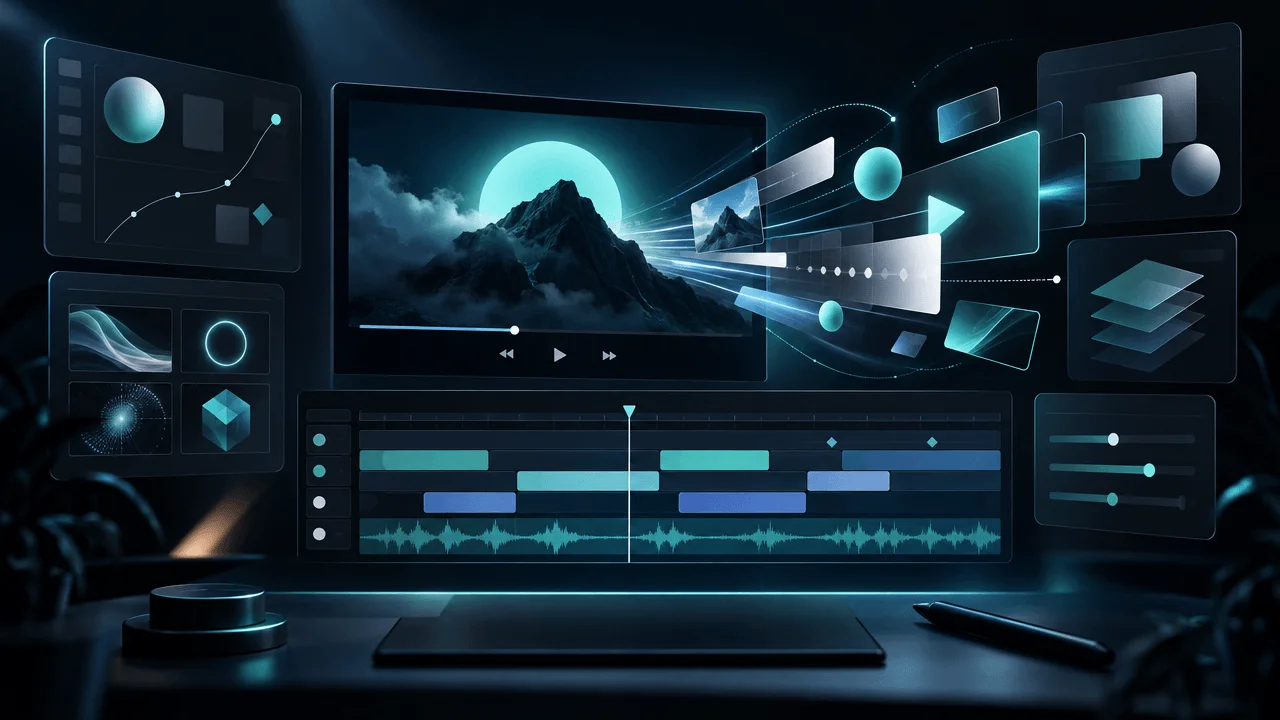
Best AI Motion Graphics Tools for YouTube Creators in 2026: Create More Engaging Videos Without After Effects
A still image can communicate an idea.
But sometimes, it needs to move.
A scientific discovery becomes more interesting when the camera slowly moves toward the subject. A complicated explanation becomes easier to follow when important information appears on screen. A dramatic moment feels more powerful when the visuals change at exactly the right time.
This is why motion graphics matter in YouTube production.
The problem is that professional motion design can be extremely time-consuming.
Traditional software such as After Effects gives creators enormous creative freedom, but learning it, building animations, managing keyframes, and repeating the same production tasks across dozens of videos can become a full-time job.
Meanwhile, AI video tools promise to automate everything, but many generate short clips rather than providing the precise control needed for an entire YouTube video.
So which tools are actually worth using?
In this guide, we'll compare the best motion graphics and AI-assisted animation tools for YouTube creators in 2026, explain what each one does best, examine their limitations, and help you choose the right software for your production workflow.
We'll also distinguish between dedicated motion design software, AI-generated animation, template-based motion, and automated video production. These are different categories, and choosing the wrong one can leave you paying for software that doesn't solve your actual problem.
Quick Verdict: Best Motion Graphics Tools for YouTube in 2026
| Tool | Best For | Main Strength | Main Limitation |
|---|---|---|---|
| OverseerOS Auto Edit | Automated motion inside long-form YouTube production | Camera movement, visual styles, animated text pop-ups, and complete video editing workflows | Not a standalone professional motion-design editor |
| Adobe After Effects | Professional motion graphics and visual effects | Detailed animation, compositing, and creative control | Steep learning curve and manual production |
| Jitter | Fast AI-assisted 2D motion design | Prompt-assisted animation, templates, and intuitive timeline editing | Not a complete long-form YouTube production system |
| Cavalry | Procedural 2D animation | Powerful data-driven motion design, free for individuals | Requires learning a dedicated design workflow |
| DaVinci Resolve Fusion | Advanced compositing and motion graphics | Professional 2D and 3D compositing inside a video editor | More complex than most creators need |
| Apple Motion | Motion graphics for Mac-based creators | Real-time 2D and 3D animation, titles, and effects | Mac-only |
| Blender | Free 3D animation and motion design | Powerful open-source 3D production | Significant learning investment |
| OpusClip Motion Studio | AI-assisted motion graphic generation | Prompt-driven motion graphics within a video workflow | Not a replacement for a full motion-design application |
My recommendation: If you want professional creative control, start with After Effects or DaVinci Resolve. If you want accessible motion design, look at Jitter. If you need free procedural animation, Cavalry is worth serious consideration. If you produce narration-led YouTube videos and want motion integrated into the editing workflow, consider OverseerOS Auto Edit.
The best choice depends on whether you want to design animations individually or produce complete videos efficiently.
What Are Motion Graphics Tools?
Motion graphics software allows creators to animate visual elements inside videos.
These elements can include:
- Text and typography.
- Images and illustrations.
- Shapes and diagrams.
- Charts and statistics.
- Logos and branding.
- Camera movements.
- Visual transitions.
- Animated overlays.
- Interface elements.
- Background graphics.
Unlike traditional character animation, motion graphics often focus on moving visual information.
For YouTube creators, this is particularly useful when producing educational videos, documentaries, explainers, technology content, and faceless videos.
For example, imagine explaining how an artificial intelligence system works.
You could show a static image of a computer.
Or you could animate the components, highlight important information, move between different stages, and introduce labels as the narration explains each concept.
The second approach can make complicated information easier to understand.
However, motion graphics tools are not all built for the same job.
The Four Types of Motion Graphics Software
Before choosing a platform, understand the four major categories.
| Category | How It Works | Example Tools |
|---|---|---|
| Professional motion design | Manually animate graphics, layers, and effects | After Effects, Cavalry, Blender |
| AI-assisted motion design | Use AI to create or modify animations inside a design workflow | Jitter |
| AI-generated motion | Generate animated visual sequences from prompts or reference material | OpusClip Motion Studio |
| Automated video production | Apply motion, visual treatments, and editing inside a complete video workflow | OverseerOS Auto Edit |
These categories overlap, but they solve different problems.
A professional motion designer might spend hours creating a 15-second animation.
A creator using an automated video-production platform might apply camera movement and animated elements across an entire narration-led video without manually building every animation.
Neither approach is automatically better.
The right choice depends on how much creative control you need and how frequently you produce videos.
The 8 Best Motion Graphics Tools for YouTube Creators
1. OverseerOS Auto Edit: Best for Automated Motion in Long-Form YouTube Videos
Best for: Faceless YouTube creators, educational channels, documentary producers, and creators who want motion integrated into video production.
Most motion graphics applications focus on creating animations.
OverseerOS Auto Edit approaches the problem from the perspective of producing complete YouTube videos.
Instead of requiring creators to manually animate every visual element, OverseerOS Auto Edit integrates visual treatments and motion into a scene-based editing workflow.
This is particularly useful for creators producing narration-led videos where visuals need to support the spoken content.
What OverseerOS Auto Edit Offers
Camera Speed Presets
OverseerOS Auto Edit includes five camera movement presets:
- Slow Cinematic.
- Gentle.
- Standard.
- Dynamic.
- Hyper.
These presets allow creators to control the intensity of camera movement across their scenes.
For example:
A documentary might benefit from Slow Cinematic movement, while a faster-paced educational video could use Dynamic or Hyper movement.
The goal is to match the visual movement to the intended viewing experience.
Animated Text Pop-Ups
OverseerOS Auto Edit also supports animated text pop-ups.
These allow important information to appear inside the video rather than remaining buried in narration.
Potential uses include:
- Important statistics.
- Names and dates.
- Key concepts.
- Short explanations.
- Emphasized statements.
This is particularly useful for educational and documentary-style content.
Multiple Visual Styles
OverseerOS Auto Edit offers 27 visual style presets.
Creators can use these styles to establish a consistent visual direction rather than treating every scene as an unrelated image.
Scene-Based Editing
The workflow is built around individual scenes.
Creators can review and modify scenes, control their visuals, and export the finished video.
This provides more control than simply generating a finished video from a single prompt.
Full HD and Long-Form Production
OverseerOS Auto Edit supports Full HD exports and long-form video production, including videos of up to 30 minutes and beyond within supported workflows.
This makes it relevant to creators who produce documentaries, educational videos, and other narration-led formats.
Where OverseerOS Auto Edit Is Strongest
The biggest advantage is that motion is part of a larger production workflow.
You don't need to create every visual animation independently before beginning your video.
This is particularly valuable for:
- Faceless YouTube channels.
- Science documentaries.
- Educational explainers.
- Psychology channels.
- History videos.
- Technology documentaries.
- High-volume content operations.
For creators publishing regularly, reducing repetitive production work can be more valuable than having access to hundreds of advanced animation controls.
Where OverseerOS Auto Edit Is Not the Right Fit
There is an important distinction.
OverseerOS Auto Edit is not designed to replace professional motion-design applications.
It is not a full After Effects alternative for creating arbitrary animated compositions, advanced vector illustrations, complex particle simulations, or custom 3D motion sequences.
If your job is designing a complex 20-second animated brand introduction with frame-level control, a dedicated motion-design application is more appropriate.
If your job is producing a 20-minute YouTube documentary with narration, scene-based visuals, camera movement, and animated information, OverseerOS Auto Edit offers a different and more integrated approach.
Verdict: Best for creators who want motion integrated into a repeatable YouTube video-production workflow rather than manually creating every animation.
Website: https://www.overseeros.com/features/auto-edit-studio
2. Adobe After Effects: Best for Professional Motion Graphics
Best for: Motion designers, advanced video editors, and creators who need precise creative control.
Adobe After Effects remains one of the most established applications for professional motion graphics and visual effects.
It allows creators to animate text, illustrations, images, video layers, and other visual elements with detailed control.
Main Features
- Keyframe animation.
- Motion tracking.
- 2D and 3D animation.
- Visual effects.
- Compositing.
- Animated typography.
- Masking.
- Particle effects.
- Expression-based animation.
- Extensive third-party plugin ecosystem.
You can build almost any type of motion graphic if you have the skills and time.
For example, a science documentary might use After Effects to create:
- Animated scientific diagrams.
- Moving maps.
- Complex data visualizations.
- Exploded technical illustrations.
- Cinematic title sequences.
- Custom transitions.
This makes it extremely powerful for creators who want a distinctive visual identity.
Pricing
Adobe lists After Effects at approximately $22.99 per month for its annual plan billed monthly in the United States.
Pricing and availability vary by region and subscription terms.
Source: https://www.adobe.com/products/aftereffects.html
Main Limitations
The biggest disadvantage is complexity.
After Effects is a professional creative application, not an automated YouTube production system.
Creators must still build and manage their animations.
A relatively simple animation can involve:
- Creating layers.
- Setting keyframes.
- Adjusting timing.
- Applying effects.
- Managing compositions.
- Rendering.
- Exporting.
This is worthwhile when creative control matters.
It becomes expensive in time when the same work needs to be repeated across dozens of videos.
Verdict: Choose After Effects if you need maximum control over professional motion graphics and are willing to invest in learning the software.
Website: https://www.adobe.com/products/aftereffects.html
3. Jitter: Best for Accessible AI-Assisted Motion Design
Best for: Creators, designers, and marketing teams who want to create polished 2D animations without mastering complex professional software.
Jitter is a browser-based motion design application that combines accessible editing with AI-assisted workflows.
It is particularly interesting because it focuses on reducing the complexity of traditional motion design.
Main Features
- AI-assisted animation.
- Prompt-based creative workflows.
- Timeline editing.
- Animated typography.
- Motion presets.
- Reusable components.
- Templates.
- Figma integration.
- Image-to-video workflows.
- Real-time collaboration.
One useful feature is the ability to animate text by line, word, or letter.
This is valuable for creating:
- Animated titles.
- Educational explanations.
- Statistics.
- Promotional graphics.
- Social media animations.
- Branded video elements.
Jitter also provides more than 300 motion design templates.
This can accelerate production when you need a visual starting point.
Pricing
Jitter offers a free plan and paid Pro, Max, Ultra, and Enterprise options.
Its official documentation describes differences in export quality, AI usage, collaboration, and advanced export features.
Check its current pricing page for exact costs.
Sources:
- https://jitter.video/
- https://help.jitter.video/en/articles/14809073-compare-jitter-s-subscription-plans
Main Limitations
Jitter is primarily a motion-design application.
It is not a complete YouTube production system.
You may still need another editor to combine the animations with narration, background music, footage, and the rest of your video.
Verdict: One of the strongest options for creators who want accessible 2D motion design without the complexity of After Effects.
Website: https://jitter.video/
4. Cavalry: Best Free Procedural Motion Graphics Software
Best for: Designers who want powerful 2D animation and procedural motion without paying for a traditional professional subscription.
Cavalry is a dedicated 2D animation and motion design application.
It is particularly interesting because of its procedural approach.
Rather than manually adjusting every element independently, creators can build systems where changing one parameter affects multiple parts of an animation.
Main Features
- Procedural animation.
- Real-time rendering.
- Text animation.
- Shape animation.
- Rigging.
- Data-driven graphics.
- Color palettes.
- Reusable animation systems.
- Lottie export.
This makes it useful for creating:
- Animated statistics.
- Infographics.
- Typography.
- Repeated visual elements.
- Data visualizations.
- Complex 2D compositions.
For educational YouTube creators, data-driven animation can be especially valuable.
Imagine creating an animated chart that changes based on a spreadsheet rather than manually adjusting every bar.
That is the kind of workflow Cavalry is designed to support.
Pricing
Cavalry is now free for individual users through Canva.
Its professional features became available without a paid individual subscription in April 2026.
Sources:
Main Limitations
Cavalry is powerful, but it requires a dedicated design workflow.
It is not an automatic long-form video generator.
You still need to understand how to build, control, and export the animations.
Verdict: One of the strongest choices for creators who want professional procedural 2D animation without a recurring software subscription.
Website: https://cavalry.studio/
5. DaVinci Resolve Fusion: Best for Advanced Motion Graphics Inside a Video Editor
Best for: Video editors who want professional compositing, visual effects, and motion graphics in one application.
DaVinci Resolve is already widely used for video editing, color correction, and post-production.
Its Fusion environment adds a powerful node-based compositing and motion graphics workflow.
Main Features
- Node-based compositing.
- 2D and 3D graphics.
- Particle systems.
- Motion tracking.
- Rotoscoping.
- Keying.
- Animated titles.
- Visual effects.
- Advanced compositing.
- Collaboration workflows.
The advantage is integration.
You can work on your video and create advanced visual effects within the broader Resolve environment.
For documentary creators, this can be useful when producing:
- Animated maps.
- Scientific explanations.
- Complex transitions.
- Cinematic title sequences.
- 3D visualizations.
- Detailed compositing.
Pricing
DaVinci Resolve has a free version.
DaVinci Resolve Studio is a paid upgrade.
Blackmagic Design also offers Fusion Studio as a separate professional product.
Pricing varies by region and product edition.
Official source: https://www.blackmagicdesign.com/products/fusion/
Main Limitations
Fusion is not beginner-friendly compared with simple template-based tools.
Its node-based workflow provides enormous flexibility, but it requires time to understand.
If you only need basic animated text or camera movement, this may be unnecessary complexity.
Verdict: Choose DaVinci Resolve if you want professional video editing and advanced compositing capabilities within the same ecosystem.
Website: https://www.blackmagicdesign.com/products/davinciresolve
6. Apple Motion: Best for Mac-Based Video Creators
Best for: Mac users who want accessible professional motion graphics and integration with Final Cut Pro.
Apple Motion is a motion graphics and visual effects application designed for video creators.
It provides a combination of templates, behaviors, keyframes, and real-time rendering.
Main Features
- 2D and 3D titles.
- Animated typography.
- Motion behaviors.
- Particle systems.
- Camera movements.
- Object tracking.
- Visual effects.
- Motion templates.
- Final Cut Pro integration.
Apple Motion is particularly useful for creating reusable title and transition systems.
For example, you could build a custom documentary title sequence and reuse it across multiple videos.
Its behavior-based animation tools also reduce the need to manually create every keyframe.
Pricing
Apple Motion is available as a one-time purchase through Apple's ecosystem.
Its listed US App Store price is $49.99, although regional availability and pricing can vary.
Official sources:
Main Limitations
The biggest limitation is platform compatibility.
Apple Motion is designed for macOS.
It also works best when integrated into an Apple video-production workflow.
Verdict: A strong option for Mac-based creators who want professional motion graphics without committing to a large recurring software subscription.
7. Blender: Best Free 3D Motion Graphics Software
Best for: Creators who want complete control over 3D animation, environments, objects, and cinematic visuals.
Blender is a free, open-source 3D creation application.
It is much broader than a traditional motion graphics tool.
Its capabilities include modeling, animation, rendering, compositing, and visual effects.
Main Features
- 3D modeling.
- Character animation.
- Motion tracking.
- Procedural geometry.
- Lighting.
- Rendering.
- Physics simulations.
- Compositing.
- Geometry Nodes.
- Camera animation.
For YouTube creators, Blender can produce impressive visual sequences.
Examples include:
- Animated planets.
- Scientific simulations.
- Product visualizations.
- Historical reconstructions.
- 3D maps.
- Complex technical explanations.
Pricing
Blender is free and open source.
Source: https://www.blender.org/features/animation/
Main Limitations
Blender has a significant learning curve.
It is not the fastest way to create a simple animated title or social media graphic.
Building a high-quality 3D sequence requires knowledge of modeling, lighting, materials, animation, and rendering.
Verdict: Choose Blender if you want maximum flexibility in 3D animation and are willing to invest in learning a professional creative application.
Website: https://www.blender.org/
8. OpusClip Motion Studio: Best for AI-Assisted Motion Graphic Generation
Best for: Creators who want to generate motion graphics through an AI-assisted video workflow.
OpusClip is primarily known for video repurposing and short-form clipping.
Its Motion Studio expands the platform into AI-assisted motion graphic creation.
The idea is to move from a written concept toward a planned and rendered motion graphic.
Main Features
- Prompt-driven creative workflows.
- Motion graphic generation.
- Shot planning.
- Video editing.
- Captioning.
- Short-form content workflows.
- Content repurposing.
This is useful when you want to create visual assets without manually constructing every animation.
It is particularly relevant to creators who already use OpusClip for short-form video production.
Main Limitations
OpusClip is not a complete professional motion-design environment.
It is better understood as an AI-assisted video workflow than a replacement for applications such as After Effects, Blender, or Cavalry.
Creators requiring detailed control over individual layers, timing, complex compositions, and reusable professional animation systems may need additional software.
Verdict: Worth considering if you already use OpusClip and want AI-assisted motion graphic creation inside the same ecosystem.
Website: https://www.opus.pro/
Best Motion Graphics Software by Use Case
The easiest way to choose is to start with the type of content you produce.
| Your Main Goal | Recommended Tool |
|---|---|
| Produce complete narration-led YouTube videos with integrated motion | OverseerOS Auto Edit |
| Create complex professional motion graphics | Adobe After Effects |
| Generate accessible 2D motion designs | Jitter |
| Create procedural animated graphics for free | Cavalry |
| Build advanced compositing and visual effects | DaVinci Resolve Fusion |
| Create motion graphics on a Mac | Apple Motion |
| Produce custom 3D animations | Blender |
| Generate AI-assisted motion graphics | OpusClip Motion Studio |
Notice something important.
The best software for creating an individual animation is not necessarily the best software for producing an entire YouTube video.
That distinction becomes increasingly important as your publishing volume increases.
How Much Should You Spend on Motion Graphics Software?
You don't necessarily need an expensive application.
Here is a practical overview of the pricing models.
| Tool | Pricing Model | Starting Cost |
|---|---|---|
| OverseerOS Auto Edit | Subscription plans and credit-based usage | See current plans |
| Adobe After Effects | Subscription | Approximately $22.99/month on the US annual monthly-billing plan |
| Jitter | Free and paid subscriptions | Free plan available |
| Cavalry | Free for individuals | Free |
| DaVinci Resolve | Free and paid editions | Free version available |
| Apple Motion | One-time purchase | Approximately $49.99 in the US App Store |
| Blender | Open source | Free |
| OpusClip | Subscription and usage-based plans | Check current pricing |
Prices are indicative vendor-listed US pricing where specified, not guaranteed regional prices. Taxes, billing terms, credits, and product editions can affect the final cost.
The Hidden Cost: Production Time
Software subscriptions are only part of the cost.
Consider a creator publishing 12 videos every month.
Suppose manually building and integrating motion graphics takes an additional 45 minutes per video.
That represents:
12 × 45 minutes = 9 hours per month.
If an integrated workflow reduces that work to 15 minutes per video, the time requirement becomes:
12 × 15 minutes = 3 hours per month.
That is a potential saving of six hours.
These are illustrative assumptions, not measured product performance.
The actual savings depend on video complexity, the creator's existing skills, and how much customization each project requires.
But the principle is important.
When evaluating motion graphics software, calculate the total production cost, not just the subscription price.
How to Choose the Right Motion Graphics Tool for Your YouTube Channel
Before purchasing anything, answer these five questions.
1. Do You Need Individual Animations or Complete Videos?
This is the most important distinction.
If you want to create a custom animated map, title sequence, or 3D scientific visualization, use a dedicated motion-design application.
If you want to produce complete YouTube videos with scene-based visuals and integrated movement, look at video-production platforms.
Don't buy After Effects when your actual problem is producing 20 videos every month.
2. How Much Creative Control Do You Need?
Some tools prioritize speed.
Others prioritize control.
Consider the difference:
| Requirement | Better Fit |
|---|---|
| Fast, preset-based movement | OverseerOS Auto Edit |
| Detailed keyframe animation | After Effects |
| Prompt-assisted 2D design | Jitter |
| Procedural animation | Cavalry |
| Complex compositing | Fusion |
| Advanced 3D scenes | Blender |
The more creative control you require, the more time you may need to invest.
3. Are You Producing Short Clips or Long-Form Videos?
Some AI animation platforms generate short clips.
That doesn't automatically make them suitable for producing a 20-minute documentary.
If you publish long-form content, investigate:
- Scene management.
- Export limits.
- Rendering time.
- Resolution.
- Timeline editing.
- Audio integration.
- Visual consistency.
- Reusability.
A tool that generates a beautiful five-second animation may not solve your long-form production problem.
4. Can You Maintain a Consistent Visual Style?
A YouTube channel needs visual consistency.
If every video uses completely different animation styles, colors, and typography, the channel can feel disconnected.
Look for:
- Reusable presets.
- Brand controls.
- Consistent typography.
- Reusable components.
- Visual references.
- Style management.
The objective isn't to make every video identical.
It is to make different videos feel like they belong to the same channel.
5. Will the Tool Scale With Your Publishing Schedule?
A tool that works for one video per month might become impractical when you publish every day.
Consider:
- How much manual work is required?
- How many revisions can you make?
- How long does rendering take?
- Can you reuse settings?
- Can several videos be produced efficiently?
- Does the workflow create unnecessary complexity?
Choose software based on the production system you want to build, not only the first video you want to make.
The Best Motion Graphics Workflow for Faceless YouTube Channels
For faceless channels, motion graphics are particularly important because the visuals carry much of the storytelling.
There is no presenter on screen to maintain attention.
The visuals need to support the narration.
A practical production workflow looks like this.
Step 1: Start With a Strong Script
The script determines what the audience needs to understand.
Identify:
- Important concepts.
- Key facts.
- Statistics.
- Comparisons.
- Important transitions.
- Moments that deserve visual emphasis.
Step 2: Plan the Visuals
Not every sentence needs an animation.
Some sections work better with:
- Still images.
- Documentary footage.
- Screenshots.
- Maps.
- Diagrams.
- Charts.
- Animated typography.
Choose the visual format that helps explain the information.
Step 3: Add Motion Where It Improves Understanding
Use movement intentionally.
Examples:
- Slowly reveal an important object.
- Move closer to a scientific detail.
- Animate a chart as a statistic is explained.
- Introduce important terminology.
- Highlight a specific part of an image.
- Transition between related scenes.
Avoid unnecessary movement simply because the software makes it easy.
Step 4: Match Movement to Narration
The movement should support the spoken content.
A fast-paced section might benefit from quicker visual changes.
A serious documentary explanation may benefit from slower camera movement.
The pacing should feel intentional.
Step 5: Review the Complete Video
Check:
- Visual consistency.
- Text readability.
- Animation timing.
- Narration synchronization.
- Repetitive movements.
- Unnecessary transitions.
- Overall pacing.
A video should feel like one coherent production, not a collection of unrelated animations.
Common Mistakes When Using Motion Graphics in YouTube Videos
Mistake 1: Animating Everything
Movement does not automatically improve engagement.
If everything moves, nothing stands out.
Use motion to emphasize important information.
Mistake 2: Choosing Software Before Defining the Workflow
Creators often purchase advanced software without knowing what they actually need.
Start with the production requirement.
Then select the tool.
Mistake 3: Using the Same Animation Repeatedly
Repeated camera movements and transitions can make a video feel automated.
Introduce visual variety while maintaining a consistent overall style.
Mistake 4: Ignoring Narration
Motion graphics should support the narration.
If the animation communicates something different from what the narrator says, viewers may become confused.
Mistake 5: Overcomplicating Simple Explanations
A basic comparison might only need two images and a clear animated label.
It doesn't need an elaborate 3D sequence.
Mistake 6: Confusing AI Generation With Production Automation
Generating one impressive animation is not the same as producing an entire YouTube video.
Evaluate how the tool fits into your complete workflow.
Frequently Asked Questions
What is the best motion graphics software for YouTube?
The best software depends on the production task. Adobe After Effects is a strong choice for professional motion design, Jitter for accessible 2D animation, Cavalry for procedural graphics, and OverseerOS Auto Edit for integrated motion inside an automated long-form YouTube production workflow.
What is the best free motion graphics software?
Cavalry and Blender are particularly powerful free options. Cavalry specializes in 2D procedural animation, while Blender offers a much broader 3D creation and animation environment. DaVinci Resolve also provides a free version with Fusion capabilities.
Is After Effects worth it for YouTube creators?
Yes, if you regularly need custom animations, advanced compositing, motion tracking, and precise creative control. However, it may be unnecessary for creators who primarily need repeatable camera movements, animated text, and automated video editing.
What is the difference between motion graphics and animation?
Motion graphics generally focus on moving graphic elements such as text, shapes, charts, and illustrations. Animation is a broader category that also includes character movement, storytelling, and complex animated scenes.
Can AI generate motion graphics from text?
Yes. AI-assisted tools such as Jitter and OpusClip Motion Studio support prompt-driven creative workflows. However, the level of editing control, output format, and production capabilities differ significantly between platforms.
What is the best AI tool for animated YouTube videos?
It depends on the type of animation. Jitter is useful for 2D motion design, OpusClip Motion Studio for AI-assisted motion graphics, and OverseerOS Auto Edit for scene-based long-form YouTube production with integrated motion and editing.
Can I create professional-looking YouTube videos without After Effects?
Absolutely. Tools such as Jitter, Cavalry, DaVinci Resolve, and OverseerOS Auto Edit offer different ways to create polished visual content without requiring After Effects.
What motion graphics software is best for faceless YouTube channels?
For narration-led faceless channels, OverseerOS Auto Edit is a relevant choice because it integrates scene-based editing, visual styles, camera speed presets, and animated text pop-ups into the video production workflow. For complex custom animation, After Effects, Fusion, or Blender may be more suitable.
Do motion graphics increase YouTube views?
Motion graphics do not guarantee more views. Their value is in helping communicate information, improve visual clarity, and support the viewing experience. Topic selection, packaging, audience interest, and video execution remain important.
How much does motion graphics software cost?
Prices range from free applications such as Blender and Cavalry to subscription products such as After Effects and Jitter. The most expensive software is not automatically the best choice. Evaluate the amount of production time and creative control you actually need.
Can I use motion graphics in 20-minute YouTube videos?
Yes. Professional editing applications can incorporate motion graphics into long-form projects. Automated production tools can also integrate camera movement and animated visual elements across scene-based videos. Always check export limits and workflow requirements.
Is Canva good for motion graphics?
Canva is useful for template-based animated graphics, social content, and straightforward visual presentations. It is less suitable for complex professional compositing and detailed animation workflows.
Should I use AI-generated video or traditional motion graphics?
Use AI-generated video when you need new visual footage or animated sequences. Use traditional motion graphics when you need precise control over typography, diagrams, charts, and visual elements. Many creators benefit from combining both approaches.
Final Verdict: Choose Software That Improves Your Entire Production Workflow
Motion graphics can make YouTube videos more visually engaging, but choosing the right software requires understanding what you actually need to produce.
Choose Adobe After Effects if you want professional creative control.
Choose Jitter if you want accessible AI-assisted 2D motion design.
Choose Cavalry if you want powerful procedural animation without a recurring individual subscription.
Choose DaVinci Resolve Fusion if you need advanced compositing and editing.
Choose Apple Motion if you work primarily on Mac.
Choose Blender if you want complete control over 3D animation.
Choose OpusClip Motion Studio if you want AI-assisted motion graphic generation.
Choose OverseerOS Auto Edit if your objective is to produce complete narration-led YouTube videos with integrated camera movement, visual styles, and animated text without manually constructing every visual effect.
The biggest mistake is buying software because it has the most impressive feature list.
A professional motion designer and a creator publishing 20 videos per month have different problems.
One needs maximum creative control.
The other needs a repeatable production system that preserves visual quality without consuming all their time.
The best motion graphics tool isn't necessarily the one that can create the most complicated animation. It's the one that helps you produce the videos your audience actually wants to watch.
Explore OverseerOS Auto Edit if you want to integrate camera movement, animated text, visual styles, and scene-based editing into your YouTube production workflow.
Sources and Further Reading
The comparison distinguishes dedicated motion-design applications from AI-assisted tools and complete video-production workflows.
Official product documentation:
- Adobe After Effects - Motion graphics, animation, compositing, and pricing.
- Jitter - AI-assisted motion design, templates, animation, and collaboration.
- Jitter Pricing and Plans - Export quality, collaboration, and subscription differences.
- Cavalry - Procedural 2D animation and individual pricing.
- Canva: Free Cavalry Access - Availability and access to Cavalry.
- Blackmagic Design Fusion - Professional compositing, motion graphics, and product editions.
- Blender Animation - 3D animation capabilities.
- Apple Motion - Motion graphics, animation, titles, and effects.
- Apple Motion Documentation - Animation behaviors, text, and visual effects.
- OpusClip - AI-assisted video creation and motion graphic workflows.
- OverseerOS Auto Edit - Automated YouTube video production, scene editing, visual styles, and motion controls.
Methodology
Tools were evaluated based on:
- Intended production workflow.
- Motion design capabilities.
- AI-assisted functionality.
- Creative control.
- Ease of use.
- Long-form YouTube suitability.
- Export and rendering requirements.
- Pricing model.
- Learning curve.
- Suitability for repeat production.
This is a documentation-based editorial comparison, not a claim that every product underwent identical hands-on benchmark testing.
Capabilities and prices can change. Always verify current vendor documentation before purchasing.