Most AI video generators can make clips.
That is not enough for faceless YouTube creators.
A faceless YouTube video is not just one AI clip. It is a full production workflow: topic, script, voiceover, scene structure, visual direction, AI visuals, captions, background music, motion, edits, export settings, thumbnail, and upload strategy.
That is why many creators feel disappointed after trying AI video tools.
The output may look impressive for ten seconds. But when they try to build an actual YouTube video, the workflow breaks.
The script is somewhere else. The voiceover is somewhere else. The visuals are disconnected. The captions need another tool. The music needs another workflow. The scenes do not match the narration. The style changes halfway through. The export still needs manual fixing.
That is the real problem.
Faceless YouTube creators do not just need “text to video.” They need script-to-video production.
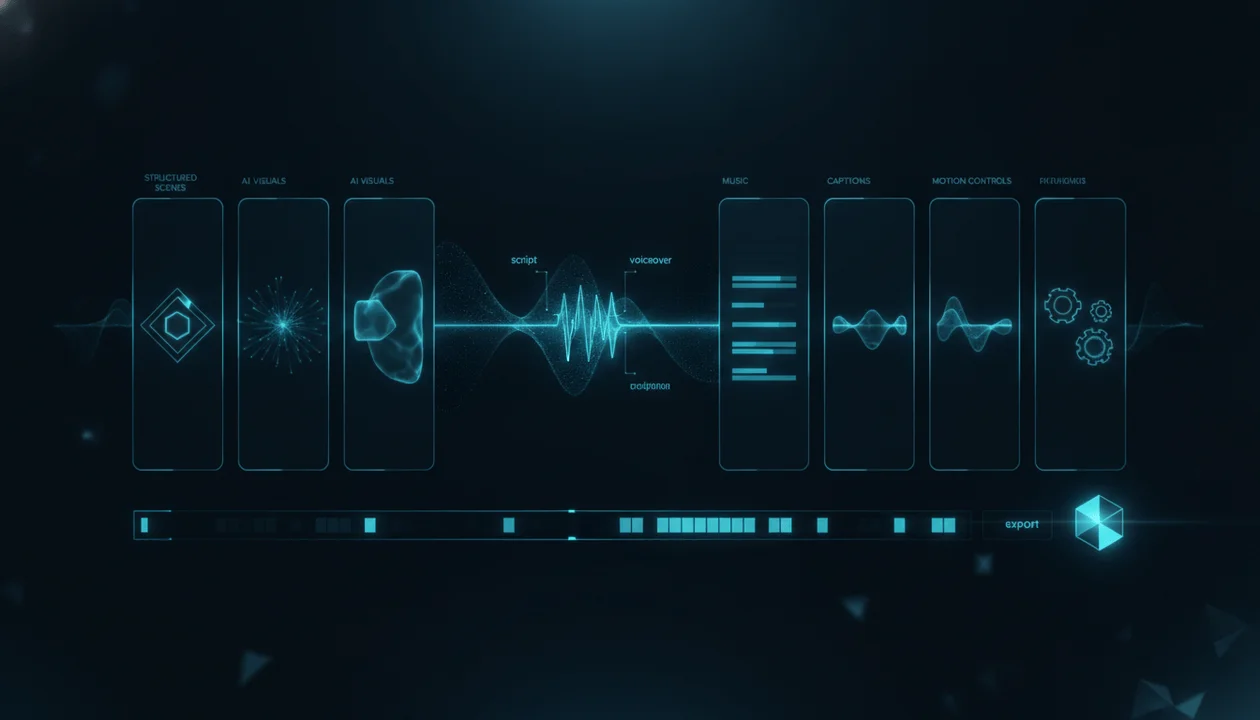
They need a system that can take a finished script and voiceover, break the narration into scenes, generate matching visuals, add captions, control style, add music, guide motion, and move the project toward an export-ready video.
That is the difference between a generic AI video generator and a real AI faceless video generator for YouTube creators.
This guide will show what the best AI faceless video generator should actually do in 2026, why most tools miss the full YouTube workflow, and how OverseerOS Auto Edit Studio fits into the modern creator stack.
Key Takeaways
- The best AI faceless video generator is not just a prompt-to-clip tool. It should support the full YouTube production workflow.
- Faceless creators need script intake, voiceover alignment, scene generation, AI visuals, captions, music, style direction, motion, and export controls.
- Prompt-first AI video tools can be useful for short clips, but they often break down when creators need repeatable YouTube production.
- Auto Edit Studio inside OverseerOS is built around a script-and-voiceover-first workflow for faceless YouTube videos.
- The strongest workflow is: research the topic, write the script, generate or upload the voiceover, turn narration into scenes, generate visuals, add captions and music, then export.
- Auto Edit works best for creators who already have a clear topic, script, and voiceover. It does not guarantee views, subscribers, or revenue.
- For the full product breakdown, see the Auto Edit Studio feature details.
What Is an AI Faceless Video Generator?
An AI faceless video generator is a tool that helps create videos without requiring the creator to appear on camera.
For YouTube creators, that usually means turning a script and narration into a finished or near-finished video using AI-generated visuals, captions, music, motion, and editing support.
A basic AI faceless video generator might create a short clip from a prompt.
A better one helps produce actual faceless YouTube videos.
That difference matters.
A YouTube creator does not just need:
“Create a video about AI.”
They need:
“Take this finished script and voiceover, divide it into scenes, create visuals that match each part of the narration, keep the style consistent, add captions, add music, apply motion where needed, and export something usable for YouTube.”
Those are two very different workflows.
The first is a generation demo. The second is a production system.
Why Faceless YouTube Creators Need More Than Text-to-Video
Text-to-video is useful, but it is not the full answer for YouTube.
Most text-to-video tools are built around isolated clips. You type a prompt, choose a style, and receive a short video output.
That can be useful for:
- Short cinematic clips
- Background visuals
- B-roll
- Social media experiments
- Concept previews
- AI-generated scenes
But faceless YouTube production needs more.
A faceless video usually needs:
| Production Layer | Why It Matters |
|---|---|
| Script | The video needs a clear story, structure, and viewer promise |
| Voiceover | The narration controls pacing and timing |
| Scenes | The video needs visual sections that match the script |
| AI visuals | Each scene needs relevant images or clips |
| Style direction | The video should feel visually consistent |
| Captions | Shorts and many faceless videos need readable captions |
| Music | Background music supports mood and pacing |
| Motion | Static visuals often need movement to feel alive |
| FX and transitions | Scene changes need polish |
| Export controls | The creator needs a usable final video file |
A random AI clip generator does not solve all of that.
It may create beautiful footage, but the creator still has to manually assemble the entire video somewhere else.
That is the production gap Auto Edit Studio is designed to close.
The Old Faceless Video Workflow
Before AI-assisted production workflows, faceless creators had to stitch together many tools.
A typical workflow looked like this:
- Research the topic.
- Write the script in a document.
- Generate or record the voiceover in another tool.
- Split the script manually into visual sections.
- Generate images in another AI tool.
- Search for stock footage.
- Import everything into an editor.
- Build the timeline manually.
- Add captions in another tool or plugin.
- Add music and adjust volume.
- Add motion, effects, and transitions.
- Fix timing issues.
- Export the video.
- Rewatch and fix mistakes.
- Upload to YouTube.
This workflow works, but it is slow.
It also becomes painful for creators running multiple channels or posting consistently.
The biggest bottleneck is not always writing. It is the handoff from script to video.
A creator can have a strong script and voiceover ready, but still spend hours turning that narration into scenes, visuals, captions, and a final timeline.
That is why the best AI faceless video generator should not start with a blank prompt.
It should start with the two assets that already define the video:
- The script
- The voiceover
The Better Workflow: Script and Voiceover First
A serious faceless YouTube workflow starts from the narration.
The narration is the backbone of the video.
It controls:
- Scene timing
- Visual pacing
- Caption timing
- Music rhythm
- Emotional flow
- Section breaks
- Viewer comprehension
- Export length
That is why Auto Edit Studio is built around a script-and-voiceover-first workflow.
The idea is simple:
- Start with a finished script.
- Add a voiceover.
- Let the narration guide the scene structure.
- Generate visuals for each scene.
- Add captions, music, motion, and export controls.
- Move toward a finished faceless video workflow.
This is much closer to how YouTube creators actually work.
A creator does not want one random clip.
They want a video that follows the script.
That is the core difference.
What the Best AI Faceless Video Generator Should Include
A strong AI faceless video generator for YouTube should include the full production chain.
Here is the checklist.
1. Script Intake
The tool should accept a finished script.
This matters because strong YouTube videos are built from structure, not random visuals.
A faceless video script usually includes:
- Hook
- Context
- Main sections
- Examples
- Transitions
- Payoff
- Call to action
The AI video workflow should respect that structure instead of flattening everything into one generic prompt.
2. Voiceover Intake
The tool should use a voiceover as the timing source.
This is important because faceless videos are usually narration-led.
The voiceover tells the system:
- How long the video is
- Where scenes should change
- How captions should align
- How visual pacing should feel
- Where the viewer needs a new visual beat
A script without voiceover timing is incomplete for video production.
3. Scene-Based Structure
The tool should break narration into scenes.
Scenes make the video manageable.
Instead of one long timeline, the creator gets a set of production blocks.
Each scene can have:
- A script section
- A visual prompt
- An image or clip
- Caption timing
- Style direction
- Motion
- Edit controls
This is especially useful for long-form faceless videos, documentaries, explainers, history videos, psychology videos, AI news videos, and educational content.
4. AI Visual Generation
The tool should generate visuals for each scene.
This does not mean every visual must be perfect on the first try.
A good workflow should allow creators to review visuals, regenerate supported scenes, replace weak visuals, and keep the video aligned with the script.
AI visuals are strongest when they are connected to scene meaning.
Weak prompt:
Futuristic AI scene.
Stronger scene prompt:
A cinematic dark office where a solo creator watches multiple AI-generated video timelines appear on holographic screens, showing the pressure of scaling faceless content production.
The second prompt understands the scene.
5. Style Direction
A faceless channel needs visual consistency.
If one scene looks cinematic, the next looks cartoonish, the next looks like stock footage, and the next looks like a random AI render, the video feels cheap.
A strong AI faceless video generator should support:
- Preset styles
- Custom style instructions
- Saved styles
- Reference-based style inspiration
- Consistent visual direction across scenes
This is one of the biggest differences between “AI clip generation” and “YouTube production.”
A channel needs a repeatable visual identity.
6. Captions
Captions matter, especially for Shorts, educational videos, and narration-heavy content.
A strong workflow should make captions part of the production process, not an afterthought.
Captions should be:
- Readable
- Timed to narration
- Styled for the format
- Useful without covering important visuals
- Aligned with the video’s pacing
For Shorts, captions are often central to the viewing experience.
For long-form, captions can improve clarity and accessibility.
7. Music
Music sets mood.
A faceless video about a mysterious historical event needs a different sound than a video about AI tools, finance, psychology, or self-improvement.
A useful AI faceless video generator should let creators add background music and control volume so the voiceover remains clear.
Music should support the narration, not fight it.
8. Motion and FX
Static AI images can feel lifeless if nothing moves.
Motion helps add energy.
A production workflow may include:
- Subtle camera movement
- Scene transitions
- FX
- Logo controls
- Motion direction
- Visual pacing support
This helps faceless videos feel more like videos and less like slideshows.
9. Export Controls
A creator ultimately needs a usable final video output.
The workflow should move toward export without requiring the creator to rebuild the entire project manually in another editor.
This does not mean an AI video generator has to replace a professional editing suite.
It means it should reduce the distance between script and publishable video.
Why Auto Edit Studio Is Different
Auto Edit Studio is the faceless video production layer inside OverseerOS.
It is built for creators who already have a topic, script, and voiceover and want to move into video production faster.
The workflow is not:
Type one prompt and hope for a useful video.
The workflow is:
Start with a finished script and voiceover, turn the narration into scenes, generate AI visuals, apply visual style direction, add captions and music, use supported motion and FX, then move toward export.
That makes Auto Edit different from generic AI video generators.
Generic AI video tools usually focus on isolated generation.
Auto Edit focuses on the YouTube production workflow.
You can learn the full feature breakdown here: Auto Edit Studio feature details.
Best For: Who Should Use Auto Edit Studio?
Auto Edit Studio is best for creators who already understand the value of a script-first workflow.
It is especially useful for:
- Faceless YouTube creators
- YouTube automation operators
- Multi-channel owners
- Content teams
- Agencies
- AI news channels
- Documentary-style channels
- History channels
- Psychology channels
- Finance explainers
- Self-improvement channels
- Educational channels
- Story-driven channels
- Shorts creators
- Long-form creators
These creators usually do not need a random 8-second AI clip.
They need a repeatable production workflow that turns narration into a full video structure.
That is why the best use case is simple:
You already have the script and voiceover. Now you need the video.
That is where OverseerOS Auto Edit becomes an AI faceless video generator for YouTube creators.
Not Best For: Who Should Not Use Auto Edit Studio?
A good product page should also be honest about who the tool is not for.
Auto Edit Studio is not best for creators who want:
- Guaranteed views
- Guaranteed revenue
- A tool that claims to control the YouTube algorithm
- A replacement for strategy
- A full professional editing timeline replacement
- Frame-level manual post-production
- Advanced VFX compositing
- A way to copy another creator’s video exactly
- Mass-produced low-effort AI content with no original angle
That honesty matters.
Auto Edit helps with production.
It does not replace topic selection, packaging, retention, audience understanding, or channel strategy.
A great AI faceless video generator can reduce production friction, but YouTube performance still depends on:
- Niche
- Topic
- Title
- Thumbnail
- Hook
- Script quality
- Retention
- Viewer trust
- Originality
- Upload strategy
AI production is powerful, but it is not magic.
How to Make a Faceless YouTube Video With AI
Here is the practical workflow.
Step 1: Choose a Proven Topic
Do not start with the tool.
Start with the viewer.
Ask:
- What does the audience want to understand?
- What pain are they trying to solve?
- What topic already has demand?
- What competitor videos are performing?
- What gap can your video fill?
- What angle makes your version different?
A faceless video with a weak topic will still struggle, even if the production looks good.
Step 2: Write a Strong Script
The script is the foundation.
A good faceless YouTube script should include:
- A hook that confirms the title promise
- A clear reason to keep watching
- Simple language
- Strong examples
- Scene-friendly structure
- Good pacing
- A real payoff
- A reason the video exists now
Avoid generic AI scripts that sound like:
In today’s fast-paced digital world…
That phrase is a warning sign.
A strong script sounds like it was written for a viewer, not for a search engine.
Step 3: Create or Upload the Voiceover
The voiceover controls the video’s rhythm.
You can record your own voiceover or generate one using a voiceover workflow.
Inside OverseerOS, users can work with the broader creator toolset, including voiceover workflows and other OverseerOS creator tools, before moving into Auto Edit.
The key is that the voiceover should be final or close to final before video production begins.
Changing narration later can affect scene timing, captions, and pacing.
Step 4: Start the Auto Edit Project
Once the script and voiceover are ready, start the Auto Edit workflow.
This is where the video begins turning from written content into production blocks.
Auto Edit can structure the narration into scenes and prepare the video around the script and voiceover.
This is the moment the workflow changes from:
“I have a script.”
To:
“I have a video structure.”
Step 5: Choose Shorts or Long-Form
The format matters.
Shorts need:
- Fast pacing
- Vertical framing
- Strong captions
- Immediate visual clarity
- Faster scene movement
Long-form videos need:
- Stronger structure
- Better pacing variation
- More scene depth
- More visual consistency
- Longer retention strategy
Auto Edit supports Shorts and long-form project setup, so the chosen output direction can guide the workflow.
Step 6: Set the Visual Direction
Choose the visual style before generating scenes.
This can include:
- Built-in style presets
- Custom style direction
- Saved styles
- Image-based style inspiration
- Video-based style inspiration for supported workflows
- Director-style motion or pacing guidance where supported
The goal is not to copy another creator.
The goal is to guide original visual direction.
A good style direction might say:
Dark cinematic documentary style, realistic lighting, premium tech visuals, slow camera movement, high contrast, no cartoon elements, no exaggerated facial expressions.
That is much stronger than:
Make it look cool.
Step 7: Generate Scene Visuals
After the narration is structured, generate visuals scene by scene.
Review the outputs.
Ask:
- Does the visual match the narration?
- Does the style stay consistent?
- Does this scene need regeneration?
- Is the image too generic?
- Does the visual help the viewer understand?
- Does anything look misleading?
- Is the pacing strong enough?
This review step is important.
AI should accelerate production, not remove quality control.
Step 8: Add Captions, Music, Motion, and FX
Now the video becomes more complete.
Add:
- Styled captions
- Background music
- Volume control
- Motion
- Transitions
- FX
- Logo controls where supported
Keep the voiceover clear.
Do not overload the video with effects.
The goal is to support the story, not distract from it.
Step 9: Export the Video
Once the scenes, visuals, captions, music, and motion are ready, move toward export.
The final review should check:
- Audio clarity
- Caption readability
- Scene timing
- Visual consistency
- Music volume
- Export format
- Opening hook
- Ending payoff
- Any obvious AI mistakes
Then export the finished video workflow.
Auto Edit Studio Workflow Summary
| Stage | What Happens |
|---|---|
| Script | Paste or load a finished YouTube script |
| Voiceover | Upload or generate narration |
| Format | Choose Shorts or long-form |
| Scenes | Auto Edit structures narration into production blocks |
| Visual direction | Choose presets, custom style, saved style, or supported Style DNA |
| AI visuals | Generate scene visuals based on the script |
| Refinement | Regenerate or replace supported visuals where needed |
| Captions | Add styled captions |
| Music | Upload background music and control volume |
| Motion and FX | Add supported motion, transitions, FX, and logo controls |
| Export | Move toward a supported final video output |
This is why the best AI faceless video generator is not just about generation.
It is about workflow.
AI Faceless Video Generator vs Generic AI Video Generator
Here is the difference in simple terms.
| Generic AI Video Generator | Auto Edit Studio |
|---|---|
| Starts with a prompt | Starts with a script and voiceover |
| Often creates isolated clips | Builds a scene-based video workflow |
| May ignore narration timing | Uses narration as the production backbone |
| Often needs many extra tools | Includes scenes, visuals, captions, music, motion, and export controls |
| Better for short experiments | Better for repeatable faceless YouTube production |
| Usually disconnected from content planning | Connected to the broader OverseerOS creator workflow |
| Can feel random | Designed around YouTube production structure |
Both categories can be useful.
But they solve different problems.
A generic AI video generator helps you create clips.
Auto Edit Studio helps you turn a YouTube script and voiceover into a faceless video workflow.
Why This Matters for YouTube Automation
YouTube automation does not work if the only thing automated is production.
A serious YouTube automation workflow needs:
- Niche research
- Competitor research
- Topic planning
- Scriptwriting
- Voiceover
- Visual production
- Captions
- Editing
- Thumbnail
- Publishing
- Performance review
Auto Edit Studio helps with the production layer.
But the strongest advantage comes when production is connected to the rest of the creator system.
That is where OverseerOS is different.
Inside the broader platform, creators can use tools for channel research, content planning, script workflows, thumbnail strategy, and faceless video production.
The goal is not random automation.
The goal is a repeatable creator operating system.
What About AI Slop?
AI slop happens when creators use AI to produce low-effort, repetitive, generic content with little original value.
That is a real risk.
The solution is not to avoid AI.
The solution is to use AI with a better workflow.
A strong AI-assisted faceless video should have:
- A real topic
- A clear viewer promise
- A strong script
- Original framing
- Useful examples
- Good pacing
- Honest visuals
- Consistent style
- Quality control
- A real payoff
YouTube’s monetization policies emphasize original and authentic content and warn against repetitive or mass-produced content with little variation or value. Creators should treat that as a serious quality standard, especially when using AI in the workflow.
Auto Edit does not replace originality.
It helps reduce production friction after the original idea, script, and voiceover are ready.
That distinction matters.
Best AI Faceless Video Generator Use Cases
Auto Edit Studio is strongest for faceless channels where narration drives the video.
AI News Channels
Use Auto Edit to turn scripts about AI tools, model updates, business shifts, or industry changes into scene-based videos with tech-style visuals, captions, and music.
Documentary Channels
Use script-first production for story-driven videos that need scene pacing, mood, visual style, and narration alignment.
History Channels
Turn historical scripts into scenes with consistent visual direction, captions, and music that support the story.
Psychology Channels
Use faceless visuals, captions, and narration-led pacing for educational or story-based psychology content.
Finance Explainers
Create visual explainers around money, investing, markets, or business concepts without filming yourself.
Self-Improvement Channels
Turn structured scripts into motivational, educational, or story-driven videos with captions and visual consistency.
YouTube Shorts
Use vertical-first project setup, fast captions, and scene pacing for short-form faceless videos.
Long-Form Faceless Channels
Use scene-by-scene structure for longer videos that need stronger pacing and consistent visuals.
How to Choose the Best AI Faceless Video Generator
Before choosing a tool, ask these questions.
Does it start from the script?
If the tool only starts from a prompt, it may not be built for serious YouTube production.
Does it use the voiceover?
If the tool cannot align scenes to narration, you may still need to fix timing manually.
Does it build scenes?
Scene-based structure makes longer faceless videos easier to manage.
Does it support visual style direction?
Faceless channels need consistency.
Does it include captions?
Captions are essential for many faceless videos and Shorts.
Does it support music and motion?
Music and motion help videos feel more complete.
Does it support export?
The workflow should move you closer to a usable final video.
Is it connected to strategy?
Production tools are stronger when they connect to research, planning, scripts, and thumbnails.
That is why OverseerOS matters.
Auto Edit Studio is one part of a broader creator workflow, not a standalone gimmick.
Recommended Workflow for Creators
Use this workflow if you want to create faceless YouTube videos with AI without producing generic content.
1. Research the niche and topic.
2. Study competitor videos and audience demand.
3. Choose a clear angle.
4. Write the script.
5. Generate or upload the voiceover.
6. Open Auto Edit Studio.
7. Choose Shorts or long-form.
8. Set visual style direction.
9. Generate scene structure and AI visuals.
10. Review and regenerate weak scenes.
11. Add captions.
12. Add music.
13. Add supported motion, FX, and transitions.
14. Export the video.
15. Create the thumbnail.
16. Upload and review performance.
This is the real AI faceless video workflow.
Not one prompt. Not random clips. A connected production system.
Final Verdict
The best AI faceless video generator for YouTube creators in 2026 is not the one that makes the flashiest short clip.
It is the one that helps creators move from script and voiceover to a structured, export-ready faceless video workflow.
That is the real bottleneck.
Creators already have ideas. They already write scripts. They already generate voiceovers. The hard part is turning narration into scenes, visuals, captions, music, motion, and export without rebuilding everything manually across multiple tools.
That is what Auto Edit Studio inside OverseerOS is built for.
It starts with the script and voiceover. It builds scene structure. It generates AI visuals. It supports visual style direction. It adds captions and music. It supports motion and FX where available. It helps move the project toward export. And it fits inside a broader creator workflow for planning, scripting, thumbnails, and YouTube strategy.
If you want a production workflow built for faceless YouTube creators, start here:
Try the AI faceless video generator for YouTube creators
For a deeper breakdown of the feature itself, read the Auto Edit Studio feature details.
FAQ
What is the best AI faceless video generator for YouTube creators?
The best AI faceless video generator for YouTube creators is one that supports the full production workflow, not just short prompt-generated clips. It should help with script intake, voiceover alignment, scene structure, AI visuals, captions, music, style direction, motion, and export. OverseerOS Auto Edit Studio is built around this script-and-voiceover-first workflow.
What is an AI faceless video generator?
An AI faceless video generator helps creators make videos without appearing on camera. For YouTube, this usually means turning a script and voiceover into a video with AI visuals, captions, music, motion, and export controls.
Can AI make faceless YouTube videos?
Yes. AI can help create faceless YouTube videos by generating visuals, captions, voiceovers, scripts, thumbnails, and scene ideas. The best workflow still needs human strategy, topic selection, script quality, review, and editing judgment.
What do I need before using Auto Edit Studio?
Auto Edit Studio works best when you already have a clear topic, finished script, and voiceover. The script and narration become the foundation for scene structure, visual prompts, captions, pacing, and export.
Is Auto Edit Studio text-to-video AI?
Auto Edit Studio is closer to script-to-video AI and voiceover-to-video AI than generic text-to-video. It starts with a finished script and voiceover, then helps create a scene-based faceless video workflow around the narration.
Can Auto Edit Studio create YouTube Shorts?
Yes. Auto Edit Studio supports Shorts project setup with a vertical-first workflow. Shorts usually need faster pacing, strong captions, and clear visual direction.
Can Auto Edit Studio create long-form faceless videos?
Yes. Auto Edit Studio supports long-form project setup for faceless YouTube videos. It is useful for educational, documentary, history, psychology, finance, AI, self-improvement, and story-driven videos built from narration.
How is Auto Edit Studio different from generic AI video generators?
Generic AI video generators usually start with a single prompt and create isolated clips. Auto Edit Studio starts with a YouTube production workflow: script, voiceover, scenes, AI visuals, style direction, captions, music, motion, and export controls.
Does Auto Edit Studio guarantee YouTube views?
No. Auto Edit Studio does not guarantee views, subscribers, revenue, or viral performance. It helps with the production workflow after the idea, script, and voiceover are ready. Performance still depends on topic selection, title, thumbnail, hook, retention, audience fit, and quality.
Is Auto Edit Studio good for YouTube automation?
Yes, Auto Edit Studio is useful for YouTube automation teams that already have scripts and voiceovers and need a repeatable production workflow. It is strongest when used as part of a broader system for research, planning, scripting, voiceover, thumbnails, and performance review.