AI video generators are everywhere now.
The problem is not that creators cannot generate visuals.
The problem is that most AI-generated YouTube videos feel like random scenes stitched together by a tool that never understood the script.
Scene one looks cinematic. Scene two looks like stock footage. Scene three has a different character. Scene four does not match the voiceover. Scene five looks like it came from another channel.
That is why serious creators are not just looking for an AI video generator.
They are looking for an AI YouTube scene generator.
The difference is simple:
A generic AI video generator creates clips.
A real AI YouTube scene generator turns a script into a scene-by-scene production plan, then helps create visuals that match the narration, style, pacing, format, and viewer expectation.
That is the workflow this guide will break down.
You will learn how to turn scripts into matching YouTube scenes, how to avoid the “random AI crap” look, what a good scene generator should actually do, and how OverseerOS Auto Edit helps creators move from script and voiceover to structured faceless videos with scenes, visuals, captions, music, supported motion, and export controls.
Key Takeaways
- An AI YouTube scene generator should break a script into visual beats, not just generate random clips from a prompt.
- Matching scenes matter because YouTube viewers judge video quality through continuity, pacing, visual relevance, and polish.
- The best workflow starts with a finished script and voiceover, then builds the scene timeline around the narration.
- Each scene should have a purpose: explain, create emotion, visualize stakes, show contrast, or keep attention moving.
- Consistency is the difference between a publishable faceless video and a messy AI demo.
- OverseerOS Auto Edit is built for faceless YouTube creators who want script-to-scenes workflows, AI visuals, captions, music, style direction, motion, and export controls in one production flow.
- YouTube creators should also understand when AI-generated or meaningfully altered realistic content may need disclosure under YouTube’s current GenAI content guidance.
What Is an AI YouTube Scene Generator?
An AI YouTube scene generator is a tool or workflow that turns a script into individual visual scenes for a YouTube video.
Instead of asking AI to “make a video about this topic,” it does something more useful:
- Reads the script.
- Understands the narration.
- Breaks the script into scene-worthy moments.
- Creates a visual direction for each scene.
- Keeps the style consistent.
- Aligns scenes with the voiceover.
- Helps move the project toward a finished video.
This matters because YouTube videos are not single clips.
They are sequences.
A good faceless video might include:
- 40 scenes for a short explainer
- 80 scenes for a mid-length video
- 150+ scenes for a longer documentary-style video
- Different visual beats for hooks, examples, proof, emotional turns, and transitions
If those scenes do not work together, the video feels cheap.
The viewer may not know why.
They just feel it.
Why Most AI YouTube Videos Look Random
Most AI-generated YouTube videos fail for one reason:
The creator lets the AI decide too much.
They type:
Make a YouTube video about how AI is changing content creation.
Then the tool generates generic visuals:
- Robot hands
- Glowing brains
- Random laptops
- Floating code
- People staring at screens
- Futuristic city shots
- Unrelated stock-style clips
None of it is wrong.
But none of it feels intentional.
That is the difference between “AI output” and “YouTube production.”
A strong YouTube scene generator should not only ask:
What is the video about?
It should ask:
What should the viewer see during this exact sentence?
That one question changes everything.
The Script Is the Spine of the Video
If you want matching AI scenes, do not start with visuals.
Start with the script.
The script controls:
- The hook
- The viewer promise
- The pacing
- The emotional arc
- The examples
- The scene count
- The tone
- The voiceover timing
- The ending
Without the script, the AI has no spine to build around.
This is why prompt-first AI video tools often feel disconnected.
They create visuals before the production logic exists.
A better workflow is:
- Write the script.
- Generate or upload the voiceover.
- Break the narration into scene beats.
- Create visual prompts for each beat.
- Apply style direction.
- Generate visuals.
- Add captions, music, motion, and export.
That is the workflow OverseerOS Auto Edit is built around. It starts from script and voiceover, then helps structure the narration into scene-by-scene production blocks instead of leaving you with a blank timeline.
What Makes a Good AI-Generated YouTube Scene?
A good scene is not just a pretty image.
A good scene does a job.
Every scene should support one of these goals:
| Scene Purpose | What It Does | Example |
|---|---|---|
| Hook scene | Creates curiosity instantly | A creator staring at a dead analytics dashboard at 2 AM |
| Problem scene | Makes the pain visible | A messy timeline full of disconnected AI clips |
| Explanation scene | Clarifies an idea | A script splitting into scene blocks on a production board |
| Proof scene | Makes the claim feel real | Multiple video drafts compared side by side |
| Emotion scene | Adds tension or desire | A faceless creator watching a finished export render |
| Transition scene | Moves the story forward | A timeline shifting from script to visuals to captions |
| Payoff scene | Delivers the transformation | A polished video preview replacing scattered files |
This is where most creators go wrong.
They generate scenes based on nouns.
Bad:
AI tools YouTube channel Money Creator Automation
Better:
A solo creator surrounded by open tabs, trying to turn one script into a finished faceless video before midnight.
Specificity makes scenes useful.
The 7-Part Scene Brief Every AI YouTube Scene Needs
If you want AI scenes that match, you need better scene briefs.
Use this structure.
| Scene Element | What to Define | Example |
|---|---|---|
| Narration beat | The sentence or idea this scene supports | “Most AI videos fail because the scenes do not match the script.” |
| Visual subject | What the viewer sees | A faceless creator reviewing mismatched AI visuals |
| Setting | Where it happens | Dark home office, multiple monitors, editing timeline |
| Mood | Emotional tone | Frustrated, focused, slightly cinematic |
| Style | Visual direction | Premium SaaS documentary, realistic, high contrast |
| Motion | How the scene moves | Slow push-in toward the timeline |
| Continuity | What must stay consistent | Same creator, same desk setup, same blue screen glow |
Weak prompt:
Show AI video editing.
Better prompt:
A faceless YouTube creator in a dark home office reviewing a video timeline full of mismatched AI-generated scenes, multiple monitors glowing blue, premium SaaS documentary style, realistic lighting, slow cinematic push-in, same desk setup as previous scenes.
That is a scene.
Not a keyword.
Why Scene Matching Matters for YouTube Retention
YouTube retention is not only about the script.
Visual consistency affects how long people stay.
When scenes feel random, the viewer has to work harder to understand the video.
That creates friction.
Friction causes drops.
A mismatched scene can hurt retention because it creates a silent question in the viewer’s mind:
“Why am I seeing this?”
That question breaks immersion.
Good scenes do the opposite.
They make the viewer feel like:
“This is exactly what I should be seeing right now.”
For faceless creators, this matters even more because the visuals carry the entire production value.
There is no host on camera to hold attention.
The scenes have to do the work.
The Core Problem: Single-Clip AI Thinking
A lot of AI video tools are still designed around short isolated clips.
That is useful for ads, memes, demos, and quick creative experiments.
But YouTube videos need multi-scene logic.
Researchers working on multi-scene AI video generation have pointed out the same problem: single-scene generation is easier, but multi-scene generation requires managing logic between scenes while preserving consistent visual appearance across the video. Source: VideoStudio paper
That is the real creator problem.
Not:
“Can AI make a clip?”
But:
“Can AI help me build a full video where every scene belongs?”
For YouTube, the second question matters more.
AI YouTube Scene Generator vs AI Video Generator
These are not the same thing.
| Feature | Generic AI Video Generator | AI YouTube Scene Generator |
|---|---|---|
| Starting point | Prompt | Script and voiceover |
| Main output | Short clip | Scene-based video workflow |
| Best for | Quick visuals | YouTube production |
| Scene logic | Often weak | Built around narration beats |
| Consistency | Usually inconsistent | Designed to preserve style direction |
| YouTube pacing | Not always considered | Built around retention and scene rhythm |
| Captions | Sometimes included | Should align with narration |
| Music | Sometimes included | Should support the video mood |
| Creator control | Prompt-based | Scene-by-scene refinement |
| Best user | General AI user | Faceless creator, editor, YouTube team |
The strongest AI YouTube workflows are not about replacing creative direction.
They are about making creative direction easier to execute.
How OverseerOS Auto Edit Turns Scripts Into Scenes
OverseerOS Auto Edit is built around the exact workflow faceless creators need.
It is not just a prompt box.
OverseerOS Auto Edit helps creators move from a finished script and voiceover into a structured YouTube production workflow.
Inside the workflow, OverseerOS Auto Edit can help with:
- Script and voiceover-based project setup
- Scene-by-scene structure
- AI visual prompt generation
- Style direction
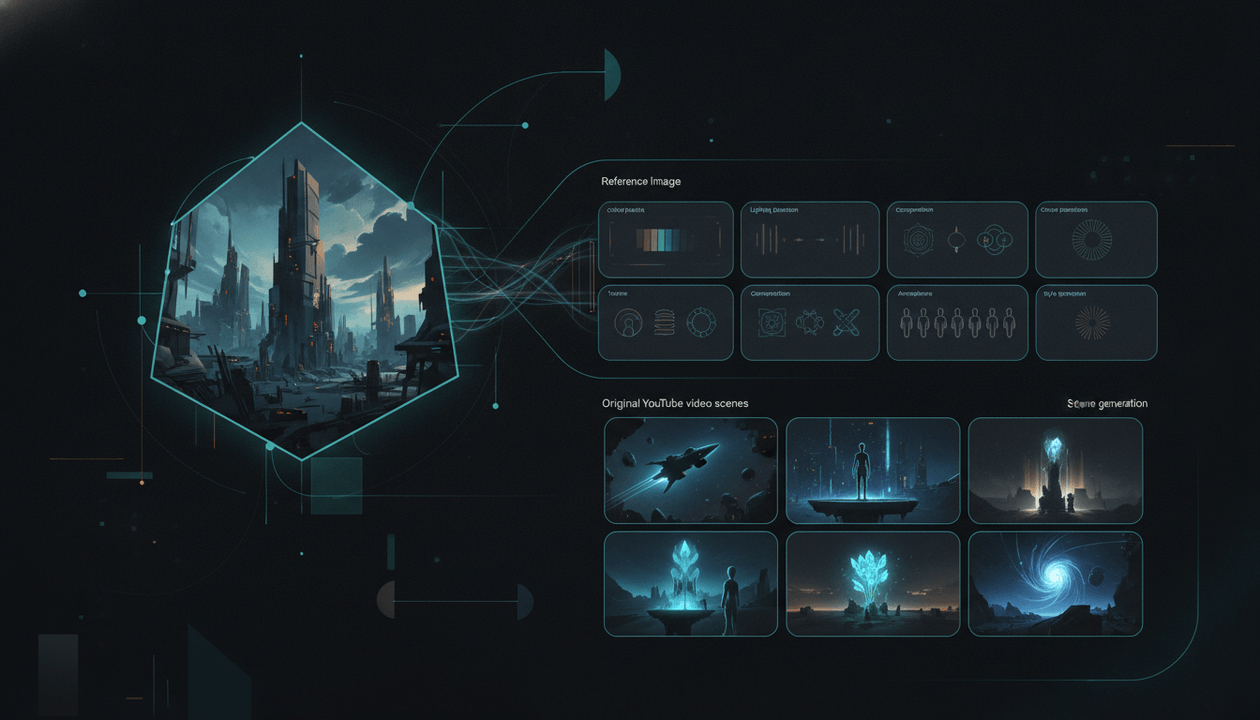
- OverseerOS Style DNA from supported video or image references
- OverseerOS Consistent Character reference workflows
- Captions
- Background music
- Supported motion, transitions, and FX
- Export controls
That matters because a faceless video is not one asset.
It is a chain.
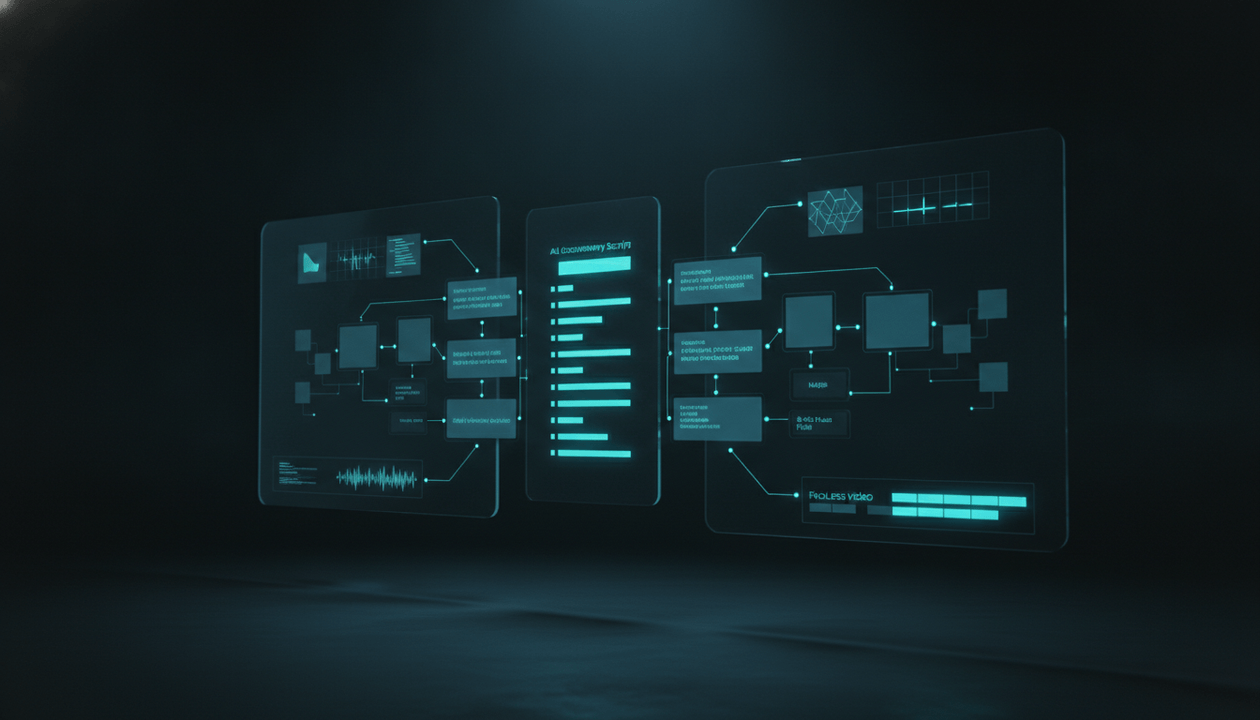
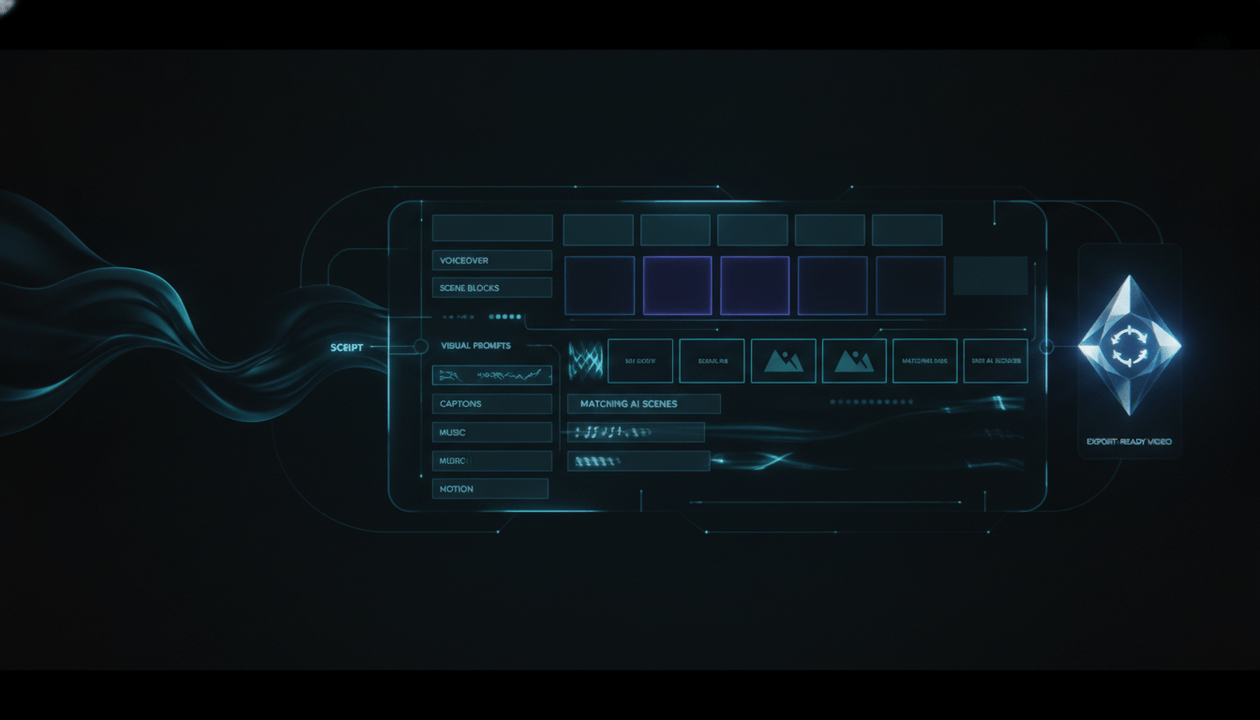
Script → Voiceover → Scenes → Visuals → Captions → Music → Motion → Export
When those steps are disconnected, creators waste hours moving between tools and fixing broken outputs.
OverseerOS Auto Edit makes the workflow more connected.
What “Matching Scenes” Actually Means
Matching scenes does not mean every scene looks identical.
It means every scene feels like part of the same video.
A scene matches when it aligns with:
- The current narration
- The overall style
- The video format
- The pacing
- The emotional tone
- The character or object continuity
- The channel identity
- The title and thumbnail promise
Example:
If the narration says:
“The biggest mistake is thinking AI video is about generation. It is really about direction.”
A random scene would be:
A robot walking through a city.
A matching scene would be:
A creator standing in front of a wall of disconnected AI clips, then organizing them into a clean production board labeled by scene purpose, premium documentary style.
The second scene visualizes the argument.
That is the goal.
The Scene Generator Workflow That Produces Better Videos
Use this workflow for any faceless YouTube video.
Step 1: Lock the Video Promise
Before generating scenes, define the promise.
Ask:
- What will the viewer understand by the end?
- What problem does this video solve?
- What curiosity does the title create?
- What emotion should the first 30 seconds trigger?
Example promise:
“This video shows why most AI-generated YouTube videos feel cheap and how to create matching scenes from a script instead.”
Now every scene has a standard.
If it does not serve the promise, cut it.
Step 2: Split the Script Into Visual Beats
Do not create one visual for each paragraph automatically.
Create one scene for each visual beat.
A visual beat is a moment where the viewer should see something new.
Example:
Script paragraph:
“Most creators think the problem is the AI model. But the real issue is direction. If your scene prompt is vague, the output will be vague. If every scene uses a different style, the video feels fake before the viewer understands why.”
This could become three scenes:
- Creator comparing different AI models.
- Scene prompt turning into a messy visual output.
- Timeline showing scenes with mismatched styles.
That is how you turn narration into production.
Step 3: Give Each Scene a Purpose
Every scene should have one clear purpose.
Use these labels:
- Hook
- Problem
- Setup
- Example
- Contrast
- Proof
- Emotional beat
- Explanation
- Transition
- Payoff
This helps prevent random visuals.
Bad:
Scene 12: AI tools.
Better:
Scene 12: Contrast. Show two timelines side by side, one with random AI clips and one with consistent scenes matching the voiceover.
The label gives the scene a job.
Step 4: Choose One Style Direction
Most bad AI videos fail because the style changes every few seconds.
Before generating visuals, define the style.
Examples:
- Dark cinematic documentary
- Clean SaaS explainer
- Futuristic AI news
- Luxury finance editorial
- Minimal educational animation
- Psychological thriller style
- History documentary realism
- Bright Shorts-style explainer
Then keep it consistent.
If your video starts as a dark cinematic documentary, do not suddenly switch into cartoon graphics unless the script gives you a reason.
Step 5: Define Continuity Rules
Continuity rules tell the scene generator what must stay consistent.
For example:
Main character:
Faceless male creator, black hoodie, sitting at a dark desk, blue monitor glow, no visible face.

Workspace:
Dark home office, dual monitors, keyboard, notebook, clean desk, cinematic lighting.

Visual style:
Premium SaaS documentary, realistic, high contrast, subtle blue accents.

Avoid:
Cartoon style, random robots, fake YouTube logos, readable copyrighted UI, exaggerated expressions.
This is how you stop the video from becoming visually chaotic.
Step 6: Generate Scenes Around the Voiceover
The voiceover is the timing source.
If a line takes 4 seconds to say, the scene needs to support that duration.
If a line is emotional, the visual should slow down.
If a line is fast and punchy, the scene can cut faster.
This is why voiceover-first workflows work better for YouTube than image-first workflows.
The voiceover tells the video how to move.
Step 7: Review the Scene Timeline Before Export
Never assume the first generation is final.
Review:
- Does each scene match the narration?
- Does the style stay consistent?
- Does the same character remain recognizable?
- Are any scenes too generic?
- Are any scenes visually confusing?
- Are captions readable?
- Does the music match the tone?
- Does the first 30 seconds feel strong?
AI can generate assets.
You still need taste.
Example: Turning a Script Into Matching Scenes
Let’s take this script section:
“The reason most AI videos fail is simple. They are generated scene by scene, but not directed scene by scene. The tool creates visuals, but nobody tells the video what each scene is supposed to do. So the final result looks expensive for five seconds, then random for the next five.”
Weak scene plan:
| Scene | Prompt |
|---|---|
| 1 | AI video generator |
| 2 | YouTube creator |
| 3 | Random visuals |
| 4 | Video editing |
Strong scene plan:
| Scene | Purpose | Better Visual Direction |
|---|---|---|
| 1 | Problem | A creator watching an AI-generated video where every scene looks like a different channel, dark editing room, frustrated mood |
| 2 | Cause | A script splitting into disconnected scene prompts floating above a messy timeline |
| 3 | Contrast | Two video timelines side by side: one chaotic with mismatched scenes, one clean with consistent style |
| 4 | Payoff | A scene board transforming into a polished faceless YouTube video preview with matching visuals and captions |
The strong version gives the AI context.
It tells the visual what to mean.
That is the difference.
The “No Random AI Crap” Checklist
Before you export an AI-generated YouTube video, run this checklist.
- The first scene clearly supports the hook.
- Every scene matches the voiceover line it appears under.
- The same visual style continues across the video.
- Characters do not randomly change face, clothing, age, or body shape.
- Important objects stay consistent.
- The video does not rely on generic “AI robot” visuals unless they serve the point.
- The caption style matches the video tone.
- The music supports the emotion instead of fighting the voiceover.
- The pacing changes when the script changes energy.
- The final video feels like one production, not a folder of AI assets.
If the video fails more than two of these, do not publish it yet.
Fix the scenes first.
Best Types of Videos for an AI YouTube Scene Generator
An AI YouTube scene generator is especially useful for faceless channels where the production is built around narration.
AI and Tech Explainers
Best scene types:
- Futuristic workspaces
- Product dashboards
- AI labs
- Creator workflows
- Data visuals
- Abstract transformation scenes
Example topic:
“The AI Workflow That Replaces a 5-Person Content Team”
Psychology Videos
Best scene types:
- Symbolic human behavior scenes
- Dark room visuals
- Emotional close-ups without showing faces
- Relationship tension scenes
- Social contrast scenes
Example topic:
“Why People Lose Respect for You Without Saying It”
Finance Videos
Best scene types:
- Clean charts
- Luxury office scenes
- Investor psychology visuals
- Risk vs reward contrasts
- Dashboard and portfolio scenes
Example topic:
“Why Most People Stay Poor Even When They Earn More”
History Videos
Best scene types:
- Cinematic reconstructions
- Maps
- Objects and documents
- Palace, battlefield, or city scenes
- Timeline movement
Example topic:
“The Forgotten Decision That Destroyed an Empire”
Self-Improvement Videos
Best scene types:
- Morning routine visuals
- Identity transformation scenes
- Internal conflict scenes
- Habit loops
- Before-and-after contrast
Example topic:
“The Quiet Habit That Changes How People See You”
YouTube Automation Videos
Best scene types:
- Script documents
- Voiceover waveforms
- Editing timelines
- Analytics dashboards
- Production boards
- Team workflow visuals
Example topic:
“How One Creator Runs Multiple Faceless Channels With a Small Team”
Why Scene Prompts Need to Be More Specific Than Image Prompts
A normal image prompt can describe a single picture.
A YouTube scene prompt needs to describe a moment inside a sequence.
That means it should include:
- What happened before
- What the viewer hears
- What should stay consistent
- What the emotion is
- What the scene is meant to communicate
- How it fits the video style
Weak image prompt:
A man editing a video.
Better YouTube scene prompt:
The same faceless creator from earlier, black hoodie, seated at the same dark desk with two monitors, reviewing a messy AI-generated video timeline full of mismatched scenes, blue monitor glow, premium documentary style, frustrated mood, slow push-in, no readable text.
The second prompt is not just prettier.
It is more useful.
It protects continuity.
How to Use OverseerOS Auto Edit for This Workflow
The cleanest way to apply this is inside OverseerOS Auto Edit.
A strong OverseerOS Auto Edit workflow looks like this:
- Start with a finished script.
- Upload or generate the voiceover.
- Choose the project format, such as Shorts or long-form.
- Select a style direction, saved style, supported video style reference, or image style reference.
- Let OverseerOS Auto Edit structure the narration into scenes.
- Review the AI visual prompts and generated scenes.
- Use OverseerOS Consistent Character direction when a recurring character matters.
- Adjust captions, music, motion, transitions, and FX where supported.
- Export the final supported video output.
This is why OverseerOS Auto Edit is different from a generic clip generator.
It is built around the actual YouTube production chain.
Not just:
“Generate me a video.”
But:
“Take this script and voiceover, break it into scenes, guide the style, generate visuals, add captions and music, support motion, and help me move toward export.”
That is the workflow faceless creators need.
The Scene Quality Framework
Use this framework to judge every scene.
Relevance
Does the scene match the exact line of narration?
Bad:
Narration talks about retention, but the scene shows a random robot.
Good:
Narration talks about retention, and the scene shows a viewer drop-off graph beside a confusing video timeline.
Continuity
Does the scene belong in the same world as the previous scene?
Bad:
Scene one is realistic. Scene two is anime. Scene three is 3D cartoon.
Good:
All scenes use the same premium documentary look with consistent lighting and framing.
Specificity
Does the scene show a concrete visual idea?
Bad:
Show success.
Good:
A creator watching a finished video export complete while the analytics dashboard from the previous scene sits in the background.
Motion
Does the scene have movement that supports the pacing?
Bad:
Static image for every line.
Good:
Slow push-ins during serious moments, quick cuts during examples, subtle movement during explanations.
Originality
Does the scene avoid lazy clichés?
Bad:
Glowing robot handshake.
Good:
A small creator team replacing a messy seven-tool workflow with one organized production board.
Scene Generator Template for YouTube Creators
Use this template before generating your next AI scene.
Video title:
[Working title]

Narration line:
[Paste the exact voiceover line]

Scene purpose:
[Hook / problem / example / proof / transition / payoff]

What the viewer should understand:
[The message this scene must communicate]

Main visual:
[What should appear on screen]

Setting:
[Where the scene happens]

Character continuity:
[Same character? Clothing? Face hidden? Fictional person? No real person?]

Style direction:
[Documentary / SaaS / cinematic / educational / noir / anime / etc.]

Mood:
[Curious / tense / premium / urgent / calm / dramatic]

Motion:
[Slow zoom / pan / parallax / static / quick cut / animated movement]

Caption style:
[Minimal / full captions / bold keywords / lower third / no captions]

Must include:
[Objects, colors, environment, recurring elements]

Must avoid:
[Random robots, copyrighted logos, readable fake UI, real person likeness, mismatched style]
This turns scene generation into direction.
And direction is what separates serious AI videos from AI slop.
Common Mistakes Creators Make With AI YouTube Scenes
Mistake 1: Generating Scenes Before the Script Is Finished
If the script changes later, the visuals break.
Finish the script first.
Then generate scenes.
Mistake 2: Making Every Scene Literal
If the narration says:
“Fear controls most decisions.”
You do not need to show the word “fear.”
You can show:
A person hesitating before sending an important message, phone glowing in a dark room, anxious mood.
Symbolic scenes often feel more premium than literal scenes.
Mistake 3: Using the Same Prompt Style for Every Niche
A finance video should not look like a gaming Short.
A psychology video should not look like a SaaS demo.
A history video should not look like an AI news channel.
Match the style to the audience.
Mistake 4: Ignoring Character Consistency
If your video uses a recurring person, make consistency part of the brief.
Do not let the AI reinvent the character every scene.
Use consistent details:
- Age range
- Clothing
- Hair
- Setting
- Mood
- Camera distance
- Face visibility
- Color palette
OverseerOS Auto Edit includes OverseerOS Consistent Character reference workflows designed to help guide identity, clothing, colors, and visual details across supported scenes.
Mistake 5: Treating Captions as an Afterthought
Captions are part of the video style.
For Shorts, captions often carry the pacing.
For long-form, captions can support clarity without overwhelming the screen.
Bad captions can make a good scene feel cheap.
Mistake 6: Publishing the First Output
AI gives you a draft.
Not always a final.
Review scenes like a producer:
- Cut weak visuals.
- Regenerate confusing scenes.
- Simplify crowded prompts.
- Fix mismatched style.
- Replace generic visuals.
- Make the first 30 seconds stronger.
Ethical and Platform Notes for AI YouTube Scenes
AI scene generation is powerful, but creators need to use it responsibly.
YouTube requires creators to disclose content when AI is used to meaningfully alter or generate photorealistic content that could make viewers think something real happened when it did not. YouTube’s own examples include realistic scenes that did not actually occur, altered footage of real events or places, and real people appearing to say or do things they did not do. Source: YouTube Help
YouTube also says creators generally need permission to use someone else’s content, and YouTube cannot grant rights to reuse another creator’s uploaded content. Source: YouTube Help
For AI scene generation, use this safe standard:
- Create original visuals.
- Do not copy another creator’s exact scenes.
- Do not clone a real person’s likeness without permission.
- Do not imitate a real creator’s voice without permission.
- Do not reuse copyrighted footage unless you have rights.
- Do not create realistic fake events in a misleading way.
- Disclose AI use when YouTube’s policy requires it.
Responsible AI content is not weaker.
It is more durable.
It protects the channel.
What to Look for in the Best AI YouTube Scene Generator
A strong AI YouTube scene generator should help with more than visuals.
Look for:
| Capability | Why It Matters |
|---|---|
| Script-to-scenes workflow | Keeps visuals tied to narration |
| Voiceover alignment | Helps scenes match timing |
| Style direction | Prevents random aesthetics |
| Reference-based workflows | Helps guide the look from proven examples |
| Character consistency support | Prevents identity drift |
| Scene-by-scene review | Gives creators control before export |
| Caption controls | Improves clarity and retention |
| Music controls | Supports emotional tone |
| Motion and FX | Makes static scenes feel alive |
| Export workflow | Moves the project toward publishable output |
This is why the category should not be judged by “can it generate a clip?”
The better question is:
Can it help me produce an actual YouTube video?
The Faster Way to Create Matching AI Scenes
If you are building faceless YouTube videos manually, the normal workflow is messy.
You write a script in one tool.
Generate voiceover in another.
Generate images somewhere else.
Animate scenes elsewhere.
Edit in another app.
Caption in another tool.
Export in another tool.
Then fix everything manually.
OverseerOS Auto Edit reduces that friction by bringing the faceless production workflow closer together.
It is built for creators who want to go from script and voiceover to structured scenes, visual prompts, AI visuals, captions, music, motion, FX, and export controls without rebuilding the entire workflow from scratch every time.
That does not remove the need for taste.
It gives your taste a production system.
You can also combine this with OverseerOS AI faceless video generator workflows when your goal is to produce Shorts or long-form faceless videos from scripts and voiceovers faster.
Final Verdict
An AI YouTube scene generator is not just a tool that creates visuals.
It is a production system for turning narration into scenes.
That is the difference between a random AI video and a video that feels intentional.
If your scenes do not match the script, the viewer feels the gap.
If your style changes every few seconds, the video feels cheap.
If your character changes randomly, the viewer loses trust.
If your visuals do not support the voiceover, the video becomes decoration instead of storytelling.
The best creators will not win by generating the most AI clips.
They will win by directing better videos.
That means starting with a strong script, building scenes around the voiceover, keeping style consistent, using references responsibly, reviewing the timeline, and exporting only when the video feels like one complete production.
That is exactly the kind of workflow OverseerOS Auto Edit is designed to support.
If you want to turn scripts and voiceovers into matching faceless YouTube scenes without the random AI mess, OverseerOS Auto Edit is the next step.
FAQ
What is an AI YouTube scene generator?
An AI YouTube scene generator turns a script or narration into individual visual scenes for a YouTube video. Instead of creating one random clip, it helps structure the video scene by scene so the visuals match the voiceover, pacing, style, and format.
How is an AI YouTube scene generator different from an AI video generator?
A generic AI video generator usually starts from a prompt and creates a clip. An AI YouTube scene generator starts from the script and voiceover, then breaks the narration into scene blocks so the video feels more structured and publishable.
Can AI turn a YouTube script into scenes?
Yes. AI can help split a script into visual beats, create scene prompts, define style direction, and generate visuals for each section. The quality depends on how well the workflow understands narration, pacing, continuity, and YouTube production needs.
Why do AI-generated YouTube videos look random?
Most AI videos look random because the prompts are too vague, the scenes are generated separately, and there is no consistent style direction. The fix is to use a script-first workflow with scene purpose, continuity rules, style direction, and voiceover alignment.
Can OverseerOS Auto Edit turn a script into YouTube scenes?
Yes. OverseerOS Auto Edit is designed to turn a finished script and voiceover into a structured faceless YouTube production workflow with scene blocks, AI visual prompts, style direction, captions, music, supported motion, FX, and export controls.
Do I need a voiceover before generating scenes?
For the best results, yes. A voiceover helps define scene timing and pacing. OverseerOS Auto Edit works best when you already have a finished script and voiceover, or a ready planner topic with script and usable voiceover.
What makes a good AI-generated scene?
A good AI-generated scene matches the narration, fits the style, supports the viewer’s understanding, keeps continuity, and has a clear purpose. It should not just look pretty. It should help the video communicate.
Can AI scene generators create YouTube Shorts?
Yes. AI scene generators can be useful for Shorts because Shorts rely on fast pacing, strong captions, quick visual changes, and clear hooks. The key is to generate scenes around the voiceover, not around random prompt ideas.
Can AI scene generators create long-form faceless videos?
Yes. Long-form faceless videos can benefit even more from scene generation because they require many scenes and stronger continuity. The longer the video, the more important scene planning becomes.
Do AI-generated YouTube scenes need disclosure?
Sometimes. YouTube requires disclosure when AI is used to meaningfully alter or generate realistic content that could mislead viewers into thinking something real happened when it did not. Creators should review YouTube’s current GenAI disclosure guidance before publishing realistic AI-generated content.