The fastest way to ruin a good AI image is to animate it for no reason.
A still image does not automatically become better because:
- the camera zooms
- the character moves
- smoke appears
- hair blows
- the background shifts
- everything suddenly becomes "cinematic"
Sometimes the best move is a slow push-in.
Sometimes a subtle pan is enough.
Sometimes the image should remain completely still.
And sometimes the scene genuinely needs full image-to-video animation because:
movement is part of the information.
That distinction matters enormously for faceless YouTube videos.
If you animate every image, you can create:
- warped faces
- drifting architecture
- random hand movement
- changing clothes
- broken text
- unnecessary camera motion
- expensive regenerations
- a video that feels unmistakably AI-generated
The better approach is:
Use the least complicated motion that makes the scene better.
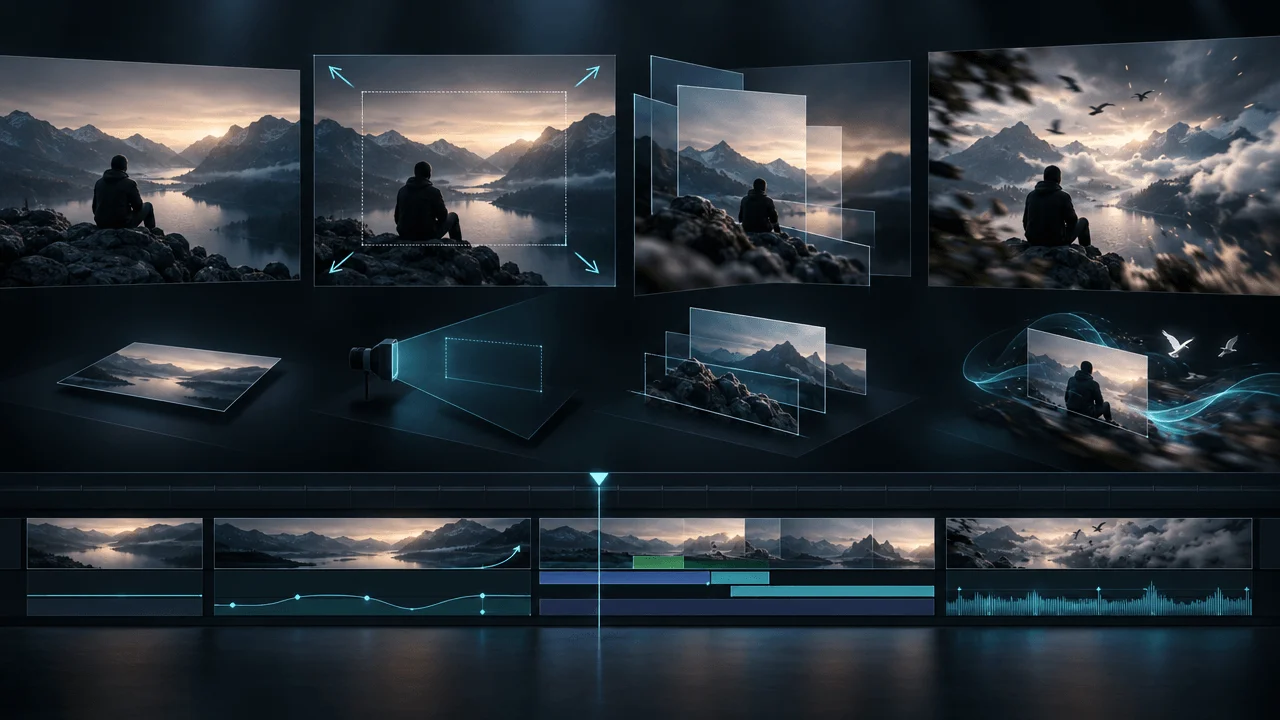
For most still-image scenes, choose between four levels:
| Scene Need | Best Starting Method |
|---|---|
| Viewer needs to inspect the image | Keep it still |
| Scene needs subtle visual progress | Pan, zoom, crop or Ken Burns motion |
| Image has clear foreground/background depth | Parallax or layered motion |
| Subject or environment genuinely needs to move | AI image-to-video |
That simple hierarchy can save enormous:
- production time
- AI credits
- regeneration work
while making the final video feel more intentionally directed.
Quick Answer: How Should You Animate Still Images for YouTube?
Start by asking:
What needs to move?
If the answer is:
nothing important
use a still image or subtle camera movement.
If the viewer should:
- inspect a document
- read a chart
- study a historical photograph
- understand a map
- examine evidence
do not animate the subject just to create activity.
If the scene needs:
- walking
- machinery operating
- waves moving
- smoke drifting
- a character reacting
- a vehicle traveling
- environmental movement
then image-to-video animation may add real value.
A good default hierarchy is:
Still image
↓
Pan / zoom / crop
↓
Parallax or layered motion
↓
Full AI image-to-video
Move down the hierarchy only when the story benefits.
Why Static Images Can Make Faceless Videos Feel Cheap
The problem is not:
still images.
The problem is:
still images with no visual progression.
Imagine ten minutes of:
AI image
↓
hard cut
↓
AI image
↓
hard cut
↓
AI image
↓
hard cut
Even beautiful images can begin to feel like:
a narrated slideshow.
But the opposite extreme is not better.
AI image
↓
everything moves
↓
camera orbits
↓
character turns
↓
lights flicker
↓
background morphs
Now the video feels:
synthetic.
Professional visual pacing usually lives between those extremes.
Motion Is Not the Same as Visual Progress
This is one of the most important distinctions.
A scene can progress without physically animating the subject.
Suppose the narration says:
The investigation eventually focused on one building.
You could begin with:
a wide photograph of the street.
Then:
- slow push toward the building
- crop tighter
- highlight one window
- reveal a label or date
The original image never needed:
AI animation.
Yet the scene visually progressed for several seconds.
That is often safer, faster and more controlled.
What Our Long-Form Production Data Says About Scene Density
In a fresh anonymized sample of completed OverseerOS Auto Edit production through October 21, 2026, we looked at:
- 35 long-form projects with a completed render
- 4,792 timed scenes
- videos longer than 3 minutes and up to 20 minutes
- median runtime of 9.3 minutes
- median of 132 scenes per project
Across those scenes:
| Metric | Scene Duration |
|---|---|
| 25th percentile | 2.30 sec |
| Median | 3.66 sec |
| 75th percentile | 5.30 sec |
| Scenes under 6 sec | 81.0% |
When each project was weighted equally:
the median project-level scene duration was approximately:
3.70 seconds.
This is not evidence that an AI animation should last 3.7 seconds.
It is not a retention study.
And it does not mean every scene should become generated video.
It tells us something more useful:
Narration-led long-form videos can contain a lot of visual progression.
If a roughly nine-minute project contains more than 100 visual scenes, turning every one into expensive full AI video can create a massive production burden.
That makes selective animation strategically important.
You Do Not Need to Animate Every Scene
Suppose a 10-minute faceless video contains:
130 scenes.
If you animate every scene individually, you now need to:
- generate 130 clips
- review 130 clips
- detect 130 opportunities for artifacts
- potentially regenerate dozens
- download or process every result
- check timing
- check continuity
- check character consistency
The question should not be:
Can I animate all 130?
It should be:
Which 20 or 30 scenes actually become meaningfully better with real motion?
That is a much stronger production question.
The Four Levels of Still-Image Motion
Think of animation as a ladder.
Level 0: Static Hold
The image does not move.
This is not automatically bad.
Use static images when:
- the viewer needs to read
- the image is evidence
- the photograph is historically important
- the composition is already strong
- stillness creates emotional weight
- movement would distract
Example:
Narration:
This is the final photograph taken before the expedition disappeared.
The photograph may deserve:
stillness.
Random camera motion can actually reduce its impact.
Level 1: Camera Motion
The image itself remains unchanged.
You animate:
- position
- scale
- crop
- rotation
Examples:
- push-in
- pull-out
- pan
- tilt
- slow zoom
- reframing
This is often called:
Ken Burns-style motion
when used on still photographs.
It is cheap, deterministic and extremely useful.
Level 2: Layered / Parallax Motion
Different parts of the still move independently.
Example:
- foreground moves slightly faster
- background moves slower
- camera pushes inward
This creates an illusion of:
depth.
Useful for:
- landscapes
- historical scenes
- illustrated environments
- cinematic establishing shots
It can make a still image feel more alive without asking a generative model to redraw the entire scene every frame.
Level 3: Generative Image-to-Video
The model creates new temporal information.
The subject or environment actually changes.
Examples:
- person walks
- fire moves
- water flows
- machine operates
- fabric moves
- clouds drift
- camera physically moves through space
This is the most powerful method.
It is also the least predictable.
Start at Level 0 and Earn Your Way Down
Do not begin by asking:
Which AI video model should animate this?
First ask:
Does this frame need animation at all?
Then:
Would normal editor motion solve the problem?
Then:
Would parallax solve it?
Only then:
Does this require true generated motion?
This approach produces fewer bad generations and more intentional editing.
When a Still Image Should Stay Still
Static imagery is especially useful for:
Documents
Contracts, reports, letters and articles need:
reading time.
Do not make the page float around while viewers are trying to read it.
Charts
The viewer may need to compare:
- lines
- bars
- values
- periods
Animate:
the highlight
rather than:
the entire chart.
Maps
Maps can use movement selectively.
But the map itself should remain legible.
Move:
- route line
- marker
- crop
rather than warping the geography.
Historical Photographs
A photograph can have documentary authority precisely because:
it is real.
You do not always improve it by making the people artificially move.
Screenshots
Do not turn a real software interface into unstable AI video.
Use:
- crop
- highlight
- zoom
- cursor movement
instead.
Emotional Images
Stillness can increase emotional weight.
A quiet portrait held for six seconds can feel stronger than:
slow cinematic orbital camera move with artificial blinking and wind.
Movement is not automatically emotion.
When Pan and Zoom Are Better Than AI Video
Pan and zoom are excellent when:
- the subject is static
- you only need visual progression
- composition contains several details
- identity must remain exact
- text needs to stay readable
- the image already looks good
- animation cost is not justified
Example:
You have a historical photograph containing:
- crowd
- politician
- damaged building
You can:
- start wide
- push toward the politician
- shift toward the damaged building
You just created:
visual storytelling
without synthesizing a single new frame.
Pan vs Zoom vs Dolly
These terms are often confused.
Pan
The viewpoint rotates horizontally.
Imagine turning your head:
left or right.
Tilt
The viewpoint rotates vertically.
Like looking:
up or down.
Zoom
The lens changes focal length.
The image appears:
closer or farther
without the camera physically moving.
Dolly
The camera itself moves through space.
This creates perspective changes.
In AI video prompting, the distinction matters.
A:
dolly in
may change visible spatial relationships.
A:
zoom in
usually magnifies the existing framing.
Use Motion Direction to Reveal Information
Camera movement should have a destination.
Weak:
Slowly zoom in.
Better:
Slowly push toward the handwritten date in the lower-right corner.
Now motion has:
purpose.
You can apply this to editor-based motion too.
Do not move the frame randomly.
Move toward:
the thing the narration is discussing.
The Information-Target Rule
Every camera move should ideally answer:
Where should the viewer look next?
Narration:
But the most important detail is hidden behind him.
Start:
wide.
Then:
push or reframe toward the detail.
That is editing.
Not decoration.
When to Use Parallax
Parallax works well when the still has obvious depth.
Example:
- person in foreground
- vehicle in midground
- city in background
Separate those layers.
Then introduce a subtle virtual camera move.
The layers shift at different rates.
Now the image has:
spatial depth.
This can work beautifully for:
- history
- documentary
- fantasy
- psychology
- cinematic explainers
When Parallax Looks Cheap
Parallax fails when:
- subject edges are badly separated
- hair masks are poor
- background must be invented
- depth movement is too aggressive
- objects feel like cardboard cutouts
Keep movement subtle.
You are creating:
depth perception.
Not trying to fake a drone shot.
When Image-to-Video Is Worth the Cost
Use generative animation when the movement itself helps tell the story.
Physical Action
Narration:
The machine begins rotating.
Show:
the machine rotating.
Environmental Motion
Narration:
The storm moved inland.
Show:
- clouds
- rain
- trees
- water
moving naturally.
Character Action
Narration:
He slowly opened the letter.
The action itself matters.
Transformation
Narration:
The tiny settlement expanded into a city.
A carefully designed transformation may communicate the change better than a static frame.
Reveal
Camera:
pulls back.
New context appears.
Atmosphere
Fire, smoke, fog, water, fabric and light can add believable movement when restrained.
When Image-to-Video Is a Waste of Money
Do not spend animation credits if your goal is simply:
Make it feel less static.
That can often be solved by:
- push-in
- pan
- reframing
- crop
- text reveal
- highlight
- layered motion
Full AI video is overkill for many scenes.
The Cheapest Motion That Solves the Scene Usually Wins
Imagine:
Option A
AI animation.
Cost:
credits + generation time + review + possible regeneration.
Option B
3% slow push-in.
Cost:
almost nothing.
If both produce the same viewer experience:
use:
Option B.
Use expensive generative motion where it creates something simple editor motion cannot.
Image-to-Video Prompts Are Different From Image Prompts
This is where many creators go wrong.
Your starting image already defines:
- subject
- composition
- colors
- lighting
- style
- environment
So the motion prompt usually should not repeat all of that.
Current official guidance from both Runway and Google's video-generation documentation emphasizes the same principle: when an input image already establishes the frame, image-to-video prompting should focus primarily on the motion you want to happen.
That means:
Weak:
Cinematic realistic medieval warrior wearing dark armor in a snowy forest with dramatic lighting, detailed face, cinematic composition...
The image already shows that.
Better:
The warrior slowly turns toward the distant sound. Snow drifts gently through the frame. Locked camera. Minimal natural movement.
Now the model understands:
what should change.
The Image-to-Video Prompt Formula
A useful model-neutral formula is:
Camera
+
Subject motion
+
Environmental motion
+
Speed
+
Continuity
Example:
Slow dolly in toward the subject as she raises her eyes toward the window. Curtains move gently in the breeze. Subtle natural motion. Continuous shot.
You do not always need every component.
Simple prompts often work better.
Runway's current Gen-4 guidance explicitly recommends beginning with the essential motion and adding details incrementally rather than starting with an overloaded prompt.
Start With One Main Motion
Bad:
Camera orbits the character while pushing in and tilting upward as the character turns, walks forward, raises their hand, rain falls, cars move, lights flash and birds fly overhead.
That is too much responsibility for one short generated clip.
Better:
Slow push-in as the character looks toward the doorway. Rain falls gently in the background.
One main subject action.
One main camera move.
One environmental motion.
Much easier to control.
Camera Motion and Subject Motion Are Different
Camera Motion
The viewer's perspective changes.
Examples:
- dolly
- pan
- tilt
- orbit
- crane
- tracking
Subject Motion
Something inside the scene moves.
Examples:
- person turns
- car drives
- hand reaches
- dog runs
Environmental Motion
The world moves.
Examples:
- wind
- smoke
- fire
- rain
- waves
- crowd
Separating those concepts makes prompts much clearer.
The Best Prompt Often Starts With the Camera
Example:
Locked camera. The candle flame flickers gently while thin smoke drifts upward.
Or:
Slow dolly forward. The woman remains seated as she slowly looks up from the letter.
Or:
Lateral tracking shot. The cyclist moves steadily along the road while trees pass in the background.
The exact word order is less important than making the motion unambiguous.
Use a Locked Camera More Often
AI video creators often overuse:
- orbit
- drone
- crash zoom
- sweeping cinematic movement
A locked camera can look much more professional.
Why?
Because the scene's motion comes from:
the subject.
Example:
Locked camera. Steam rises from the coffee while the person slowly reaches for the cup.
This looks like:
a shot.
Not:
an AI demo reel.
Slow Push-In: The Safest Cinematic Move
If you are unsure:
use a subtle push.
Why it works:
- creates progress
- increases focus
- usually preserves composition
- works with emotional moments
- does not require extreme scene reconstruction
Example:
Slow controlled push toward the man's face as he remains almost completely still. Subtle breathing. Natural movement.
Pull-Out: Use for Context
A pull-out works when the point is:
reveal the bigger world.
Narration:
But the laboratory was only one room inside a much larger underground facility.
Start close.
Pull back.
Reveal:
scale.
Now camera movement reflects:
story meaning.
Pan: Use for Exploration
Pan when the viewer should scan:
- landscape
- city
- room
- lineup
- battlefield
- photograph
Do not pan simply because:
a pan exists.
The scene should contain something worth revealing.
Tilt: Use for Height or Vertical Discovery
Useful for:
- skyscraper
- mountain
- statue
- rocket
- deep shaft
- giant machine
Example:
Slow tilt upward from the base of the tower to the top, emphasizing its scale.
Orbit: Use Sparingly
Orbit shots look dramatic.
They also scream:
AI-generated cinematic shot
when used constantly.
Orbit works best when:
- subject is clearly isolated
- 3D geometry is understandable
- model can reconstruct hidden sides
- hero moment justifies it
Avoid aggressive orbit around:
- complicated faces
- crowds
- text
- historic architecture requiring accuracy
The model has to invent:
everything it cannot see.
That increases risk.
Tracking Shots Need Real Subject Movement
Tracking works when:
the subject moves.
Example:
Camera tracks beside the horse as it gallops along the ridge.
It makes less sense to track a static object merely because you want movement.
Environmental Motion Is Often Safer Than Character Motion
Want a scene to feel alive?
Before making the person:
- talk
- gesture
- turn
- walk
try moving:
- fog
- dust
- water
- leaves
- curtains
- smoke
- reflections
- light
This preserves subject identity while adding life.
The Subtle-Motion Formula
For portraits:
Locked camera. Subtle breathing. Hair moves gently in the breeze. Small natural eye movement. Background remains calm.
For landscapes:
Slow push forward. Clouds drift slowly. Grass moves lightly in the wind. Natural restrained motion.
For historical illustrations:
Very slow push in. Firelight flickers gently. Thin smoke drifts upward. Characters remain largely still.
The goal is not:
maximum motion.
It is:
believable motion.
Why Faces Break During AI Animation
Your still image contains one exact face.
Once the model creates new frames, it must infer:
- alternate expressions
- changing angle
- eye movement
- mouth shape
- hidden facial geometry
The more movement you request:
the more opportunity for identity drift.
That is why:
Character turns around and walks toward camera while speaking.
is much more difficult than:
Subtle breathing and a slight eye movement.
If identity matters:
reduce motion.
Why Hands Break
Hands contain:
- many joints
- complex occlusion
- frequent interaction with objects
A still image may already contain imperfect fingers.
Animation can amplify those defects.
Runway's current image-to-video guidance specifically recommends starting with a high-quality artifact-free source image because defects in the first frame can become more obvious after animation.
Before animating:
inspect:
- hands
- face
- text
- clothing
- object edges
Fix the still first.
The First-Frame Rule
Think of your input image as:
frame zero of the movie.
If frame zero is wrong:
the clip begins wrong.
Do not hope video generation will repair:
- bad hands
- impossible anatomy
- broken architecture
- nonsense text
- inconsistent costume
Generate or edit a better still first.
Google's current image-to-video best practices make the same point: source-image quality strongly affects the coherence of the resulting video.
Your Still Image Should Already Look Like a Shot
Before animation, ask:
If this image stayed on screen for four seconds without moving, would it already work?
If:
yes
you have a strong starting frame.
If:
no
animation will probably not rescue it.
Fix:
- composition
- subject placement
- lighting
- focal point
- visual relevance
first.
Do Not Animate Bad Composition
Weak frame:
- subject too small
- unclear focus
- cluttered background
Adding:
cinematic camera motion
does not solve the underlying problem.
Movement amplifies composition.
It does not replace it.
Do Not Ask One Clip to Tell a Whole Story
Suppose narration says:
He enters the factory, discovers the machine, pulls the emergency lever and runs outside.
Do not animate that from one still.
That is:
four shots.
Create:
Shot 1
Entering factory.
Shot 2
Seeing machine.
Shot 3
Pulling lever.
Shot 4
Running outside.
This creates:
- more reliable generations
- better pacing
- cleaner control
- easier revisions
One Shot, One Main Event
A useful AI animation rule is:
One clip should usually have one dominant event.
You can include small environmental motion.
But the viewer should be able to summarize the shot:
He opens the door.
Not:
He opens the door, looks shocked, runs, camera spins, building explodes.
How Long Should AI Animated Clips Be?
There is no universal ideal.
The clip should last as long as:
the visual event requires.
But for long-form narration, many generated motion clips only need to cover:
one short visual beat.
You can then:
- cut away
- reuse a freeze frame
- move to evidence
- switch scene
Do not generate ten seconds simply because the model supports ten.
Longer generation can create more:
- drift
- unnecessary motion
- cost
- continuity problems
Generate what the timeline needs.
Animate the Strongest Moment, Not the Whole Scene
Suppose narration runs for eight seconds.
You do not necessarily need:
eight seconds of generated AI video.
You could use:
0–3 sec
Still + slow push

3–6 sec
Generated motion clip

6–8 sec
Close-up / evidence / second image
Now animation becomes:
an accent.
Not the entire production system.
The Animation Budget Rule
For a long-form faceless video, categorize scenes:
A: Motion Essential
Movement communicates the idea.
Animate.
B: Motion Helpful
Animation adds quality, but is not required.
Animate selectively.
C: Motion Decorative
Animation does not add information.
Use simple editor motion.
This prevents AI costs from spreading across:
every scene equally.
Example: History Video
Narration:
Smoke from the eruption began blocking the sun.
Still source:
Roman street with volcano visible.
Weak Animation
Camera spins around citizens while everyone runs in different directions and debris flies everywhere.
Too much.
Better
Locked camera. Fine ash falls slowly through the street as smoke expands in the distant sky. People move subtly in the background.
The motion supports:
the specific historical beat.
Example: Finance Video
Narration:
By Friday, customers were lining up to withdraw their money.
You could use:
real archival evidence
if available.
If using a generated reconstruction:
Fixed documentary-style camera. A small line of customers slowly grows outside the bank entrance. Subtle natural body movement. Restrained realistic motion.
Do not create:
epic crane shot around panicking crowd
unless the story actually requires that tone.
Example: Psychology Video
Narration:
She checks the phone again, even though nothing has changed.
Prompt:
Locked camera. She wakes the phone screen, glances at it briefly, then lowers it. Minimal natural movement. Quiet nighttime scene.
One action.
Clear.
Believable.
Example: Science Video
Narration:
The protein slowly folds into its functional shape.
Here:
motion is the explanation.
Image-to-video or scientific animation is justified.
The visual cannot communicate the process as effectively with a static frame.
Example: Geography
Narration:
The river bends south before entering the valley.
Do not use generative image-to-video to morph the map.
Use:
animated route graphics.
AI motion is not the best answer for every visual problem.
Example: Product Review
If you are discussing a real product:
use:
real product footage
when available.
Do not animate an AI reconstruction and accidentally change:
- ports
- buttons
- dimensions
- logo
- design
Generated motion is strongest when truth is not dependent on precise physical details.
Evidence Should Usually Remain Evidence
This principle applies throughout faceless production.
If you have:
- real photograph
- document
- chart
- screenshot
- archival footage
do not automatically replace it with:
cinematic AI animation.
AI visuals are excellent for:
- reconstruction
- metaphor
- impossible scenes
- concepts
- missing imagery
They are weaker when the viewer needs:
proof.
Should You Animate Historical Photographs With AI?
Sometimes.
But make the distinction clear.
A historical photograph is:
evidence from the period.
AI animation is:
a generated interpretation of what motion might have looked like.
You can use both.
Just do not blur the distinction carelessly.
For many documentaries, a subtle push-in preserves the authenticity of the photograph better.
Avoid Fake Lip Sync Unless It Is the Point
A historical portrait suddenly:
talking to camera
can instantly make serious content feel gimmicky.
If a character needs dialogue:
- avatar workflows
- explicit reconstructions
- stylized sequences
may be more appropriate.
Do not make every human face:
perform.
Text Is Dangerous in AI Animation
If your image contains:
- sign
- document
- interface
- chart
- logo
- headline
full generative animation can distort it.
Safer:
keep the image static and animate:
- crop
- highlight
- overlay
- camera
Add important text later in the editor.
Style Consistency Matters More Than Motion Quality
Imagine:
Scene 1:
clean 2D illustration.
Scene 2:
photorealistic animation.
Scene 3:
3D CGI.
Scene 4:
painterly anime.
Every clip might look technically impressive.
The video still feels:
incoherent.
Motion should exist inside an established:
visual language.
Define Motion Style at the Channel Level
A strong faceless channel may have rules like:
Documentary
- restrained camera
- slow push-ins
- locked shots
- realistic environmental motion
- limited orbit
High-Energy Explainer
- faster pushes
- occasional whip movement
- more animated graphics
History
- slow movement
- parallax
- restrained reconstruction
- map animation
Psychology
- intimate camera
- subtle subject behavior
- emotional stillness
Now motion becomes:
part of the brand.
Camera Motion Should Match the Emotion
Tension
Slow controlled push.
Discovery
Pan or reveal.
Isolation
Pull back.
Energy
Tracking movement.
Chaos
Handheld or unstable motion, used carefully.
Authority
Locked camera.
Scale
Crane, tilt or pull-back.
Camera direction is storytelling.
Not just polish.
Do Not Use Cinematic Motion as a Default Preset
The phrase:
cinematic camera movement
is too vague.
What should the camera actually do?
- push?
- pull?
- track?
- remain locked?
Current generative-video guidance from Runway repeatedly recommends direct, observable motion instructions over abstract or conceptual wording because ambiguity gives the model more freedom to invent movement you may not want.
Replace:
Cinematic dynamic movement.
with:
Slow controlled dolly forward toward the doorway.
That is direction.
Use Speed Words
Useful:
- extremely slow
- slow
- gentle
- controlled
- steady
- quick
- abrupt
Example:
Extremely slow push toward the subject.
This is much clearer than:
dramatic camera.
Use Direction Words
Useful:
- left to right
- right to left
- upward
- downward
- toward camera
- away from camera
- across frame
- into background
Movement needs:
geometry.
Use End-State Thinking
Before generating:
ask where the clip should end.
Start:
wide.
End:
close-up.
Start:
closed door.
End:
slightly open.
Start:
still character.
End:
looking toward camera.
If you know the end state:
you can write clearer motion.
Avoid Random Transformations
Image-to-video models can sometimes:
- invent objects
- alter faces
- change architecture
- modify clothing
- reshape backgrounds
The more freedom you give:
the more the model can invent.
If continuity matters:
keep instructions constrained.
Model-Specific Prompting Matters
There is no universal prompt syntax that works identically across every model.
For example, Runway's current Gen-4 documentation recommends positive phrasing rather than negative commands. It suggests describing a fixed camera as something like:
Locked camera. The camera remains still.
rather than repeating:
no movement
because its current model is optimized around positive instructions.
Other models may support explicit:
- negative prompts
- first and last frames
- motion strength
- camera controls
- seed controls
So treat any universal prompt formula as:
a starting framework.
Then follow the current documentation for the model you actually use.
A Better Iteration Workflow
Do not change:
- motion
- style
- camera
- duration
- subject action
all at once.
Change:
one variable.
Example:
Attempt 1
Locked camera. Smoke drifts upward.
Good.
Attempt 2
Slow push-in. Smoke drifts upward.
Compare.
Attempt 3
Slow push-in. Smoke drifts upward while light flickers.
Compare.
Now you understand:
what changed the result.
This is much faster than rewriting the entire prompt every generation.
Generate Cheap Tests First
Where your tool allows it:
test:
- shorter duration
- lower resolution
- draft mode
before generating expensive final versions.
You are testing:
motion design.
Do not pay maximum rendering cost before you know the motion works.
The Regeneration Trap
You generate:
bad motion.
Regenerate.
Still bad.
Regenerate.
Still bad.
After five attempts:
ask:
Is the source image wrong for this motion?
That is often the answer.
Perhaps:
- pose contradicts the requested action
- subject is cropped
- feet are hidden
- motion blur implies another direction
- composition gives camera nowhere to move
Runway's current guidance specifically notes that motion cues already present in an image can conflict with requested motion and increase iteration.
Sometimes the correct fix is:
regenerate the still.
Not regenerate the animation.
Design the Still for the Motion You Want
If the character needs to walk:
show enough body.
If the camera needs to push in:
leave framing space.
If you want a reveal:
compose something that can actually be revealed.
If you want parallax:
create clear depth layers.
Production improves when:
image generation and animation planning happen together.
Motion Should Be Planned Before the Image
Instead of:
Generate image.
then:
How can I animate this?
use:
Narration
↓
Scene purpose
↓
Motion decision
↓
Starting composition
↓
Still generation
↓
Animation
Now the first frame is designed for:
what happens next.
Build a Motion Brief
For each scene, write:
| Field | Example |
|---|---|
| Purpose | Reveal isolation |
| Start frame | Man alone at desk |
| Subject motion | Minimal |
| Camera | Slow pull-back |
| Environment | Rain outside window |
| Speed | Very slow |
| End state | Wider room visible |
| Method | Image-to-video |
This is much more useful than:
Make cinematic.
The Still vs Motion Decision Tree
Ask:
Does Movement Communicate Information?
Yes
Consider AI animation.
No
Continue.
Does the Scene Need Visual Progress?
No
Keep it still.
Yes
Continue.
Can Pan / Zoom / Crop Create That Progress?
Yes
Use editor motion.
No
Continue.
Does the Image Have Clear Depth?
Yes
Consider parallax.
No
Continue.
Would Generated Subject or Environment Motion Actually Improve the Scene?
Yes
Use image-to-video.
No
Do not animate it.
That decision tree will save you money.
How Much of a Faceless Video Should Be Animated?
There is no ideal percentage.
A history documentary might use:
- mostly still photographs
- maps
- subtle motion
- selective reconstruction
A fictional story channel may rely heavily on:
generated animation.
A finance video may need very little generated motion because:
- charts
- filings
- screenshots
carry more information.
The correct ratio depends on:
what the viewer needs to see.
Do Not Confuse Animation Density With Quality
Video A:
100% animated.
Video B:
30% animated.
Video B can easily feel more professional if animation appears only where:
motion matters.
Selective motion gives movement more impact.
Animate the Peaks
A strong cost-efficient strategy is:
animate:
- hook
- major reveals
- action
- transitions between chapters
- emotional climax
- scenes where physical movement explains something
Use simpler visual motion elsewhere.
This creates:
contrast.
Opening Scenes Deserve More Attention
The opening of a video carries a lot of:
- narrative setup
- visual expectation
- packaging continuation
If you have a limited animation budget:
the opening is often a logical place to spend more of it.
But do not animate simply to create chaos.
The opening visual should continue the:
title and thumbnail promise.
Motion Must Match the Narration Timing
Do not create:
six seconds of action
for narration that lasts:
2.4 seconds.
You will either:
- cut the movement awkwardly
- slow the edit
- waste generation
Build around:
the actual voiceover.
This is one reason narration-first workflows are useful for faceless production.
Generate the Voiceover Before Final Motion Planning
A script says:
It was already too late.
You might imagine:
four seconds.
Actual voiceover:
1.2 seconds.
The timeline decides.
Voice first gives you:
- exact scene duration
- pause length
- emphasis
- transition timing
Then animate to fit.
How OverseerOS Auto Edit Handles Scene Animation
OverseerOS Auto Edit is built around a:
script-and-voiceover-first workflow.
The narration is divided into production scenes.
Creators can then build the visual track with:
- generated scene visuals
- style direction
- captions
- motion
- transitions
- music
- FX
- export controls
OverseerOS also currently includes an AI Video Animation Generator workflow for supported scenes inside Auto Edit.
The important part is that animation is not treated as:
Generate random cool motion.
The scene already has:
- narration context
- visual purpose
- style direction
- timing
- position in the larger video
That makes it possible to decide:
which scenes deserve animation
instead of trying to animate everything.
Why Animation Belongs Inside the Editing Workflow
A standalone image-to-video tool sees:
one image.
Your video editor knows:
- what came before
- what comes after
- how long the voiceover lasts
- whether the scene is a hook
- whether the next scene is faster
- whether the current moment needs stillness
That context matters.
A technically beautiful animation can still be:
wrong for the edit.
The Animation Quality Checklist
Before accepting an animated scene, check:
Subject
- Does the subject remain recognizable?
- Does anatomy stay stable?
- Do hands remain plausible?
- Does clothing stay consistent?
Motion
- Is there one clear motion idea?
- Does movement look physically believable?
- Is the camera doing what you requested?
- Is motion too aggressive?
Background
- Does architecture remain stable?
- Do objects appear or disappear?
- Does geometry warp?
Style
- Does the animation match surrounding scenes?
- Did lighting change unexpectedly?
- Did realism/style drift?
Continuity
- Does the first frame match the source?
- Does the final frame create an awkward cut?
- Can the clip transition naturally into the next scene?
Information
- Does motion help the narration?
- Is anything important harder to see?
- Did readable text become corrupted?
Cost
- Is this actually better than a simple push-in?
That final question matters.
The Five-Second Test
Watch the animation:
without narration.
Can you describe what is happening in one sentence?
Good:
Camera slowly pushes toward the abandoned house as fog moves across the road.
Bad:
The camera kind of moves, the house changes a little, some trees bend, something happens with the sky...
If you cannot describe the motion cleanly:
the model probably had too many instructions.
The Freeze-Frame Test
Pause at:
- start
- middle
- end
Would each frame still look usable?
If the middle frame has:
- warped face
- extra fingers
- broken building
- melted object
the motion may look acceptable at speed but still feel subconsciously wrong.
The Identity Test
For recurring characters:
place:
start frame
beside:
end frame.
Ask:
Is this obviously the same person?
If not:
reject it.
Continuity is more important than:
interesting movement.
The Motion Necessity Test
Mute the animation and replace it temporarily with:
the original still + slow push.
Is the scene worse?
If:
no
keep the cheap version.
That is one of the most valuable tests in AI production.
Common AI Animation Mistakes
Mistake 1: Animating Everything
Why It Fails
High cost, high artifact risk, no contrast.
Better
Animate scenes where motion has meaning.
Mistake 2: Too Many Actions in One Prompt
Why It Fails
The model has to resolve several temporal events in a short clip.
Better
One main action per shot.
Mistake 3: Overdescribing the Existing Image
Why It Fails
Image-to-video already has the visual frame.
Better
Prompt what changes.
Mistake 4: Random Camera Motion
Why It Fails
The camera moves without narrative purpose.
Better
Give movement a destination.
Mistake 5: Orbiting Everything
Why It Fails
Hidden geometry must be invented.
Better
Use orbit only on appropriate hero subjects.
Mistake 6: Making Everyone Move
Why It Fails
Faces and bodies drift.
Better
Animate environment or camera when identity matters.
Mistake 7: Animating Evidence
Why It Fails
Documents, charts and screenshots become less trustworthy and readable.
Better
Use deterministic editor motion.
Mistake 8: Starting From a Bad Image
Why It Fails
Artifacts become temporal artifacts.
Better
Fix frame zero first.
Mistake 9: Ignoring Voiceover Length
Why It Fails
Generated action does not fit the timeline.
Better
Plan from final narration.
Mistake 10: Treating "Cinematic" as Direction
Why It Fails
The model invents what cinematic means.
Better
Specify camera, action and speed.
Mistake 11: Spending Credits Before Testing
Why It Fails
You pay final-quality cost while still experimenting.
Better
Draft first when supported.
Mistake 12: Regenerating Forever
Why It Fails
The source image may be incompatible with the motion.
Better
Change the still.
Mistake 13: Using AI Video When Keyframes Would Work
Why It Fails
You add unpredictability to a deterministic problem.
Better
Use the simplest tool that solves the scene.
The Best Animation Workflow for a 10-Minute Faceless Video
Imagine your project has:
130 scenes.
Do not begin by animating 130 scenes.
First classify them.
Example:
70 Scenes
Still + pan / zoom / crop.
20 Scenes
Charts, maps, screenshots or evidence.
Mostly deterministic graphics.
20 Scenes
Parallax or more advanced editor motion.
20 Scenes
True image-to-video animation.
Those numbers are illustrative, not a universal formula.
The principle is:
Use a mixed visual system.
That gives you:
- movement
- control
- lower cost
- more visual variety
- fewer AI artifacts
A Better Production Pass
Pass 1: Build the Entire Video With Stills
Get:
- scene timing
- visual relevance
- narration sync
correct.
Pass 2: Add Simple Motion
Use:
- pan
- push
- crop
- reframing
Pass 3: Identify Flat Moments
Where does the video genuinely need:
real movement?
Pass 4: Animate Only Those Scenes
Generate image-to-video.
Pass 5: Replace Weak Results
Do not accept motion just because it cost credits.
Pass 6: Watch the Whole Video
Check whether animated clips feel:
special
or:
random.
This workflow is much more efficient than animating assets before you know whether the edit needs them.
The Mixed-Motion Principle
A polished faceless video can contain:
- static evidence
- slow photographs
- moving maps
- generated animation
- screen recordings
- charts
- full video clips
That variety is a strength.
You do not need one visual technology to power:
every second.
The Best Motion Is Motivated Motion
Ask why the camera moves.
Weak:
because the image was static.
Strong:
because the camera is revealing the scale of the building.
Weak:
because AI video looks better.
Strong:
because the audience needs to see the machine operating.
Weak:
because this scene needs energy.
Strong:
because the story accelerates here, so the camera begins tracking the subject.
Movement needs:
motivation.
Final Answer
So, how should you animate still images for YouTube videos?
Do not begin with:
Which AI video model should I use?
Begin with:
What needs to move?
If the viewer needs to:
- read
- inspect
- understand evidence
keep the image still or use subtle editor motion.
If the scene only needs:
visual progression
use:
- pan
- zoom
- crop
- push
- parallax
If physical movement is part of the:
story or explanation
use image-to-video.
And when you do use AI animation:
focus the prompt on:
- camera movement
- subject action
- environmental movement
- direction
- speed
rather than repeatedly describing what the image already shows.
The most useful hierarchy is:
Still
↓
Simple motion
↓
Parallax
↓
AI animation
Use the least complicated level that solves the scene.
That creates a faceless video that feels:
directed
instead of:
generated.
Because the goal is not to make every image move.
The goal is to make every movement:
mean something.
FAQ
How do I animate still images for YouTube videos?
You can animate still images using simple pan and zoom effects, keyframed camera movement, parallax, or AI image-to-video generation. Choose the simplest method that supports what the narration needs.
What is the best way to animate images for faceless YouTube videos?
Use a mixed workflow. Keep evidence and complex graphics stable, add pan or zoom to ordinary stills, use parallax where depth helps, and reserve AI image-to-video animation for scenes where actual movement improves the story.
Should every image in a faceless YouTube video move?
No. Animating every image can create visual noise, AI artifacts and unnecessary production cost. Some images are stronger when held still.
Is pan and zoom enough for YouTube videos?
Often, yes. A controlled push, pan, crop or reframe can create visual progress without generating entirely new video frames.
What is the Ken Burns effect?
The Ken Burns effect is a style of motion applied to still images using gradual pans and zooms. It is commonly used with photographs to create visual movement while preserving the original image.
Is Ken Burns motion better than AI animation?
It depends on the scene. Ken Burns-style motion is better when you need deterministic movement, readable evidence, stable faces or simple progression. AI animation is better when genuine physical movement is part of the scene.
What is parallax animation?
Parallax animation separates visual layers by depth and moves them at different rates to create the illusion of a camera moving through a three-dimensional scene.
When should I use parallax instead of AI video?
Use parallax when the image contains clear foreground and background layers but the subject itself does not need complex movement.
When should I use AI image-to-video?
Use it when subject action, environmental motion or camera movement through space materially improves the story or explanation.
When should I keep a YouTube image completely still?
Keep it still when viewers need to inspect a photograph, chart, document, screenshot, map or emotionally important image without distraction.
How do I write an image-to-video prompt?
Focus on what changes: camera movement, subject action, environmental movement, speed and timing. The input image already provides much of the composition, lighting and visual style.
What is a good image-to-video prompt formula?
A useful starting formula is: camera motion + subject action + environmental motion + speed + continuity. Keep the prompt simple and add detail only when necessary.
Should I describe the whole image again in an image-to-video prompt?
Usually not. Current guidance from major video-generation platforms recommends focusing primarily on motion because the source image already defines the visual starting point.
How many actions should an AI video prompt contain?
For short YouTube scene generation, one dominant action is usually easier to control than a long sequence of unrelated actions.
What is the best camera movement for AI videos?
There is no universal best movement. Slow push-ins are versatile, locked cameras are strong for controlled subject motion, pull-outs reveal context, pans explore a scene, and tracking shots work when the subject moves.
Is a dolly the same as a zoom?
No. A zoom changes lens magnification while the camera remains in place. A dolly physically moves the camera through space, changing perspective.
What does locked camera mean in AI video?
A locked camera means the virtual camera remains stationary while subjects or the environment may move within the frame.
Why does AI video keep moving the camera?
Generative video models are designed to create motion and may invent camera movement when instructions are ambiguous. Explicitly specifying a locked camera or a particular camera move can improve control.
Why do AI-generated faces change during animation?
Video generation must infer how a face appears across new angles, expressions and frames. More complex subject motion creates more opportunities for identity drift.
How do I keep AI characters consistent in animated scenes?
Begin with a strong reference image, minimize unnecessary body and camera movement, use supported character-reference controls, maintain the same visual style and inspect start, middle and end frames for identity drift.
Why do AI hands break during video generation?
Hands have complex anatomy, joints and occlusion. Imperfections already present in the source image can become more obvious when the model creates additional frames.
Should I fix the image before animating it?
Yes. The input image acts as the starting frame, so problems with faces, hands, text, clothing, composition or object geometry can propagate into the animation.
How long should an AI animated scene be?
As long as the visual action needs. Do not generate a longer clip simply because the model supports it. Match the animation to the actual voiceover and scene duration.
Should I animate historical photographs?
Sometimes, but subtle pan or zoom often preserves their documentary quality better. If you create a realistic AI animation, remember that the generated motion is a reconstruction rather than authentic archival footage.
Should I animate charts and graphs with AI?
Usually not with generative image-to-video. Use deterministic graphic animation so data, labels and geometry remain accurate.
Should I animate screenshots with AI?
Usually not. Use screen recordings, cursor movement, crop, zoom or highlights so the real interface remains accurate.
Can I animate AI-generated images for monetized YouTube videos?
AI-assisted visuals can be used in monetized videos as long as the channel follows YouTube's current monetization, originality and disclosure requirements. Creators remain responsible for the final content.
Does AI-generated animation need disclosure on YouTube?
YouTube may require disclosure when realistic synthetic or meaningfully altered content could make viewers believe a real person, event or place appeared in a way that did not actually occur. Review YouTube's current altered-content guidance for realistic reconstructions.
How many scenes should I animate in a 10-minute faceless video?
There is no universal number. Animate scenes where movement adds meaningful information, emotion or action rather than targeting a fixed percentage of the video.
Is it cheaper to animate every scene with pan and zoom?
Usually yes compared with generating full AI video for every scene. Simple editor motion is deterministic and does not require per-scene generative-video inference.
Why does my AI animation look fake?
Common causes include excessive camera motion, too many simultaneous actions, weak source images, identity drift, physically implausible movement, background warping and motion that does not match the scene.
How do I make AI animation look less AI-generated?
Reduce movement, use stronger first frames, give the model one clear action, use motivated camera direction, preserve continuity and reject generations where the model changes details unnecessarily.
What is the biggest mistake with AI image animation?
Animating a scene simply because animation is available. Motion should communicate, reveal or reinforce something. If a slow push-in solves the same problem, use the simpler method.
How does OverseerOS animate scenes?
OverseerOS Auto Edit uses the script and voiceover to structure a faceless video into scenes. Its current AI Video Animation Generator workflow can animate supported scene visuals while keeping the motion connected to the narration, scene intent, visual style and broader editing workflow.
Do I still need to review AI animated scenes?
Yes. AI video can produce identity drift, anatomical errors, unexpected camera movement, background warping or irrelevant motion. Every generated scene should be reviewed before publishing.